
Assets
The Assets module shows the equipment in your organisation's GLPI inventory. You can look up an asset by scanning the QR code on its label, or browse the assets assigned to you.
Your organisation sets in GLPI the form that Open new form opens on this screen. Administrators will find the instructions in For administrators: Assets options.
Where to find it
From the home screen, tap Assets, or open it from the side drawer.
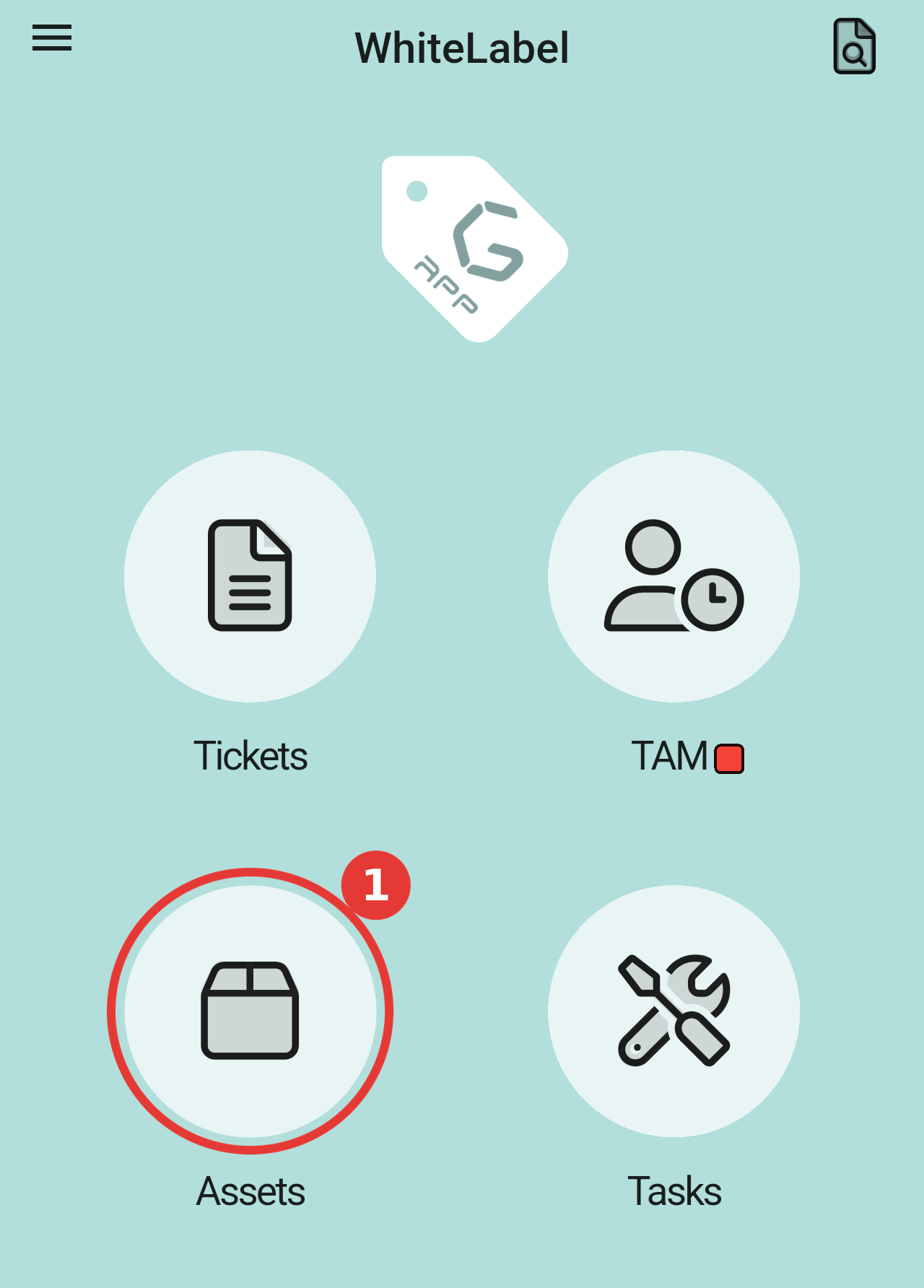
The Assets icon on the home screen (1).
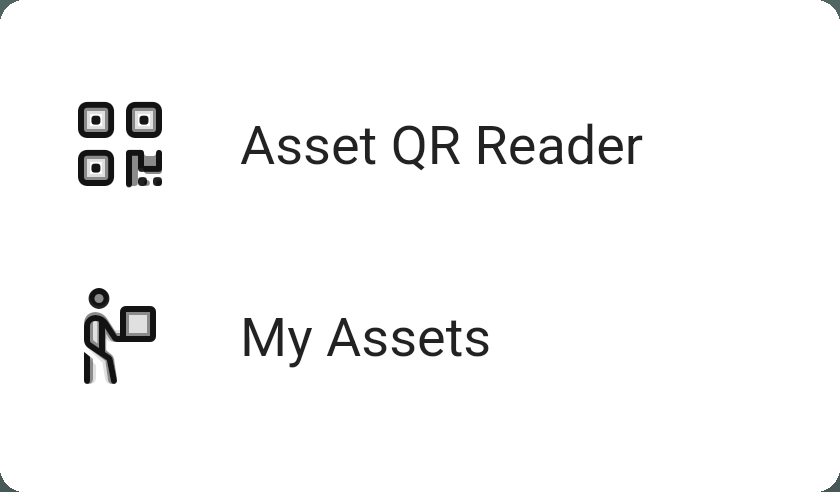
Scanning an asset's QR code
Use Asset QR Reader to identify an asset by scanning the QR code on its label.
- Tap Assets → Asset QR Reader.
- The first time, allow the app to use your camera when your device asks.
- Point the camera at the asset's QR code.
- The app looks up the asset in GLPI and shows its details.
Note: You can only open assets that your current entity and GLPI profile allow you to see. If a scan does not bring up the asset, check that you are in the right entity (see Navigation overview) and scan again.
Browsing your assets
My Assets lists the assets assigned to you, grouped by type (Computer, Monitor, Printer, and so on).
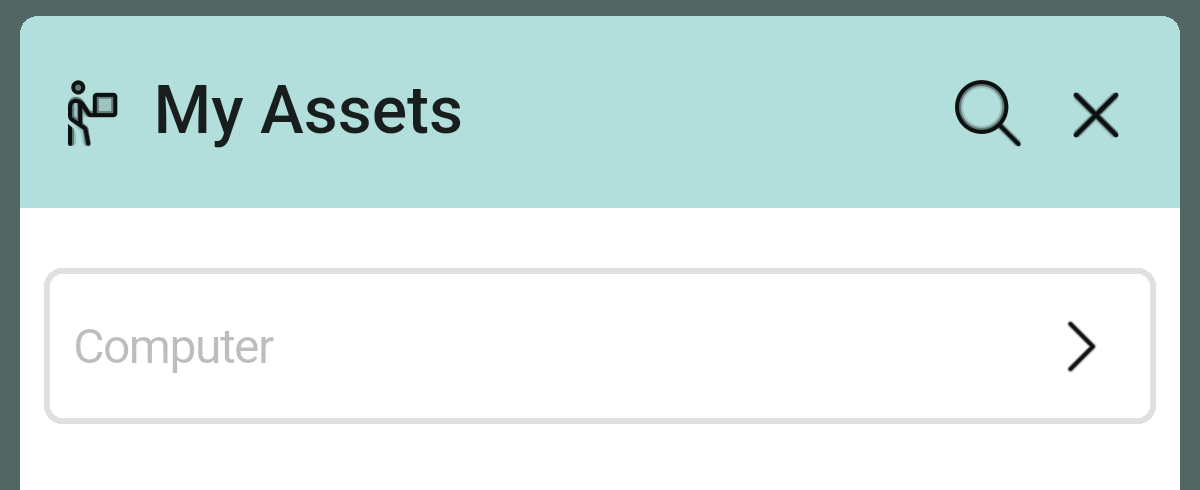
My Assets, grouped by asset type. Tap the search icon to find an asset by name, or the X to close the window.
- Tap Assets → My Assets.
- Tap an asset type to see only the assets of that type.
- Tap an asset to open its details (see Asset details below).
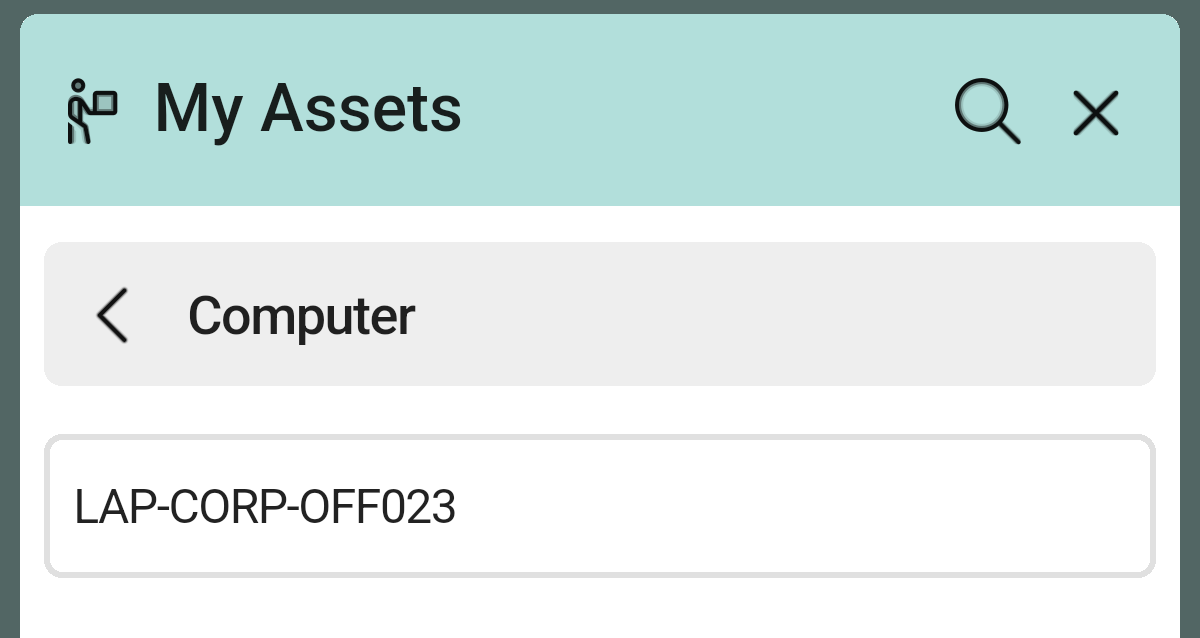
The assets of one type (here Computer).
Asset details
The asset view opens when you tap an asset in My Assets, or when you scan its QR code. At the top you see the asset's name, its asset type (here Computer) and its serial number. Below that are the User it is assigned to, its Status, Manufacturer, Model and Type (its sub-type, here Laptop). Tap See raw info to view all of the asset's data.
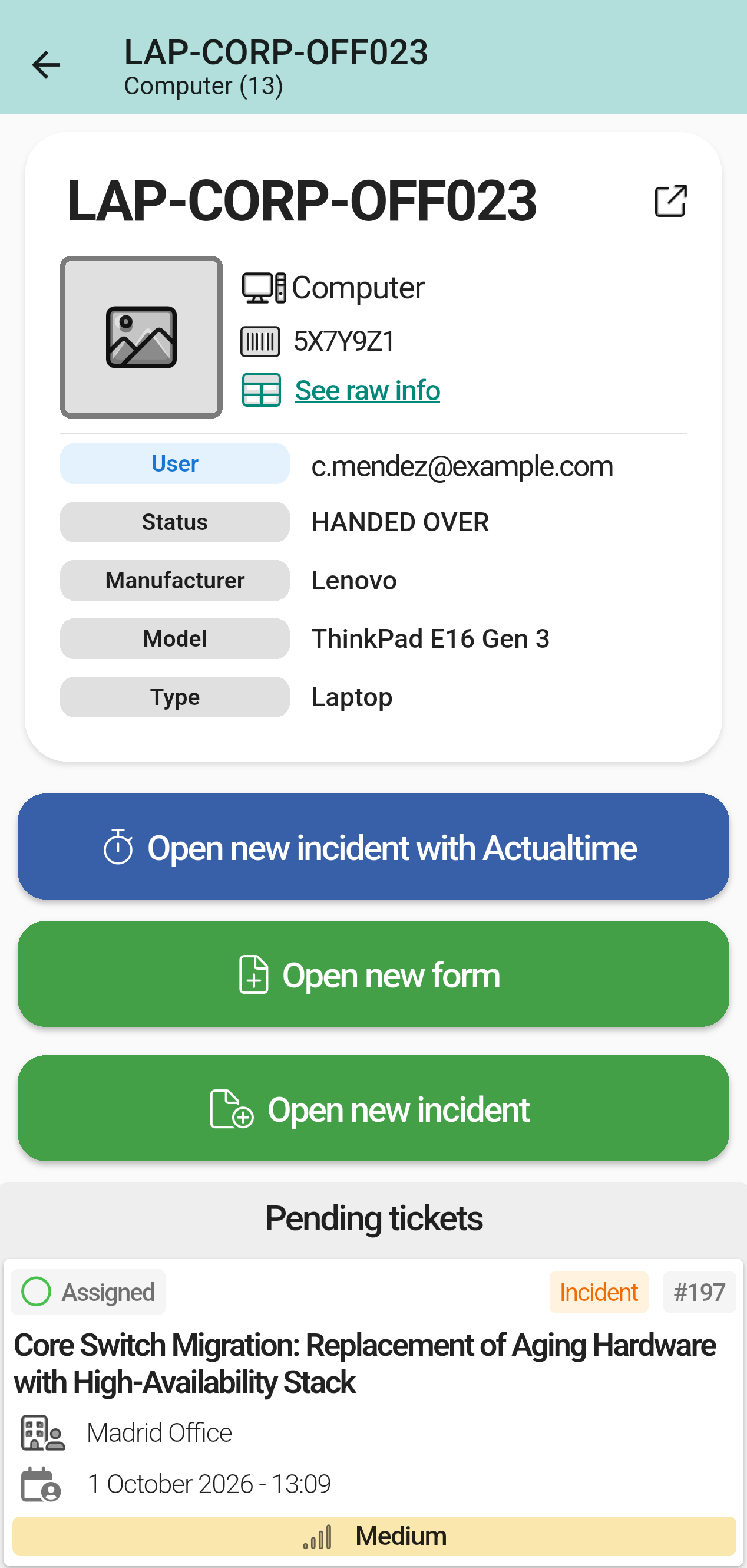
The asset view, with its details, the buttons to open an incident or a form about the asset, and the Pending tickets list (here one ticket in Assigned status).
From the asset view you can:
- tap Open new incident with Actualtime to create an incident linked to the asset and start an Actualtime timer on it. This button only appears if your organisation uses the Actualtime plugin (see Actualtime);
- tap Open new form to fill in your entity's default request form (see Opening a form from an asset below);
- tap Open new incident to create an incident linked to the asset;
- check the Pending tickets list at the bottom of the screen, which shows the tickets linked to the asset that are not finished yet.
Note: Incidents you open from the asset view are linked to the asset automatically, so you do not have to add it yourself.
Opening a form from an asset
When you open a form from the asset view, the form opens with the asset already filled in:
- Open the asset view, either by scanning the asset's QR code with Asset QR Reader or by tapping the asset in My Assets.
- Tap Open new form.
- The app opens your entity's default request form. The asset is selected in the item field. If the form is set up with a type dropdown for the asset, its type is selected there too.
- Fill in the rest of the form and submit it.
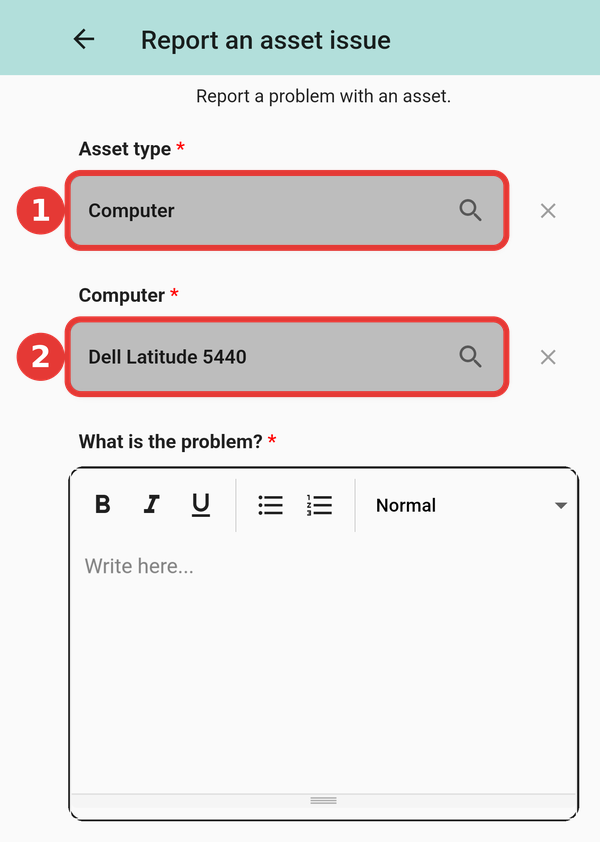
The form after tapping Open new form: (1) the Asset type dropdown shows the type of the asset, (2) the item field has the asset selected. Both fields are locked, so you only fill in the rest of the form.
The form is the default one set for your entity in GLPI, so this button does not let you choose a different form. If no default form is set, or the form cannot be opened for this asset, the app shows an error dialog. In that case, contact your GLPI administrator.
For administrators: Asset forms
Choose which form opens when a user taps Open new form on an asset.
Set the form for an entity
- In GLPI, go to Administration → Entities and open the entity.
- Select the Gapp Xtended tab.
- Choose a form in Associated form and save.
No form is selected by default. The app uses the form configured for the user's active entity. Configure each entity separately; this setting is not inherited from its parent.
Prepare the form
Add an item selection question for each asset type the form needs to support, such as Computer or Monitor. The asset must be available among that question's options.
When the form opens from an asset, Gapp fills in the first item question matching the asset's type and locks it.
To use a single form for several asset types, you can add an Asset type dropdown and use it to control which item question appears. Each item question must have a single visibility condition tied to the corresponding dropdown option. Gapp selects the option and locks both fields automatically.
Requirements
This feature uses GLPI's built-in forms and requires Gapp Xtended 3.3.0 or later.
Users must have access to the selected form and the asset.
If the form does not open
Check that:
- a form is selected for the active entity;
- the form is active and accessible to the user;
- it contains an item question matching the asset's type;
- the asset is available in that question;
- any visibility condition follows the setup described above.
Gapp displays an error dialog if the form cannot be loaded or the asset cannot be filled in.