
Service catalog
The Service catalog lists the request forms your organisation has published, such as reporting an issue or requesting a service. Pick a form, fill it in, and submit it without leaving the app.
Where to find it
From the home screen, tap Service catalog, or open it from the side drawer. The catalog can take 20 seconds or more to load. If the screen looks stuck, the app hasn't frozen. Wait until the list stops moving before you tap a form, or you may open the wrong one.
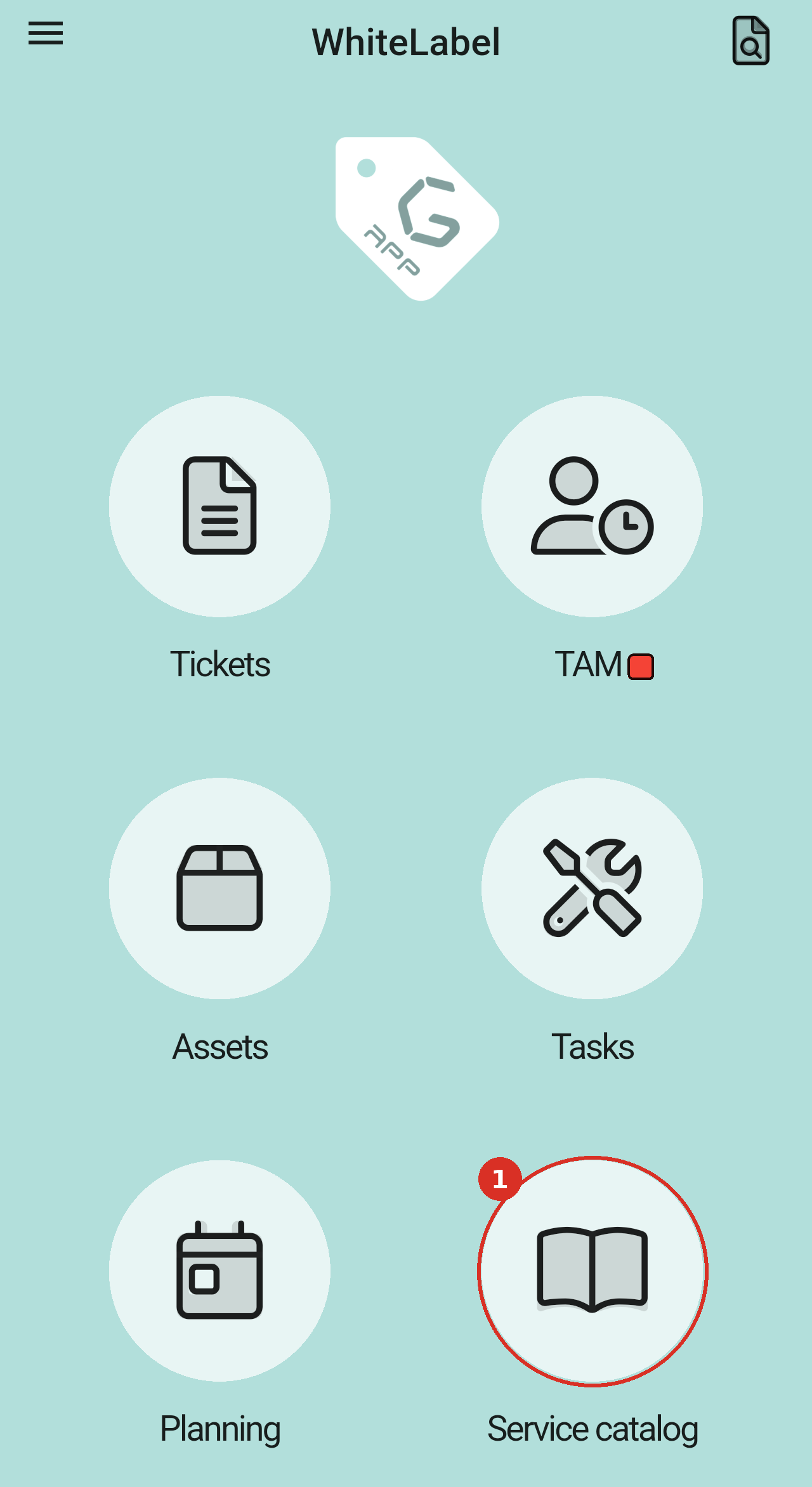
The Service catalog icon on the home screen (1).
Choosing a form
The catalog has two sections. Categories groups related forms: tap a category to see only the forms in it. Forms lists every form available to you. Most forms show a short description under their name, saying what the form is for.
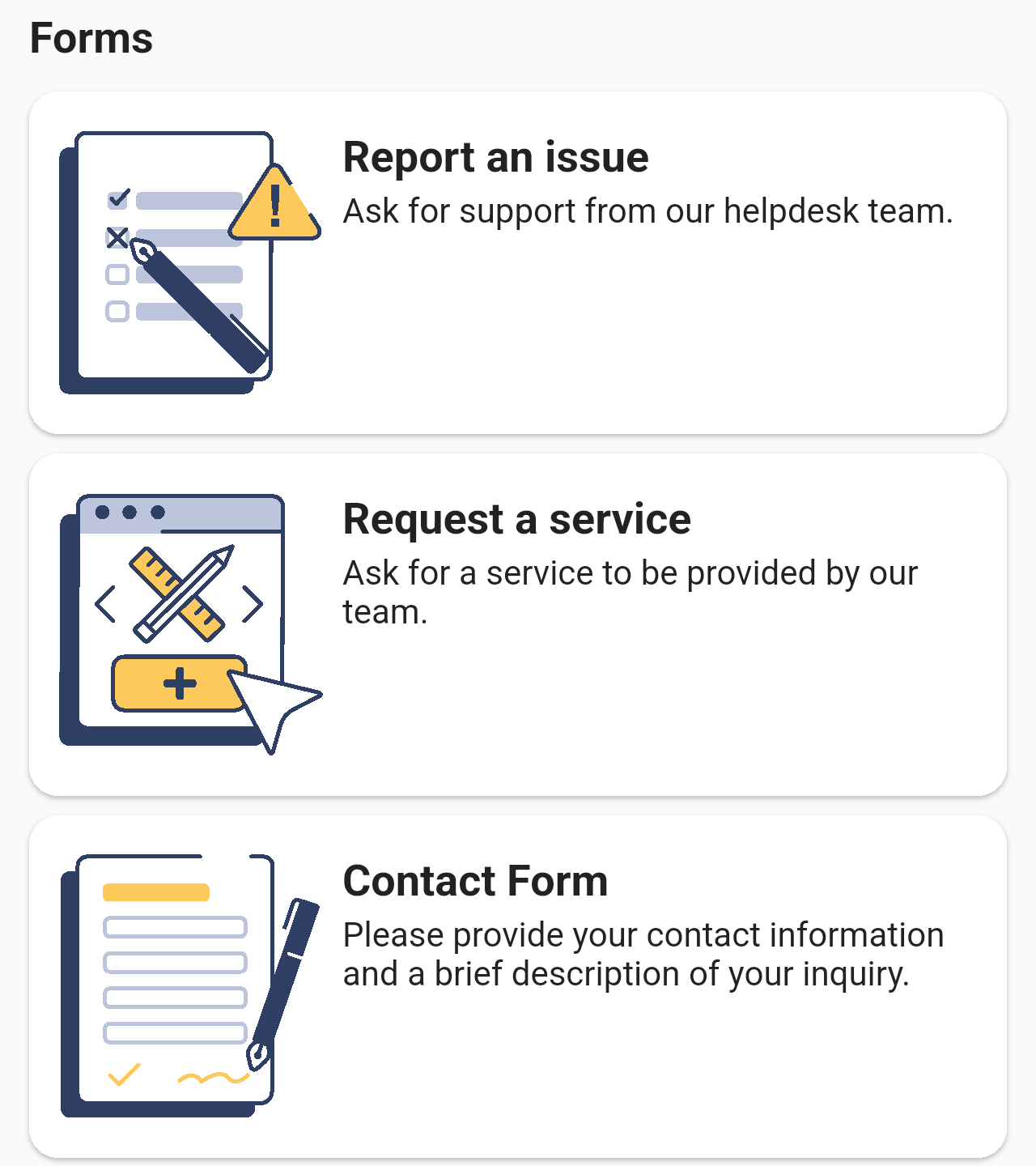
The Forms section. Each card shows the form's name and what it is for.
To find a form by name, tap the search icon (top right). Only forms whose names contain the text you type are shown.
Filling in and submitting a form
Each form has its own fields, set up by your organisation, but you fill in and send every form the same way:
- Tap the form you need. It opens with its description at the top.
- Fill in the fields. Fields marked with a red asterisk (*) are required.
- Optionally, tap Add file under Attachments to attach a document or photo.
- Tap Submit. The button stays greyed out until every required field is filled in.
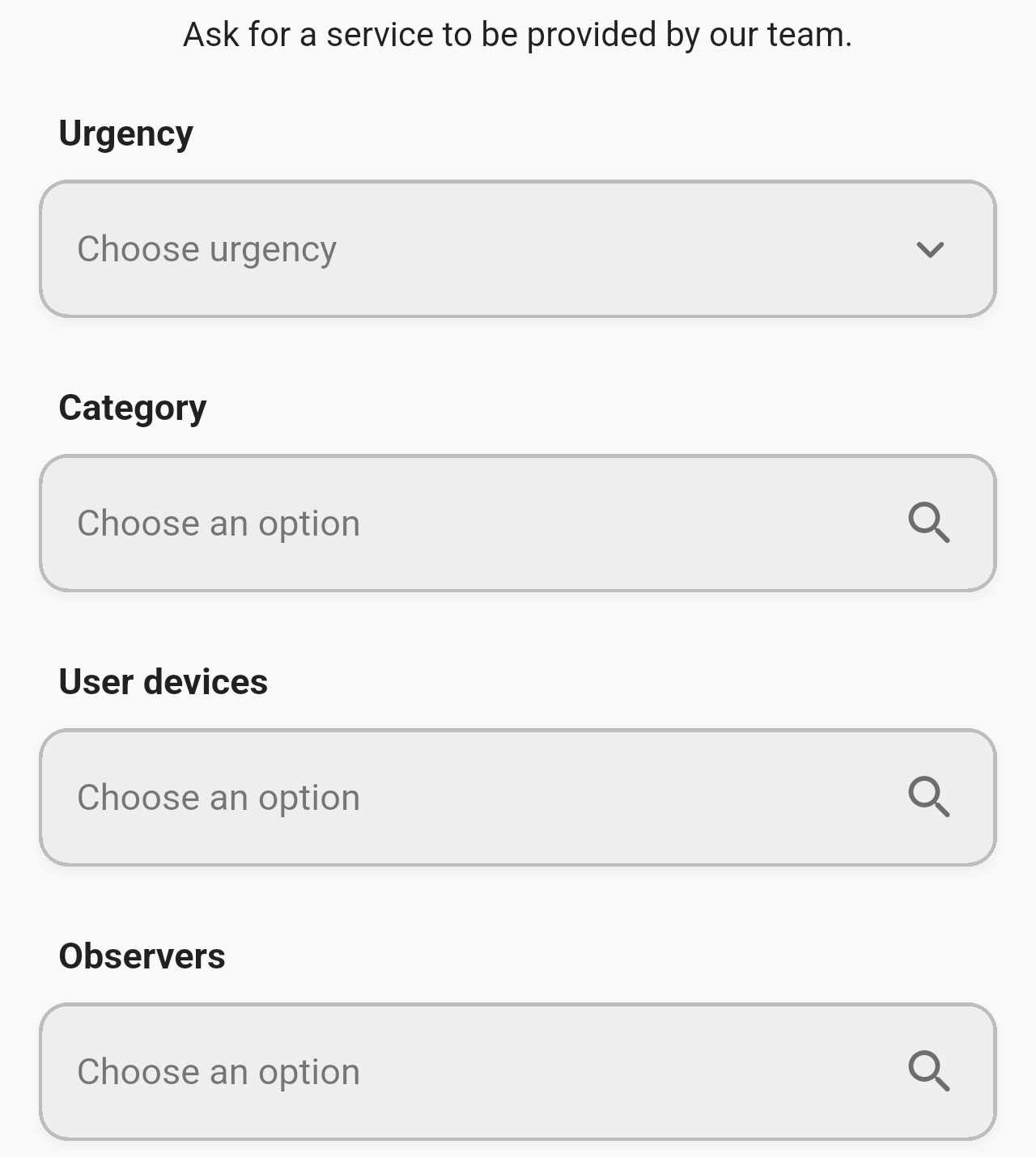
The top of the "Request a service" form: Urgency, Category, User devices (the device affected) and Observers (people to keep informed).
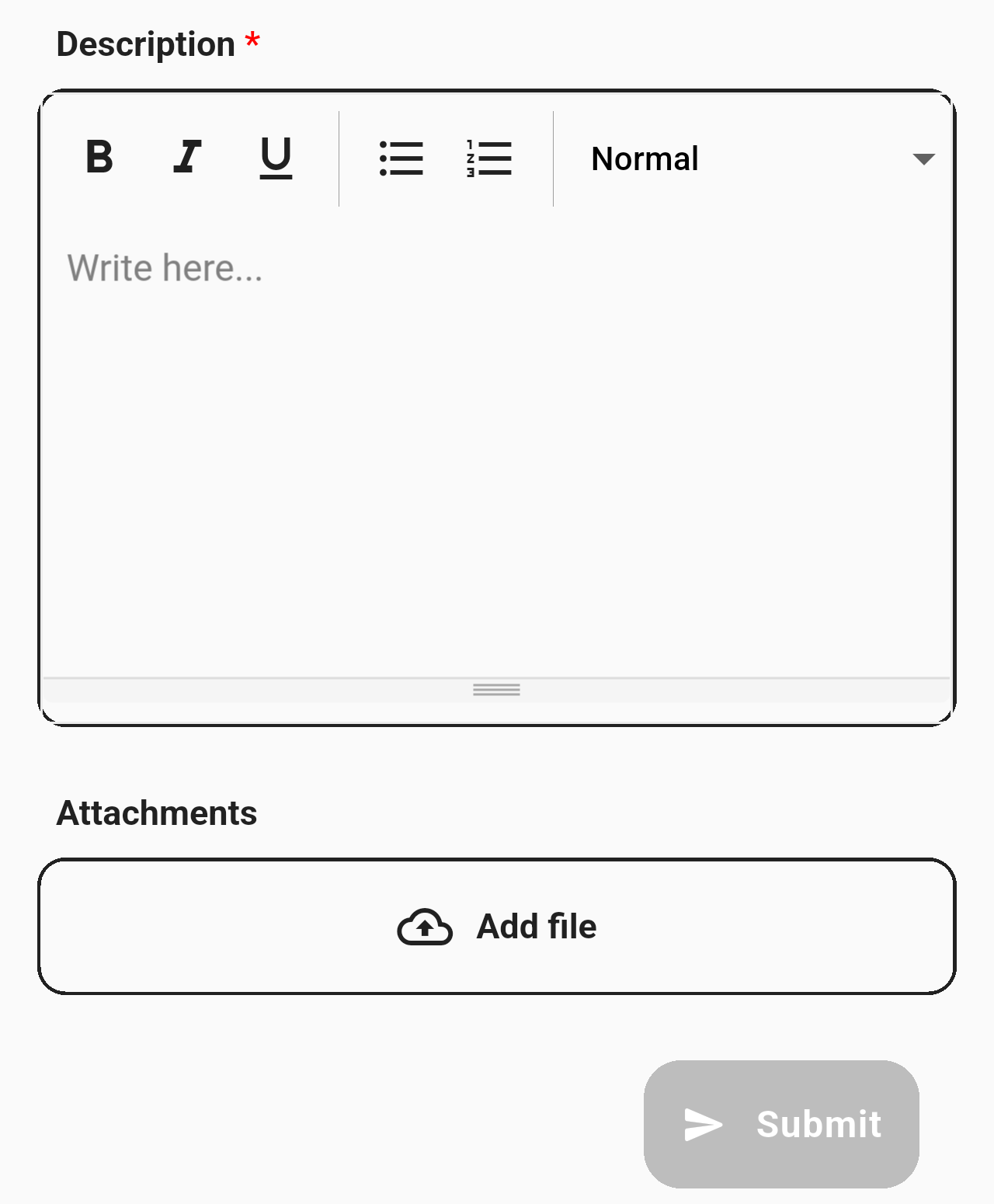
The bottom of the form: the required Description field (with basic text formatting), Attachments with the Add file button, and the Submit button, greyed out because Description is still empty.
After you submit a form
What happens next depends on how your organisation set up the form. Some forms create a ticket straight away. Others first need approval from someone your organisation has chosen (an approver), and your request waits until they accept it.
Note: Your organisation creates the forms and their categories in GLPI, not in the app. The forms you see, and their fields, may differ from these screenshots.