
Navigation overview
The home screen is where you open every module of Gapp White Label. This page names its parts, and the rest of the manual uses those names: the menu icon, the search icon, the main menu and the side drawer.
Where to find it
The home screen is what you see right after signing in. To come back to it from a module, tap the back arrow (←) at the top-left of the screen. In Tickets, the top-left icon opens the side drawer instead. The drawer has its own back arrow, at its top-left next to your photo, which takes you back to the home screen, so you don't need your phone's back button or gesture. At the top of the home screen there are two icons: the menu icon on the left and the search icon on the right.
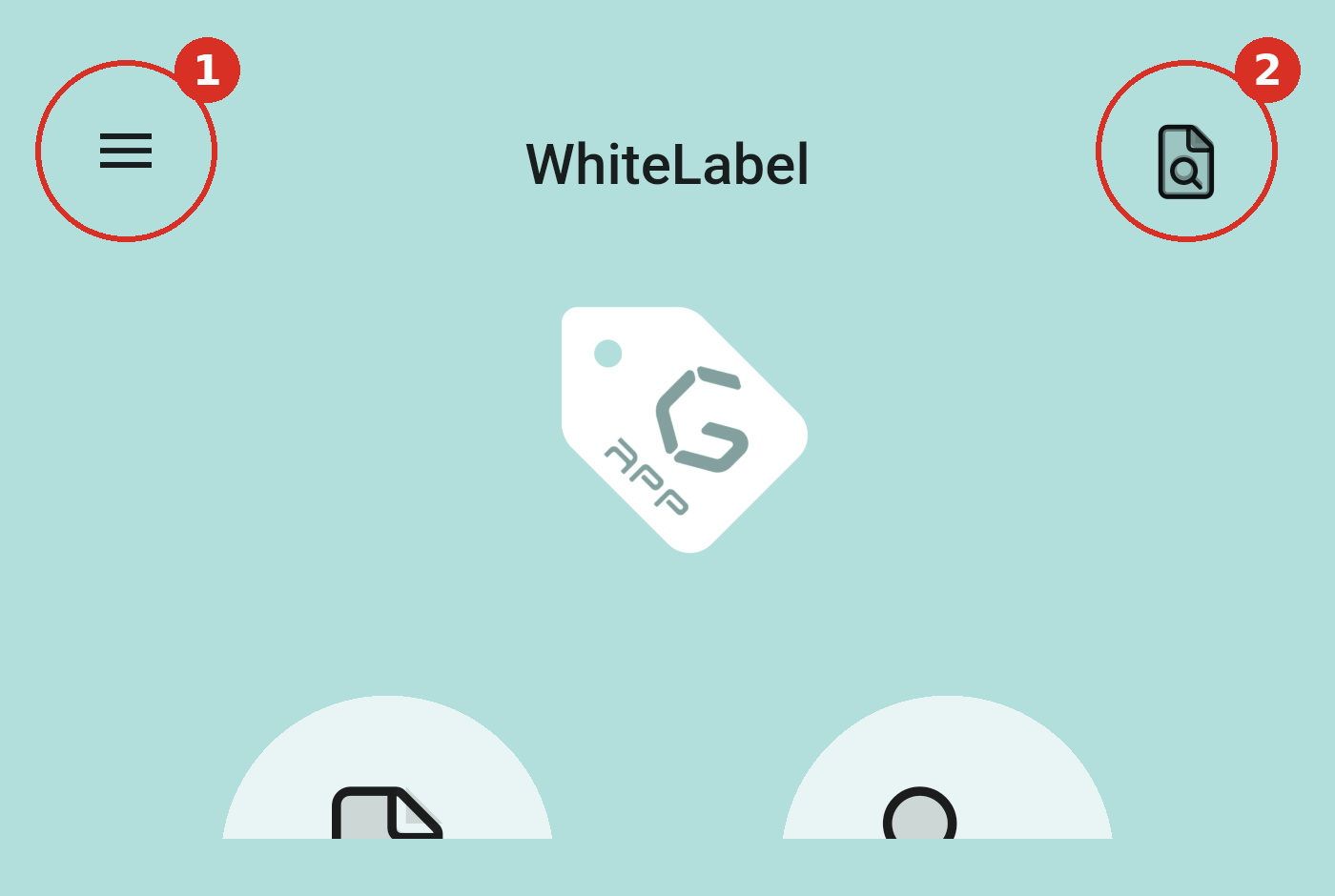
The top bar of the home screen: (1) the menu icon (☰) opens the side drawer; (2) the search icon opens a ticket by its number.
The main menu
Below the top bar, the home screen shows the main menu: large round icons, two per row, one for each module you can use. Tap an icon to open that module. If there are more icons than fit on the screen, scroll down to see the rest.
The icons you see are not the same for everyone. They depend on your GLPI profile and permissions, on whether you are a technician or a self-service user, on the plugins installed on your organisation's GLPI server and on how your administration configured the app. Two colleagues in the same organisation can see different menus. If a module you expect is missing, ask your GLPI administration.
The side drawer
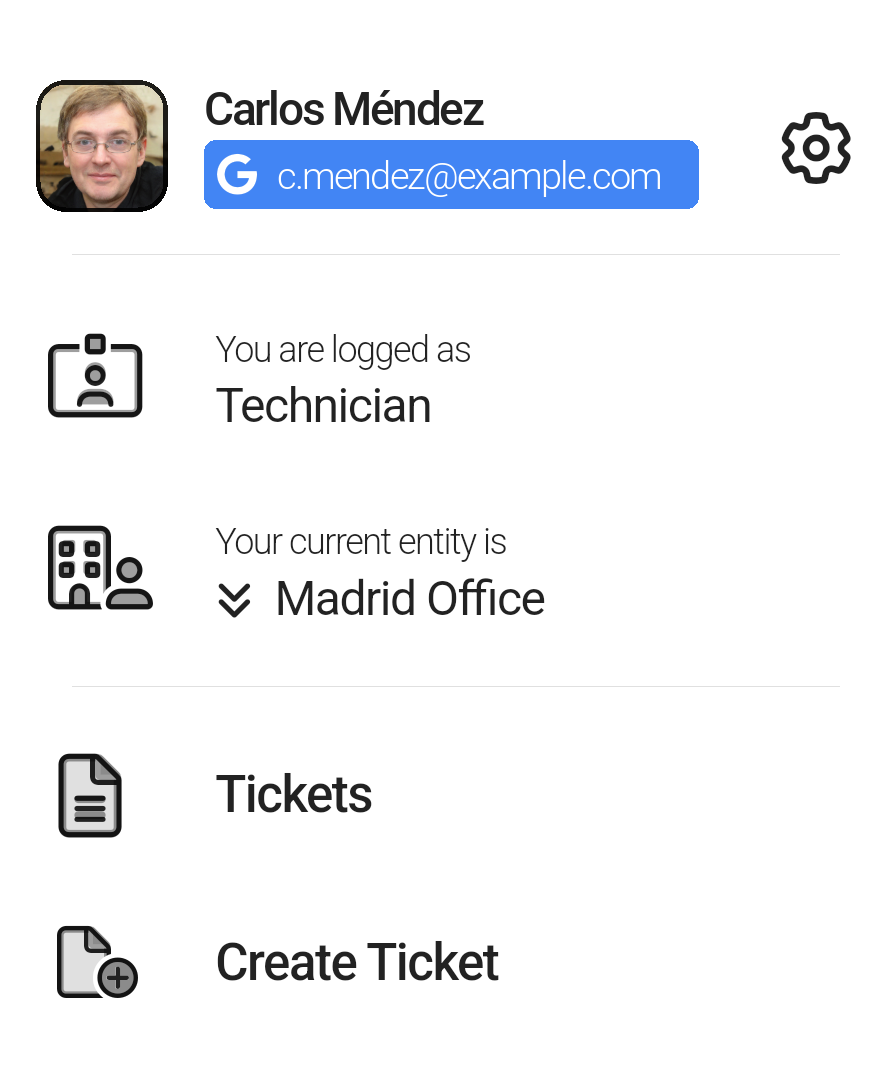
The top of the side drawer: your name and email with the Settings gear, your GLPI profile, your current entity, and the first entries of the module list.
The top of the drawer and its last entries give you access to your account and session:
- Tap the gear icon to the right of your name and email to open Settings.
- You are logged as shows your current GLPI profile, for example Technician. Your profile decides which modules and actions you can use.
- Your current entity is shows the GLPI entity you are working in, for example Madrid Office. An entity is usually a company, site or department, and the tickets, assets and forms you see depend on it. If you have access to more than one entity, tap the entity name (with the double arrow) to switch.
- At the bottom of the drawer, below a divider line, you'll find Notification log, About and Logout.
Quick access to a ticket
The search icon at the top of the home screen opens a ticket straight from its number, without going through the Tickets list. It is number 2 in the first screenshot of this page.
Tap the search icon (a page with a magnifying glass, top-right of the home screen), type the ticket number in the Enter ticket id field and tap GO. The ticket opens directly. It is the same Go to ticket dialog described in Tickets.
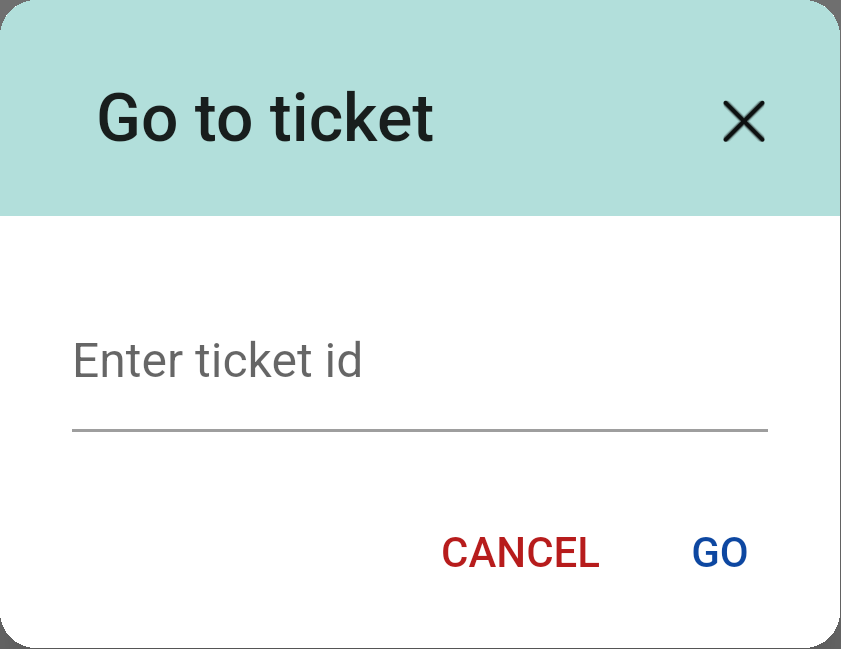
The dialog that opens when you tap the search icon: type the ticket number and tap GO.