
Diagnosis -- Borrar
The Diagnosis section of Settings has a tool to fix common problems with the app. It also shows details that support may ask you for.
Where to find it
Open the side drawer (tap the menu icon ☰, top-left of the home screen). At the top of the drawer, tap the gear icon to the right of your name and email. This opens Settings. Scroll down to the Diagnosis section.
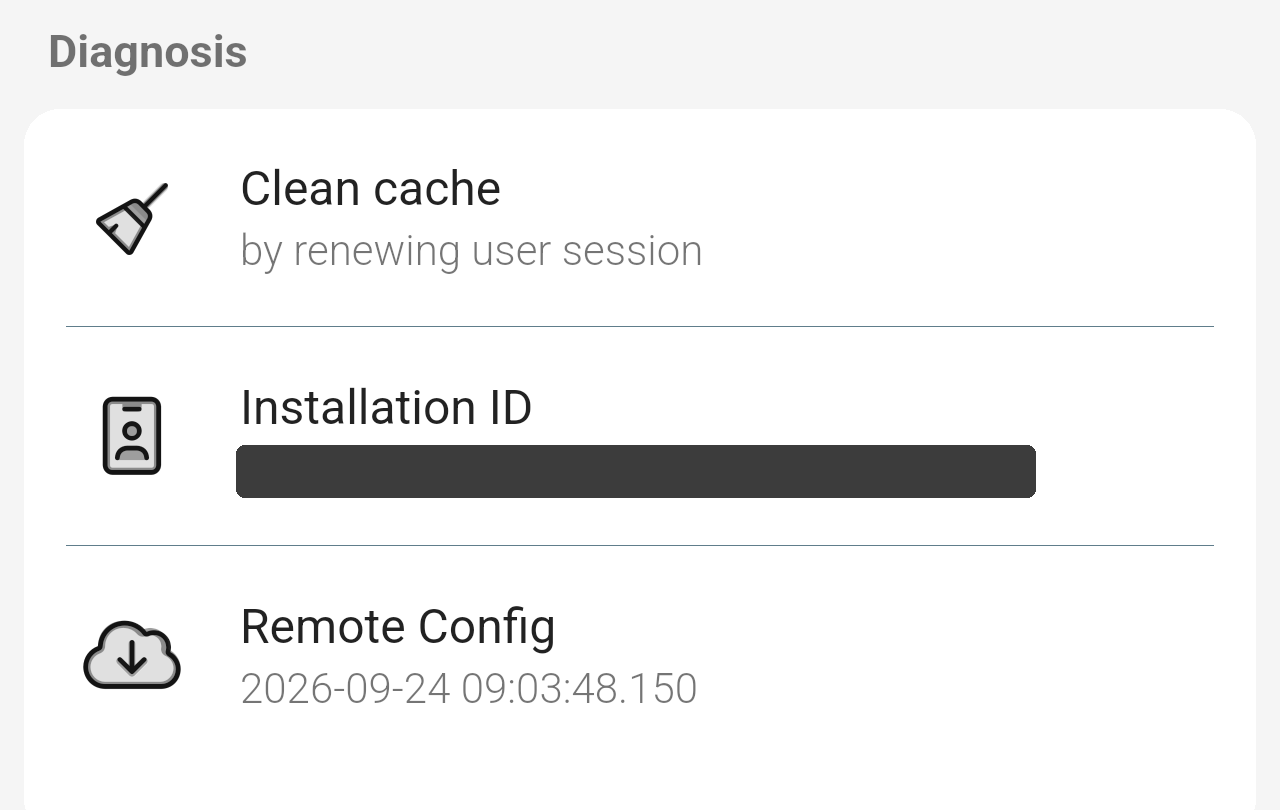
The Diagnosis section of Settings.
Options
The Diagnosis section has three items. A fourth one, GLPI debug mode, appears only if your GLPI user has debug mode turned on, and explains that the server may add extra output that makes the app behave oddly.
- Clean cache: renews your session with GLPI. Try it if the app shows out-of-date information or doesn't respond as you expect.
- Installation ID: a unique code for the app on this phone. If the app crashes or shows errors, support may ask you for it to find the error reports from your phone.
- Remote Config: shows when the app last downloaded its remote configuration. Tap it to download it again. You don't need to do anything with it, but support may ask you for it.
Note: If something in the app seems stuck or wrong, try Clean cache before you ask your GLPI administration for help. See also FAQ / Troubleshooting.