
Preferences
Preferences let you adjust how the app works for you: the language it uses, its notifications, and the order of entries in a ticket's timeline.
Where to find it
Open the side drawer (tap the menu icon ☰, top-left of the home screen). At the top of the drawer, tap the gear icon to the right of your name and email (1). This opens Settings, and Preferences is its first section.

The top of the side drawer. Tap the gear icon (1) to open Settings.
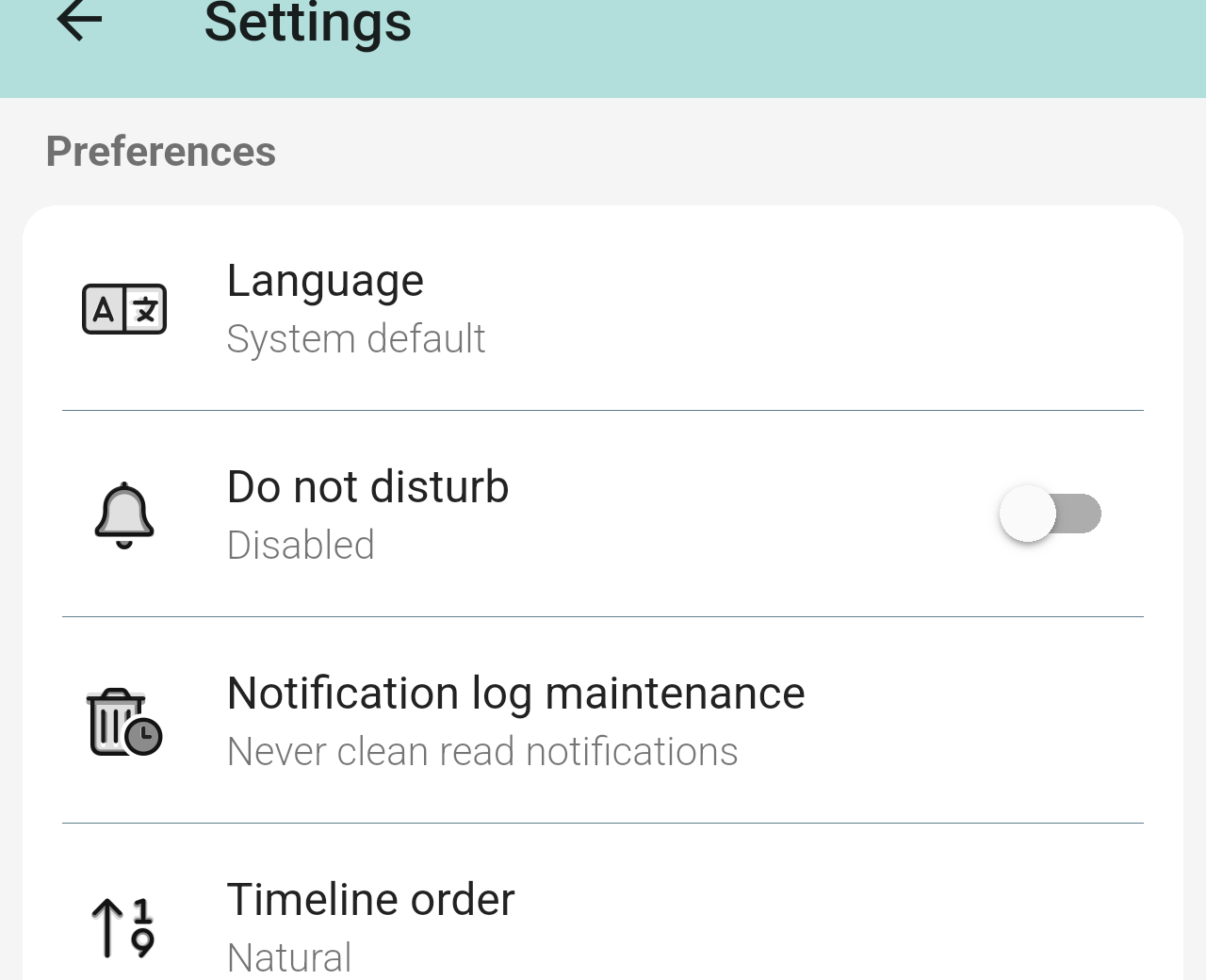
The Preferences section of Settings.
Options
The Preferences section has four options. Under each one, the app shows its current setting.
- Language: by default (System default), the app uses your phone's language. Choose another language here to use it in the app instead.
- Do not disturb: turn the switch on to mute the app's notifications. It's off (Disabled) by default.
- Notification log maintenance: choose how long notifications you've already read stay in the Notification log (in the side drawer) before the app deletes them. By default, it's set to Never clean read notifications.
- Timeline order: the order of the entries (follow-ups, tasks, solutions…) in a ticket's Processing tab. The default, Natural, shows the oldest entry first.