
FAQ
Common questions and issues you might run into while using Gapp White Label, and the Diagnosis tool in Settings that fixes many of them.
A change made in GLPI doesn't show up in the app
The app reads the GLPI settings (for example, the Gapp Xtended options) when you sign in, so a change in GLPI does not show up, even if you close and reopen the app. To see it without signing out:
- Open the side drawer.
- Tap the gear at the top (Settings).
- In the Diagnosis section, tap Clean cache.
Signing out and back in also works.
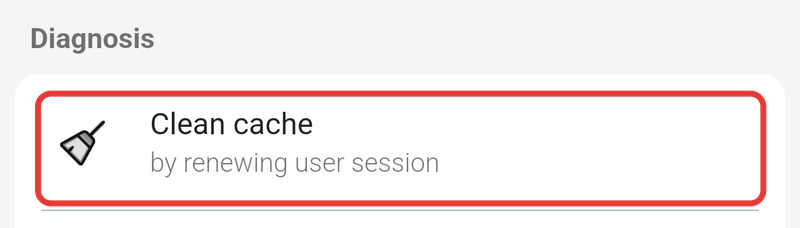
The app's Settings, with Clean cache marked in the Diagnosis section.
A screen says "Fetching tickets…" or "Loading…" for a long time
Some screens, such as the ticket list, a single ticket or the Service catalog, can take 20 seconds or more to load, especially the first time you open them or on a slow connection. If a screen seems stuck, go back and open it again. If it's still stuck, go to Settings > Diagnosis and tap Clean cache.
A screen just says "Oops… It seems there is nothing here."
The app shows this message when a list is empty, for example when there are no items linked to a ticket or no assets assigned to you. It isn't an error. If you expected to see something:
- Check that you're in the right entity. Open the side drawer and tap the entity name (with the double arrow) to switch (see Navigation overview).
- Check that you're using the right GLPI profile. Your GLPI administration can tell you which one you need.
- If you still think something is missing, ask your GLPI administration.
Scanning a QR code finds nothing
You can scan an asset's QR code from Assets (Asset QR Reader). The app only finds assets that your current entity and GLPI profile can see. If a scan finds nothing, switch entity from the side drawer and scan again. If it still finds nothing, ask your GLPI administration whether the asset is registered in GLPI.
A field, module or drawer entry I expect isn't there
What you see in Gapp White Label depends on your GLPI profile and on the plugins your organisation has enabled. This includes the modules on the home screen, the entries in the side drawer and which fields are mandatory. If something you expect is missing, it may not be broken. Ask your GLPI administration first.
I can't undo something I just did
Some actions update GLPI straight away, and you can't undo them from the app, for example submitting a ticket or a form. Actions provided by plugins, such as starting or stopping your working day, work the same way. Check everything before you confirm them.
The Diagnosis section of Settings
The Diagnosis section of Settings has a tool to fix common problems with the app. It also shows details that support may ask you for.
Where to find it
Open the side drawer (tap the menu icon ☰, top-left of the home screen). At the top of the drawer, tap the gear icon to the right of your name and email. This opens Settings. Scroll down to the Diagnosis section.
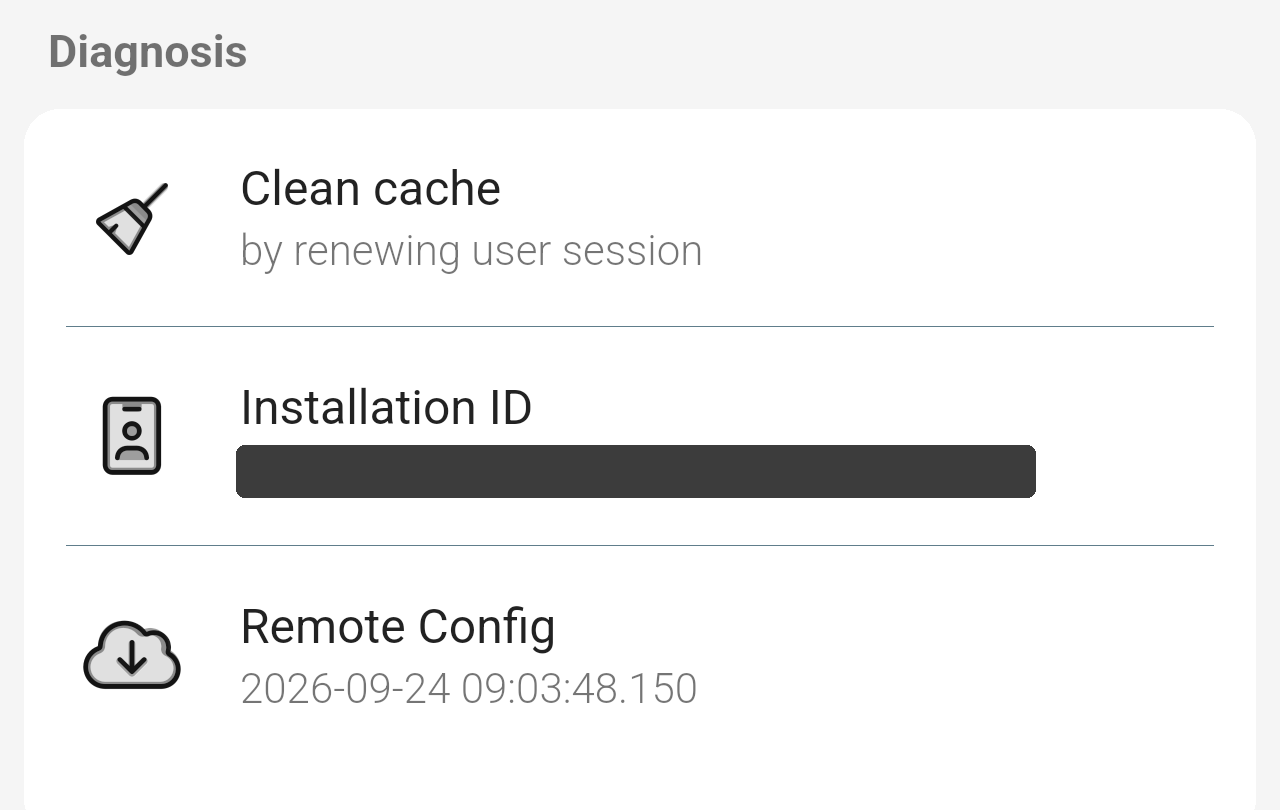
The Diagnosis section of Settings.
Options
The Diagnosis section has three items. A fourth one, GLPI debug mode, appears only if your GLPI user has debug mode turned on, and explains that the server may add extra output that makes the app behave oddly.
- Clean cache: renews your session with GLPI. Try it if the app shows out-of-date information or doesn't respond as you expect.
- Installation ID: a unique code for the app on this phone. If the app crashes or shows errors, support may ask you for it to find the error reports from your phone.
- Remote Config: shows when the app last downloaded its remote configuration. Tap it to download it again. You don't need to do anything with it, but support may ask you for it.
Note: If something in the app seems stuck or wrong, try Clean cache before you ask your GLPI administration for help.