
Planning
See your scheduled tasks laid out on a calendar, so you can check your workload for a day, a week or a month at a glance.
Where to find it
Tap Planning in the main menu on the home screen. You can also open it from the side drawer (menu icon ☰, top-left).
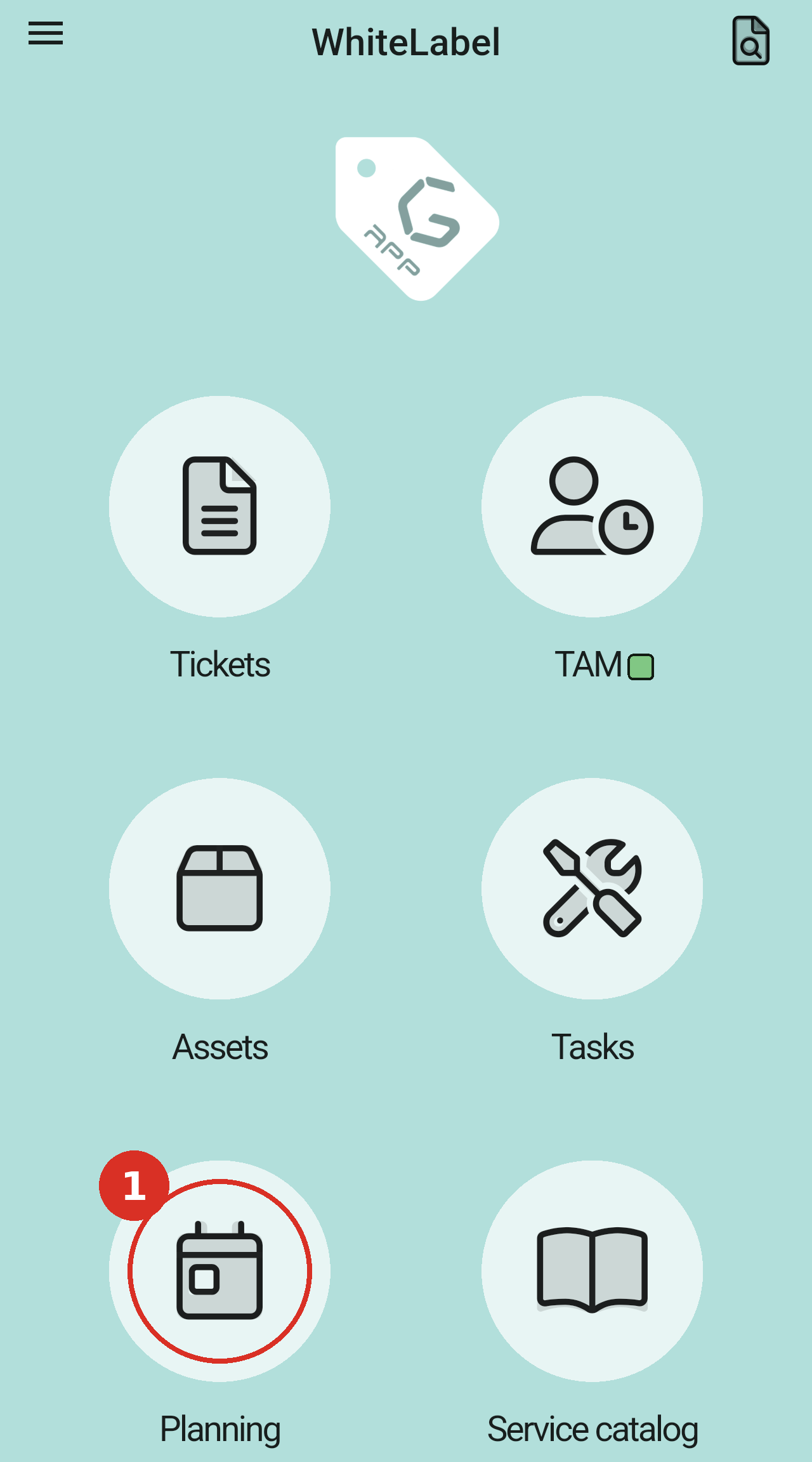
From the home screen, tap Planning in the main menu.
Day view
Planning opens in Day view, which lays out one day's scheduled tasks by time.
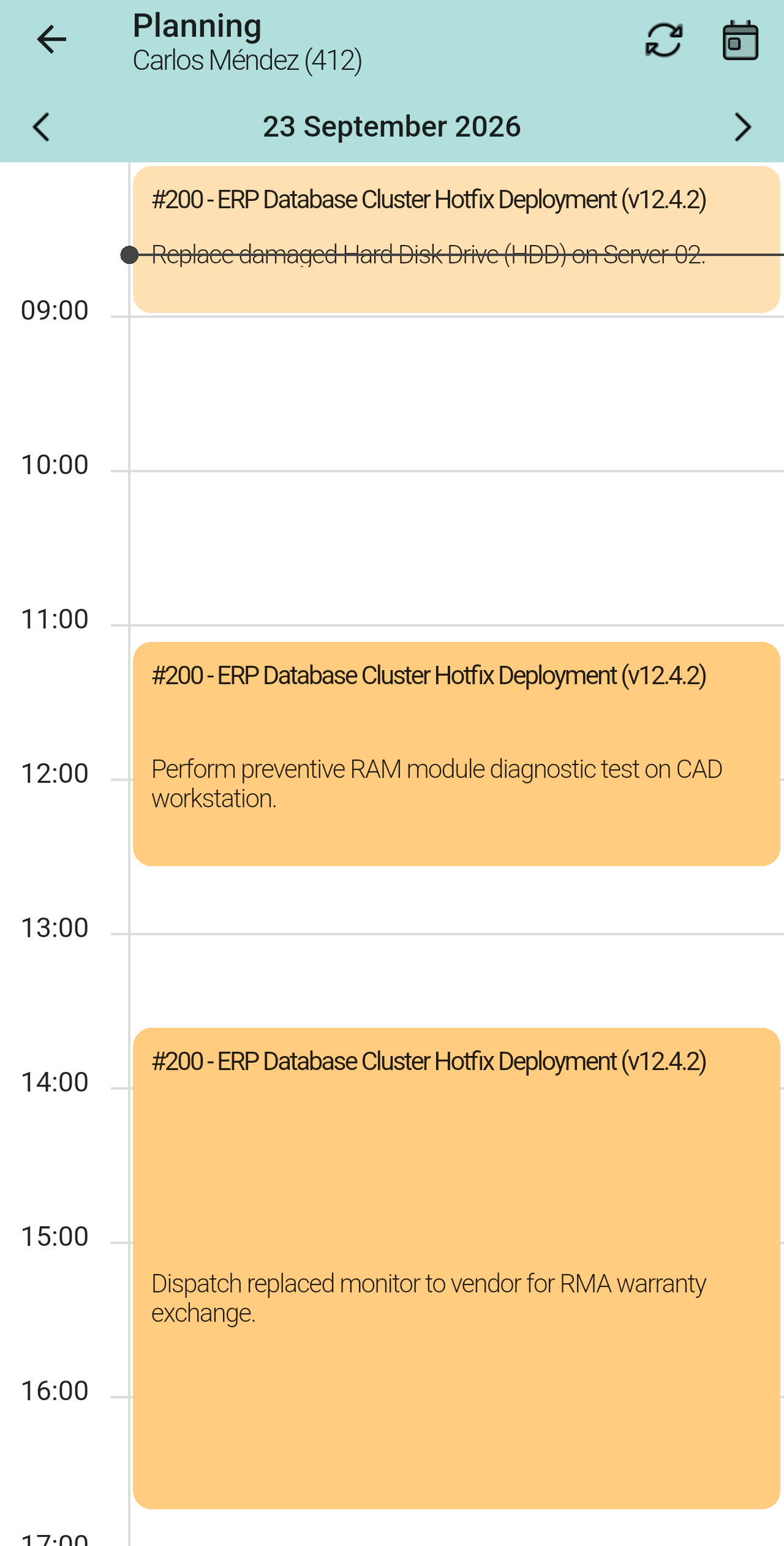
Day view, the default view. Each task is a coloured block that runs from its start time to its end time. The block shows the ticket's number and title, then the task description.
Tap the arrows on either side of the date to go to the previous or next day. The dark line with a dot marks the current time.
Switching views
Planning has three views: day, week and month. To switch, tap the calendar icon (the rightmost icon, top right) and choose a view. The icon changes to match the view you're in.
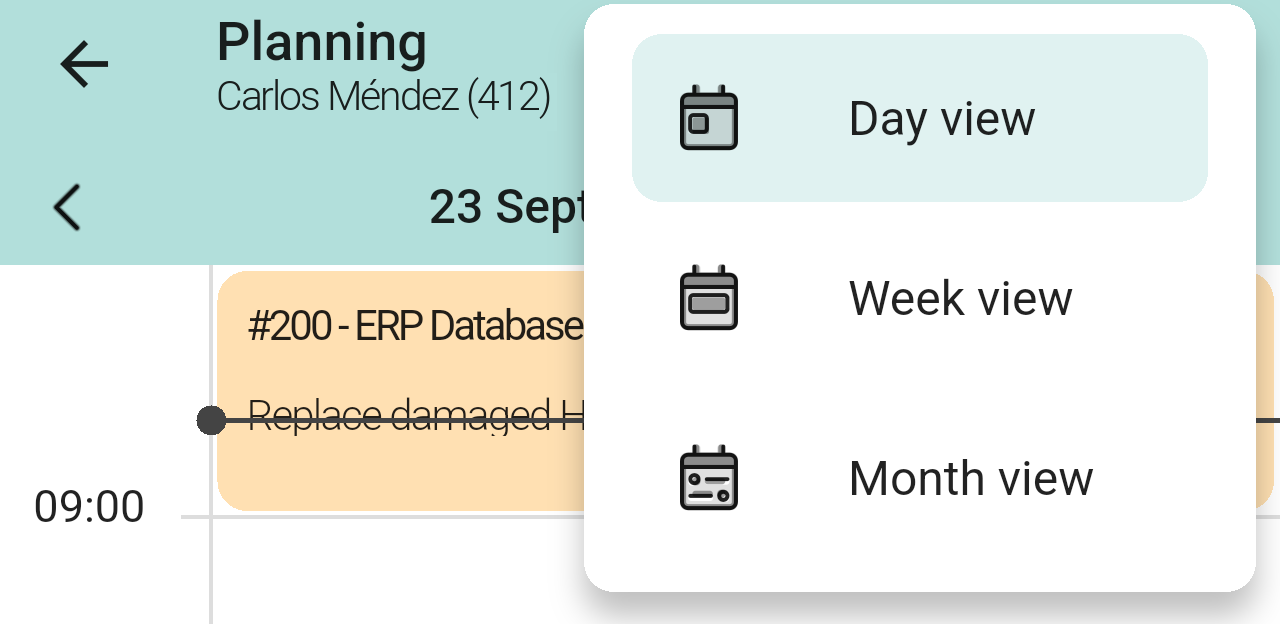
The view selector, opened by tapping the calendar icon (top right).
The three views are:
- Day view: one day, with each task placed at its scheduled time.
- Week view: a whole week, with a column for each day.
- Month view: the whole month as a calendar. Tap a date to list its tasks below the calendar.
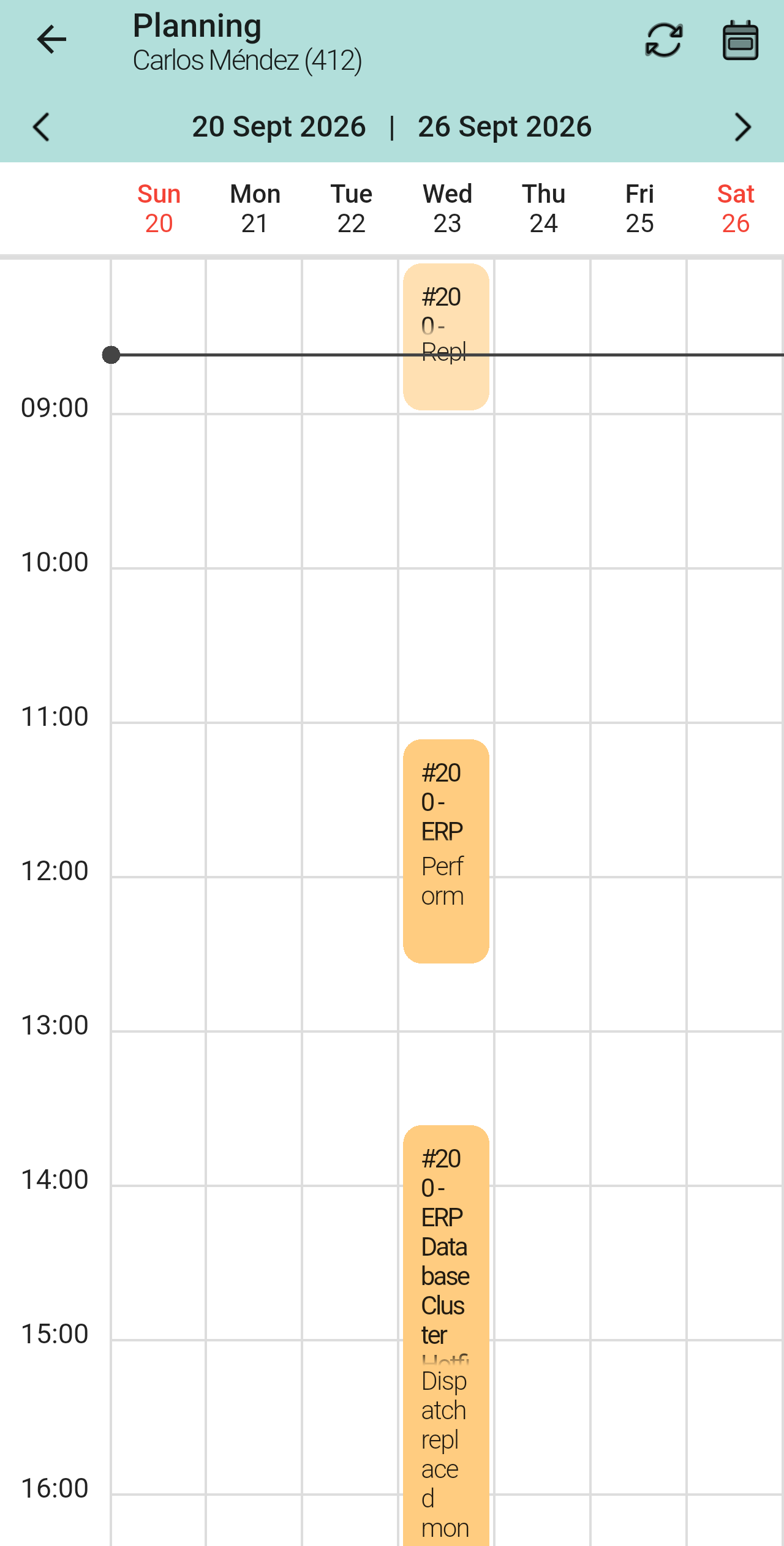
Week view: the same tasks, spread across the days of the week. The columns are narrow, so the text is cut short. Switch to Day view to read it in full.
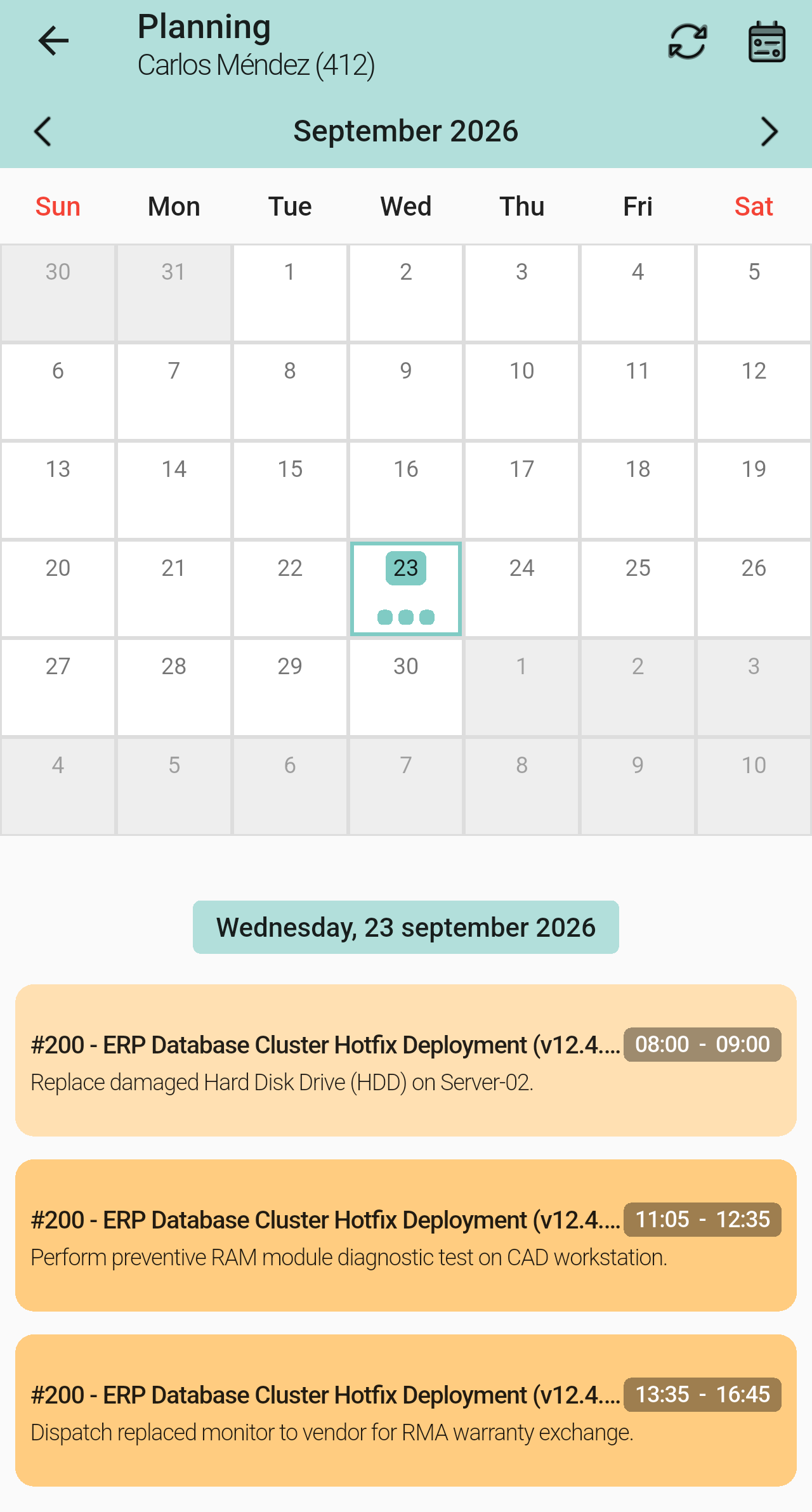
Month view: tap any day on the grid to list its tasks below, each with its scheduled time range.
Finished and pending tasks
A finished task is shown in a lighter colour than a task that's still to do, in all three views.
In the two screenshots below, the ✓ Done and To do labels were added to point the tasks out. The app doesn't show them: only the colour changes.
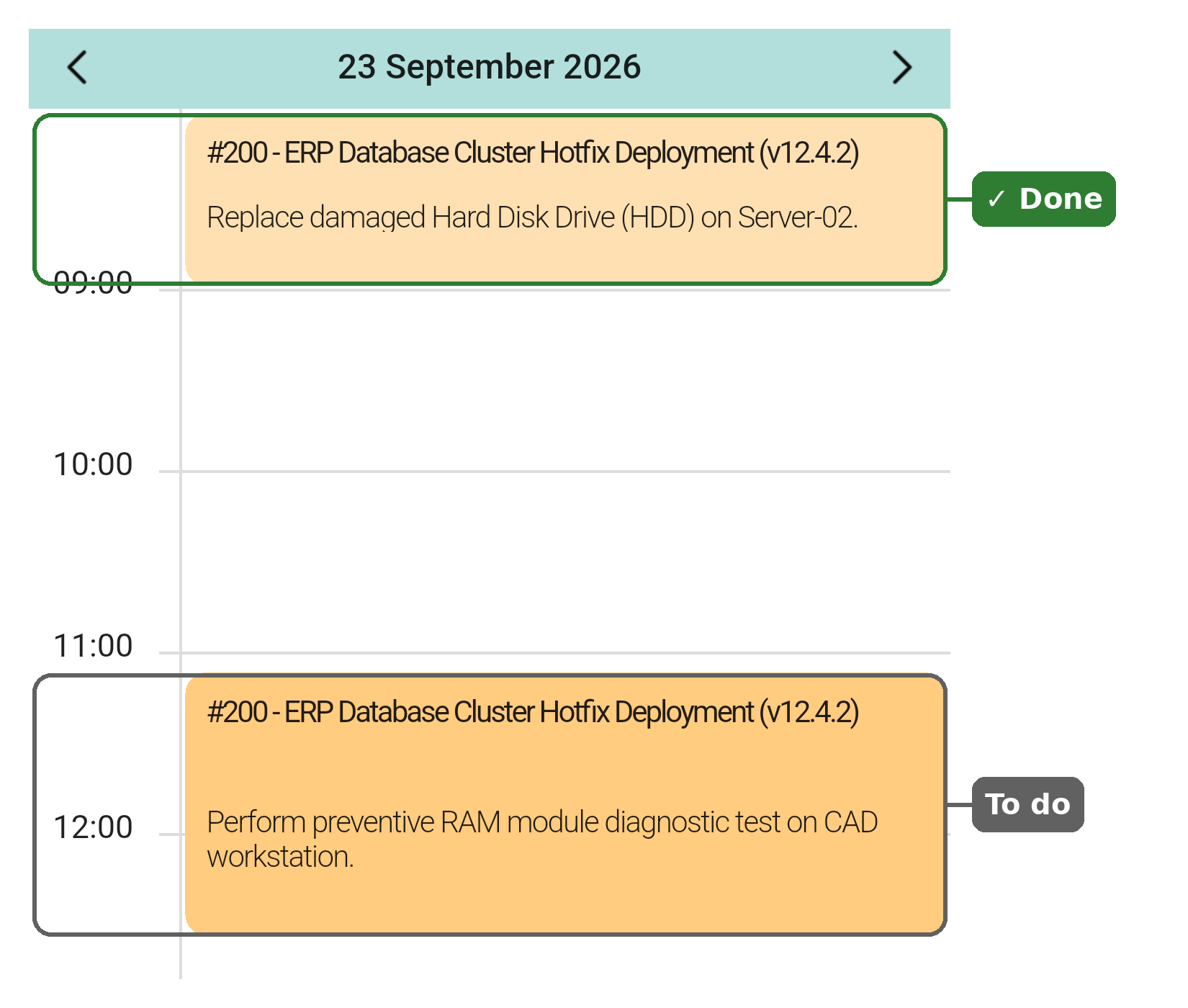
Day view: the 08:00 to 09:00 task is done, so its block is lighter. The 11:05 to 12:35 task is still to do, so its block is darker.
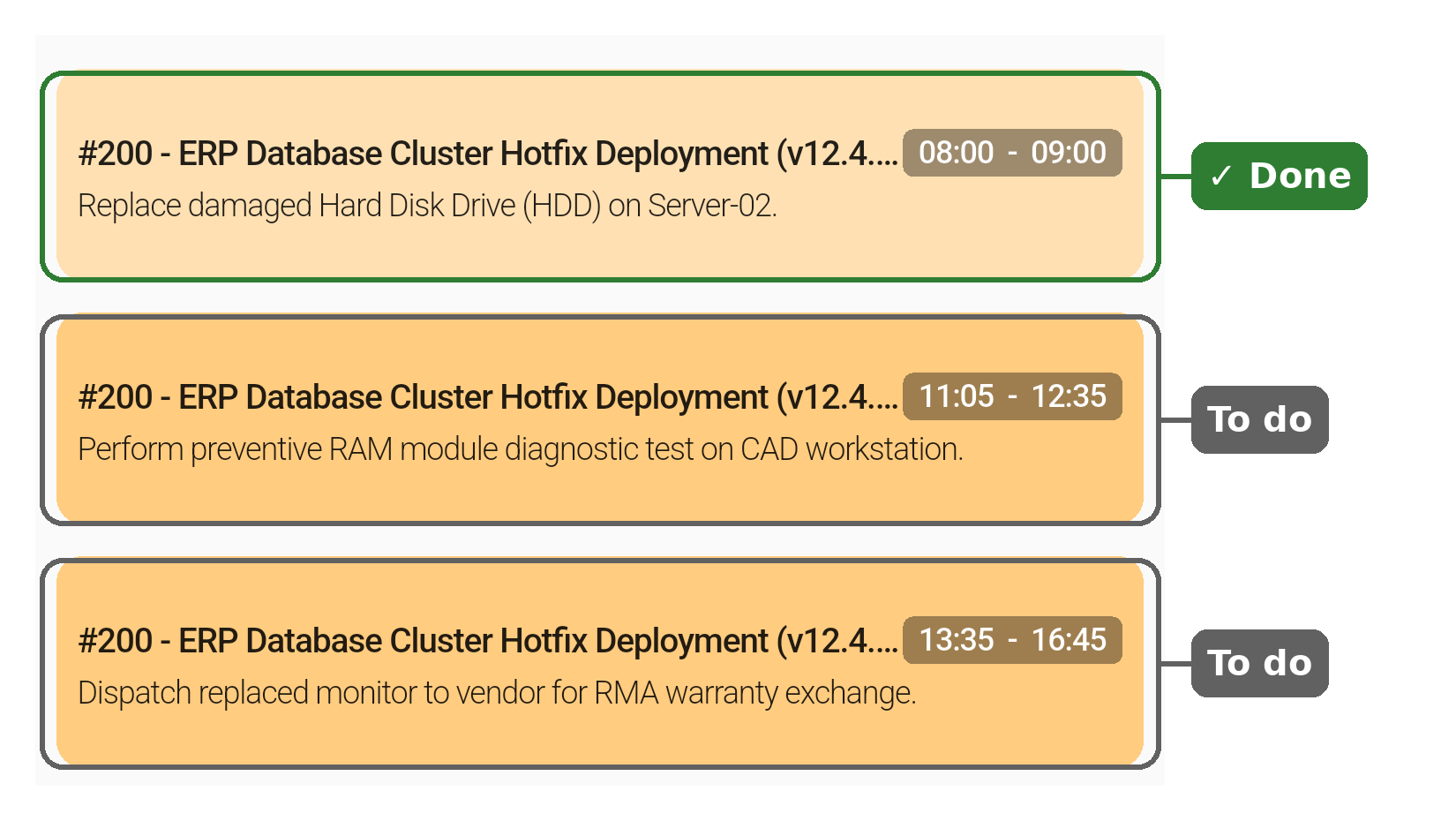
Month view: in the list of tasks for the selected day, the finished task is also lighter than the two pending ones.
Note: A task turns lighter once it's marked as finished, for example with Finish task on the task's detail screen (see Tasks). If a task you've just finished still looks pending, tap the refresh icon (two circular arrows, top right) to reload the calendar.
Opening a task
Tap a task (a block in Day or Week view, or an entry in the Month view list) to open the ticket it belongs to. The ticket opens on its Processing tab, which lists the work done on the ticket, including its tasks (see Ticket details).
If you're not sure whether a task is done, check its card in the ticket. The screenshot below shows two task cards, with the parts that matter here numbered.
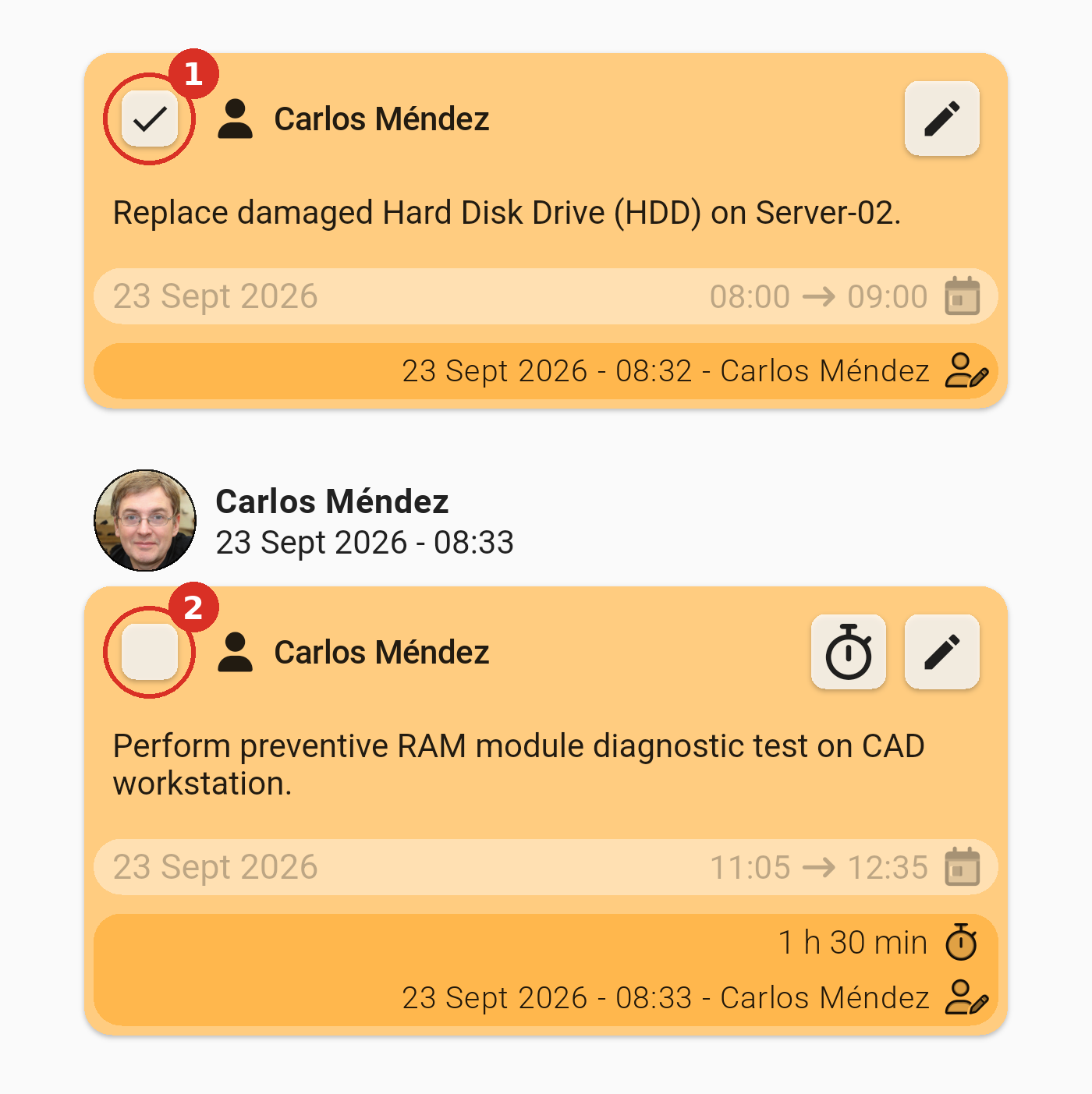
Two task cards in a ticket's Processing tab: a task that's done (1) and a task that's still to do (2).
1. Ticked checkbox: the task is done
A tick (✓) in the checkbox at the top left of the card means the task is done.
2. Empty checkbox: the task is still to do
An empty checkbox means the task hasn't been finished yet.