
Installation
Gapp White Label is a mobile app that lets you use your organisation's GLPI from your phone or tablet. You install it from your device's app store, like any other app.
Where to find it
Your organisation has its own version of the app in the store, with its own name and icon. Ask them which one to install: they'll give you the name to search for, or a direct link or QR code that opens the app's page in the store. Once it's installed, you only need to sign in.
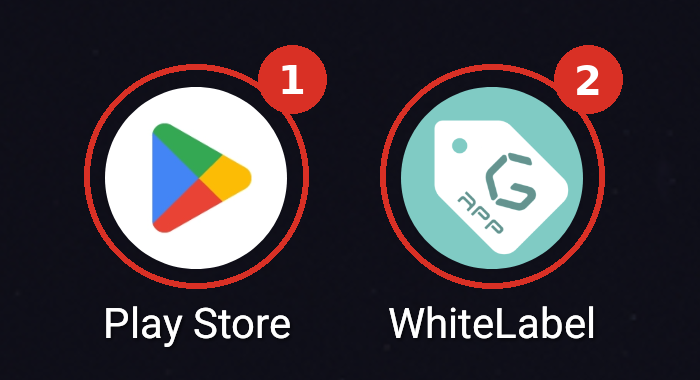
(1) Open the Play Store (Android) or the App Store (iOS) and install your organisation's app. (2) Once it's installed, its icon appears on your phone's home screen or in its app list. Tap the icon to open the app. The name under the icon may not match the name in the store exactly (here, WhiteLabel).
Steps
1. Open the app store
On Android, open Play Store; on iPhone/iPad, open App Store.
2. Search for the app
Search for the app name your organisation gave you. If they sent you a direct link, open it instead. If they gave you a QR code, scan it with your phone's camera. A link or QR code takes you straight to the app's page in the store (step 3).
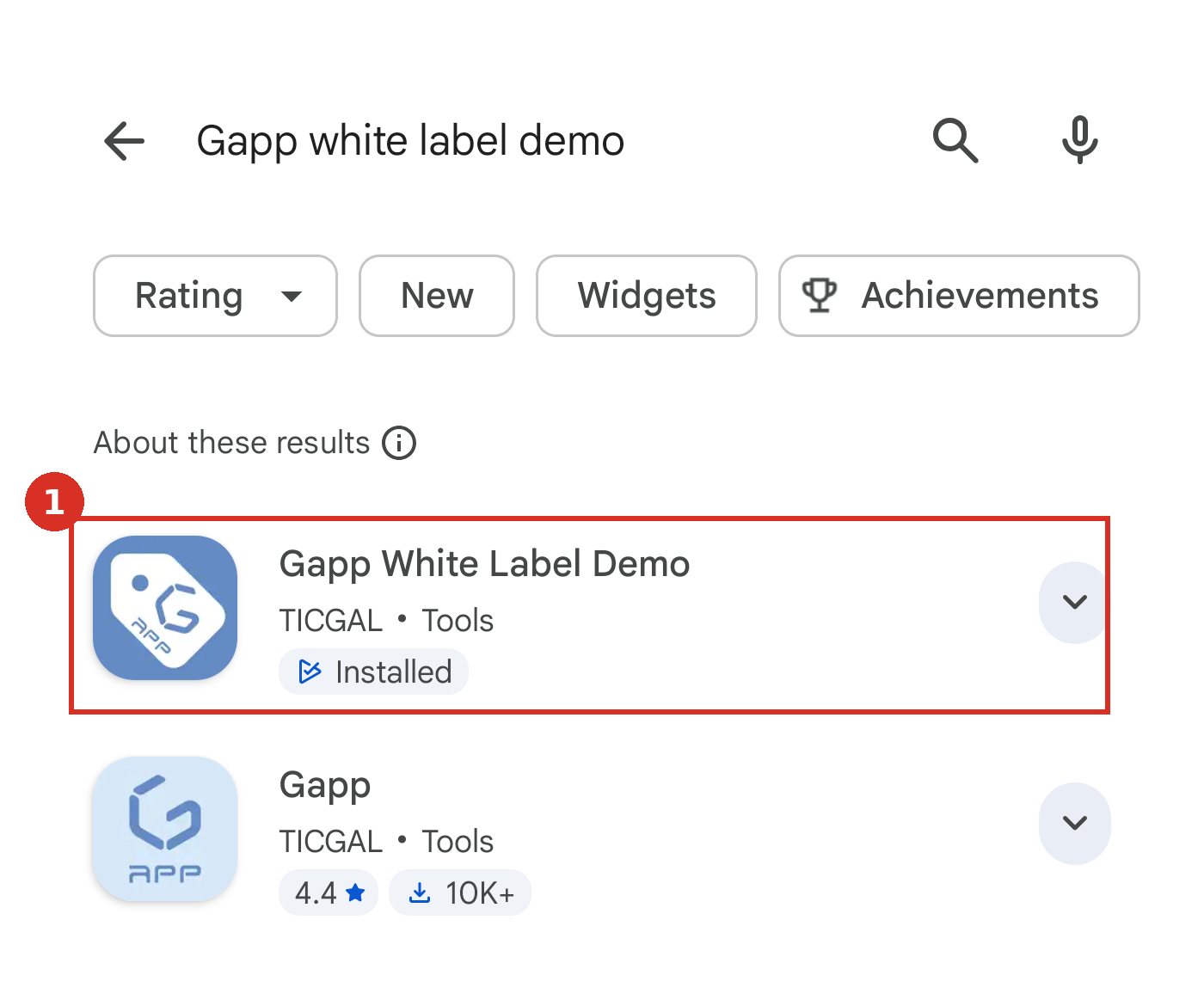
Play Store search results. In this example, the app to install is Gapp White Label Demo by TICGAL (1). Your organisation's app will have a different name and icon, so look for the one they told you to use. Apps with similar names can appear too, such as Gapp just below; don't install those.
3. Open the listing and tap Install
Tap the app to open its store listing, then tap Install.
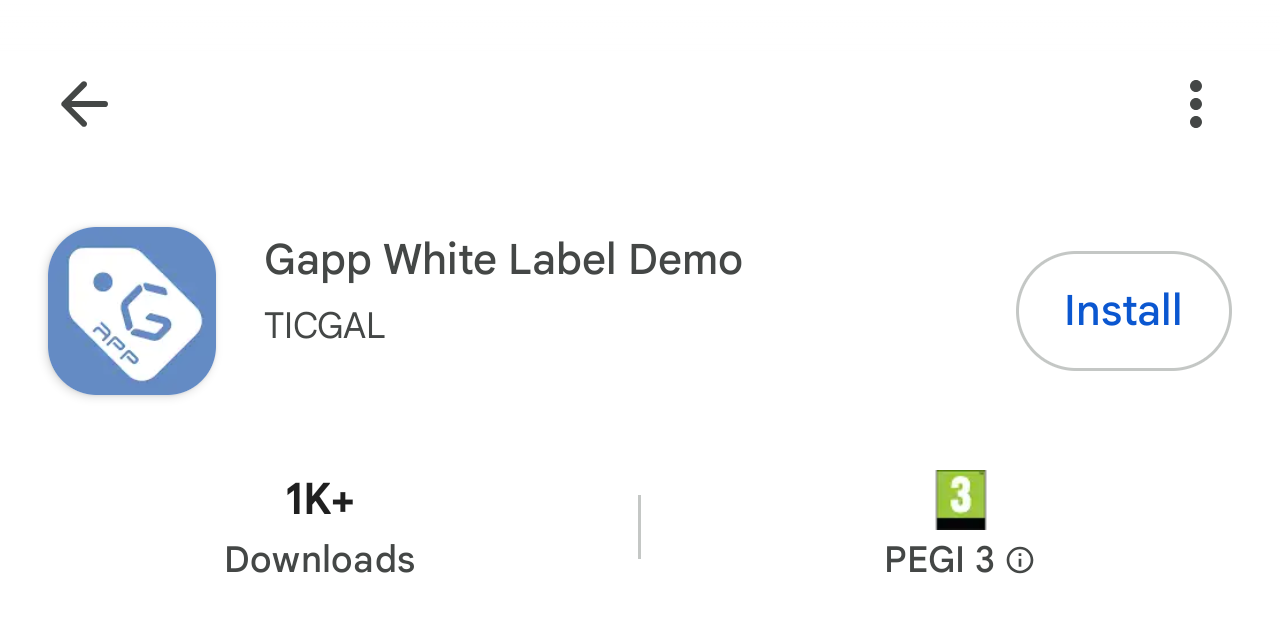
The app's store listing: name, publisher, downloads and age rating, with the Install button on the right.
4. Open the app
When the installation finishes, tap Open in the store, or tap the app's icon on your phone's home screen. The app opens on the login screen. The Login page explains how to sign in.
Note: For the app to work, your GLPI administration has to prepare the server first: the GLPI API must be enabled and the Gapp Xtended plugin installed and configured. If part of that setup is unfinished, the app may not connect or some features may be missing. In that case, ask your GLPI administration to review it. If you can't find your organisation's app in the store, ask them for its exact name or a direct link.