
Actualtime
ActualTime is the timer for your tasks. You start it when you begin working on a task and stop it when you finish, and GLPI records exactly how long you spent. The time shows on the task, and it also feeds the Actualtime Engagement figure in TAM.
Before you start
ActualTime is a GLPI plugin, so your organization has to have it enabled, together with the Gapp Xtended plugin. The timer is for technicians: it doesn't appear in Self-Service profiles. Three things are worth knowing before you use it:
- Location: starting, pausing and ending a timer record where you are. The app asks for access to your location the first time, and the ActualTime screen won't open without it.
- TAM: if your organization uses TAM, your working day must be started first (see TAM). Otherwise the app tells you that TAM must be initialized and offers a Go to TAM button.
- One timer at a time: you can only have one ActualTime timer running. Pause or end it before starting another one.
Note: We recommend reading the ActualTime plugin documentation before you start this page. It explains how to set up the plugin and its permissions on the GLPI side.
Note: Your administration controls in GLPI who can see the running timers of other people and who can correct a timer after the fact. You can't change the recorded times from the app.
Where to find it
ActualTime lives on the tasks of a ticket. Open a ticket, go to its Processing tab and look at a task that is still to do: the stopwatch button sits on the task card, next to the pencil.
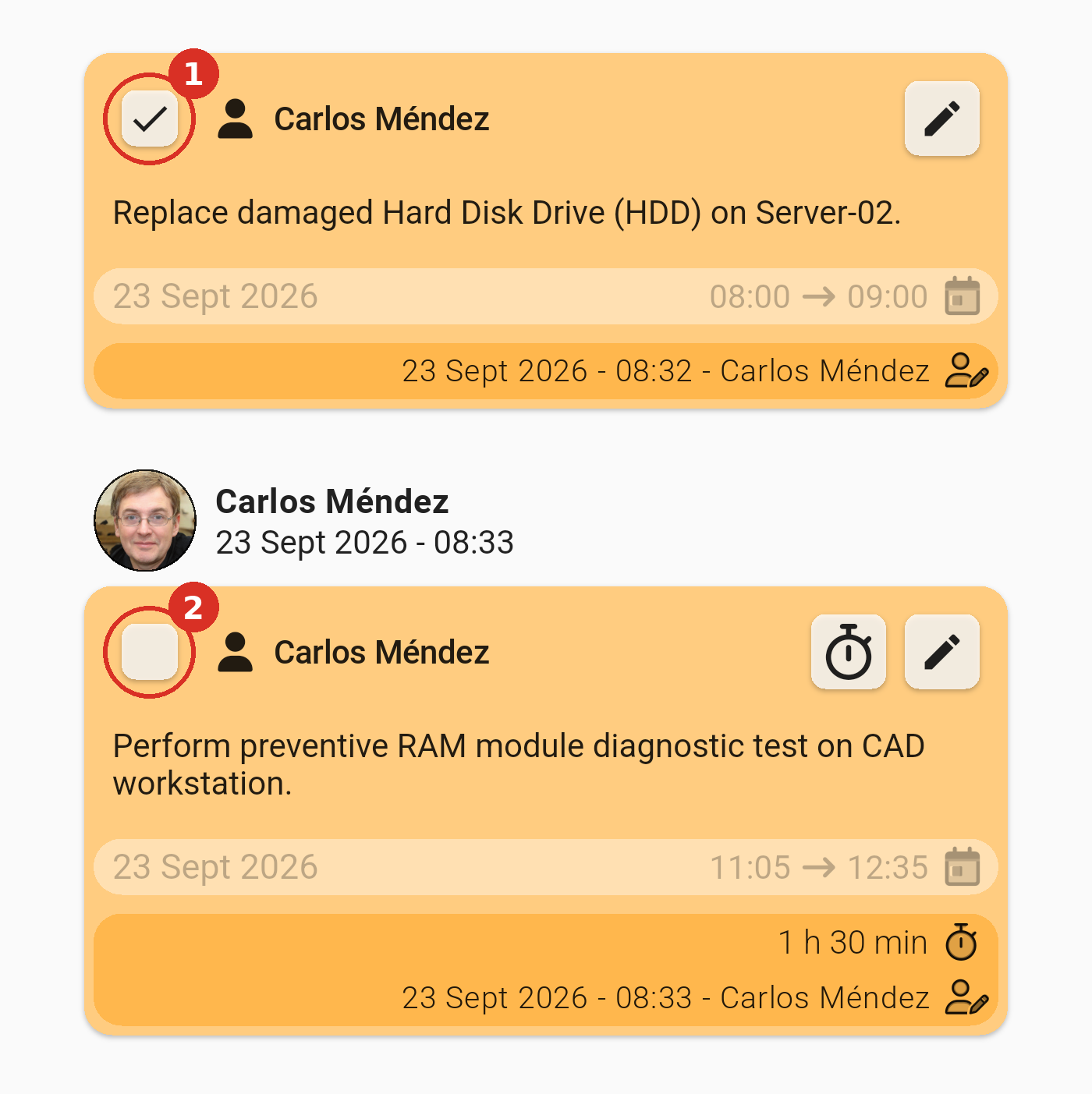
A task that's done (1) and a task that's still to do (2) with its stopwatch button (3).
The stopwatch only appears when all of this is true:
- The task is assigned to you.
- The task is still to do: finished tasks and Information tasks don't have it.
- You are using a technician profile, not Self-Service.
- ActualTime is enabled in your GLPI.
Note: Tasks with a Waypoint category show the waypoint button first, because the trip out is recorded before the work. When you end the trip, ActualTime starts on its own (see Tasks Waypoints). ActualTime also works on the tasks of changes, not only on tickets.
The ActualTime screen
Tapping the stopwatch opens the ActualTime screen for that task. At the top you see the ticket title and a large counter, and below it the button for the timer. The screen has three tabs.
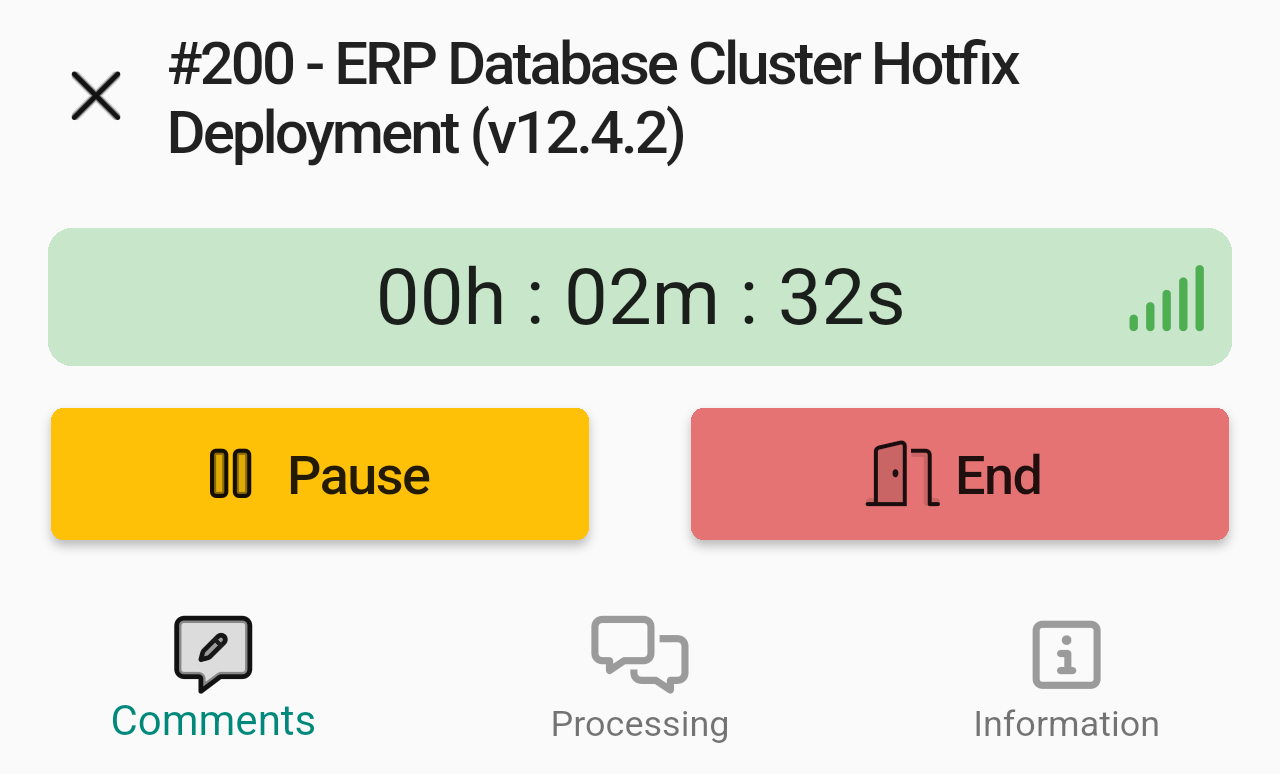
The ActualTime screen while the timer is running.
- Comments: a text editor to write what you did. The text is saved on your phone as you type, so you don't lose it if you leave the screen. When you end the task, it becomes the task's description. Under the editor you can attach photos or files, which are uploaded when you end the task.
- Processing: the timeline of the ticket, so you can read what has been done without leaving the timer.
- Information: the asset linked to the ticket, if there is one.
- Start: the task has no time yet.
- Pause (yellow) and End (red): the timer is running. The counter is highlighted while it runs.
- Resume (green) and End: the timer is paused. The counter keeps the time already recorded.
- If another task already has a timer running, you can look at this screen but you can't start this one.
Recording your work
Recording work takes four steps. You can leave the app or lock your phone at any point, because the timer keeps running on GLPI's side.
1. Start the timer
Tap the stopwatch on the task, then tap Start. The app records your location and the timer begins counting.
2. Work on the task
While the timer runs, a yellow bar shows at the top of the app with the time and the ticket it belongs to. Tap the bar to go back to the ActualTime screen from anywhere. On Android, a notification with a running clock also stays in your notification shade until you pause or end the timer.
3. Pause when you stop for a while
Tap Pause to stop the clock without finishing the task, for example for a break or an urgent call. The button becomes Resume. Pausing does not close the task.
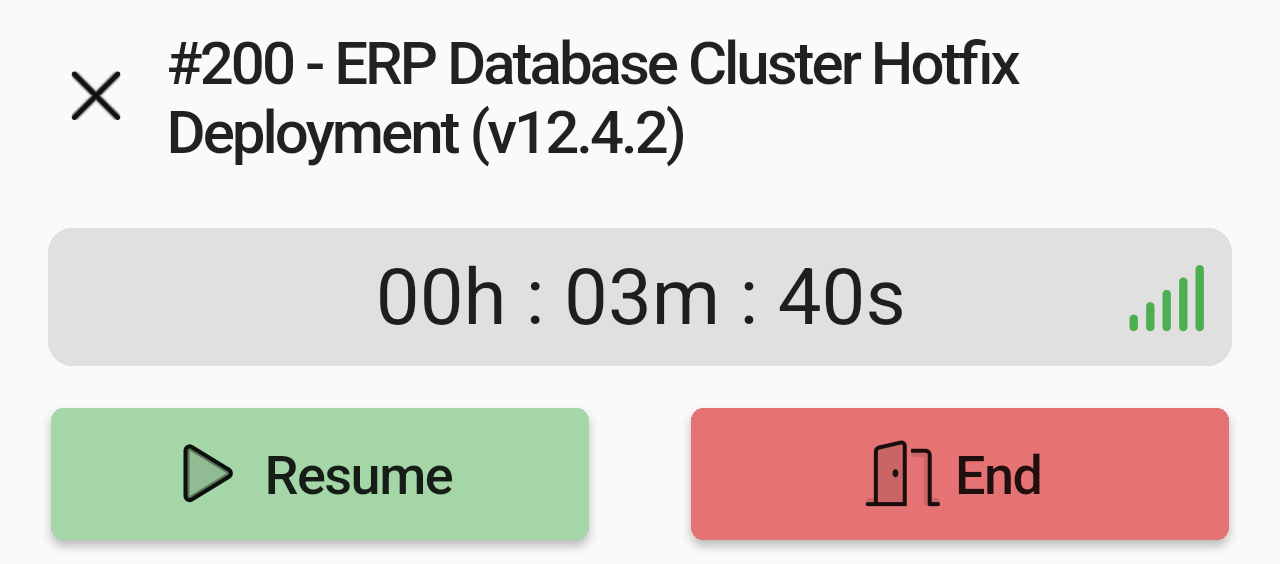
A paused timer: the time stays frozen until you tap Resume.
4. End the task
Tap End when the work is done. A Finish task dialog asks you to confirm, because ending a task can't be undone.
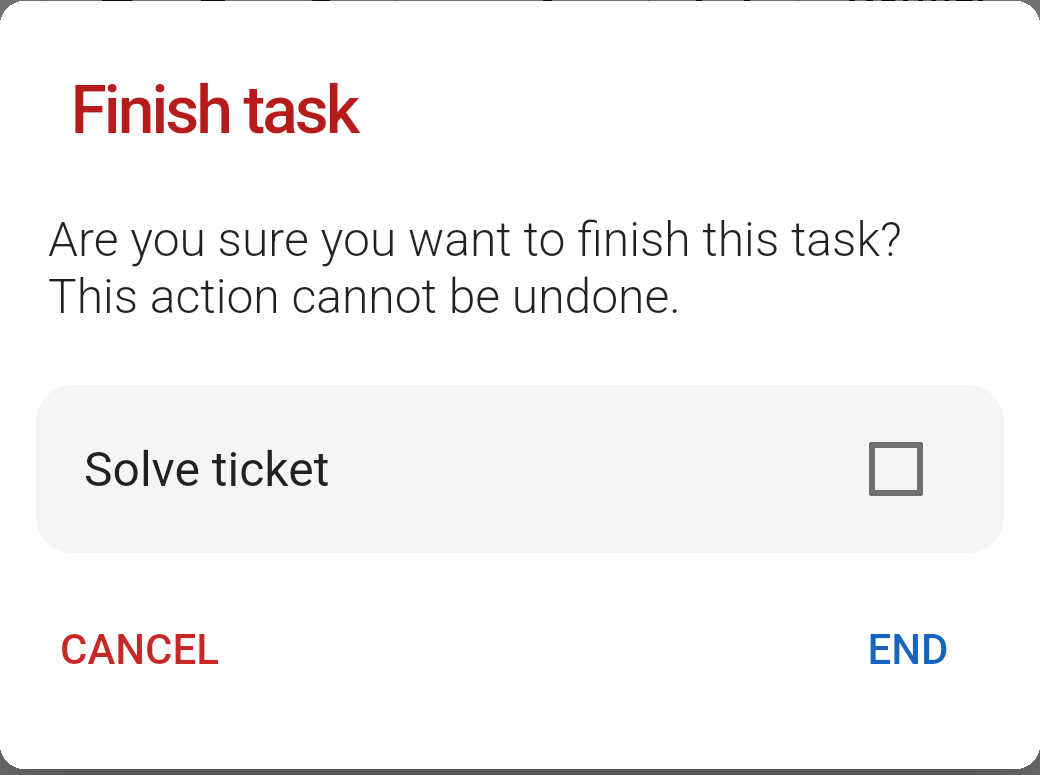
The Finish task dialog. Leave Solve ticket unticked to finish only this task.
When you confirm, the app saves your comment as the task description, stops the timer, uploads your attachments and marks the task as done. If you tick Solve ticket (only offered on tickets), the app also adds a solution to the ticket using your comment, but only if none of its other tasks is still to do. If one is, you get the message "The ticket cannot be closed because there is at least one task that is still in the 'to-do' state." and the ticket stays open.
Seeing the time on the task
Back in the ticket's Processing tab, the task card shows a row for each timer that was used, with the time recorded and the total duration of the task.
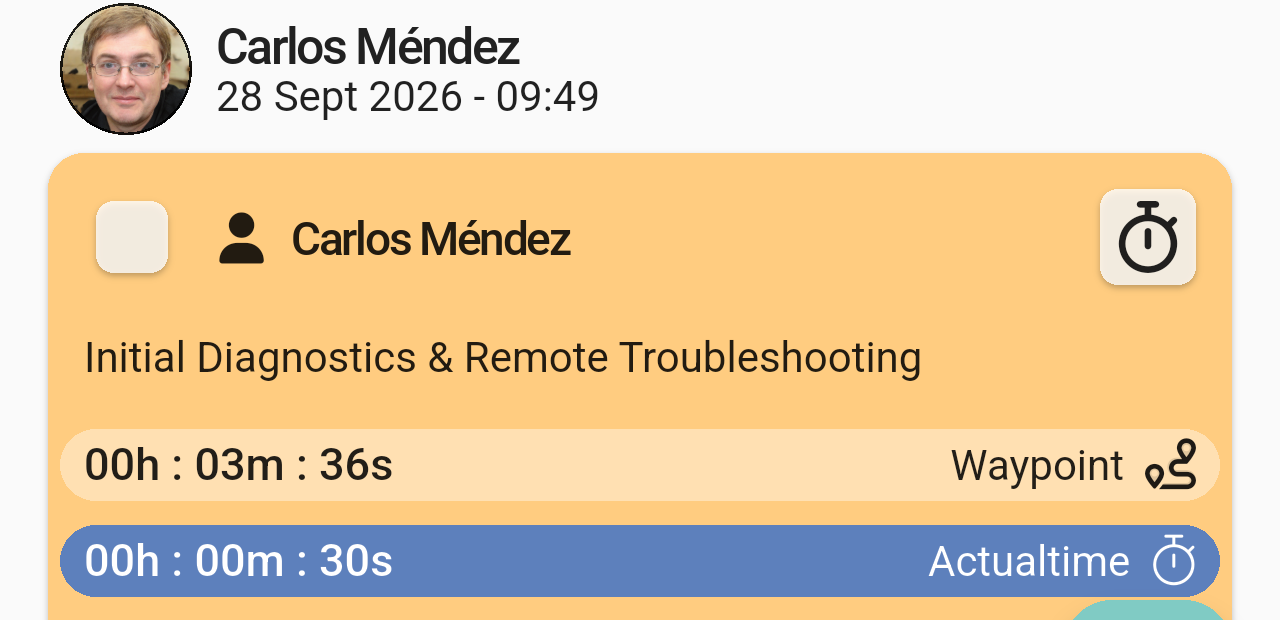
A task card with an Actualtime row. While the timer runs, the row keeps counting.
Actualtime Engagement
Actualtime Engagement tells you how much of your working day you spent on tasks with an ActualTime timer. You open it from the TAM screen: tap the second icon at the top right (the clock with an arrow). The icon only appears if your organization has a recent enough version of Gapp Xtended.
The window shows two times: Actualtime, the time recorded on tasks, and TAM, the time of that working day. The percentage at the top is the first time divided by the second, so the closer it is to 100%, the more of your working day is recorded on tasks. Breaks and incorrect entries, such as a forgotten clock-out, don't count in the TAM time, and only timers that started and ended on the same day are added up.
It shows the last day you ended, not the current one. When you stop your day in TAM, the TAM STOPPED window also shows the Engagement of the day you have just worked.
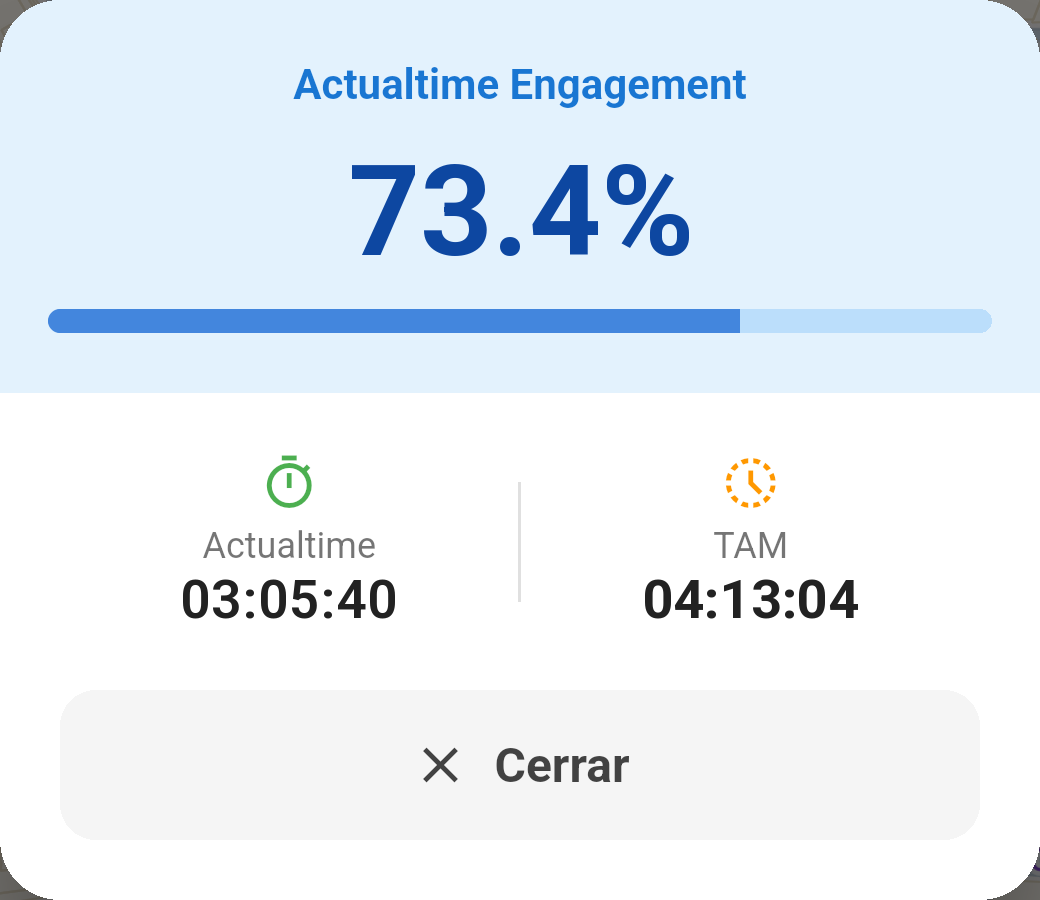
Of the 4 h 13 min worked that day, 3 h 5 min were recorded on tasks with ActualTime, which gives 73.4%. Tap the close button at the bottom to go back to TAM.
When there is nothing to show yet
The window opens over the TAM screen, so you can close it and carry on where you were. If you haven't ended any working day yet, there is no day to measure: the percentage is 0.0%, the bar is empty and both times read 00:00:00. This isn't an error. It fills in after the first day you end.
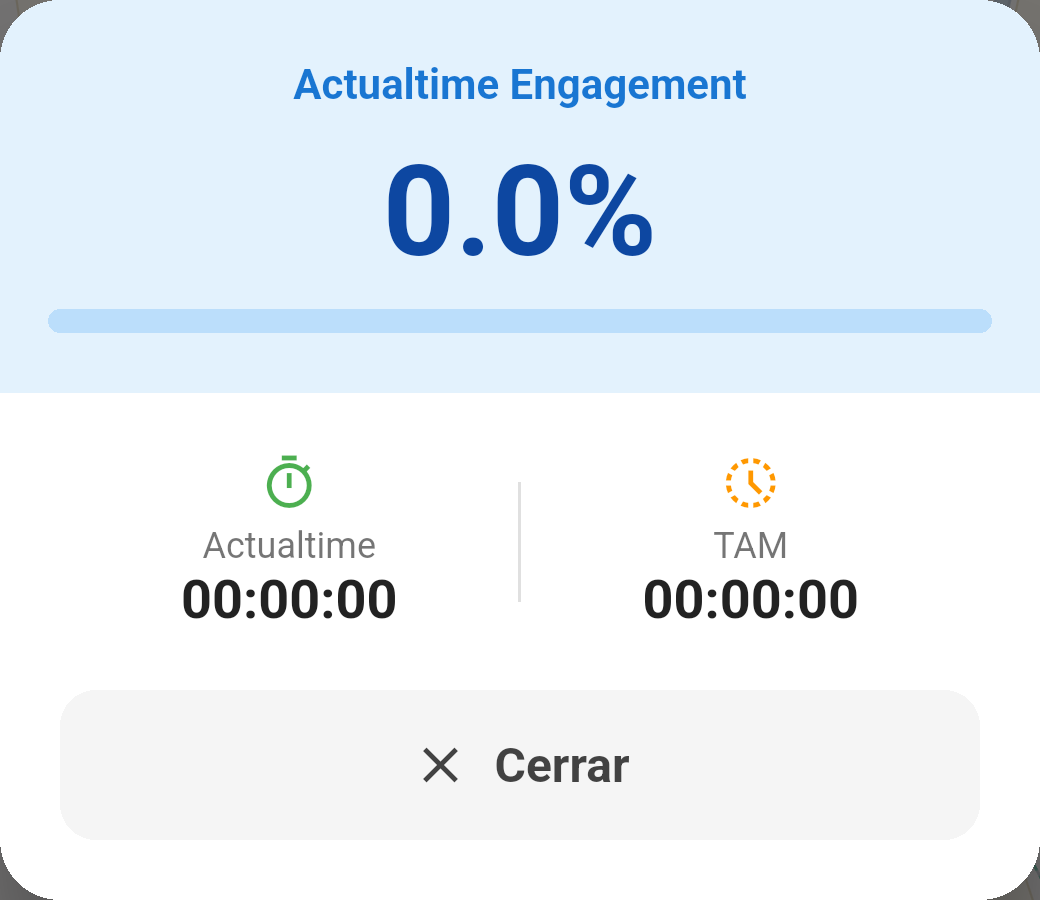
Actualtime Engagement before any day has been ended. The close button may read Cerrar even if your app is in English.
If you forget a timer
A timer left running by mistake would ruin your numbers, so GLPI watches for it. If a timer (ActualTime, TAM or Waypoint) runs for too long without activity, you get a notification asking "Are you still there? Press to confirm", and a bar appears in the app saying the timer is going to stop due to inactivity.
Tap the notification or the bar, then tap I'm still here. The app postpones the automatic shutdown and tells you "The automatic shutdown of the timer has been postponed." If you don't confirm, the timer is stopped and you receive the message "Your timer has been stopped due to inactivity".
Note: If a timer was stopped by mistake or left running for hours, ask your administration to correct it in GLPI. The app can't edit past times.
If something goes wrong
These are the messages you may see when starting a timer.
- TAM must be initialized in order to perform this action. Your working day isn't started. Tap Go to TAM, start your day and try again.
- There is already another timer running. Another task has a timer. Tap the yellow bar to open it, then pause or end it first.
- The ActualTime screen closes or asks for permissions. The app needs access to your location. Allow it in your phone's settings and try again.
- You don't see the stopwatch. Check the conditions in Where to find it: the task must be assigned to you and still to do.