
Credits
The Credits integration shows the credit vouchers of your organization: how many credits were contracted, how many have been used and how many are left. It is a read-only view. You check your balance here, and the credits themselves are used from the tickets in GLPI.
Before you start
Credits needs the Credit Vouchers plugin in your GLPI. The vouchers are created and managed in GLPI by your administration. If the plugin is not enabled for your account, the Credits button does not appear in the app.
Where to find it
Credits is one of the buttons of the main menu. It is near the bottom, so scroll down until you see it, next to Asset Handover. You can also open it from the side drawer.
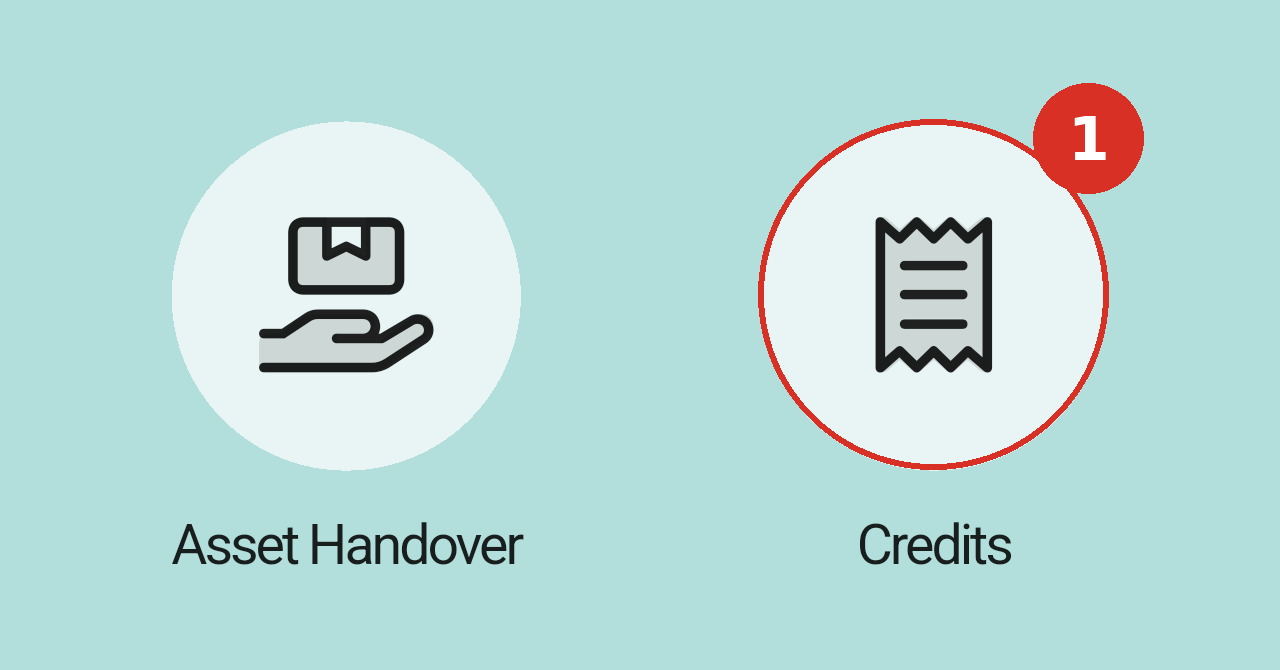
The balance summary
The top of the screen shows the title Credits and, under it, the name of the organization the vouchers belong to. Right below, a bar adds up all your active vouchers.
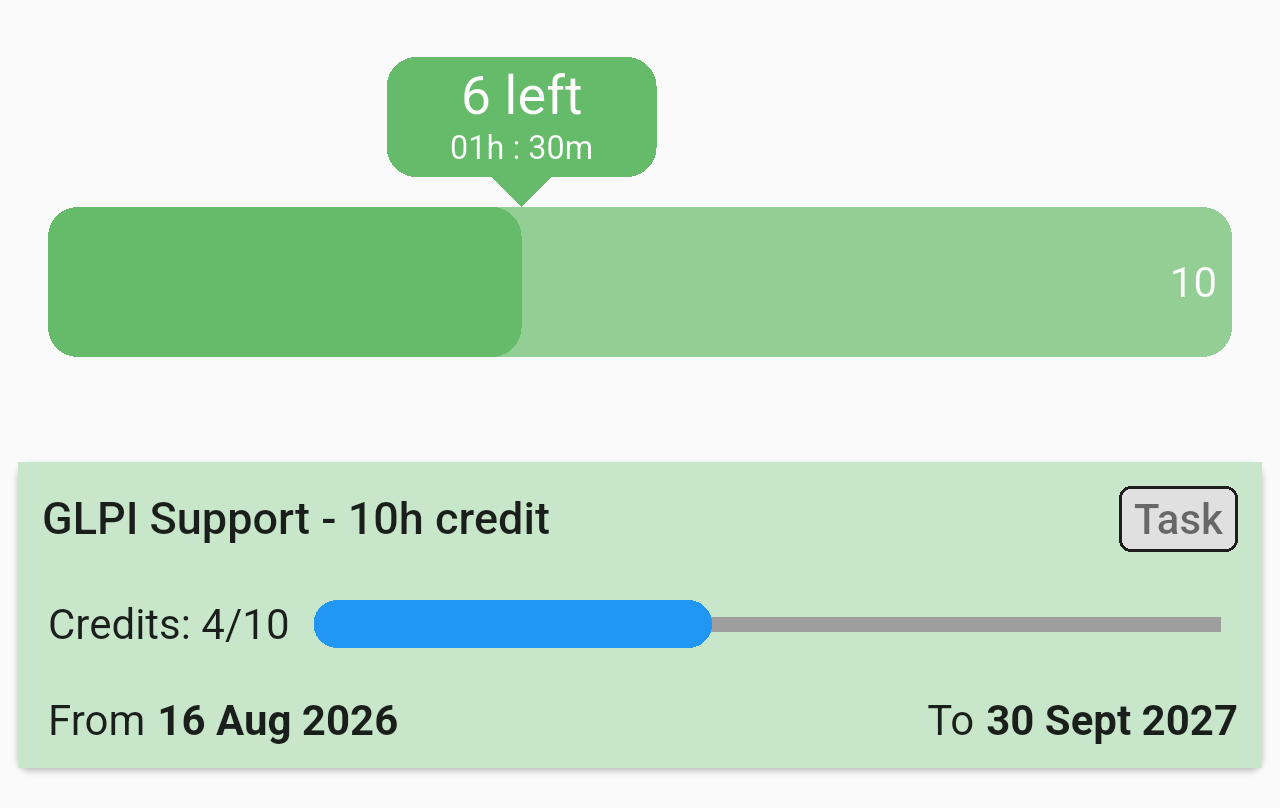
The balance bar (6 left, 01h : 30m, out of 10) and the voucher card below it.
- Filled part of the bar: The credits already used.
- Number at the right end: The total of credits contracted.
- Bubble: The credits left, and an estimate of the time they are worth. The app counts 15 minutes per credit, so 6 credits are shown as 1h 30m.
- Color: The bar is green while you have used less than 76% of your credits, yellow from 76% and red from 91%. It also turns red when you have used more credits than you contracted.
Note: Vouchers that are not active are not counted in the bar.
Your vouchers
Under the bar there is one card for each voucher. The most recent one (by start date) comes first, and the vouchers without dates go last. A card shows:
- Name and type: The name of the voucher, and its type in the box at the right (here, Task). The type is defined in GLPI.
- Credits: The credits used out of the credits contracted, for example 4/10, with a bar that shows the proportion.
- From and To: The dates when the voucher starts and ends. If the voucher has no dates, this line is not shown.
A green card is an active voucher. A grey card is a voucher that is not active: it only shows its name, type and dates, and it does not count in the balance bar.
Note: If a voucher has no limit, the app shows ∞ instead of a number and no bar. If you have used more credits than the voucher includes, the excess is shown in red next to the numbers, for example 12/10 (+2).
Seeing which tickets used the credits
Tap a voucher card to open it. The card expands and lists the tickets that used credits from that voucher, the most recent first. Tap the card again to close it.
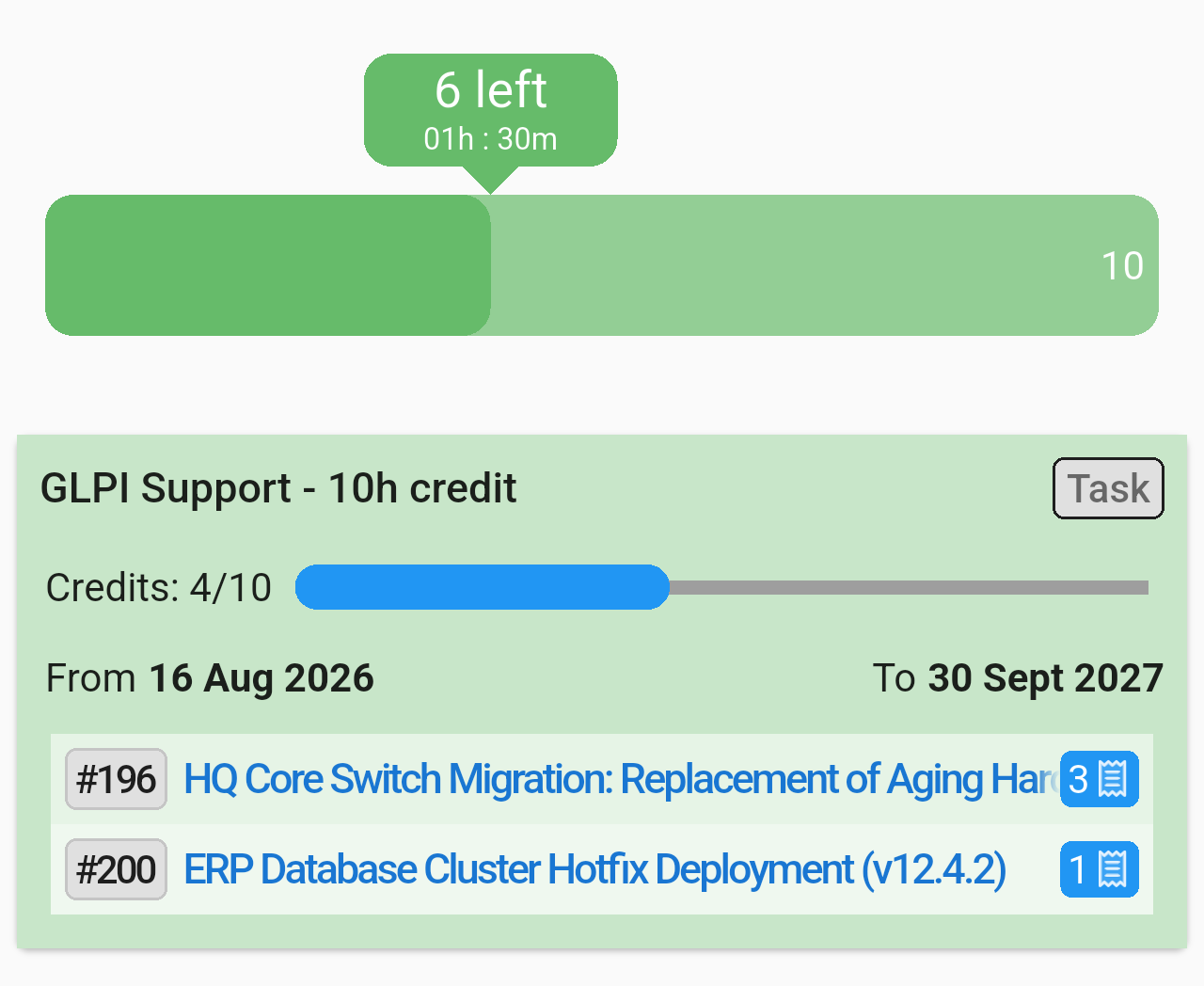
The expanded voucher: each ticket with its number, its title and, in the blue box, the credits it used (3 and 1, which add up to the 4 used).
Tap a ticket in the list to open it in the app.
Using credits
The app only shows the balance. To use credits, add them in GLPI when you work on a ticket: the plugin lets you pick the voucher and the quantity when you add a task, a followup or a solution. The next time you open Credits in the app, the new consumption is there.
If something goes wrong
- No credits found: The screen shows this message when there is no voucher for your organization. Ask your administration to create one in GLPI.
- An error message when opening Credits: The app could not get the vouchers from GLPI. It shows the error and takes you back to the menu. Check your connection and try again.