
Passwords
The Passwords integration lets you open the passwords stored in GLPI from the app. Before you can use it, you have to pair the app with your GLPI instance. This page explains how to do that.
Before you start
The app has to be paired with GLPI before it can show any password. The pairing is set up from both sides: a PIN in the app, and a QR code generated in GLPI. Your GLPI needs the Passwords plugin and the Gapp Xtended plugin for this. The PIN is a 4-digit code that stays on your phone, and a GLPI account can be paired with one phone at a time.
Note: We recommend reading the Passwords plugin documentation before you start this page. It explains the plugin on the GLPI side, which is where the QR code comes from.
Where to find it
In the app, open Settings from the side drawer and go to the Security section. The pairing starts at Passwords 2FA. In GLPI, it starts at My settings, on the Passwords tab.
Pairing your phone with GLPI
Pairing takes three steps, and the second one has four clicks in GLPI. Have the app and GLPI open at the same time, because the QR code shown in GLPI is scanned with the phone.
1. Set a PIN in the app
In the app, go to Settings > Security and tap Passwords 2FA. Enter a 4-digit PIN code. You will use this PIN later to approve access to your passwords. If you tap Cancel instead, nothing is paired.
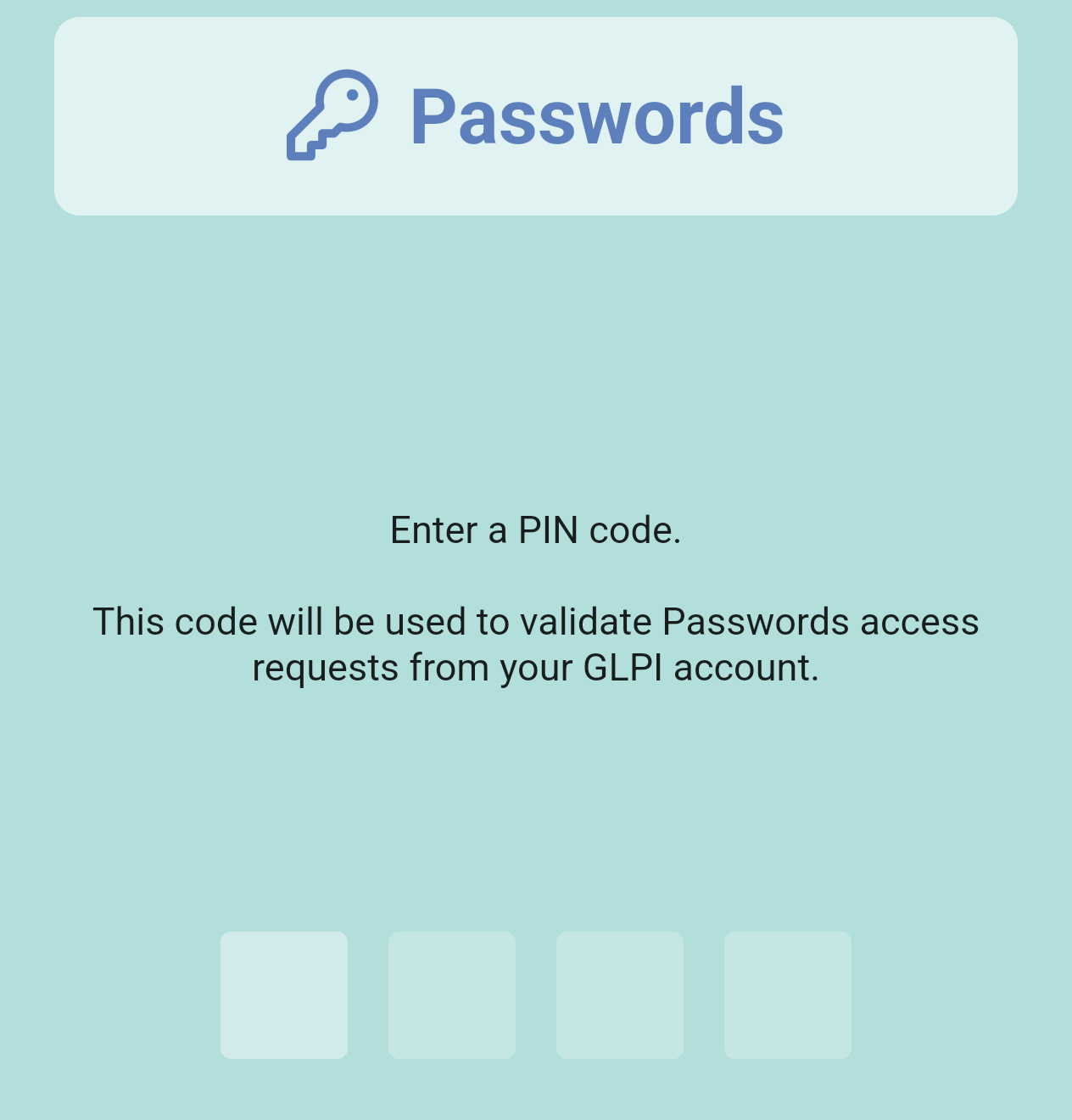
The app asks you to enter a PIN code. It is used to validate password access requests from your GLPI account.
Once the PIN is set, the app explains where to find the QR code in GLPI. Tap OK.
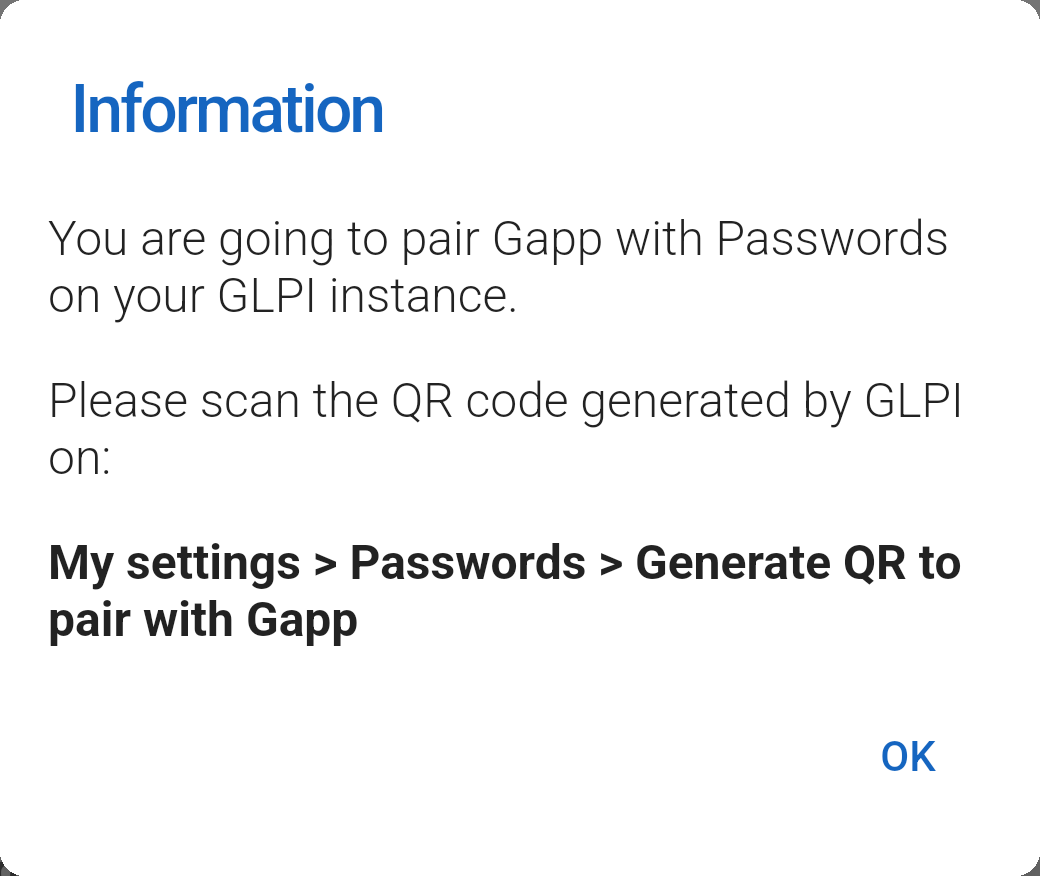
The information dialog tells you to scan the QR code generated by GLPI at My settings > Passwords > Generate QR to pair with Gapp.
2. Generate the QR code in GLPI
In GLPI, open My settings from your profile menu, go to the Passwords tab and generate the QR code. It takes four clicks.
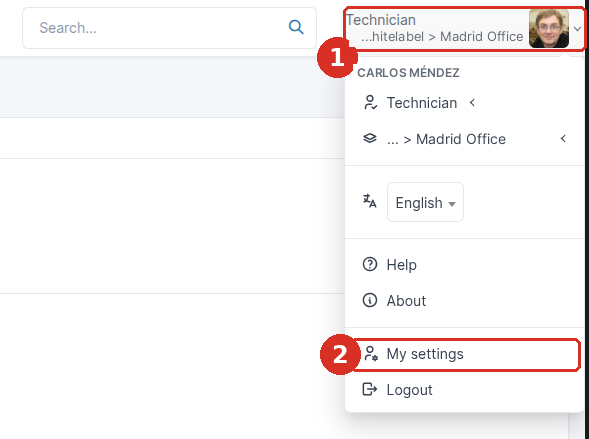
The GLPI profile menu: your profile picture and name (1) and the My settings option (2).
1. Click your profile picture
At the top right of GLPI, click your profile picture and name. This opens your profile menu.
2. Choose My settings
Now go to the Passwords tab and generate the code.

GLPI My settings: the Passwords tab (3) and the Generate QR to pair with Gapp button (4).
3. Select the Passwords tab
In My settings, select the Passwords tab.
4. Generate the QR code
Click Generate QR to pair with Gapp. GLPI opens a window with the QR code.
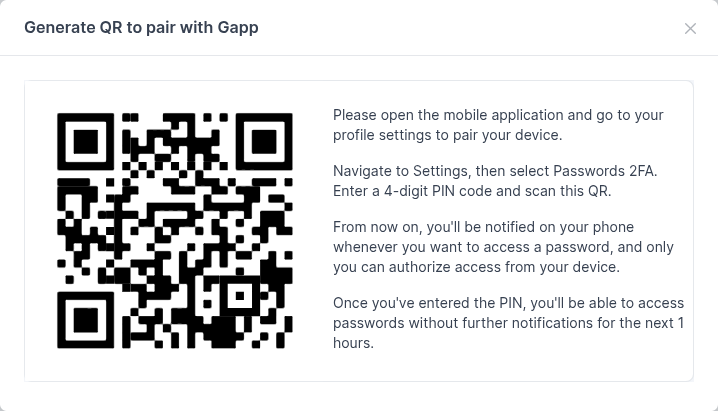
The Generate QR to pair with Gapp window in GLPI: the QR code on the left and the pairing instructions on the right.
Note: Generating a new QR code cancels the current pairing of your phone until you scan the new code. Generate it only when you want to pair.
3. Scan the QR code with your phone
The app opens its QR scanner. Point it at the QR code shown in GLPI, so that the code is inside the frame. When the pairing works, the app confirms it. The QR code only lasts a limited time, set by your administration in GLPI. If you scan it too late, the app shows "The QR token has expired, please generate a new one." Generate a new QR code and try again.
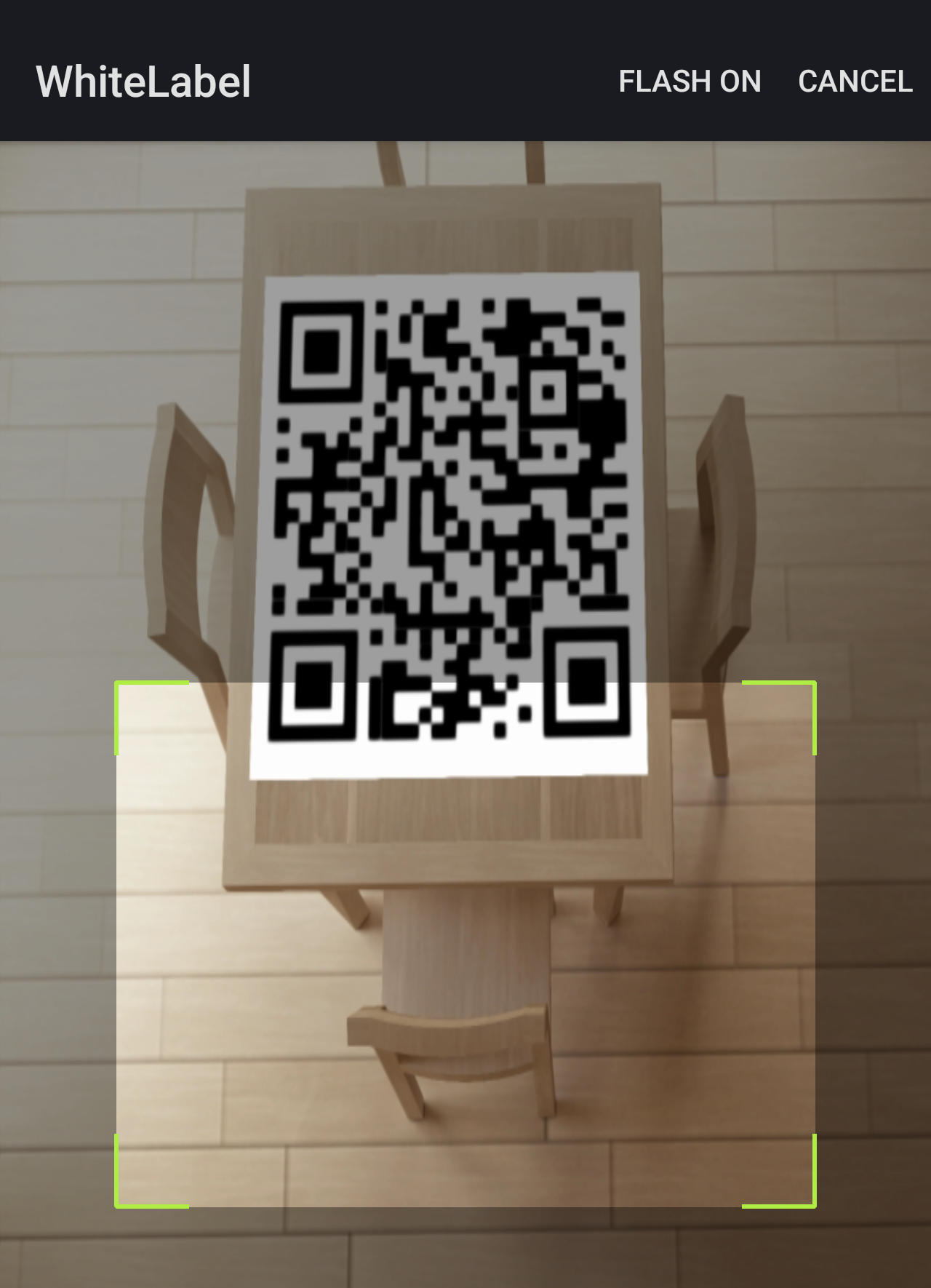
The app's QR scanner, with the QR code from GLPI in view.
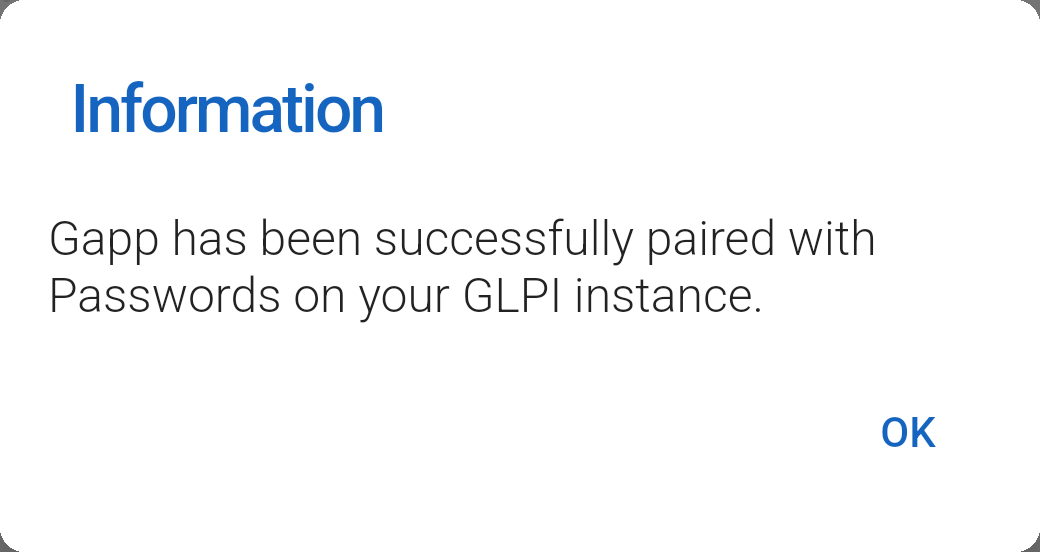
The app confirms that it has been paired with Passwords on your GLPI instance.
Note: The app only accepts the QR code that GLPI generates in My settings > Passwords. With any other QR code, it shows "Invalid QR code".
Checking that it is paired
You can check the pairing at any time in Settings > Security. Under Passwords 2FA, the app shows whether it is paired.
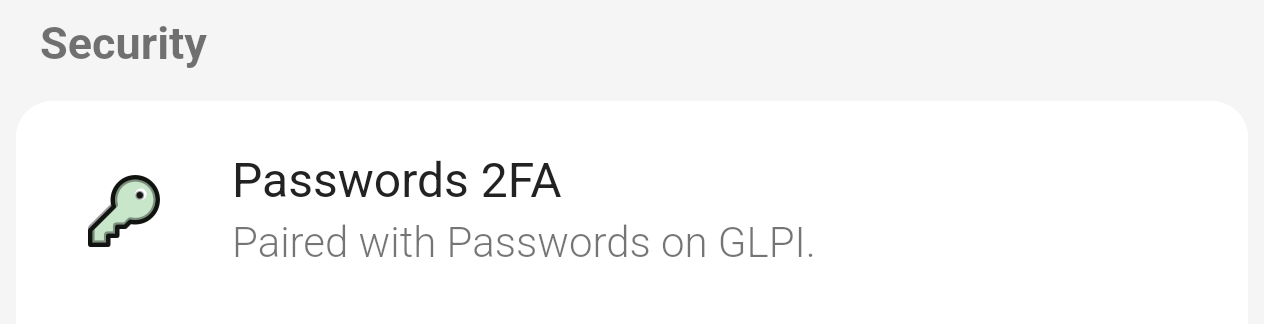
After pairing, Passwords 2FA reads "Paired with Passwords on GLPI.".
Note: From now on, you are notified on your phone whenever you want to access a password, and only you can authorize that access from your device.
Note: Tapping Passwords 2FA again starts the pairing again. Use it when you change phones: only the last phone you pair works. In GLPI, the Unpair button in My settings > Passwords removes the pairing.
Viewing a password
Once the app is paired, you can go to the Password section of a ticket and look at the passwords of the items linked to it. To see one, you tap it and validate your device from a notification.
1. Open the Password section
Open a ticket, tap the section button above the bottom bar and choose Password. The section shows the passwords of the items (assets) linked to the ticket. If there are any, the icon shows how many.
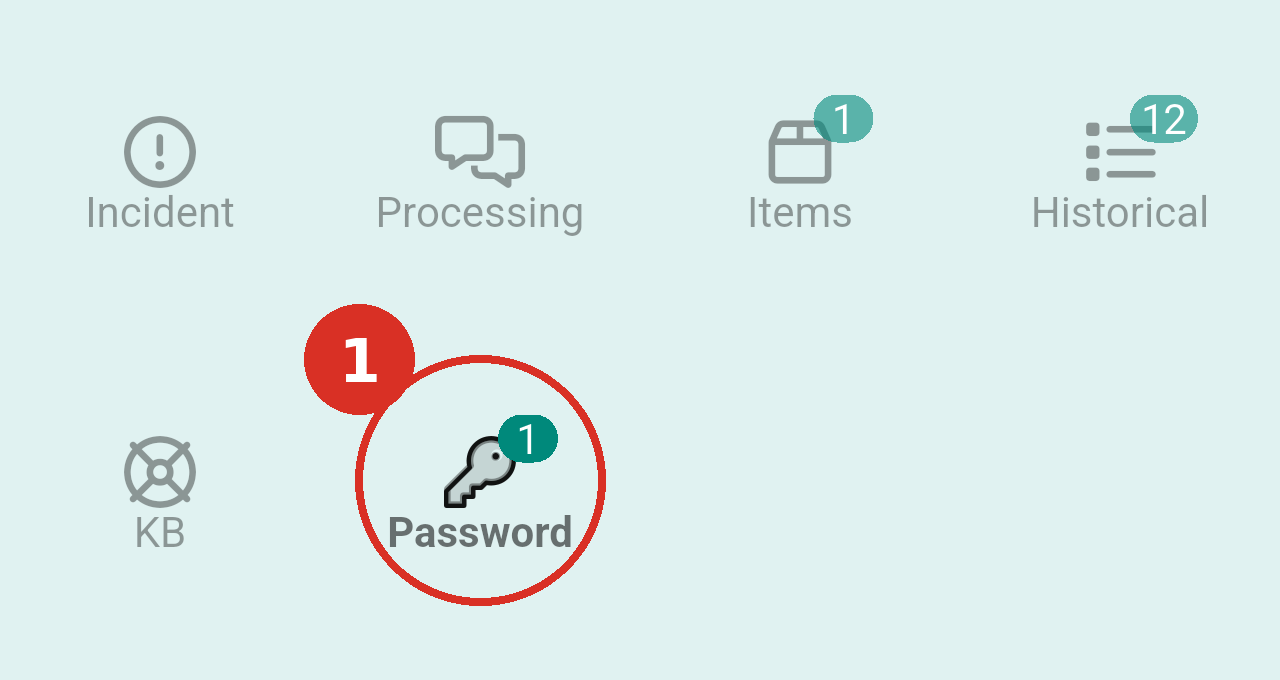
Note: The section is empty when the items of the ticket have no passwords. If it looks empty right after pairing, close the ticket and open it again.
2. Look at the list of passwords
The Password section lists the passwords of the items (assets) linked to the ticket, one card for each. You only see the passwords you have access to, and only their names, not their values.
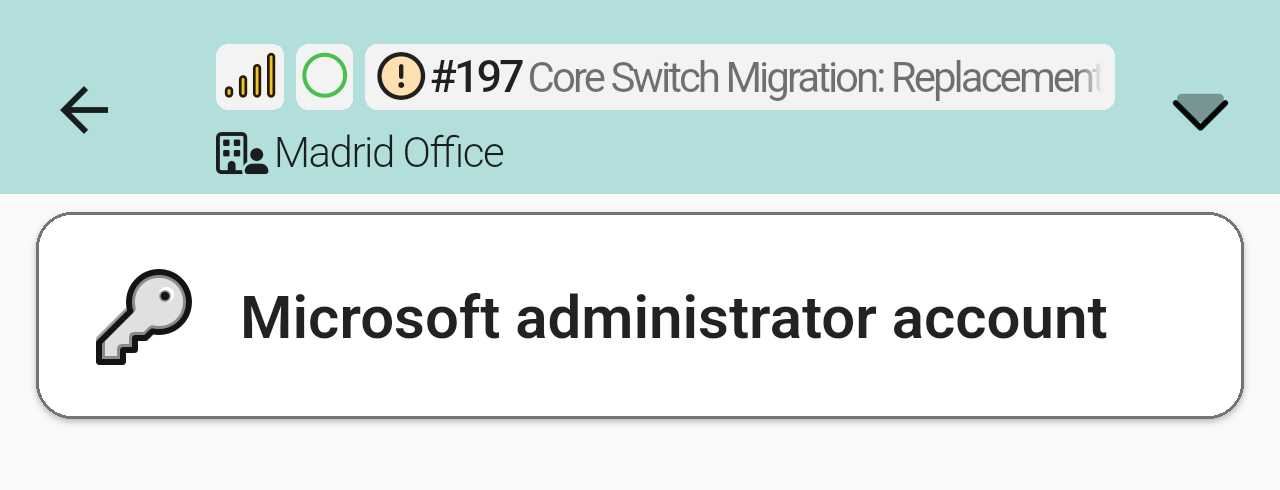
The list of passwords of the ticket. Tap a card to open that password.
3. Validate your device
Tap the password you want to see. If you have not validated recently, nothing is shown yet: GLPI sends a notification to your phone so that you validate your device.
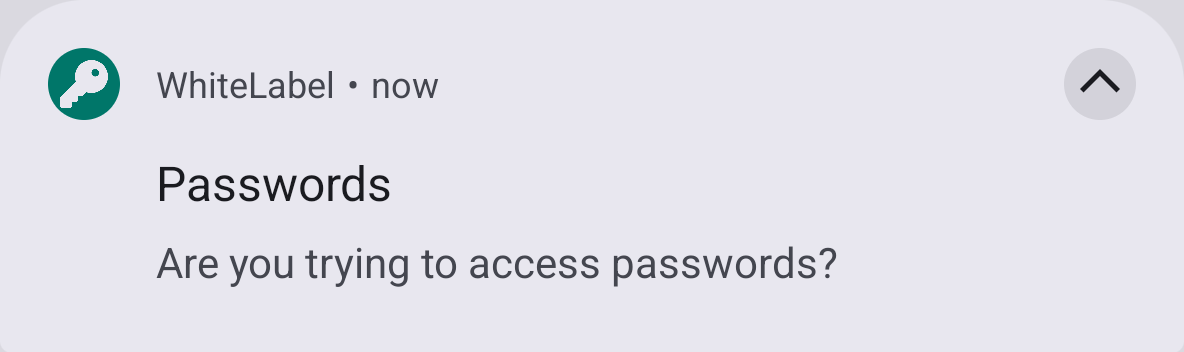
The notification: "Are you trying to access passwords?".
Tap the notification and enter the PIN you set when you paired the app. On phones with a fingerprint sensor, the keypad can offer the fingerprint as an alternative to the PIN.
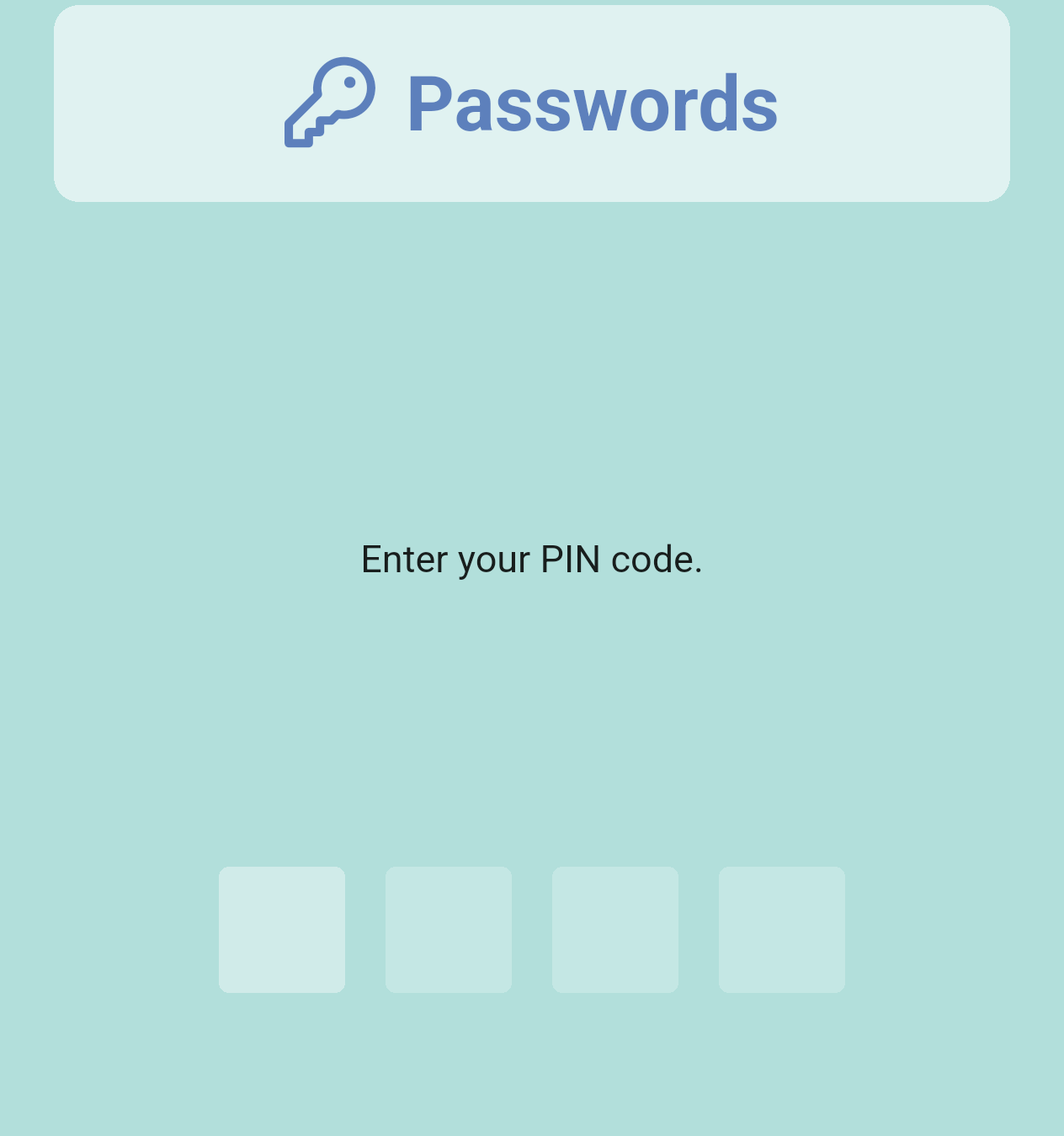
The app asks for your PIN code to approve the request.
If the PIN is wrong, the app shows "The entered PIN is incorrect." and does not grant the access.
Once the PIN is right, the app confirms that access has been granted. Tap OK.
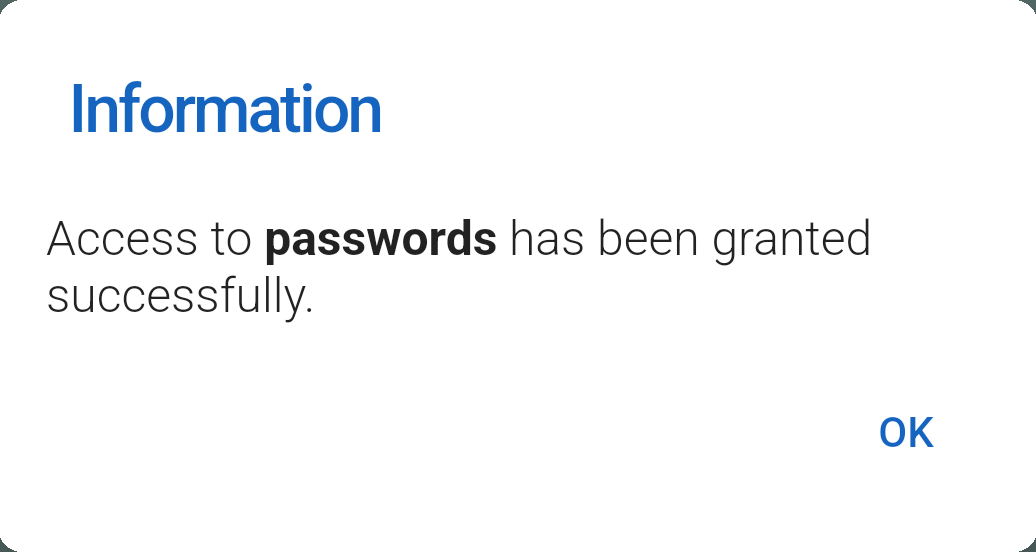
The confirmation that access to passwords has been granted.
Note: After you approve the access, you can open passwords without a new notification for a while. How long depends on a setting your administration chooses in GLPI (Gapp Xtended, duration of the validation token). GLPI mentions 1 hour in the pairing window. In that case, the app shows the password as soon as you tap it.
4. Go to the password to see it
Go back to the Password section of the ticket and tap the password again. The app shows it in a dialog titled Password, with the value hidden. Tap the eye icon to show or hide it. Tap the password itself to copy it to the clipboard. The dialog only closes with OK.
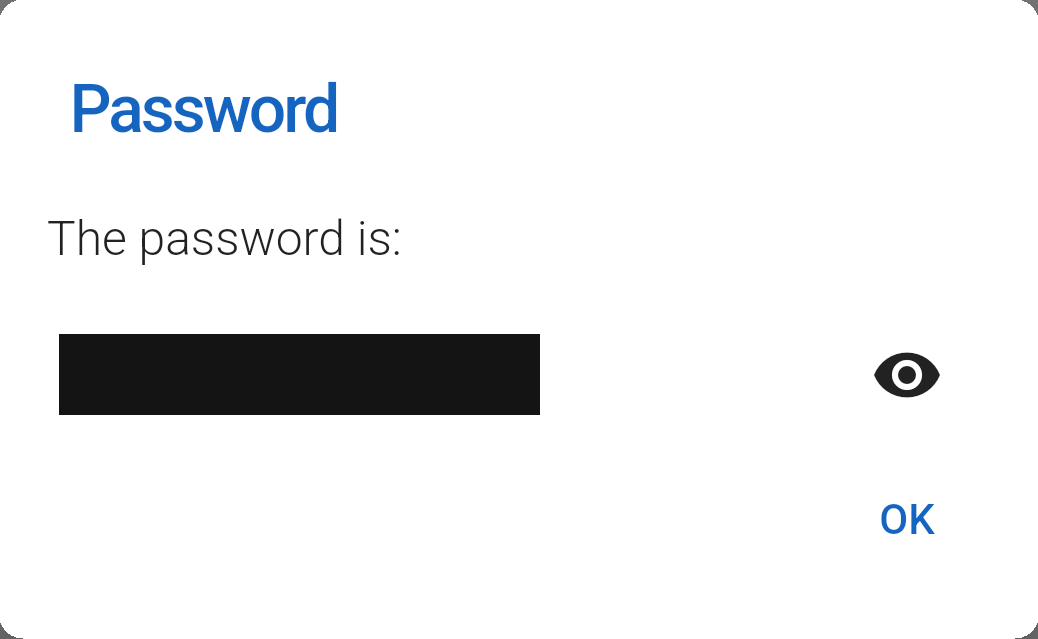
The dialog with the password, hidden until you tap the eye icon. In this screenshot the value is covered on purpose.
Note: GLPI records every time a password is revealed: who did it, from which IP address and at what time.
Viewing a password from GLPI
The same validation applies in GLPI. If you copy or look at a password from the GLPI web, you also have to confirm from the app that it is you. Private passwords need it too when your administration has enabled Private passwords need 2FA, which is the default.
In the list of passwords in GLPI, each password has an icon to copy it and an eye icon to see it.

A password in the GLPI list, with the copy icon and the eye icon.
When you use one of them, GLPI shows the message "Please validate your access on Gapp" and your phone shows the notification. Tap it and enter your PIN, as explained in Viewing a password, and then use the icon again.
If your phone is not paired, GLPI cannot ask for the validation. It shows a warning instead.
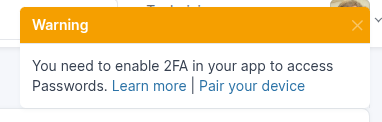
The GLPI warning: "You need to enable 2FA in your app to access Passwords", with the links Learn more and Pair your device.
Pair your device takes you to your My settings in GLPI, and Learn more opens the Passwords integration page on tic.gal.
Note: To get rid of this warning, pair your phone first. See Pairing your phone with GLPI.
If something goes wrong
These are the messages you may see in the app, and what to do in each case.
Your device is not paired on GLPI
This message appears when you tap a password and your GLPI has no pairing for you. Pair your phone again by following Pairing your phone with GLPI above.
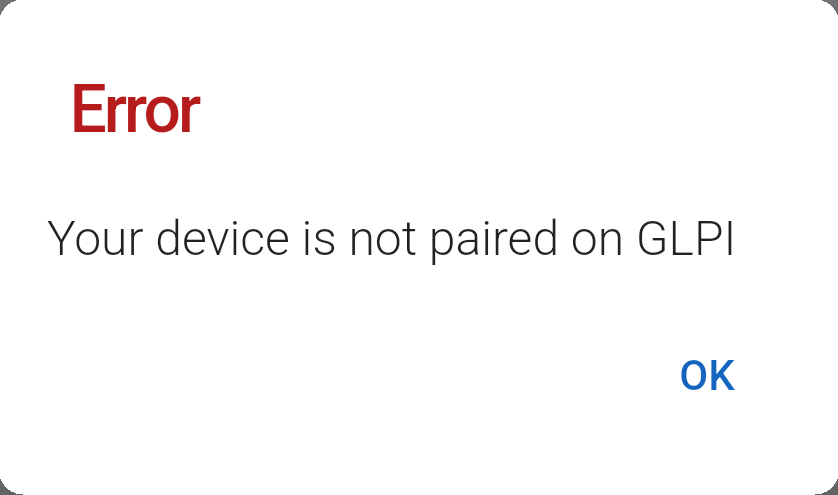
The error shown when the phone is not paired on GLPI.
Another device is paired with Passwords on GLPI.
This message appears when a different phone, or a newer pairing, has replaced yours. Pair this phone again from Settings > Security > Passwords 2FA.
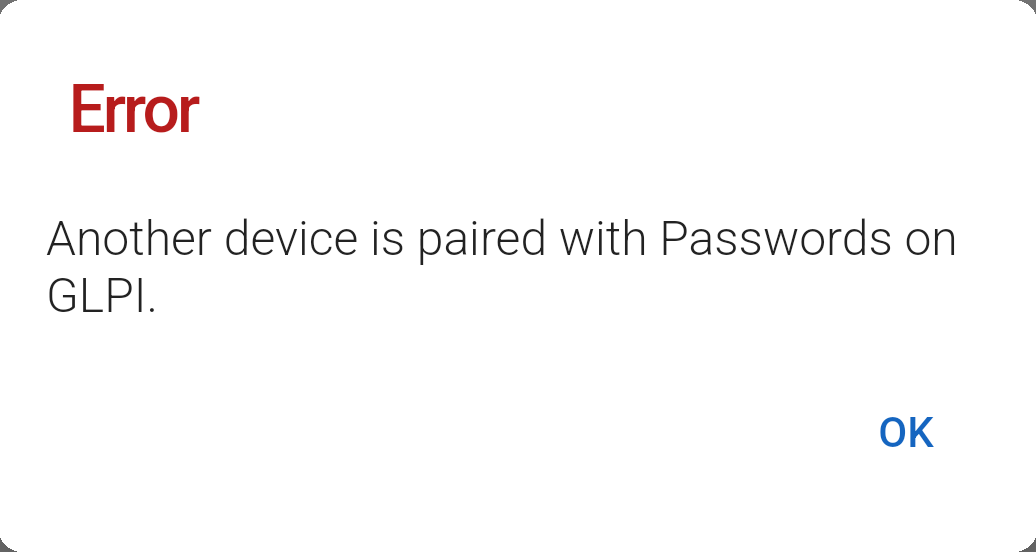
The error shown when another device is paired with Passwords on GLPI.
Other messages
These are the other messages you may see.
- The QR token has expired, please generate a new one.: the QR code was generated too long ago. Generate a new one in My settings > Passwords and scan it.
- Invalid QR code: the code you scanned does not come from GLPI. Generate a new one in My settings > Passwords.
- The entered PIN is incorrect.: the access was not granted. Ask for the password again and enter the PIN you chose when you paired the app.
- Connection error: the app could not reach GLPI. Check your connection and try again.
- Nothing appears after you tap a password: if you have not validated recently, the password is shown only after you approve the notification, and then you tap it again. If no notification arrives, check that the app can show notifications. If the card does nothing at all, the Passwords integration is probably not available on your GLPI. Ask your administration.
- No access: you can only open the passwords you have access to in GLPI.