
5.5 Settings

Adapt the dial, working hours, calendar, colors and language to the way you work.
5.5.1 Settings
Settings adapt the dial, your working hours, the calendar, the colors and the language to the way you work. Open them with the gear icon in the top-right corner of the home screen.
5.5.1.1 Dial, time zone and schedules
The first sections control the dial. The numbers match the screenshot below.
- Precise minutes: how the time snaps while you drag the dial. ✕ moves it freely, 15" and 30" snap to steps of 15 or 30 minutes, and 60" to whole hours.
- Time zone: the time zone of the time in the middle of the dial. The name of the zone in use is shown above it.
- Working hours and Night hours: when a city is within working hours or at night. They drive the icons next to each city's time, the inner ring of the dial and the checks in the city details.
- Sync with system clock: when on, the dial starts at the current time when you open the app; when off, it starts at 00:00.
- Watch tutorial: goes back to the home screen and replays the tutorial.
- Event view mode: compact or comfortable event cards in the city details.
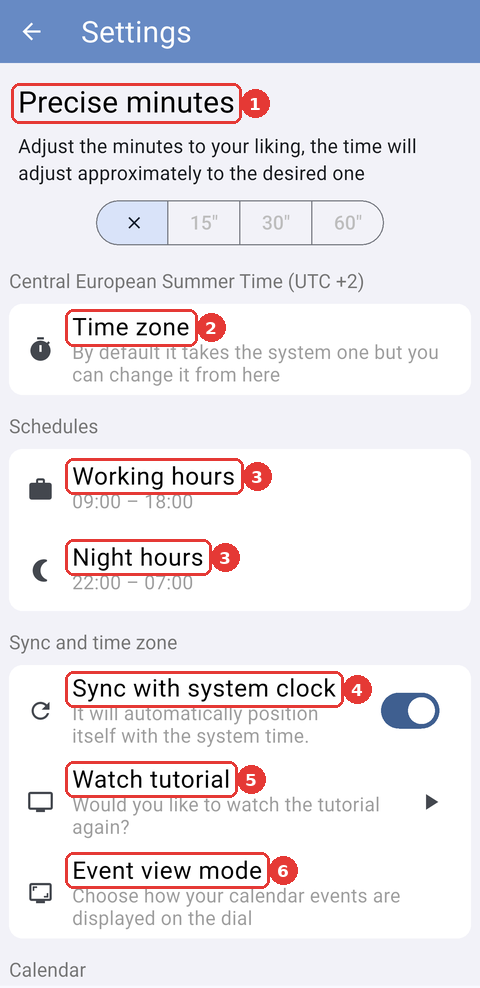
The top of the Settings screen.
5.5.1.2 Choose your time zone
Tap Time zone to open Select time zone. The first option is your device's own time zone, by name; the others are fixed UTC offsets, in whole hours, from UTC -12:00 to UTC +14:00. The zone in use is also shown at the bottom of the home screen.
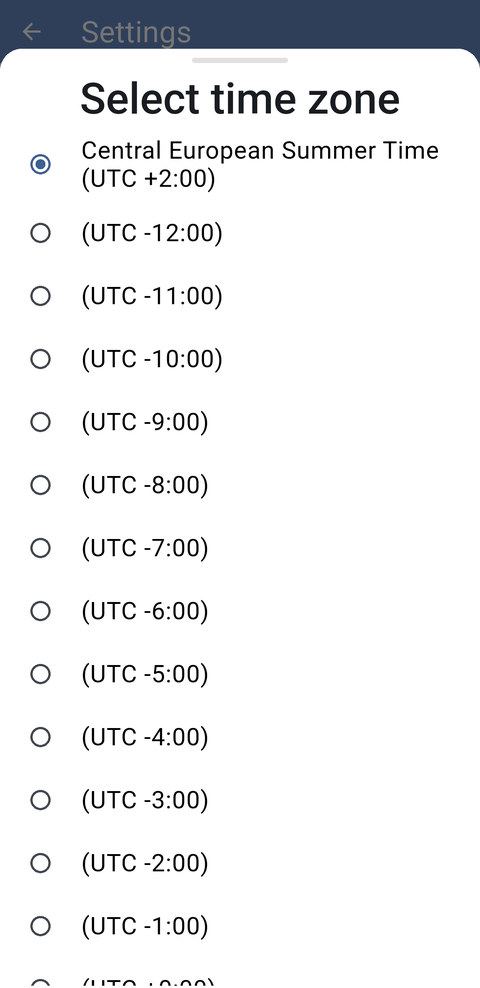
The list of time zones, with the device's Central European Summer Time selected.
5.5.1.3 Change the working and night hours
Tap Working hours or Night hours. A clock opens twice: first for the Start time and then for the End time; tap OK on each. Night hours can go past midnight, as the default 22:00–07:00 does. If you cancel either clock, nothing changes.
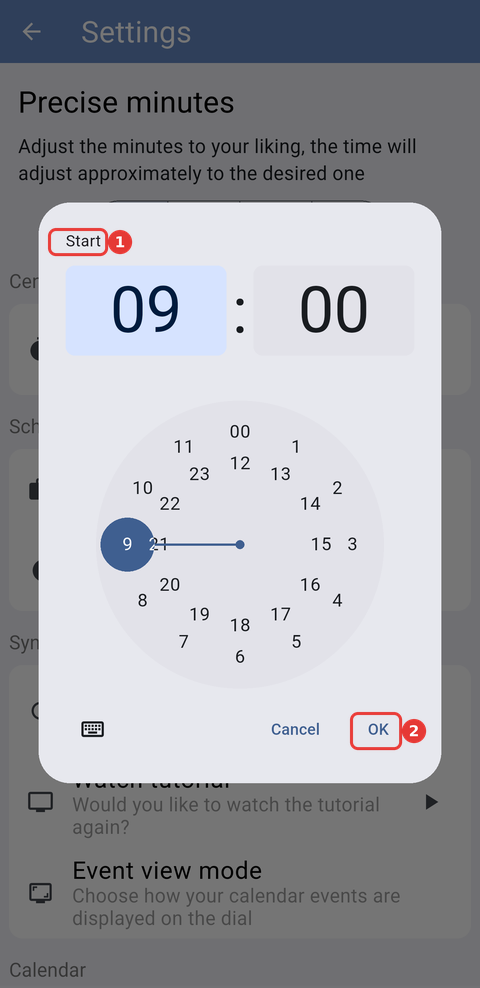
Choosing (1) the start of the working hours; (2) OK confirms it.
5.5.1.4 Choose the event view mode
Tap Event view mode and choose compact or comfortable. See Compact and comfortable views in City details for the difference.
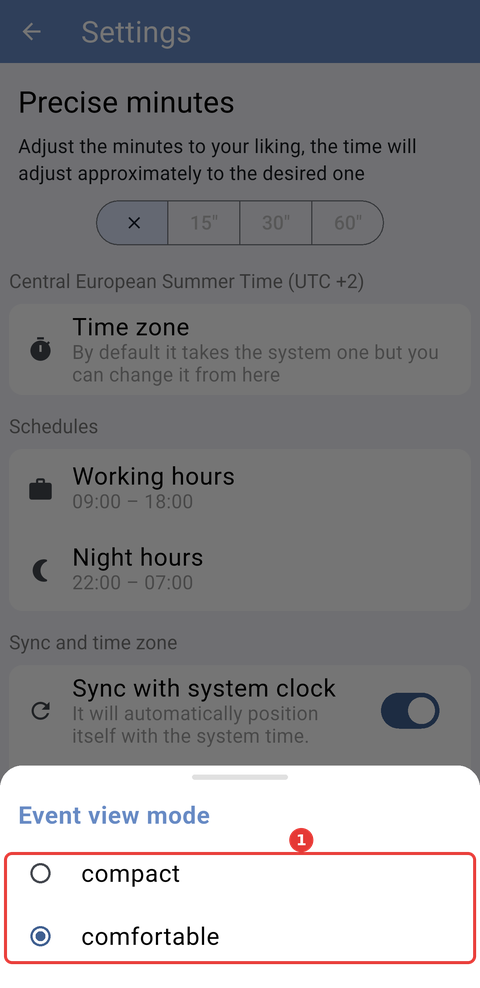
(1) The two event view modes.
5.5.1.5 Calendar, colors and language
Scroll down for the rest of the options. The numbers match the screenshot below.
- Calendar shown: the calendar whose events the app shows.
- Calendar permission: Granted, with a green dot, or Denied, with a red dot. Tap it to open the app's Android settings, where you can allow or remove access.
- Color palette and Events color: the colors of your cities and of your events on the dial.
- Change language and Date format.
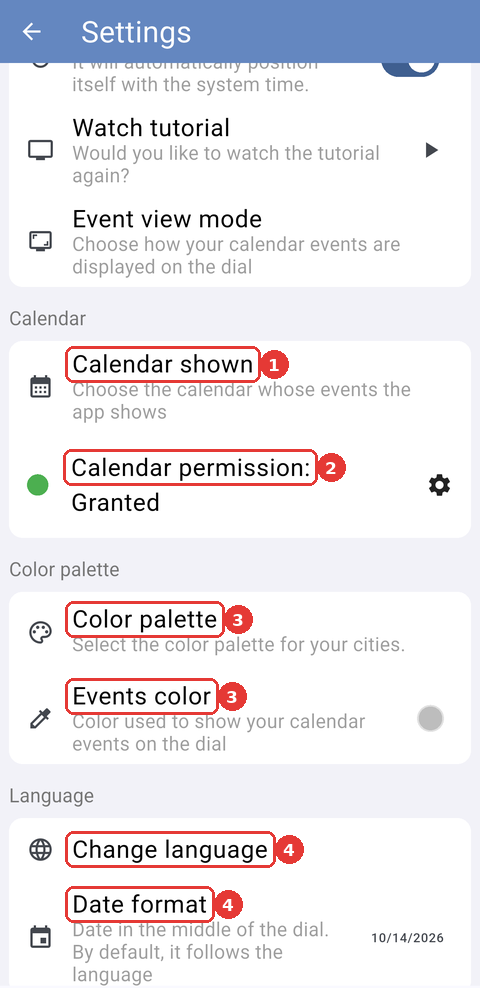
The Calendar, Color palette and Language sections.
5.5.1.6 Calendar shown
Tap Calendar shown to choose the calendar whose events appear on the dial and in the city details. The app shows one calendar at a time. If yours is missing, tap Can't see your calendar? for the checklist described in Setup.
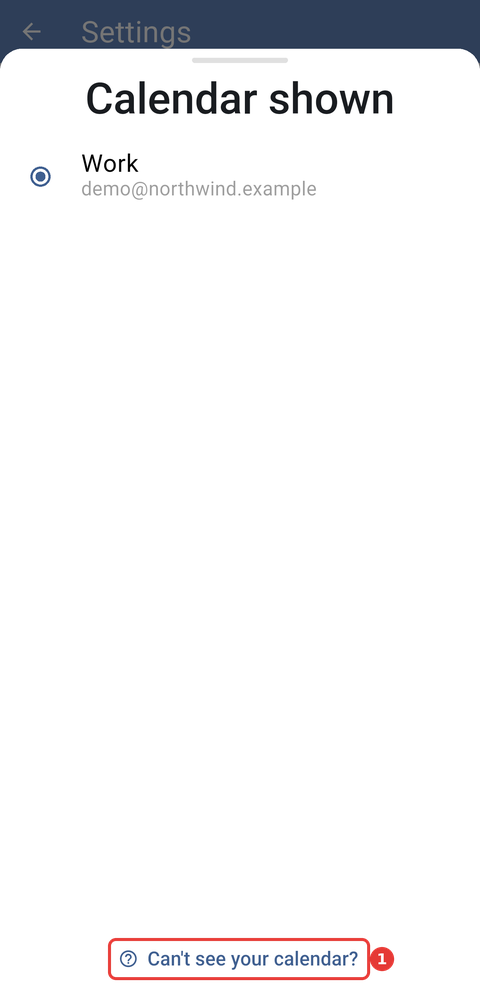
The calendars on the phone, with Work selected, and (1) Can't see your calendar?
5.5.1.7 Color palette
Tap Color palette to choose one of the three ready-made palettes or your own Custom palette. Your cities take the colors of the palette in order. Tap the pencil next to Custom to edit it: tap a city to pick its color, then tap Save in the top-right corner. Reset to defaults brings back the colors of Palette 1.
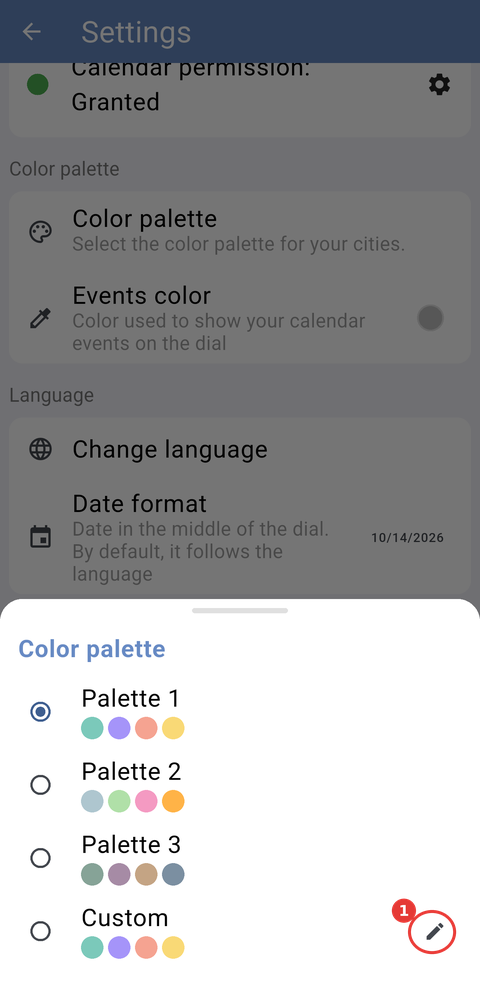
The palettes, with (1) the pencil to edit the custom palette.
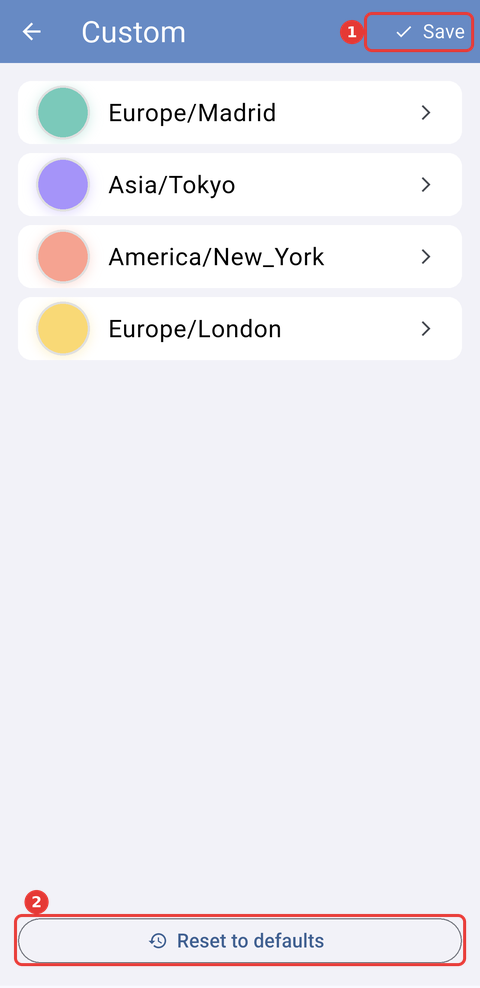
The custom palette, with one color for each of your cities: (1) Save and (2) Reset to defaults.
5.5.1.8 Events color
Tap Events color to choose the color of your events on the dial. Pick a color, then its shade and, if you like, its opacity, and tap OK.
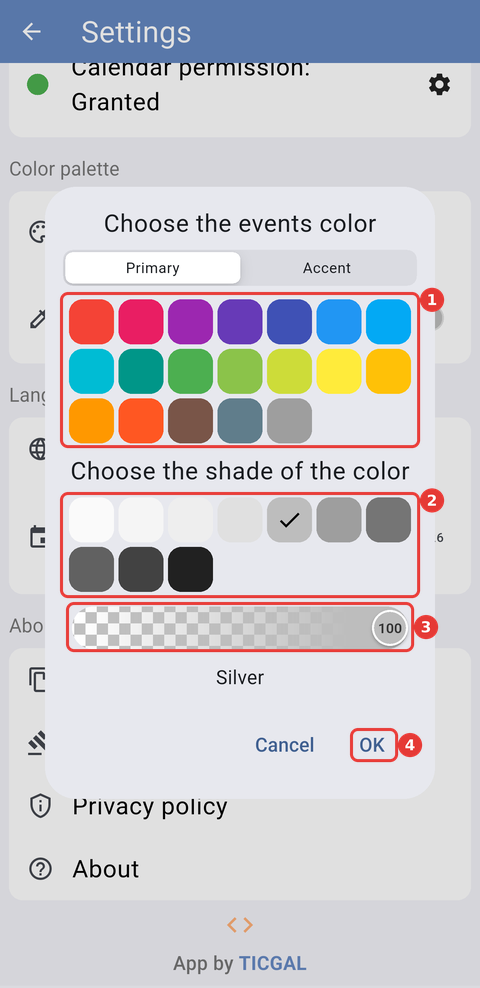
The color picker for events: (1) the color, (2) its shade, (3) its opacity and (4) OK.
5.5.1.9 Language
The app is available in English, Spanish and Galician. Tap Change language and choose one; the app switches straight away.
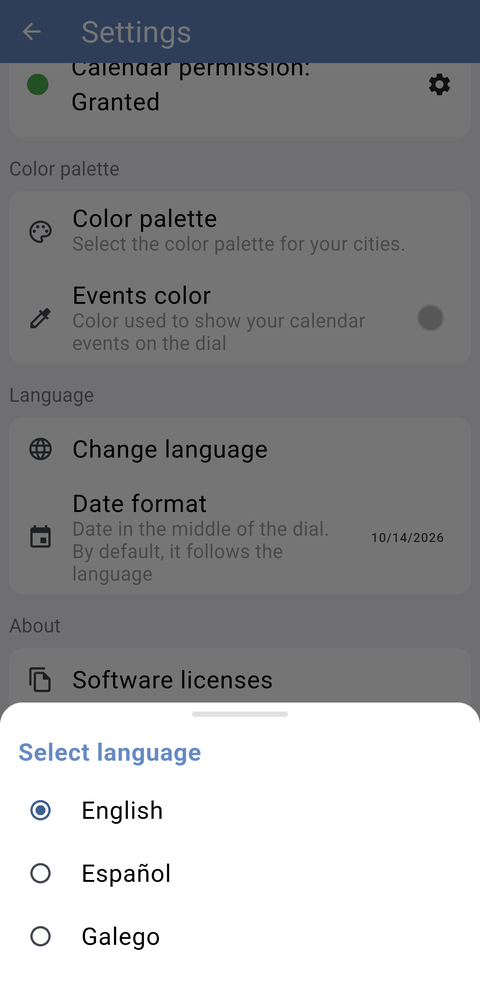
The languages available in the app.
5.5.1.10 Date format
Tap Date format to choose how the date in the middle of the dial is written. Automatic follows the language; the other options write the date as day/month/year, month/day/year or year-month-day, whatever the language.
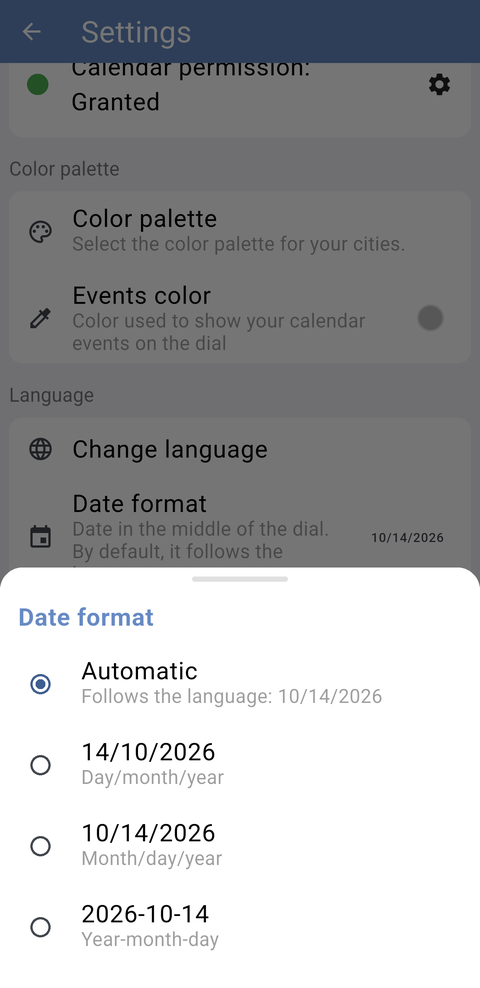
The date formats.
5.5.1.11 About the app
At the end of Settings, Software licenses lists the licenses of the open-source components the app uses, and Terms of use and Privacy policy open those documents on the TICGAL website. About shows the app's version and links to the TICGAL website; tap anywhere else on that screen to close it.
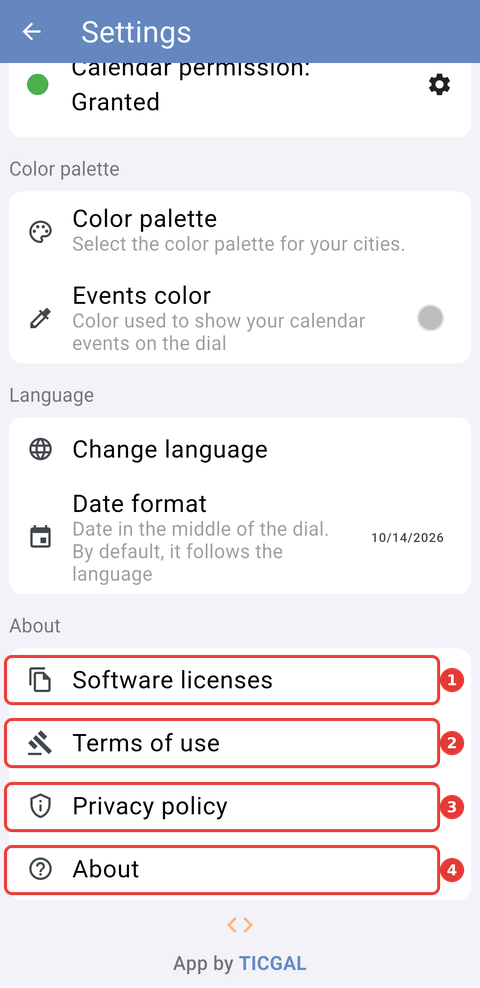
The About section of Settings: (1) Software licenses, (2) Terms of use, (3) Privacy policy and (4) About.
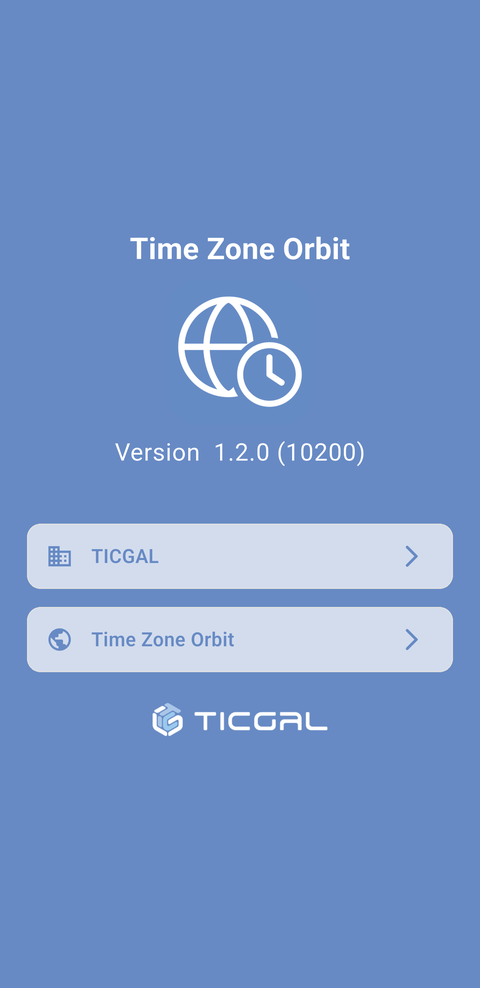
The About screen, with the app's version.
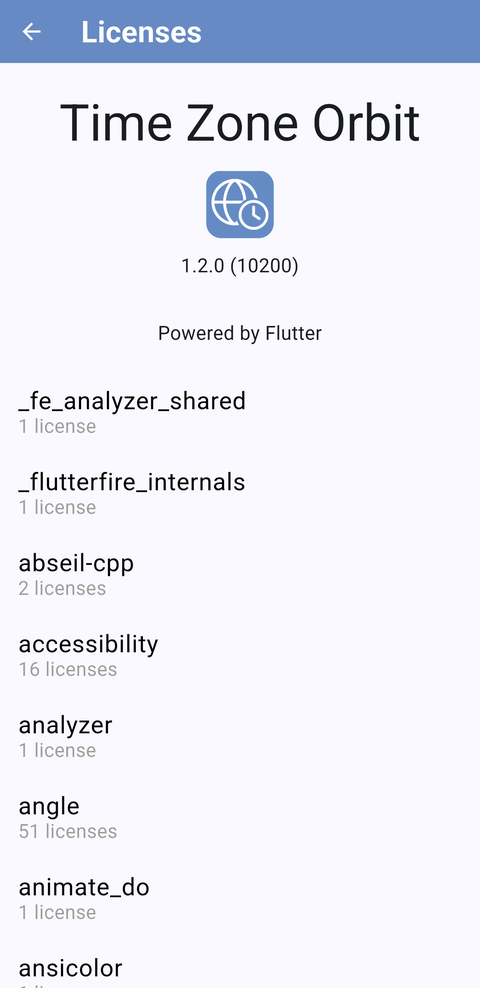
The software licenses.
Note: Include the version number shown on the About screen when you contact support.
Part of the Time Zone Orbit manual — see also 1. Introduction, 2. What's New, 3. Scope, 4. Setup, 5.1 Home screen, 5.2 The Orbit dial, 5.3 Managing cities, 5.4 City details and events, 6. Troubleshooting.
Generated for Time Zone Orbit 1.2.0 on Android — 2026-10-14.