
5.1 Home screen

The home screen at a glance, highlighted cities and how to look at another day.
5.1.1 The home screen
The home screen opens every time you start the app. It shows the Orbit dial with its controls, the cities you follow and the time zone you are working in.
5.1.1.1 What you see on the home screen
From top to bottom. The numbers match the screenshot below.
- The gear icon (top-right corner of the app bar): opens Settings.
- The calendar icon (top-left corner of the dial): opens the details of the highlighted city. It is grey while no city is highlighted.
- The calendar icon with a circular arrow (top-right corner of the dial): brings the dial back to today and the current time. It is grey while the dial is already there.
- The Orbit dial: a 24-hour clock. The large time in the middle, next to the house icon, is the time you are planning, in your own time zone, and the date under it is the day the dial shows. Each city has a colored marker on the ring. Its inner ring is light blue when all your cities are within working hours, and turns amber (orange) when at least one of them is outside working hours or at night. See Read the dial.
- The arrows ‹ and › (bottom corners of the dial): move the dial one day back or forward. See Looking at another day.
- Your cities: each row shows the city's color, its name (or alias) and time zone, an icon that tells whether it is working hours there (a green briefcase), outside working hours (an amber crossed-out briefcase) or night (an indigo moon), the time there and its UTC offset.
- The bottom bar: the name of your time zone and its UTC offset or, when the time on the dial falls inside one of your events, a button with that event. The + button next to it adds cities.
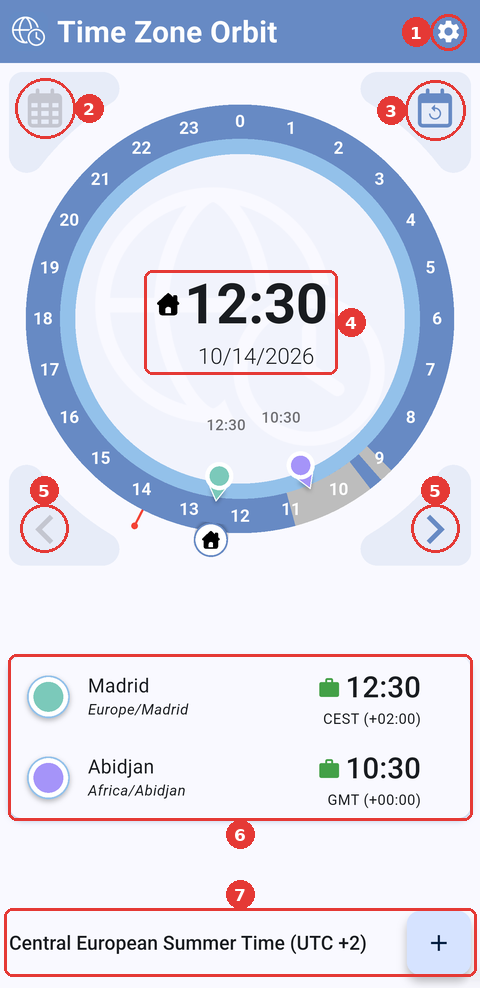
The home screen with Madrid and Abidjan, both within working hours at 12:30, so the inner ring of the dial is light blue.
5.1.1.2 Highlight a city
Tap a city's row, or its marker on the dial, to highlight it. The numbers match the screenshot below.
- its row is tinted with the city's color and its marker grows;
- its time appears in the middle of the dial, under yours, with its working-hours icon;
- the inner ring shows the city's working hours as an arc in its color, so you can see which of your hours fall inside them;
- the other cities fade.
Tap the city again, or the empty centre of the dial, to remove the highlight.
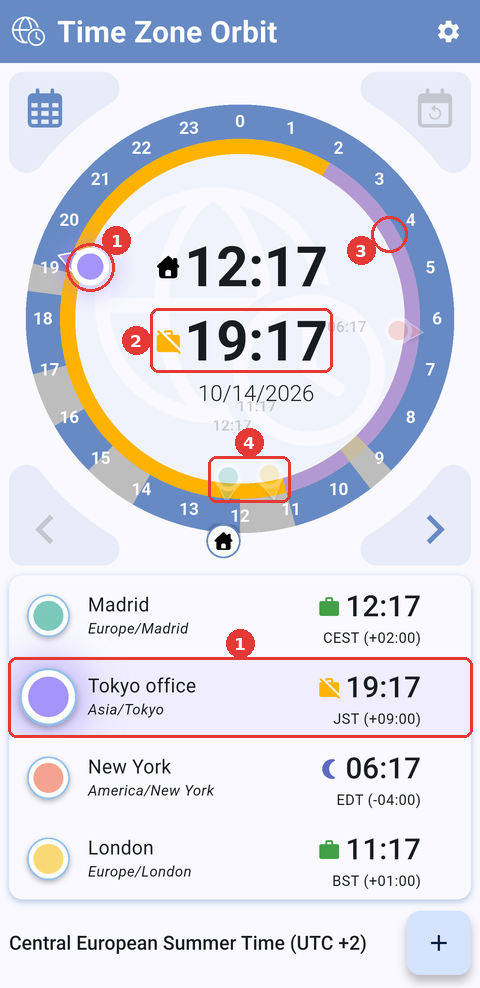
Tokyo office highlighted: its time, 19:17, appears under 12:17, and its working hours are drawn in purple on the inner ring. The rest of the inner ring is amber because Tokyo office is outside working hours at 19:17 (amber crossed-out briefcase) and it is night in New York at 06:17 (moon).
5.1.1.3 Open a city's details
With a city highlighted, tap the calendar icon in the top-left corner of the dial to open its details: the city's availability at the time you chose and your events day by day. See City details and events.
Touch and hold the icon to see which city it opens. If no city is highlighted, the icon is grey and tapping it shows Tap a city on the dial to see its details.
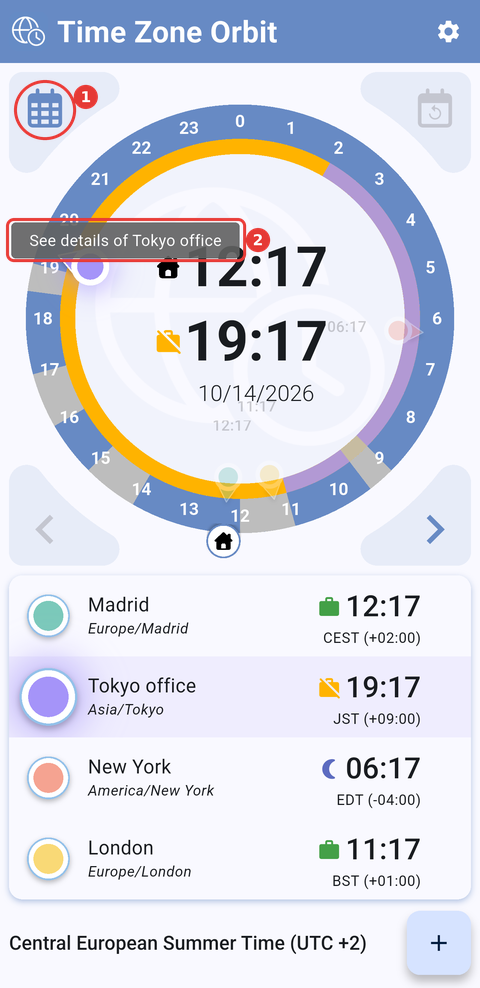
Touching and holding (1) the calendar icon shows (2) "See details of Tokyo office". The inner ring is amber because Tokyo office is outside working hours and it is night in New York.
5.1.2 Looking at another day
The dial shows today when you open the app, but you can move it to any day up to one year ahead to plan a meeting on that date.
5.1.2.1 Move to another day
Tap ›, in the bottom-right corner of the dial, to move to the next day, and ‹ to go back. The time stays the same: the date in the middle of the dial changes, and the dial and the event button show the events of that day. You can also swipe sideways on the strip with the arrows: to the left for the next day, to the right for the previous one.
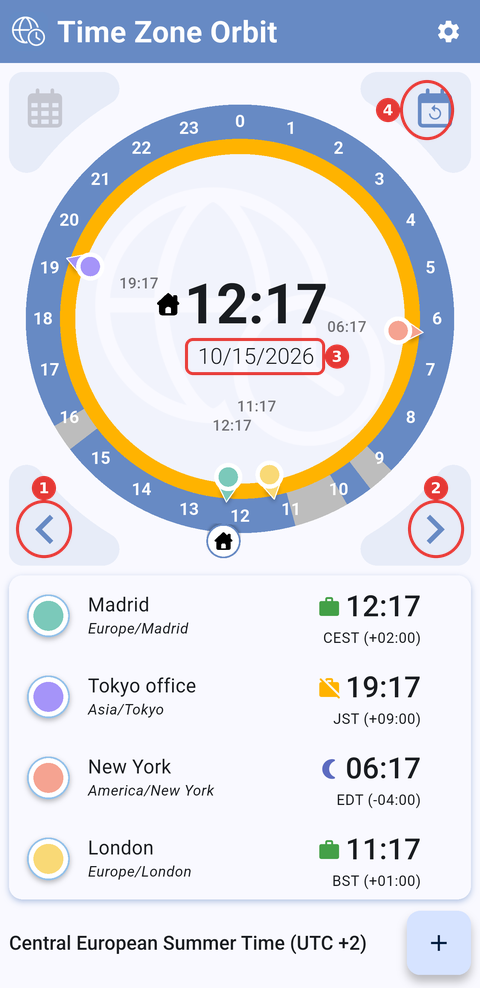
The dial on the next day: (1) ‹ goes to the previous day, (2) › to the next day, (3) the date, now 10/15/2026, and (4) the back-to-now icon, now active. The inner ring is amber because Tokyo office is outside working hours and it is night in New York.
5.1.2.2 From today to one year ahead
The dial cannot show past days. On today, ‹ is grey, and tapping it shows The dial can't go back before today. One year ahead, › shows The dial only goes up to a year ahead.
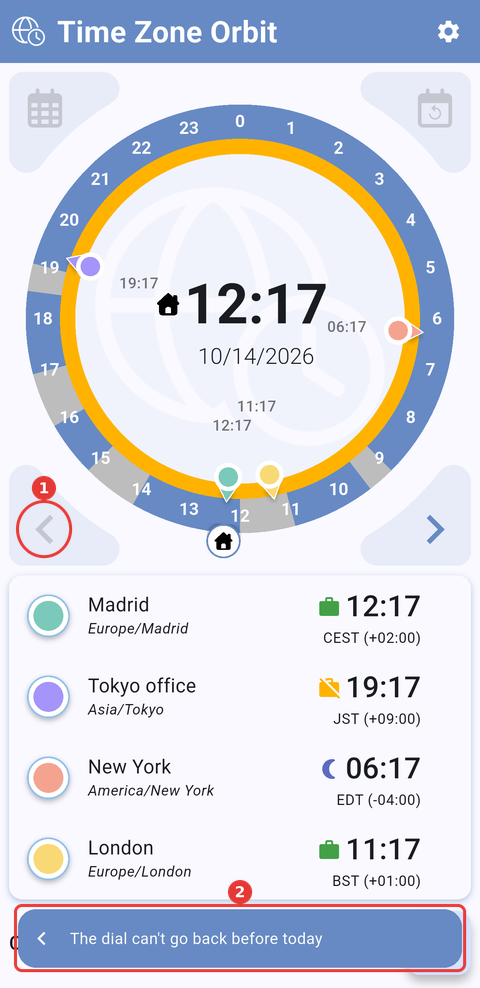
The message shown when trying to go back before today: (1) ‹ is grey on today and (2) the message. The inner ring is amber because Tokyo office is outside working hours and it is night in New York.
5.1.2.3 Go back to now
Tap the calendar icon with the circular arrow, in the top-right corner of the dial, to bring the dial back to today and the current time. Touch and hold it to see which day the dial is on, for example Tomorrow · Thu 15, followed by Back to now. While the dial already shows today at the current time, the icon is grey.
Tapping the red line on the edge of the dial, which marks the current time, also brings the dial back to now.
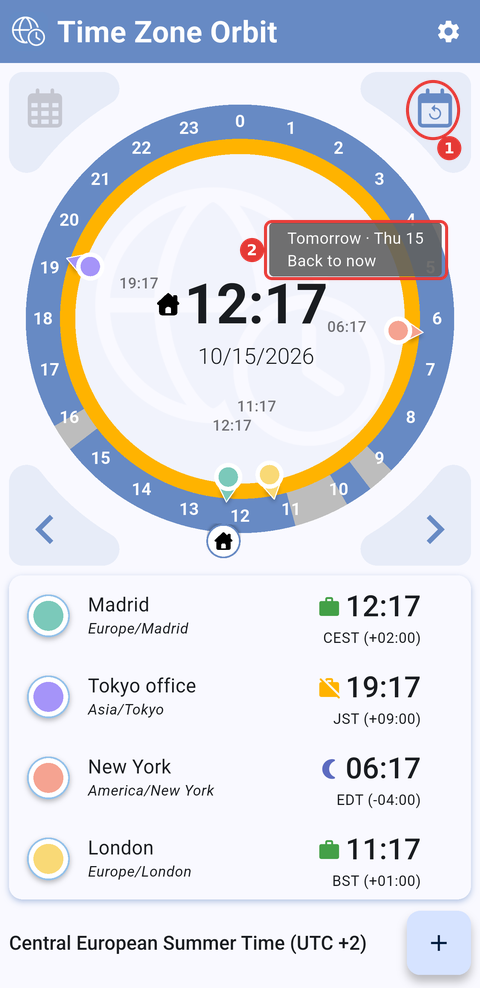
Touching and holding (1) the back-to-now icon while the dial is on tomorrow shows (2) the day and Back to now. The inner ring is amber because Tokyo office is outside working hours and it is night in New York.
Part of the Time Zone Orbit manual — see also 1. Introduction, 2. What's New, 3. Scope, 4. Setup, 5.2 The Orbit dial, 5.3 Managing cities, 5.4 City details and events, 5.5 Settings, 6. Troubleshooting.
Generated for Time Zone Orbit 1.2.0 on Android — 2026-10-14.