
5.4 City details and events

Check a city's availability, your events day by day and the details of each event.
5.4.1 City details
Each city has a details screen that answers one question: is the time you picked a good moment for a meeting there? It shows the city's availability and your events day by day.
5.4.1.1 Check the city's availability
To open a city's details, highlight it on the home screen and tap the calendar icon in the top-left corner of the dial. At the top you see the city's color, its name or alias and its time zone.
The card under the name compares the times: on the left, Selected time, the time on the dial in your own time zone; on the right, the time in the city, with its UTC offset. If the city is already on another day, its date is shown before the offset. Under the times, three checks tell you whether it is a good moment for a meeting there, each with a green tick or a red cross. The numbers match the screenshot below.
- Working hours or Outside working hours.
- Daytime or Night-time.
- No events or You have an event: whether your calendar already has an event at that time on the day you are looking at.
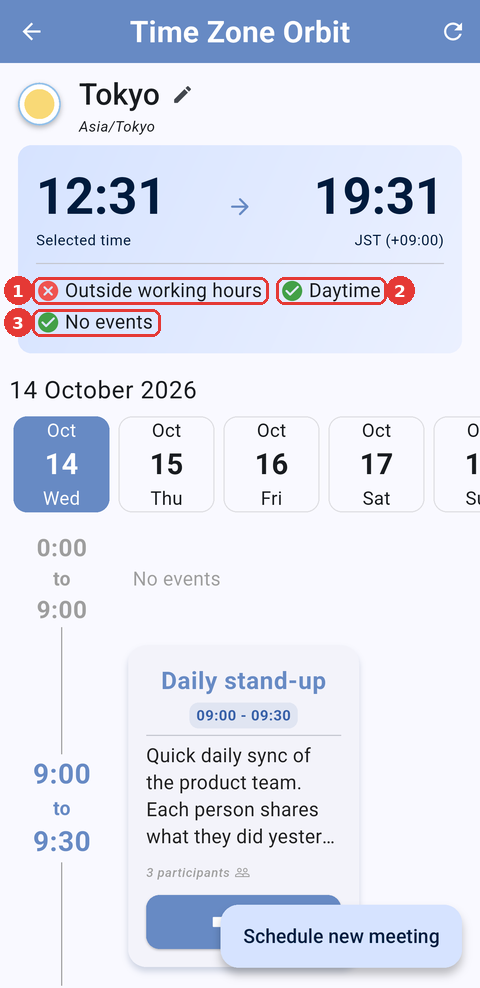
Tokyo at 19:31: outside working hours but in daytime, and no events at 12:31 in your calendar.
5.4.1.2 Pick a day
Under the card you see the date and a strip of days, from today to one year ahead. Tap a day to see its events; the checks are updated for that day. The refresh icon in the top-right corner goes back to today and reloads your events.
5.4.1.3 Read the timeline
The timeline lists the events of the day from midnight to midnight, with the free periods in between shown as No events, so you can spot the gaps at a glance. Each card shows the title, the start and end time, the start of the description and the number of participants. Tap a card to open the event's details. As you scroll, the card with the times moves up out of the way, leaving the screen to the timeline.
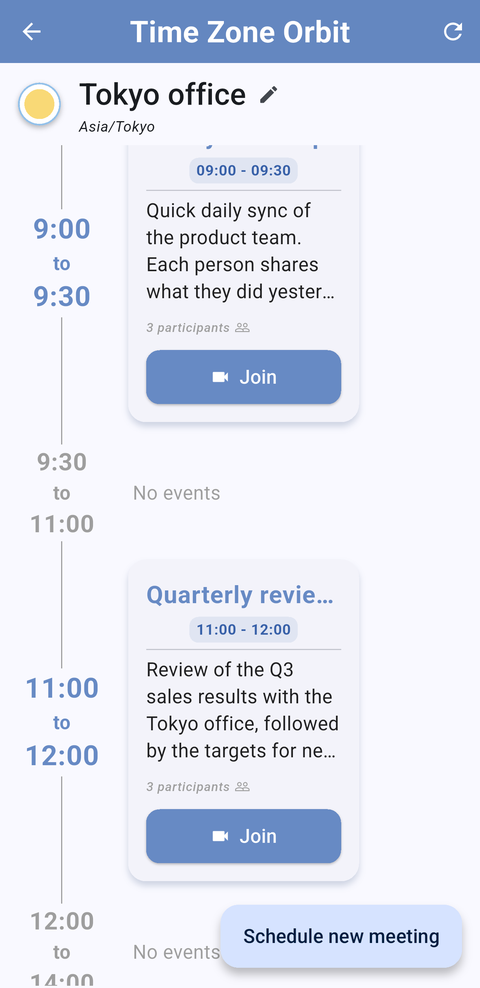
The timeline: "Daily stand-up", a free period from 9:30 to 11:00 and "Quarterly review with Tokyo office".
Note: The times in the timeline are in your own time zone, as in your calendar. The city's time is the one in the card at the top.
5.4.1.4 Join a call or phone in
When an event's description contains a video call link (Google Meet, Zoom, Microsoft Teams, Webex or Jitsi), its card shows a Join button that opens the call. When it contains a phone number, the card also shows a Call button that opens your phone app with that number. Events without either show no buttons.
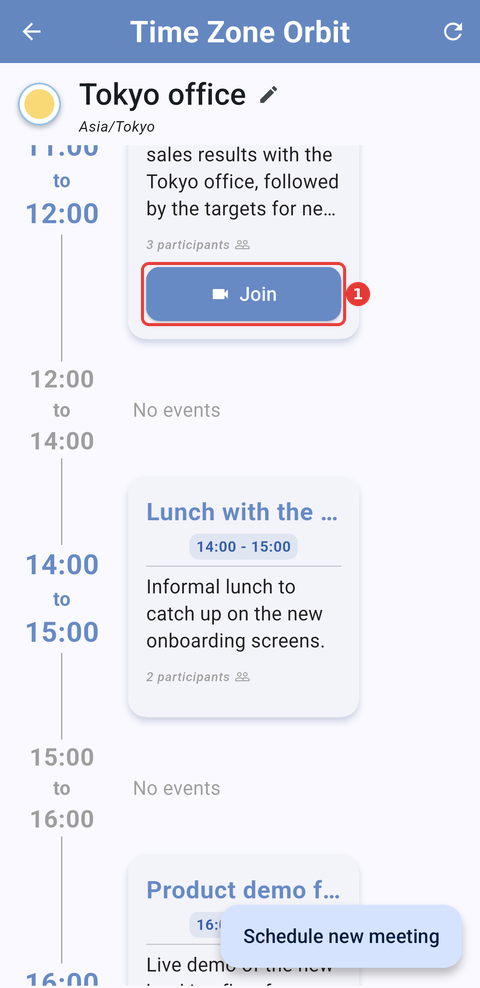
"Quarterly review with Tokyo office" has (1) a Join button; "Lunch with the design team", with no link or phone number, has none.
5.4.1.5 Compact and comfortable views
The cards can be shown in two sizes. Comfortable (the default) shows up to four lines of the description, the participants and the buttons. Compact shows two lines and the number of participants next to the time, without buttons, so more events fit on the screen. Spread two fingers on the timeline to switch to comfortable, and pinch them together to switch to compact, or choose the view in Settings → Event view mode.
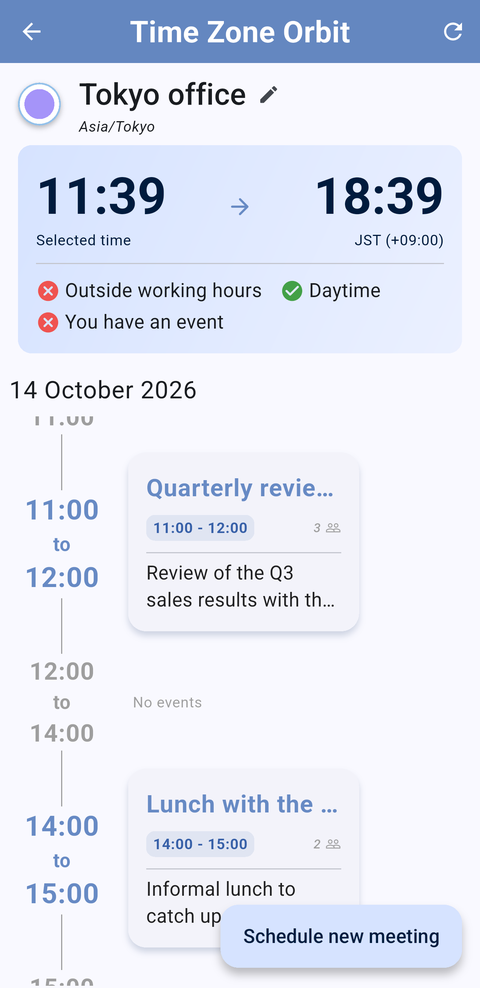
The timeline in compact view.
5.4.1.6 Give the city an alias
An alias is a short name shown instead of the city's name everywhere in the app, for example the name of an office or a client. Tap the pencil next to the name, type the alias (up to 14 characters) and tap Save. To remove it, delete the text and tap Save.
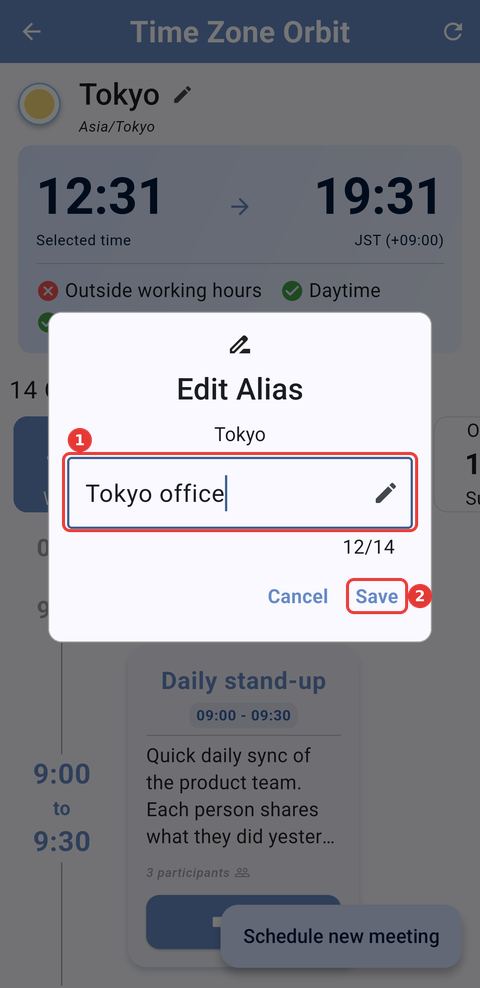
The Edit Alias dialog: (1) the alias and (2) Save.
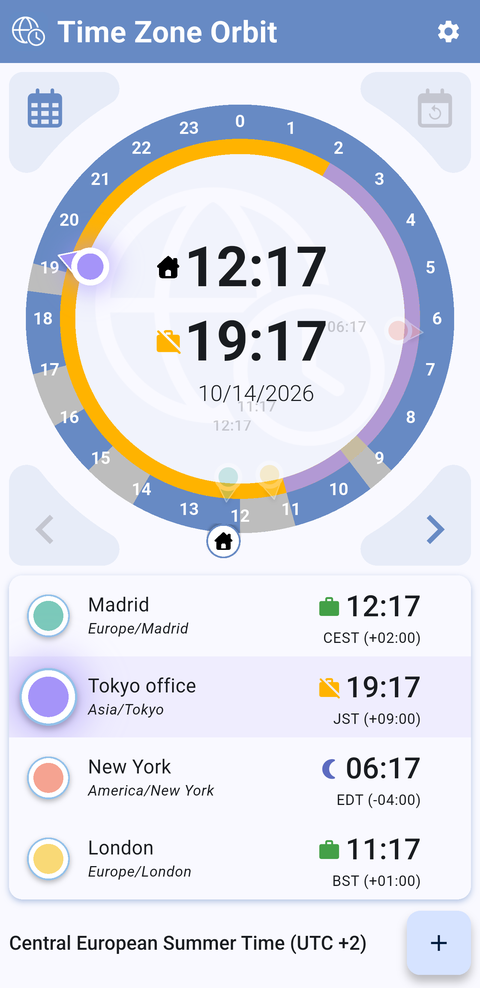
Back on the home screen, Tokyo is listed as "Tokyo office". The inner ring is amber because Tokyo office is outside working hours and it is night in New York.
5.4.1.7 Schedule a new meeting
Tap Schedule new meeting, in the bottom-right corner, to create the meeting in your calendar. On Android it opens Google Calendar with a new one-hour event called New event: check its date and time, add the title and the guests, and save it. On iPhone it opens the Calendar app.
5.4.2 Event details
Tapping an event card in a city's details, or the event button on the home screen, opens everything about the event in a sheet.
5.4.2.1 The event sheet
At the top you see the title, the start and end time, the calendar the event belongs to and its location, if it has one. Below, three sections you can expand or collapse: Description, which is open when the sheet opens, Participants and Documents. The buttons at the bottom act on the event: Join opens the video call and Call opens your phone app with the number found in the description.
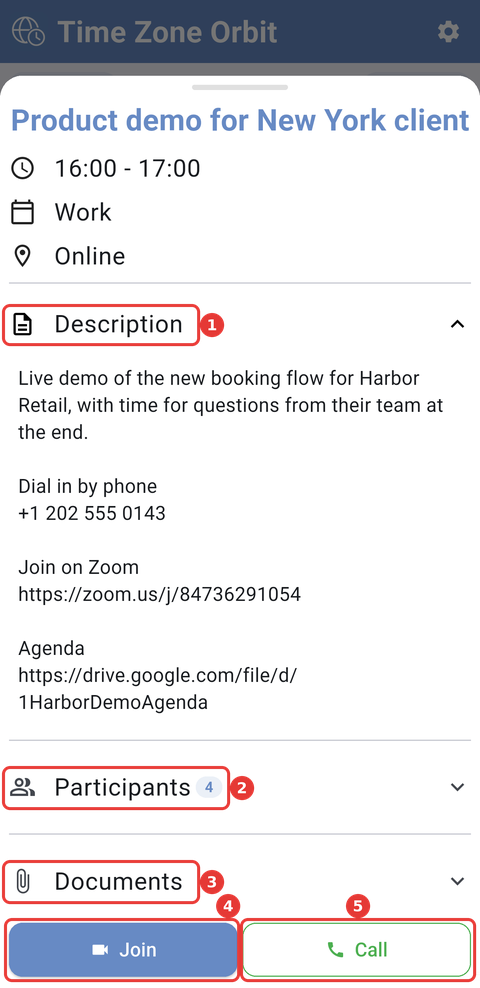
"Product demo for New York client", with a phone number and a Zoom link in its description: (1) Description, (2) Participants, (3) Documents, (4) Join and (5) Call.
5.4.2.2 Participants
Expand Participants to see the people invited to the event, with their e-mail addresses. The number next to the title is how many there are.
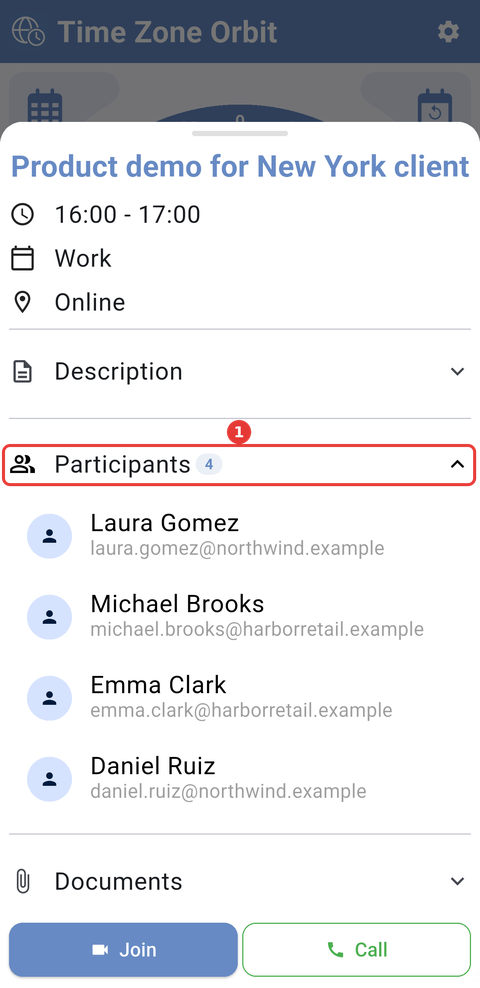
The four participants of the event, under (1) Participants.
5.4.2.3 Documents
Expand Documents to see the links in the description to files and web pages, such as Google Drive, Google Docs, Dropbox or OneDrive. Tap one to open it.
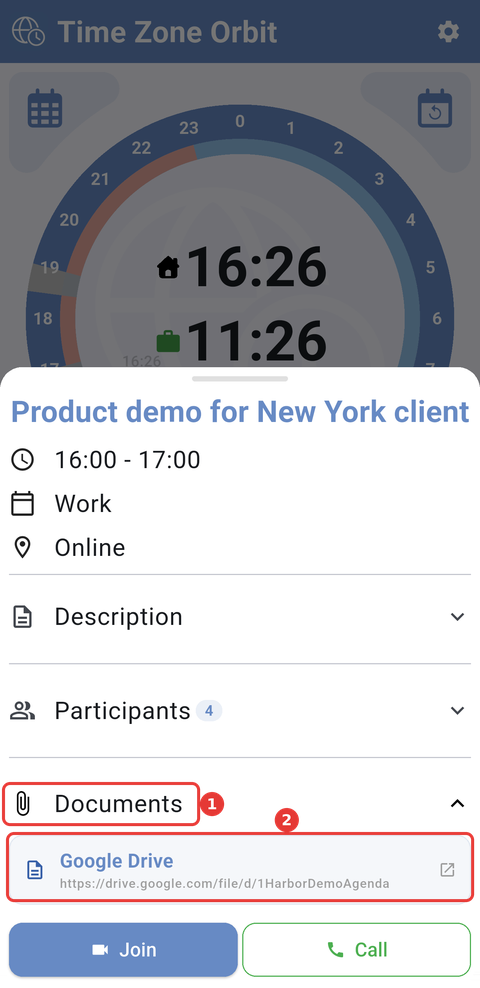
(1) The Documents section with (2) the meeting's agenda in Google Drive.
Part of the Time Zone Orbit manual — see also 1. Introduction, 2. What's New, 3. Scope, 4. Setup, 5.1 Home screen, 5.2 The Orbit dial, 5.3 Managing cities, 5.5 Settings, 6. Troubleshooting.
Generated for Time Zone Orbit 1.2.0 on Android — 2026-10-14.