
5.3 Managing cities

Add, search for and remove the cities you follow.
5.3.1 Adding and removing cities
You can follow up to four cities at a time. The first time you open the app, Madrid is added for you.
5.3.1.1 Open the Add cities sheet
On the home screen, tap + in the bottom-right corner. The sheet lists the cities you follow under Added, followed by the world regions; tap a region to expand it. The counter next to the search field shows how many cities you follow out of four.
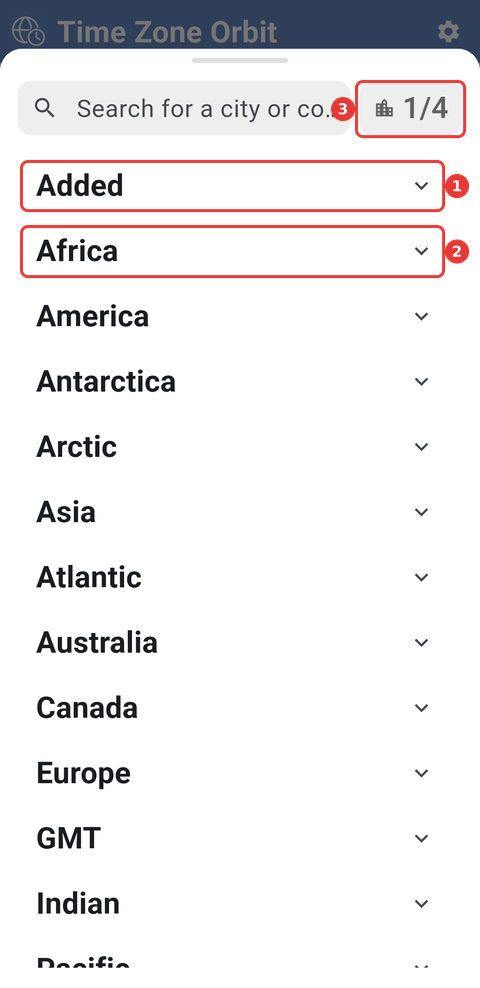
The Add cities sheet, with one city out of four: (1) Added, (2) a region and (3) the counter.
5.3.1.2 Search for a city
Tap the search field and type part of the city's name, for example Tokyo. Each result shows the city, its region, the time there and its time zone. Tap a result to add the city; the search is cleared so you can look for the next one.
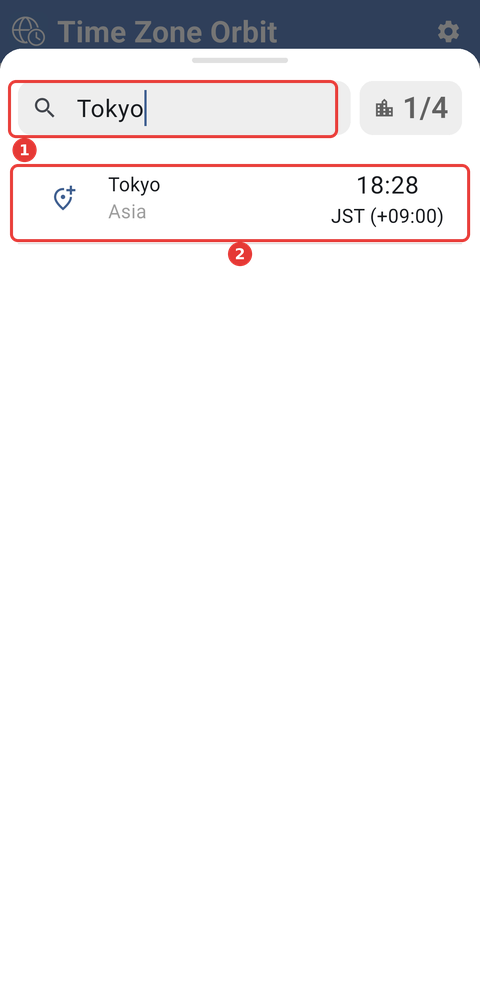
Searching for "Tokyo": (1) the search field and (2) the result.
Note: Search by the city's name, not the country's. For a name with two words, type just one of them: York finds New York.
5.3.1.3 Check the cities you follow
The cities you follow are listed under Added, with a filled pin. Tap one of them to remove it. Close the sheet by swiping it down.
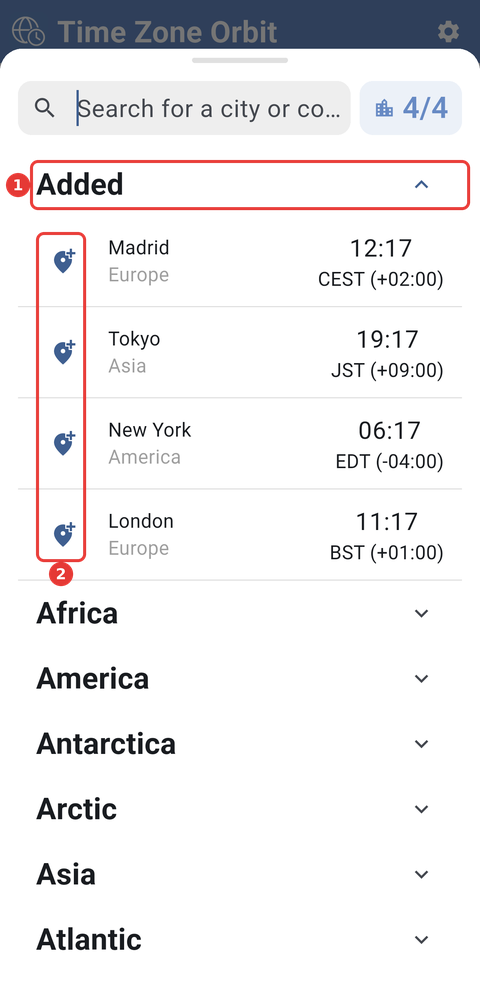
(1) The Added group with four cities, Madrid, Tokyo, New York and London, and (2) their filled pins.
5.3.1.4 City limits
To keep the dial readable you can follow up to 4 cities, and up to 3 cities with the same UTC offset. If you try to add one more, a Limit reached message appears and the city is not added.
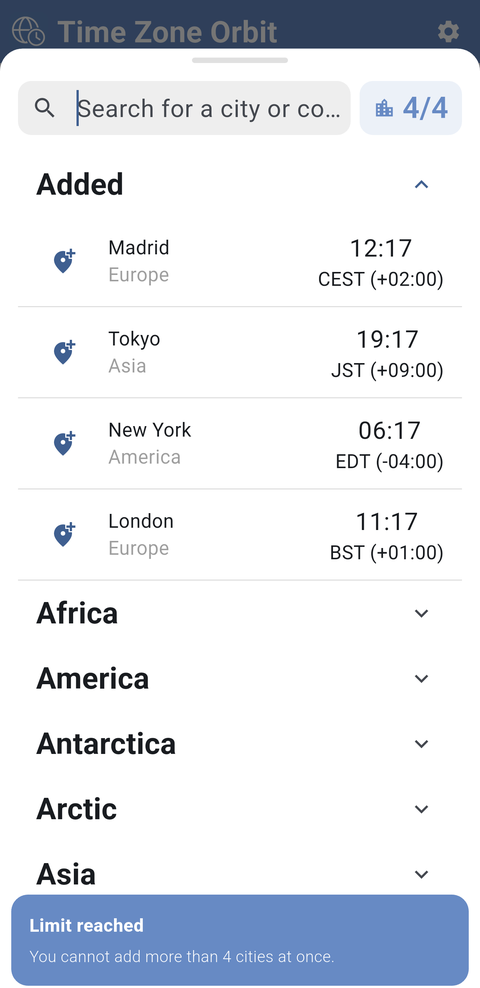
The message shown when trying to add a fifth city.
5.3.1.5 Remove a city from the home screen
Swipe a city's row to the right. A red Delete area appears behind it; keep swiping until the row leaves the screen. If you let go earlier, the row goes back to its place and nothing is removed.
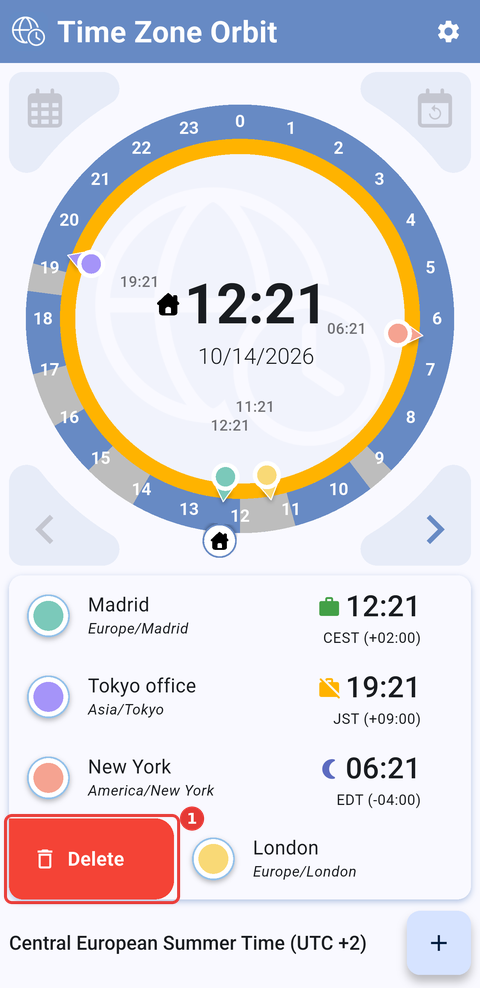
The London row half swiped, with (1) the Delete area behind it. The inner ring is amber because Tokyo office is outside working hours and it is night in New York.
Note: Removing a city cannot be undone; add it again with +. If you remove all your cities, the app adds Madrid back the next time it starts.
Part of the Time Zone Orbit manual — see also 1. Introduction, 2. What's New, 3. Scope, 4. Setup, 5.1 Home screen, 5.2 The Orbit dial, 5.4 City details and events, 5.5 Settings, 6. Troubleshooting.
Generated for Time Zone Orbit 1.2.0 on Android — 2026-10-14.