
5.2 The Orbit dial

Turn the dial to find a time and see at a glance who is within working hours.
5.2.1 Using the Orbit dial
The Orbit dial places all your cities on the same 24-hour ring. Turning it changes the time for every city at once, and its colors tell you who is within working hours and when you are already busy.
5.2.1.1 Choose a time
Drag the house marker on the edge of the dial to the time you want. You can also drag a city's marker, which grows while you hold it: the dial turns with your finger. The time in the middle, the small times inside the ring and the times in the city list change as you drag.
A red line on the edge of the dial marks the current time, so you can always see how far you have moved. Tap it to go back to now.
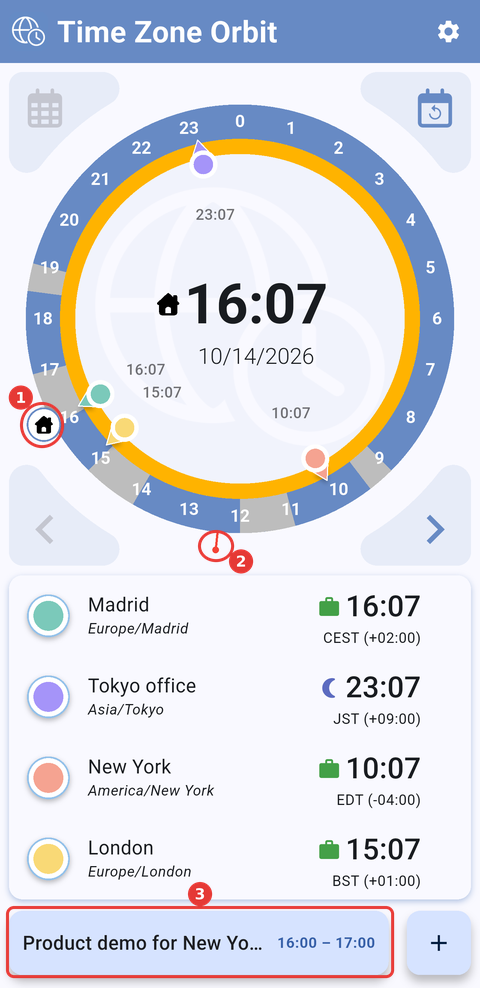
The dial moved to 16:07 by dragging (1) the house marker, inside "Product demo for New York client". (2) The red line marks the current time, 12:24, and (3) the event button opens the event. The inner ring is amber because it is night in Tokyo.
Note: How the dial moves depends on Settings → Precise minutes: with ✕ it moves freely; with 15" or 30" it snaps to steps of 15 or 30 minutes, and with 60" to whole hours.
5.2.1.2 Read the dial
The dial tells you at a glance whether a time suits everyone.
- Grey segments on the outer ring are the events of your calendar on that day, so you can see which hours are already taken. Their color is set in Settings → Events color.
- The inner ring is light blue when all your cities are within working hours at the time on the dial, and turns amber (orange) as soon as one of them is outside working hours or at night. Move the dial until it is light blue again to find a time that suits everyone.
- The small grey times inside the ring show the time in each of your time zones.
- The icon next to each city's time (1), in the list, says the same for every city: a green briefcase for working hours, an amber crossed-out briefcase for outside working hours, and an indigo moon for night. Touch and hold it to see its name.
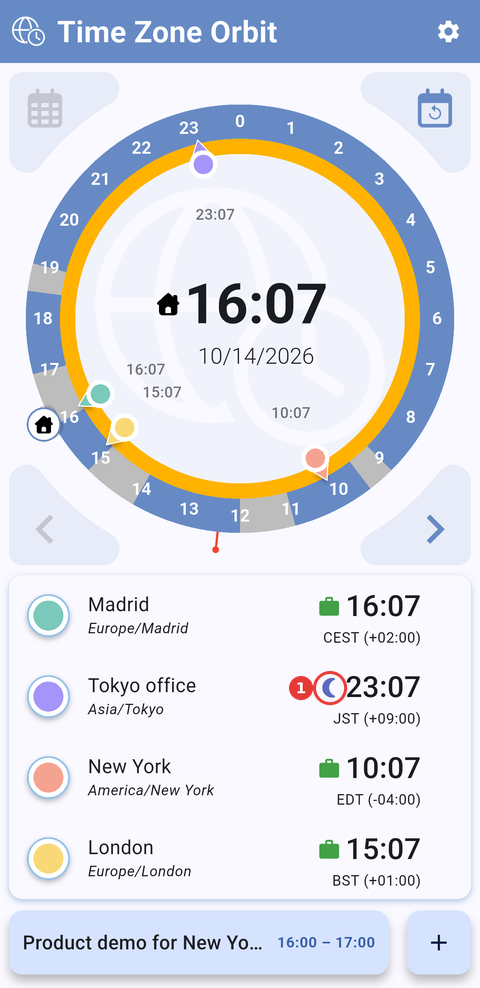
The dial at 16:07: the inner ring is amber because it is night in Tokyo office, as (1) the moon icon next to its time shows.
A +1 or −1 next to a city's time means that, at that moment, the city is already on the next day or still on the previous one.
Working hours and night hours are set in Settings → Schedules: by default 09:00–18:00 and 22:00–07:00, the same for every city.
5.2.1.3 Open the event at that time
When the time on the dial falls inside one of your events, the bottom bar shows a button with the event's title and its start and end time, as in the screenshot above. Tap it to open the event's details; see Event details.
Part of the Time Zone Orbit manual — see also 1. Introduction, 2. What's New, 3. Scope, 4. Setup, 5.1 Home screen, 5.3 Managing cities, 5.4 City details and events, 5.5 Settings, 6. Troubleshooting.
Generated for Time Zone Orbit 1.2.0 on Android — 2026-10-14.