
Searching the dictionaries
Search any of the four Rinoceronte dictionaries by typing a word. The app suggests entries as you type and keeps a list of your recent searches for each dictionary.
Getting there
Searching is done from the Explore tab, the screen the app opens on. See Home screen.
Choosing a dictionary
Tap the dictionary picker under the search field and choose the dictionary you want to search in. The dictionary you pick here is used until you close the app; the next time, the app opens with the dictionary set in Settings → Default dictionary.
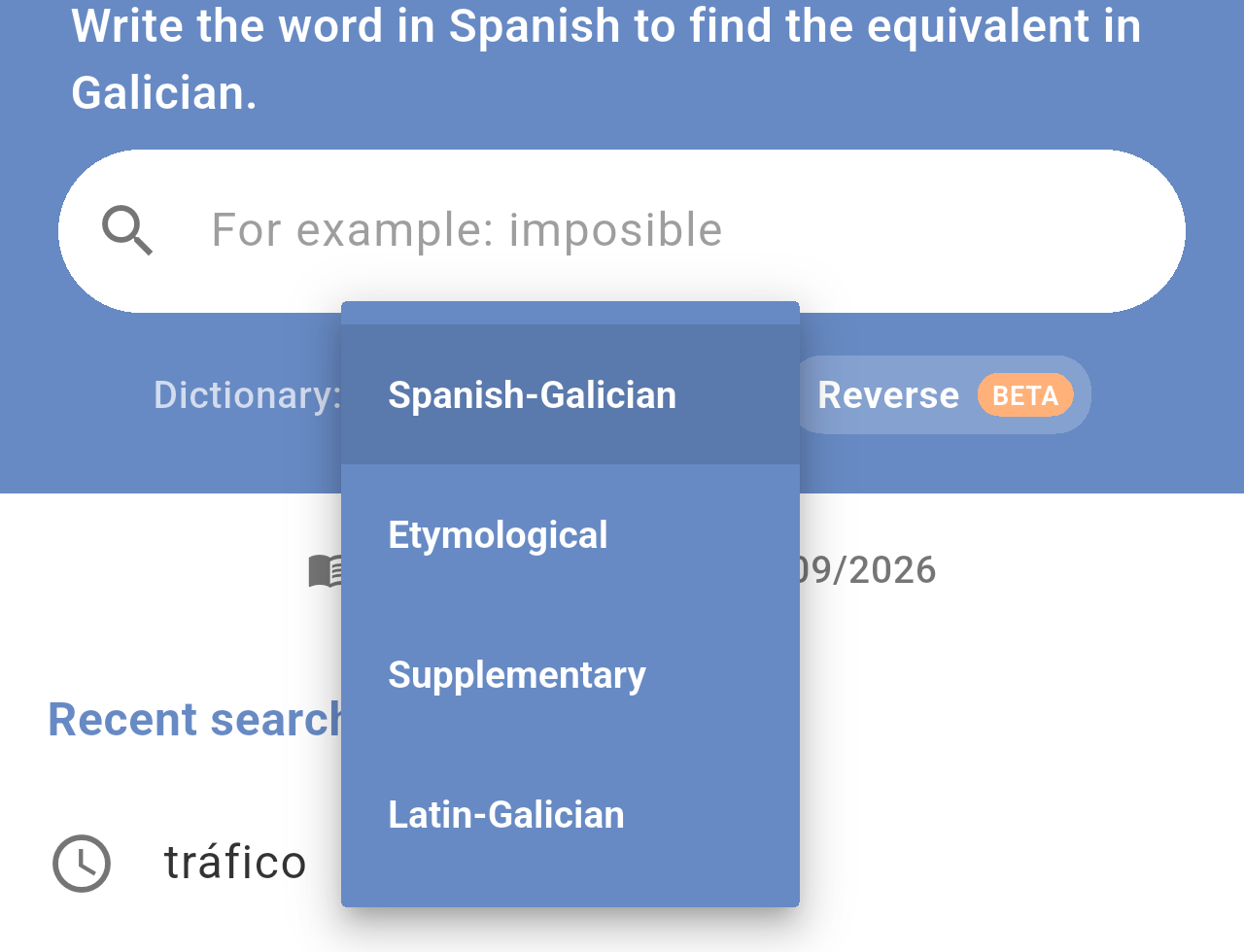
The dictionary picker with the four available dictionaries.
Each dictionary expects a different kind of word. The text above the search field reminds you what to type:
| Dictionary | What you type | What you get |
|---|---|---|
| Spanish-Galician | A Spanish word | Its Galician equivalents |
| Etymological | A Galician word | The origin of the word |
| Supplementary | A Galician word | Its meaning |
| Latin-Galician | A Latin word | Its Galician equivalents |
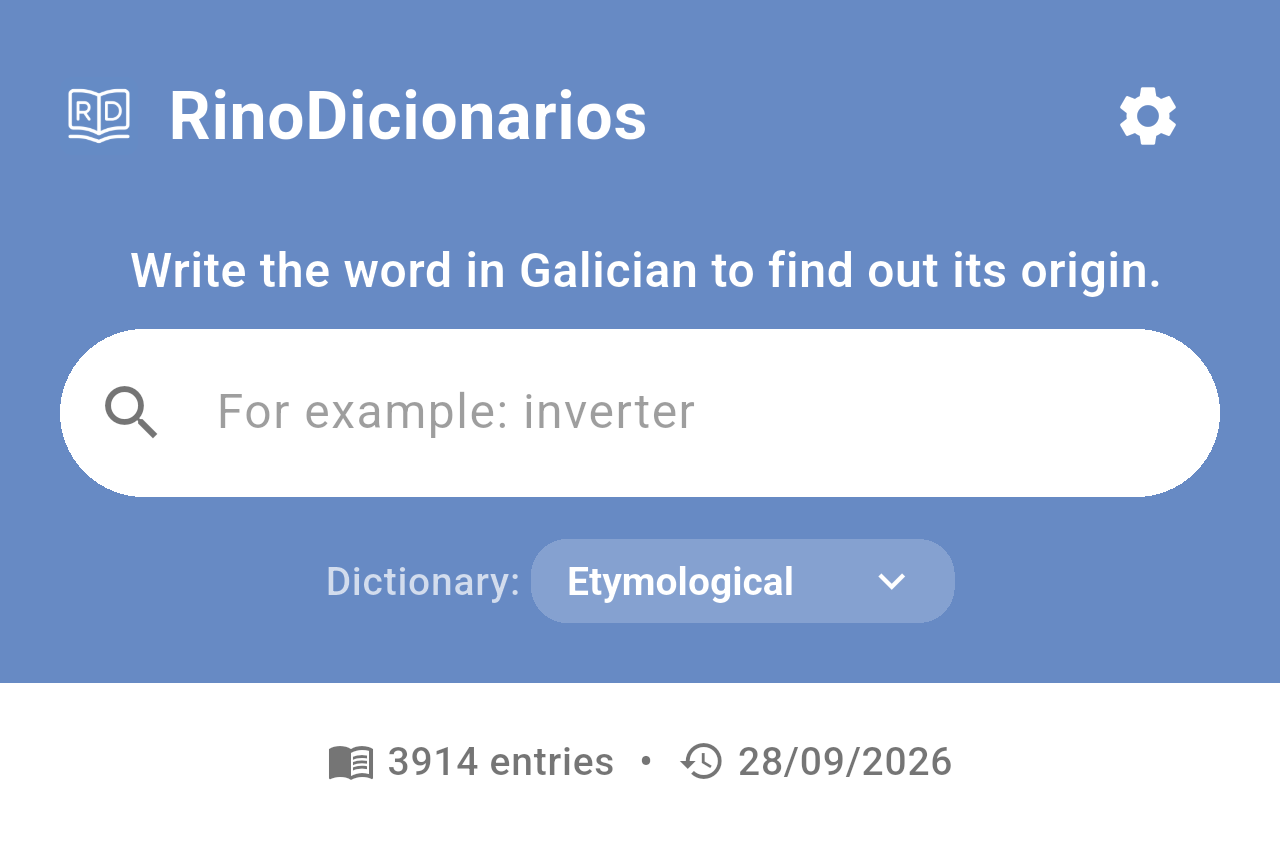
The Etymological dictionary selected. The text above the field and the example word change with the dictionary, and the Reverse button is not shown.
Note: Changing the dictionary clears the search you had on screen.
Searching for a word
To search, follow these steps:
- Tap the search field and start typing the word.
- After a moment, a list of suggestions from the dictionary appears under the field.
- Tap a suggestion to open it, or tap the search key on your keyboard to search exactly what you typed.
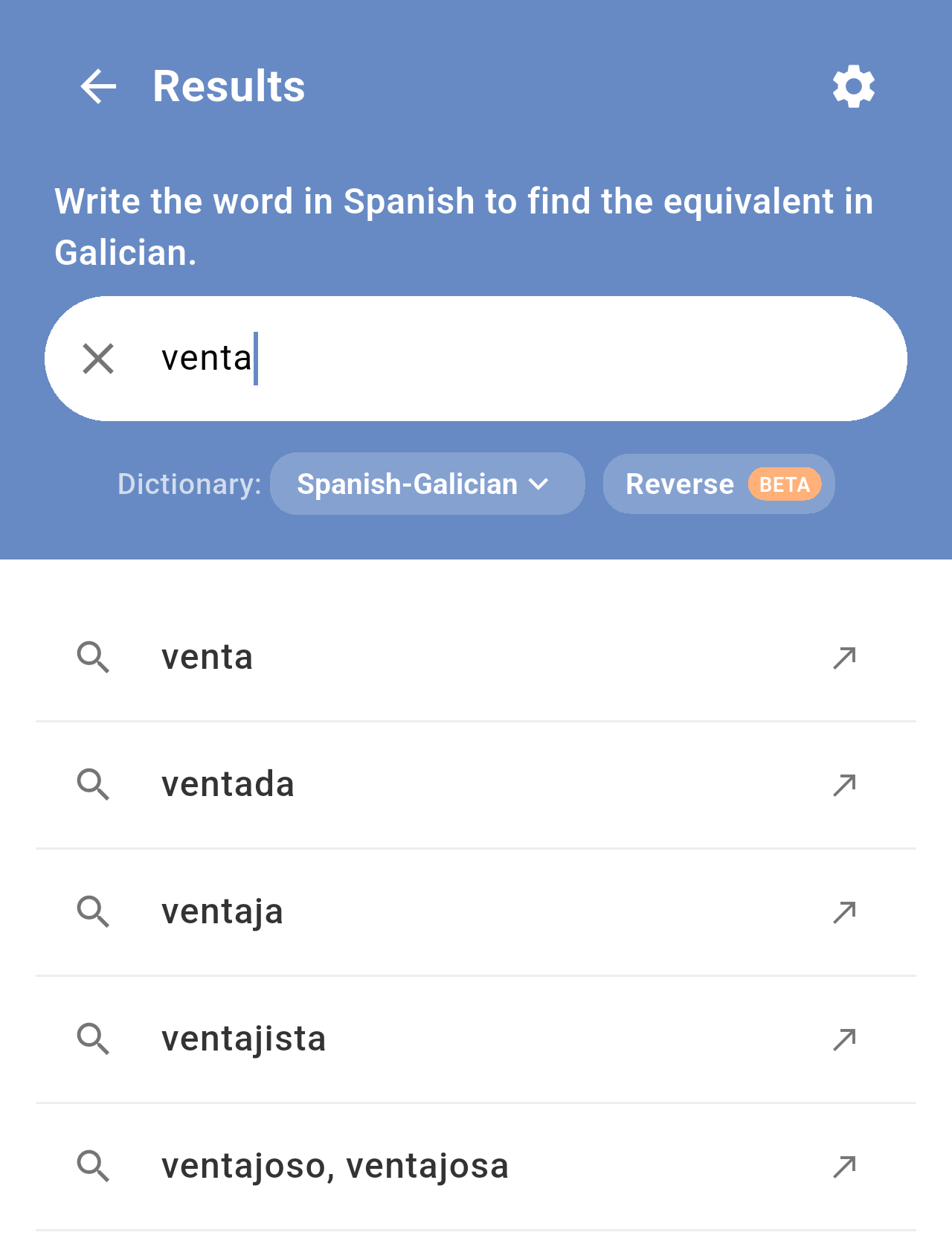
Suggestions while typing "venta" in the Spanish-Galician dictionary.
The result opens as a card with the definition. If there is no entry that matches your word exactly, the app shows the closest entry it finds.
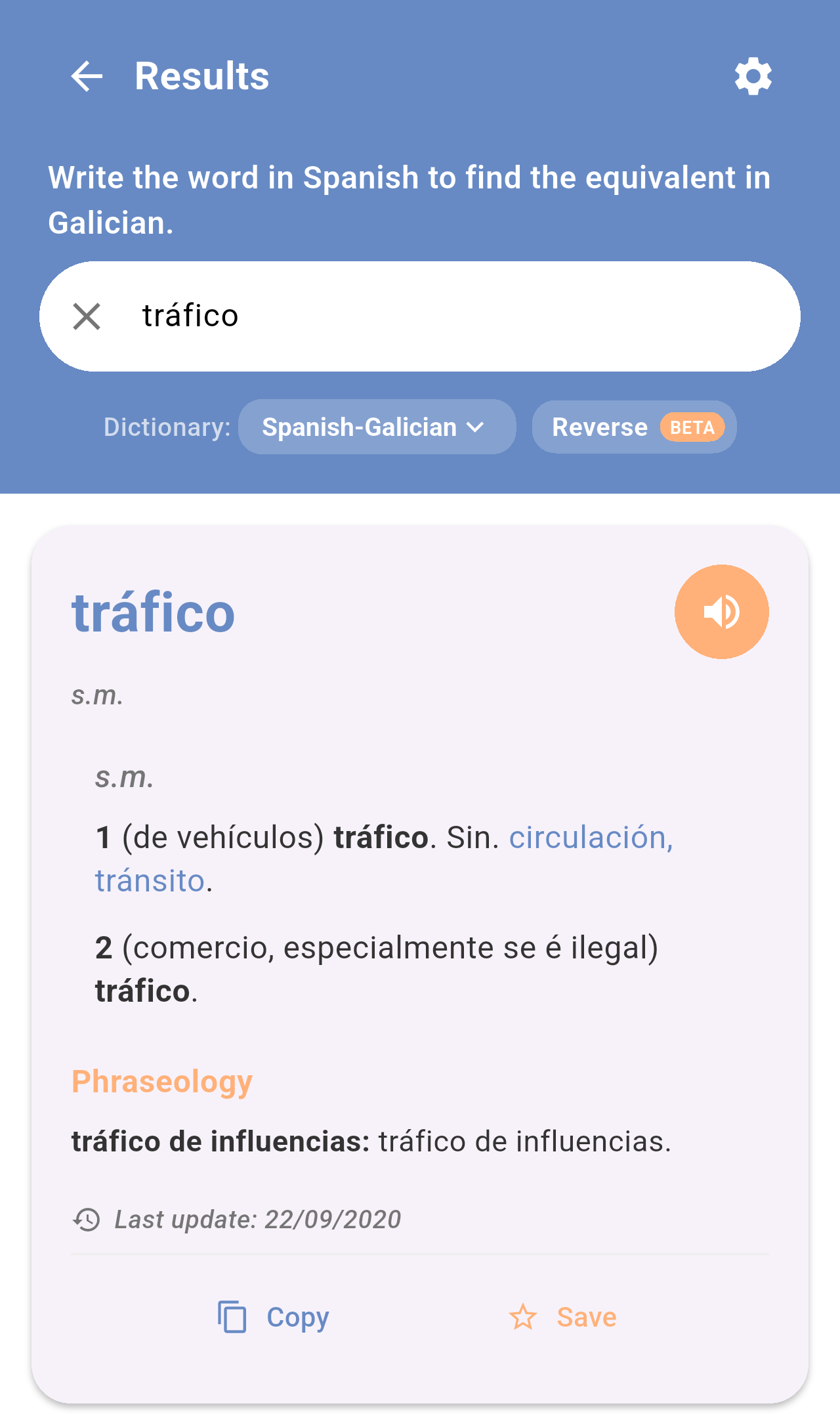
The result for "tráfico". The title of the screen changes to Results.
To learn how to read the card and what each button does, see Reading a definition.
To start a new search, tap the ✕ in the search field or the arrow next to Results in the top-left corner.
Recent searches
When the search field is empty, the screen shows your recent searches in the selected dictionary, the most recent first. Tap one to search it again.
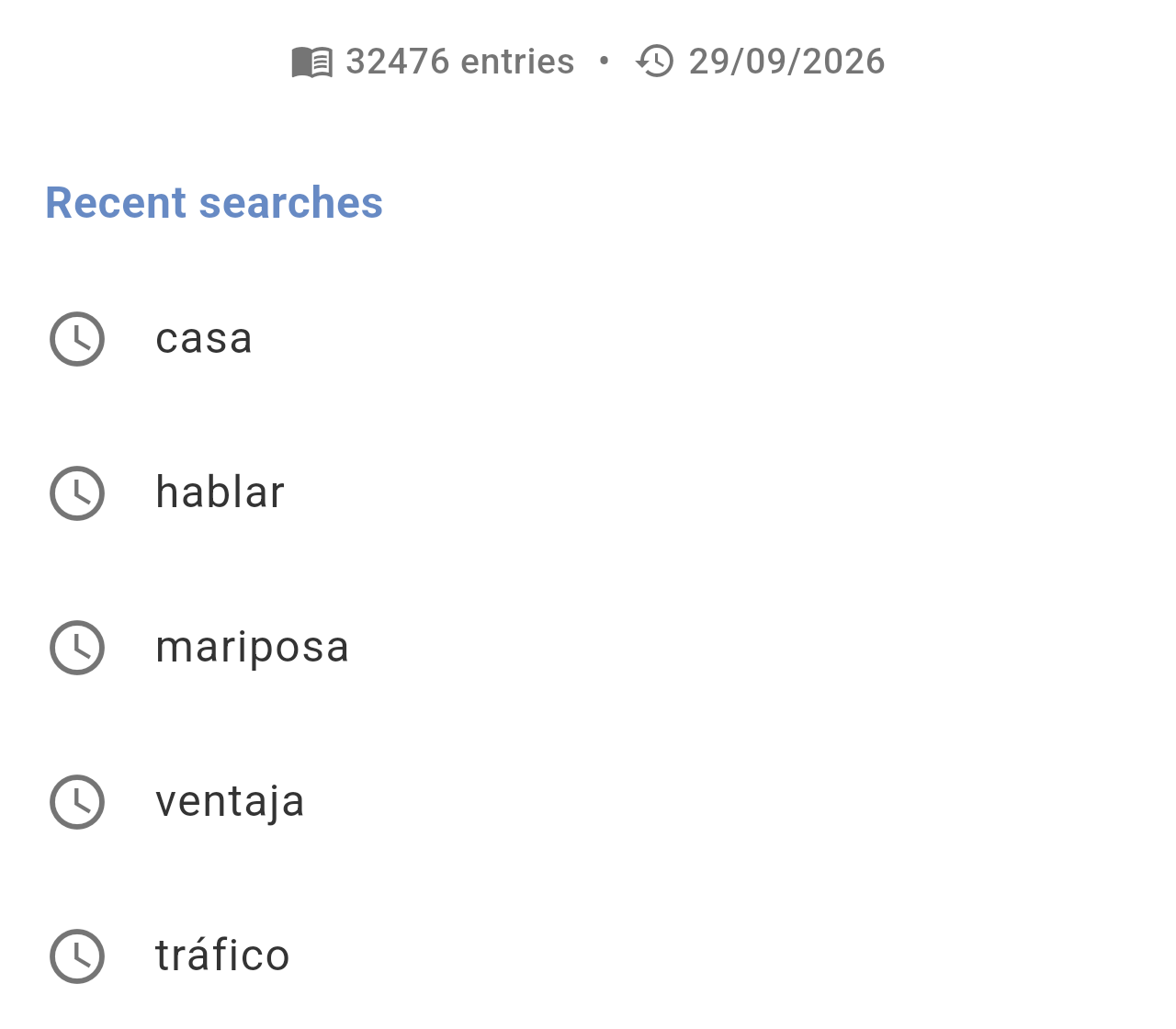
Recent searches in the Spanish-Galician dictionary. Above the list you can see the number of entries in the dictionary and the date of its last update.
- Each dictionary has its own list, with up to 10 words.
- Only searches that found a result are added.
- To delete the list, use Settings → Clear history and cache. Be aware that this also deletes your favorites. See Settings.
When nothing is found
If the dictionary has no entry for the word, the app shows the message What a pity, no results were found. Check the spelling, try a related form of the word (for example the infinitive of a verb) or make sure you are in the right dictionary.
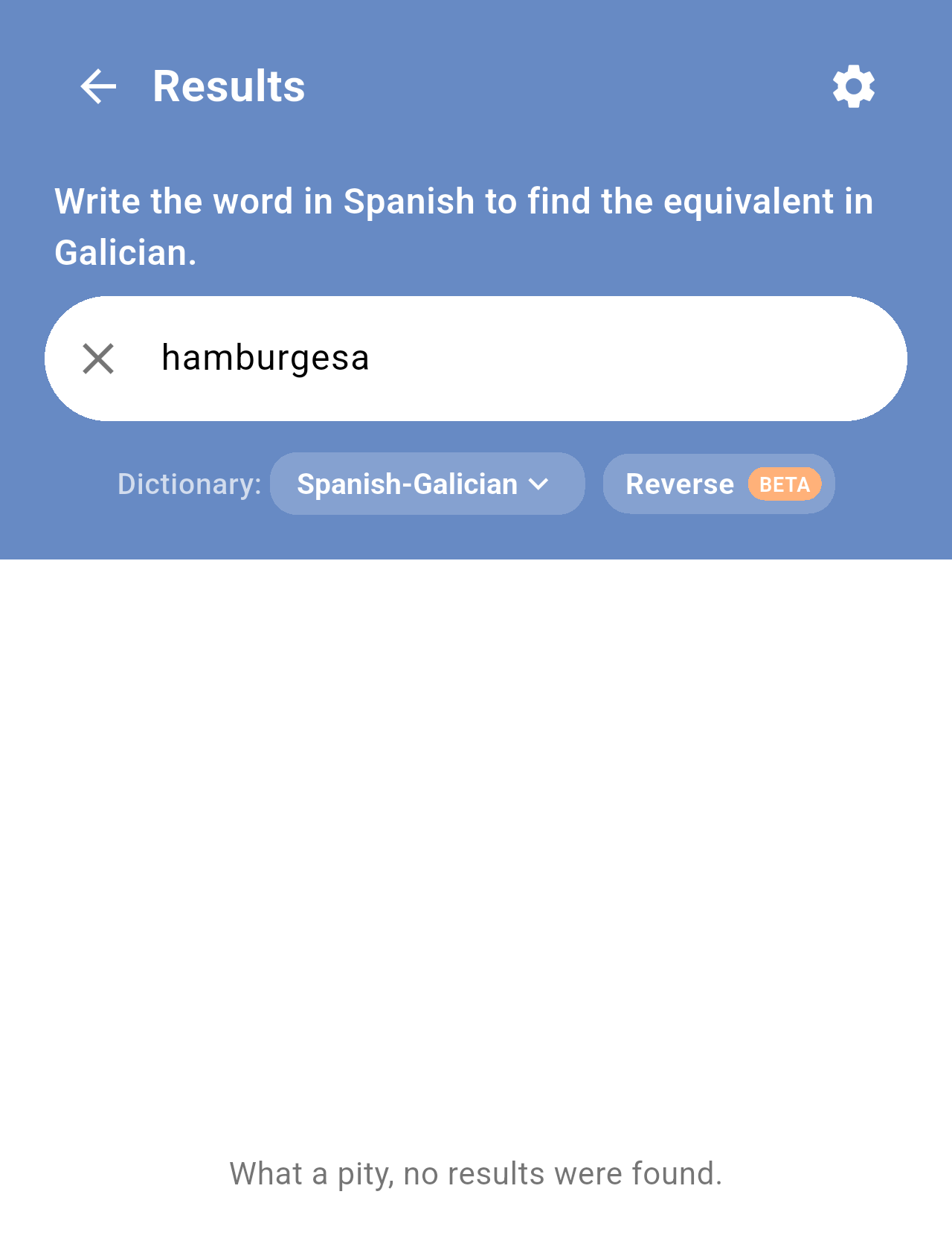
A misspelled search ("hamburgesa" instead of "hamburguesa") in the Spanish-Galician dictionary.
Note: Searching needs an Internet connection. Without one, the app shows Connection error to the dictionary. See FAQ / Troubleshooting.
Reverse search
In the Spanish-Galician and Latin-Galician dictionaries you can also search from Galician, with the Reverse button next to the dictionary picker. See Home screen.