
Home screen
The search screen is the home of RinoDicionarios: from here you choose a dictionary, search for words, repeat recent searches and move to your favorites or settings.
Getting there
The search screen opens every time you start the app. It is the Explore tab in the bar at the bottom of the screen; from any other screen, go back with the arrow in the top-left corner until you reach it.
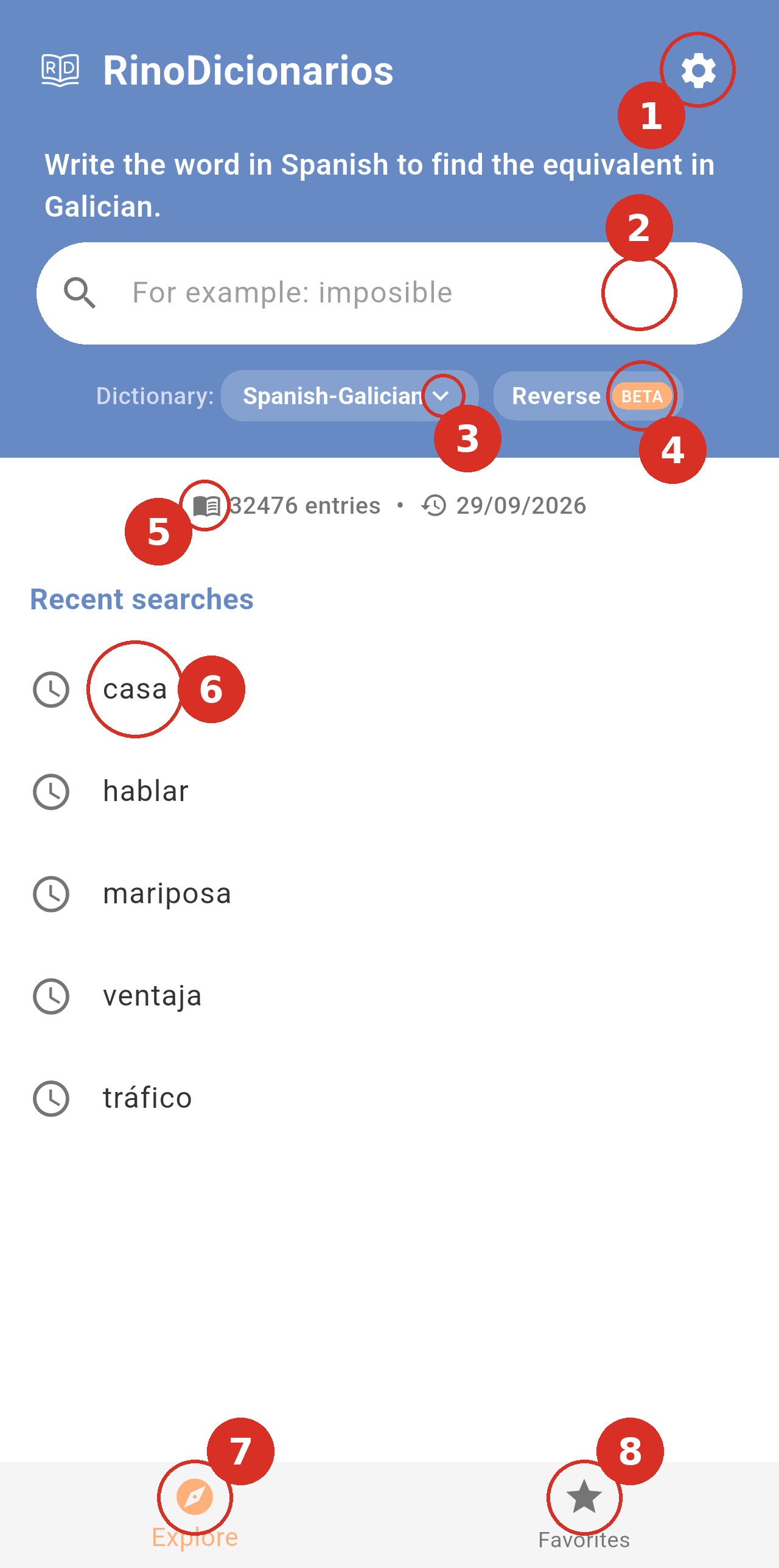
The search screen with the Spanish-Galician dictionary selected. The numbers mark the controls described below.
- Settings: The gear icon in the top-right corner opens Settings, where you change the language, the default dictionary, the theme and other options. See Settings.
- Search field: Type the word you want to look up. The text above the field tells you what to type in the selected dictionary (for example, Write the word in Spanish to find the equivalent in Galician), and the field shows an example word that changes every time. See Searching the dictionaries.
- Dictionary picker: Shows the dictionary you are searching in. Tap it to switch between the four dictionaries: Spanish-Galician, Etymological, Supplementary and Latin-Galician.
- Reverse: Turns reverse search on or off, to search from Galician into Spanish or Latin. It is only shown for the Spanish-Galician and Latin-Galician dictionaries. See Reverse search below.
- Dictionary information: The number of entries in the selected dictionary and the date it was last updated.
- Recent searches: Your last searches in the selected dictionary, the most recent first. Tap one to search it again.
- Explore: The search screen you are on.
- Favorites: Opens the words you have saved. See Favorites.
Note: Your phone's back button also works inside the app: on the Favorites tab it takes you back to Explore, and on the Explore tab it first clears the current search. Pressing it on the empty search screen closes the app.
Reverse search
Reverse search lets you search the Spanish-Galician and Latin-Galician dictionaries the other way round: you type a Galician word and the app finds the Spanish or Latin entries where it appears. It is turned on and off with the Reverse button (number 4 in the screenshot above), which is only shown for these two dictionaries. This feature is in BETA.
| Dictionary | Reverse off | Reverse on |
|---|---|---|
| Spanish-Galician | Spanish → Galician | Galician → Spanish |
| Latin-Galician | Latin → Galician | Galician → Latin |
Turning reverse search on
Tap Reverse. The button turns white to show it is on, and the text above the search field changes, for example to Write the word in Galician to find the equivalent in Spanish.
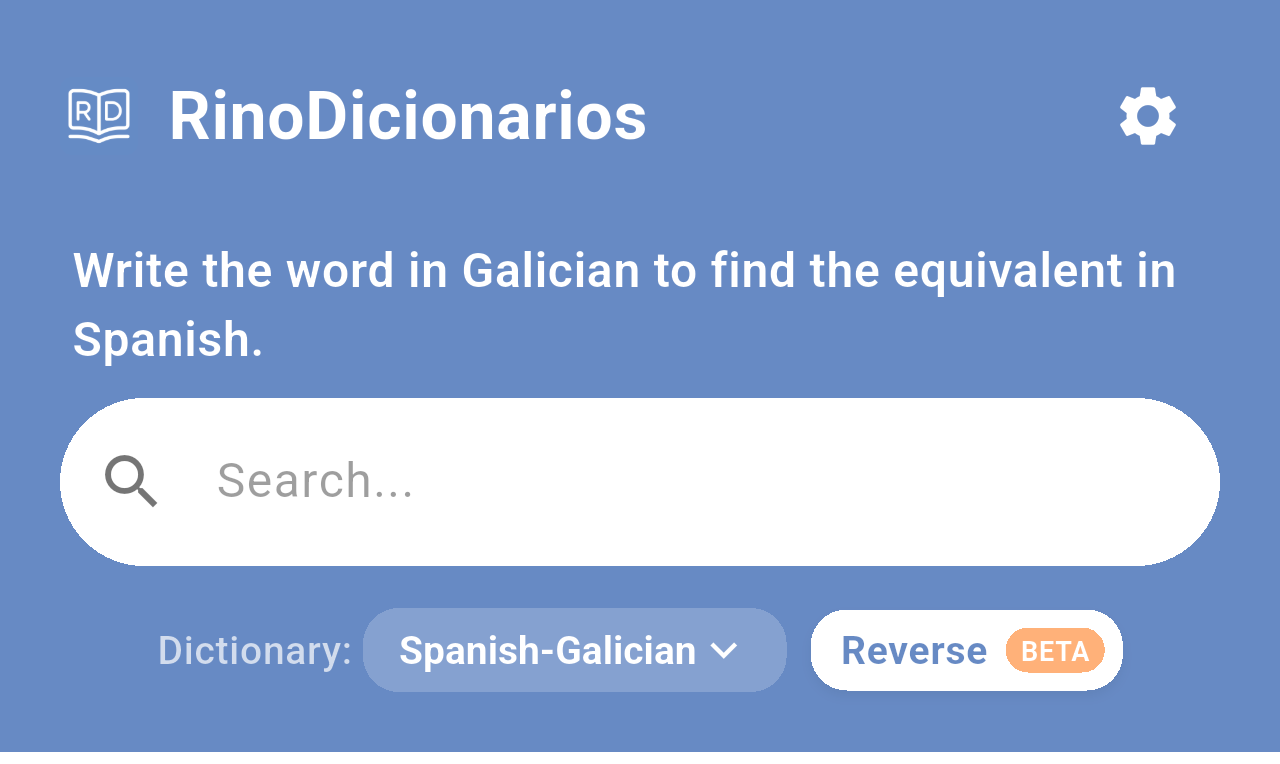
Reverse search turned on in the Spanish-Galician dictionary.
Tap Reverse again to go back to normal search. Turning it on or off clears the search you had on screen.
Searching in reverse
The search works as usual: type the Galician word and pick a suggestion or tap the search key on your keyboard. The suggestions are Spanish (or Latin) entries whose definition contains the Galician word you typed.
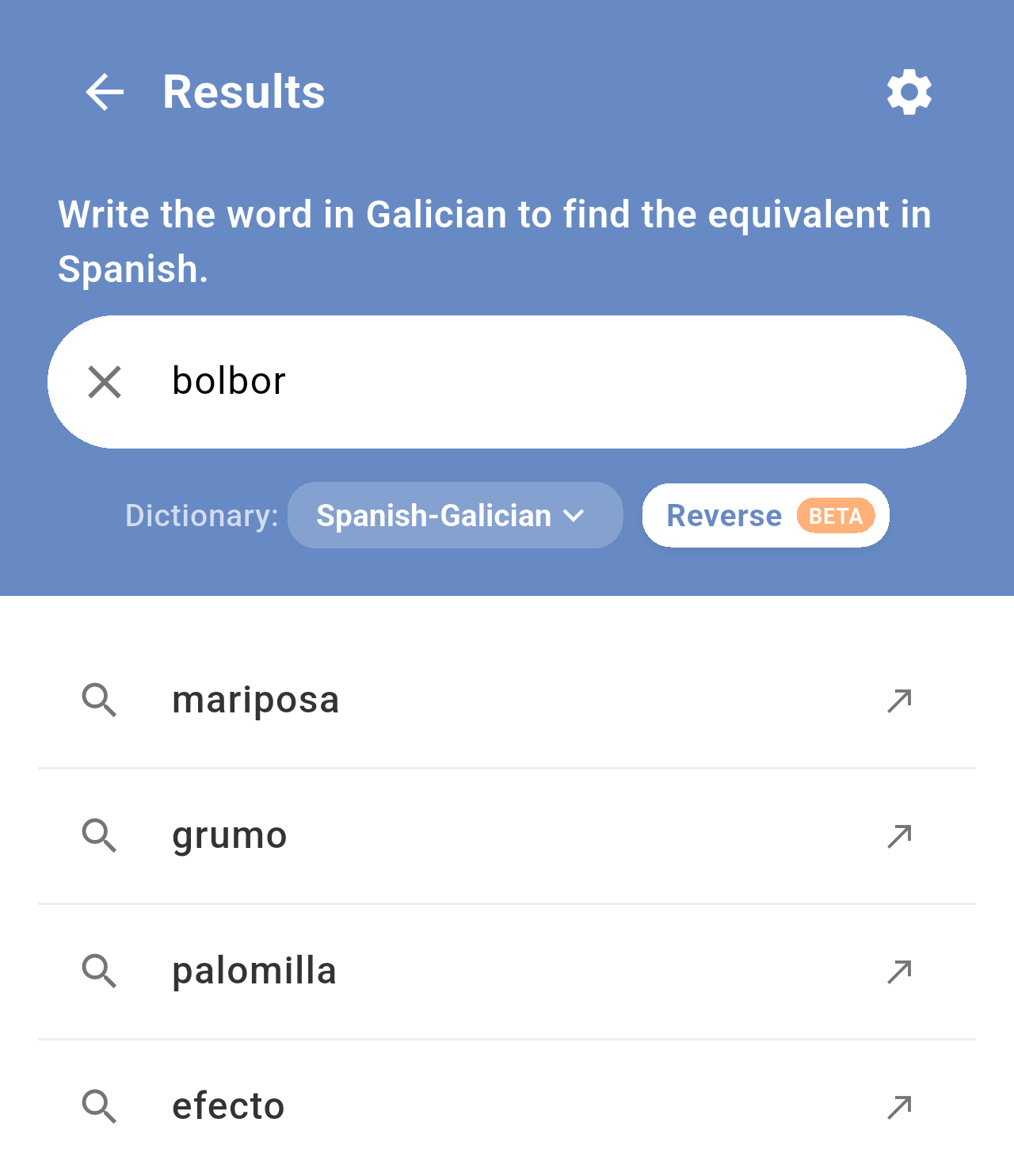
Typing "bolbor" in reverse: mariposa, grumo, palomilla and efecto all mention "bolboreta" in their definitions.
When you tap the search key, the app shows the first entry found.
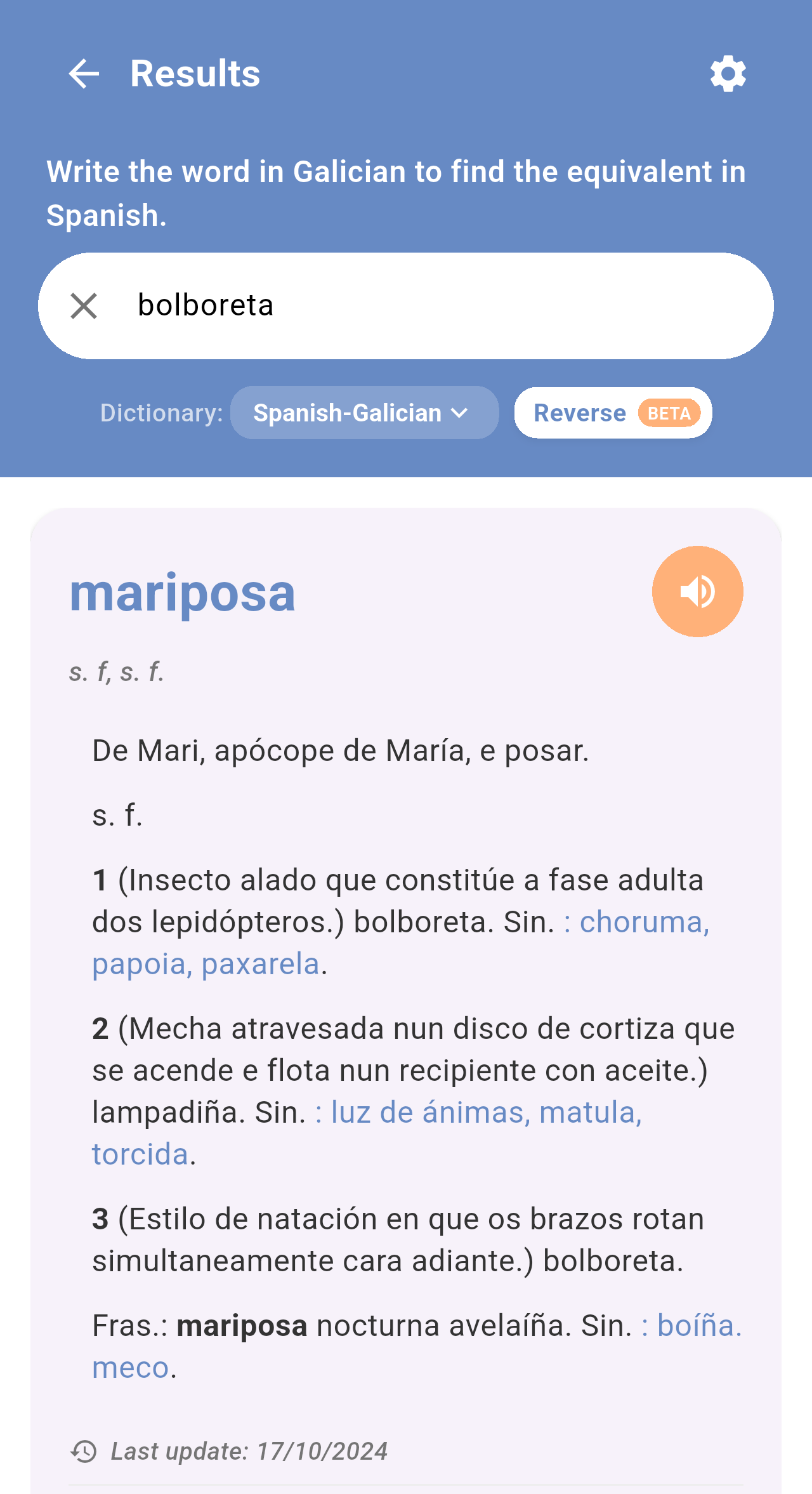
Searching the Galician word "bolboreta" returns the Spanish entry "mariposa", whose first sense is bolboreta.
Note: In reverse search, the app saves the Spanish or Latin word it found (in the example, mariposa) in your recent searches, not the Galician word you typed. Tapping it later searches it in the normal direction.
Note: The app remembers whether reverse search was on the next time you open it. If you switch to the Etymological or Supplementary dictionary, reverse search is turned off automatically.