
Reading a definition
Every search result is shown as a card with the entry from the dictionary. This page explains the parts of the card and the actions you can do from it: listen to the word, copy the definition, save it to your favorites and select text.
Getting there
Result cards appear on the Explore tab after a search (see Searching the dictionaries), in the Word of the day window and when you open a word from Favorites.
Parts of a card
The content of the card depends on the dictionary and on the entry, but it follows the same order from top to bottom.
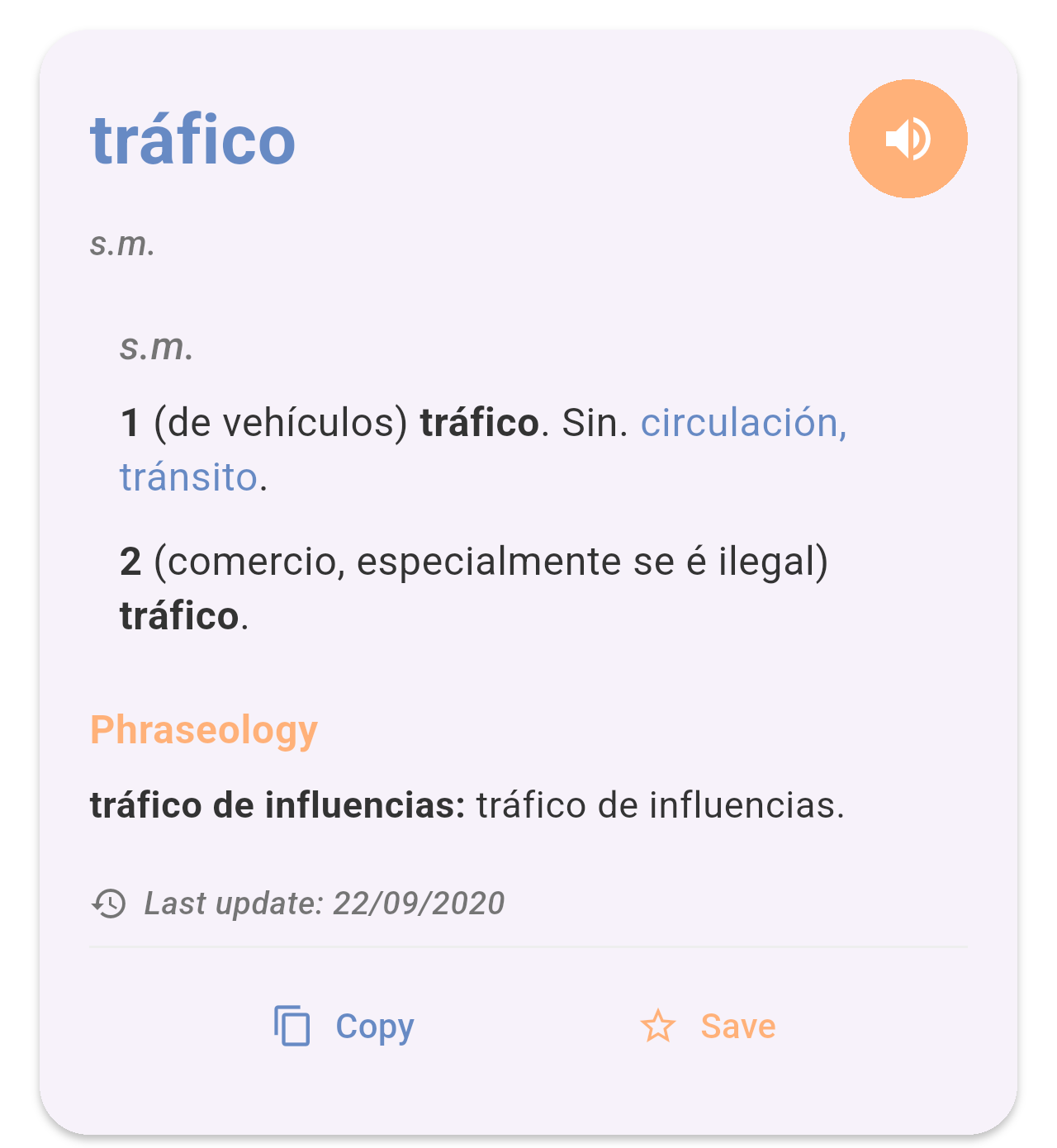
The entry "tráfico" in the Spanish-Galician dictionary.
- Headword: The word, in blue at the top. When a word has a feminine form, both are shown (for example silúrico, silúrica).
- Speaker button: The orange button next to the headword. See Listening to the word below.
- Grammatical category: Under the headword, in grey italics (for example s.m., adx., v.t.).
- Senses: Each numbered sense shows, in brackets, the context in which the word is used, followed by the Galician equivalent in bold. Words in blue after Sin. are synonyms.
- Phraseology: When the entry has set phrases, they are listed at the end under this orange title, with the expression in bold followed by its equivalent.
- Last update: The date the entry was last changed in the dictionary.
- Copy and Save: At the bottom of the card.
When a word belongs to several categories, the senses are grouped under each category label. For example, the verb hablar has transitive (v.t.), intransitive (v.i.) and pronominal (v.p.) senses:
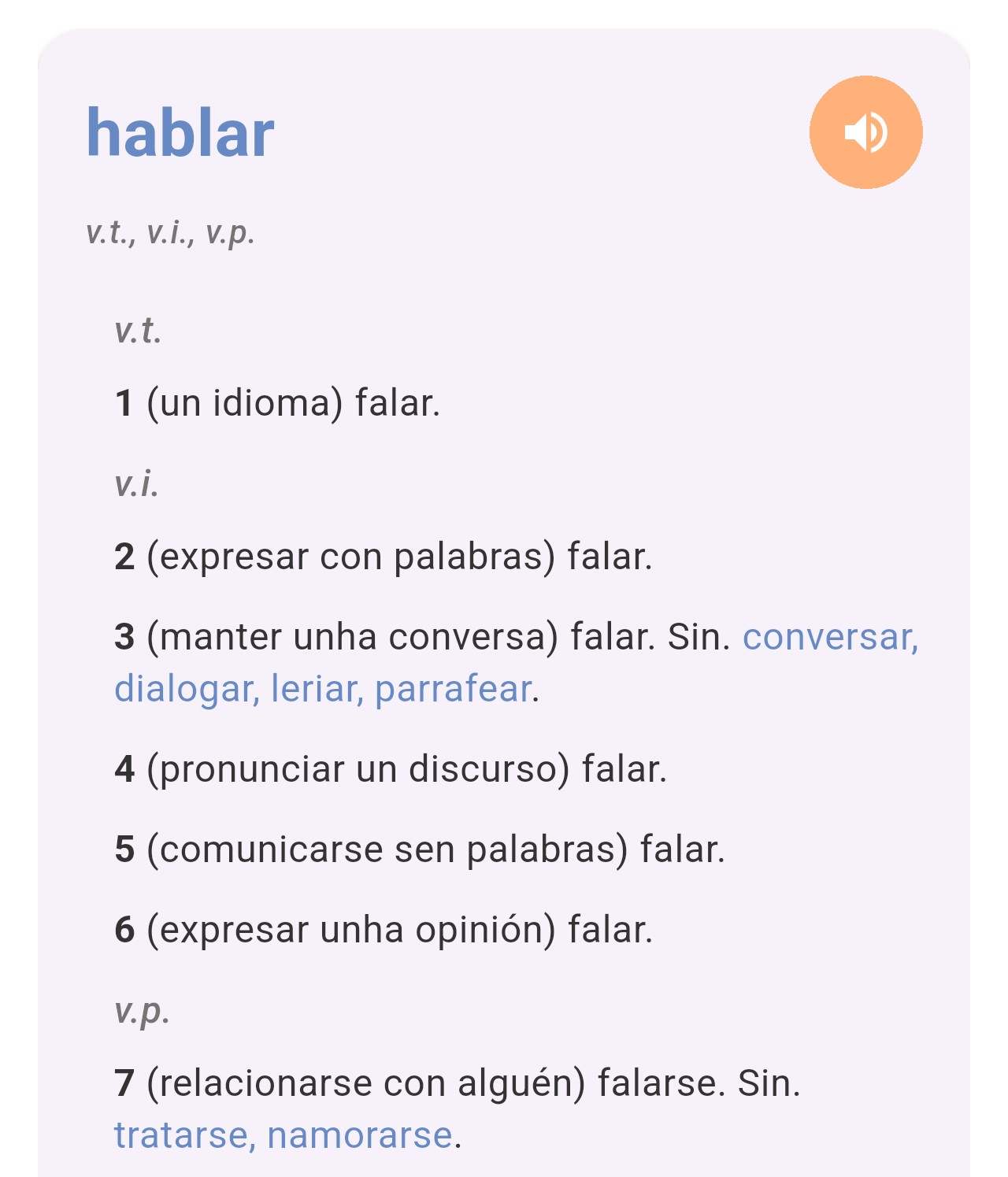
The entry "hablar", with its senses grouped by category.
Listening to the word
Tap the orange speaker button to hear the headword read aloud. The app uses your phone's text-to-speech engine, so the voice and pronunciation depend on the voices installed on your phone.
Copying the definition
Tap Copy to copy the whole entry (headword, category, senses and phraseology) as plain text. A message at the bottom of the screen confirms it, and you can paste the text in any other app.
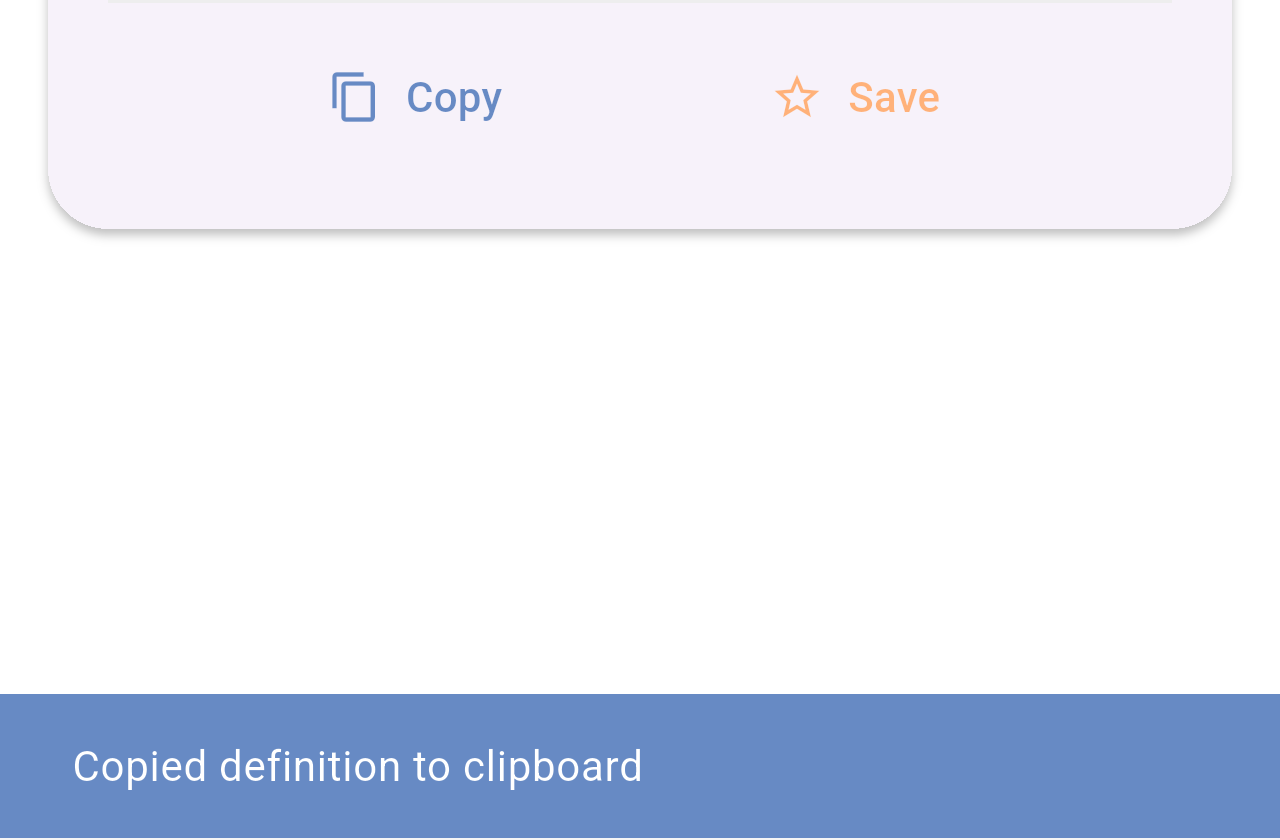
The confirmation shown after tapping Copy.
Saving to favorites
Tap Save to add the word to your favorites. The star turns solid and the button changes to Saved. Tap Saved to remove the word from your favorites.
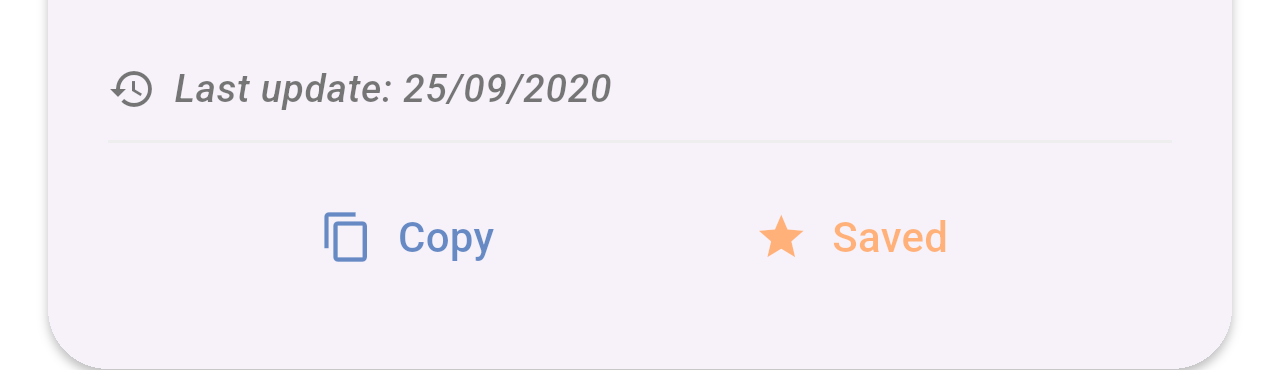
A word already saved to your favorites.
Your saved words are listed on the Favorites tab. See Favorites.
Selecting part of the text
To copy only part of a definition, touch and hold a word on the card. Drag the handles to change the selection and choose an option in the menu that appears, such as Copy or Share.
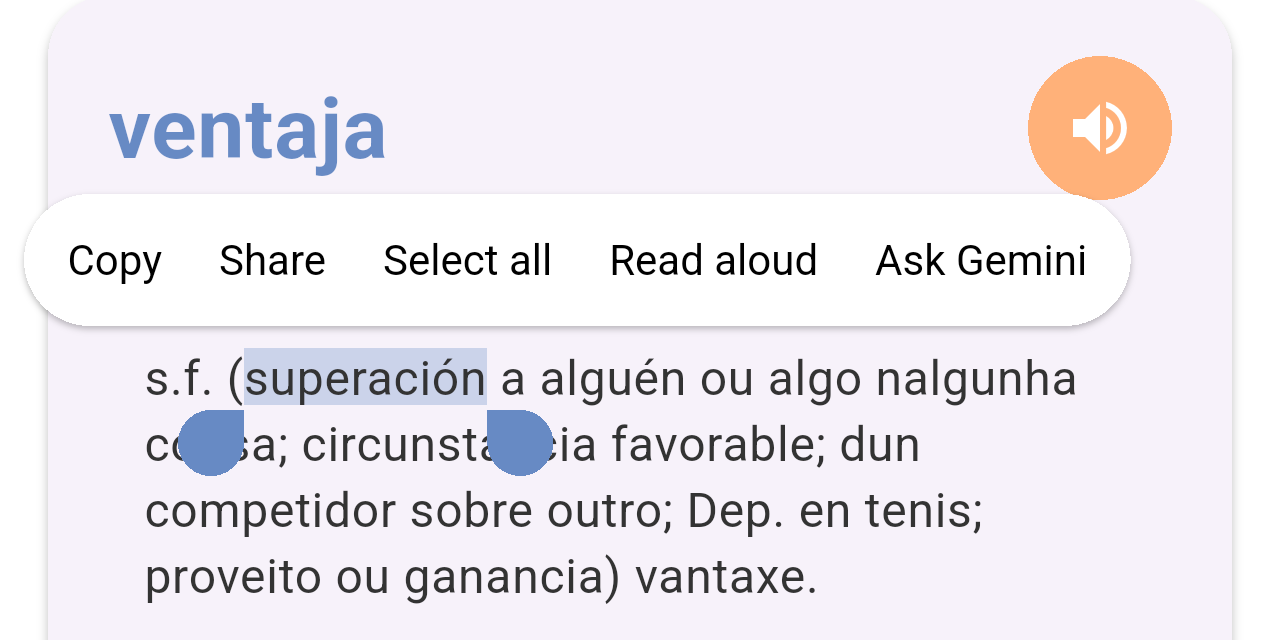
A word selected on the card. The options in the menu come from your phone and may vary.