
4.3 Suppliers

4.3.1 Configuring a Supplier as a domain source
Domain Manager syncs domains and DNS records through a Supplier’s API credentials. Before it can manage anything, one Supplier needs an API driver selected and its credentials entered.
4.3.1.1 Open the Domain Manager tab on a Supplier
Open the Supplier record and select its Domain Manager tab. This is where the API driver and credentials for that provider are configured.
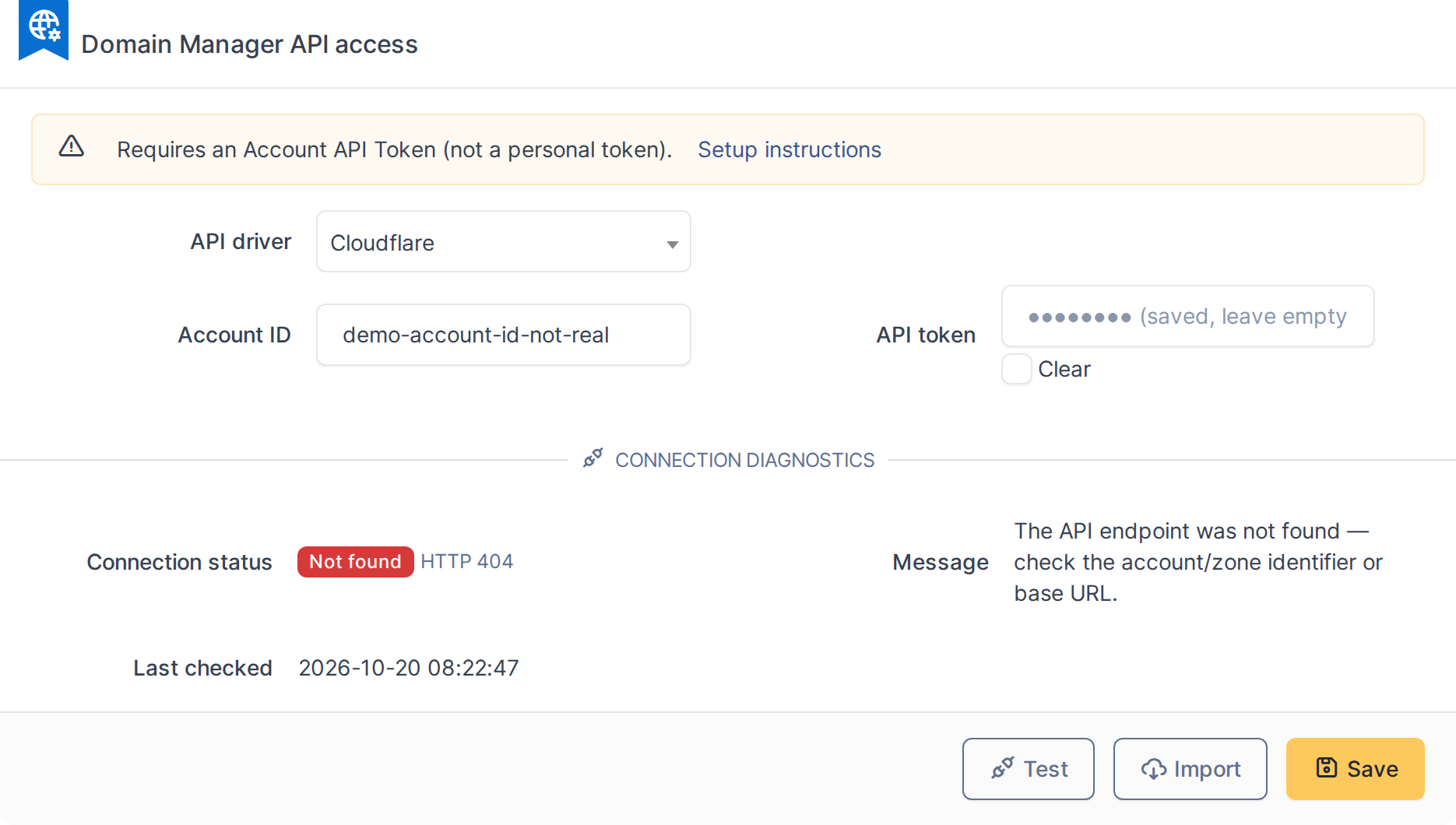
The Domain Manager tab on a Supplier, with a driver already selected
4.3.1.2 Pick an API driver and enter credentials
Choose the API driver that matches this Supplier — Domain Manager currently supports Cloudflare, IONOS and Dinahosting. The fields below change to match the chosen driver; each shows exactly the credentials that provider requires.

Credential fields for the Cloudflare driver
Note: Cloudflare: Requires an Account API Token (Manage Account → API Tokens, not a personal/My Profile token) plus its Account ID. Grant
Zone:Zone:ReadandZone:DNS:Read— both are required just to import DNS records — and addZone:DNS:Editif you also want this domain's records editable from GLPI (write-back).
Note: IONOS: Requires an API Key and API Secret from the IONOS Cloud panel (Management → API Keys). Both DNS zone sync/write-back and registrar lifecycle data use the same key/secret pair — no separate scoping is available.
Note: Dinahosting: Requires the account's plain username and password — Dinahosting has no scoped API token, so the credentials stored here are the same ones used to log into the control panel. The account must be the super-admin account: a sub-user or domain-limited account cannot authenticate against the API at all.
4.3.1.3 Save the configuration
Click Save. The Test and Import actions only appear once a driver has been saved at least once — until then there is nothing configured to test.
4.3.1.4 Test the connection
Click Test to verify the credentials work before relying on them. The result appears in the Connection diagnostics panel below, including any error the provider returned — useful for catching a mistyped or under-scoped credential before a sync ever runs.

The connection diagnostics panel after running Test
4.3.1.5 Import the Supplier’s domains
Click Import to list every domain visible in that provider’s account. Domains already tracked in GLPI are shown as already existing; the rest can be selected and imported in one action. This step needs working credentials — with an invalid or under-scoped token, the dialog reports the same error Test did instead of a domain list.
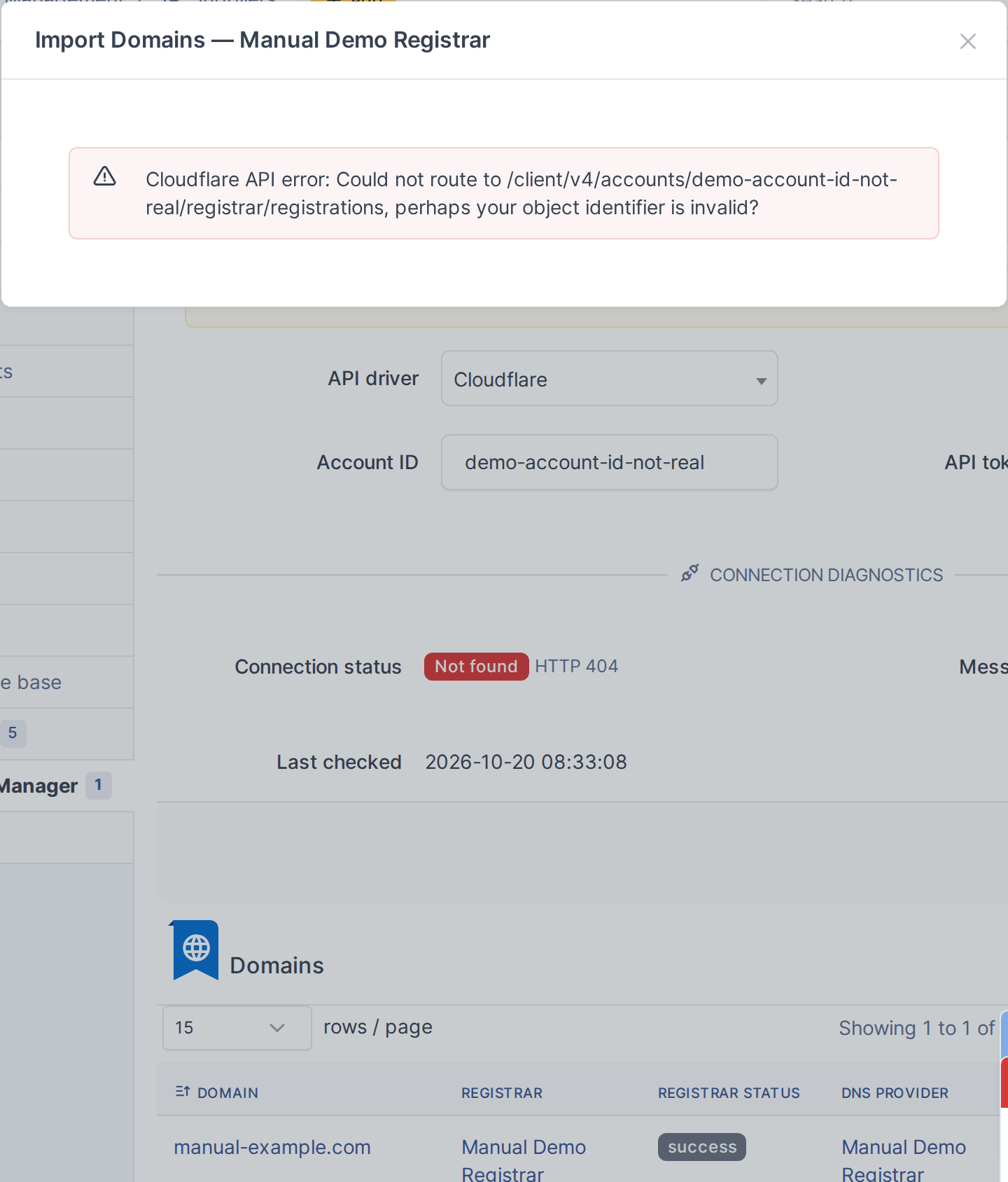
The domain import dialog
Note: Domains already synced through this Supplier are updated automatically by the DomainSync automatic action; importing here is only needed for domains Domain Manager has not seen yet.
Generated for Domain Manager 1.8.0-beta.4 on GLPI 11.0 — 2026-10-20.