
5.3 Getting the keys
5.3.1 Getting the key of each service
Each service gives you its key in a different place. Once a service is active, its code is loaded on the next page that users open: always on the login page and, when Load only on the login page is off for that addon, on every page of the standard and the simplified interface. The results are seen in the service itself.
5.3.1.1 Google Analytics
In Google Analytics, open the web data stream of your property and copy its Measurement ID, which looks like G-XXXXXXXXXX. Paste it in the Key of Google Analytics, switch the addon on and save. The visits appear in the Realtime report of Google Analytics: Reports > Realtime overview shows the active users of the last 30 minutes, the GLPI pages they opened and the events sent by the page.
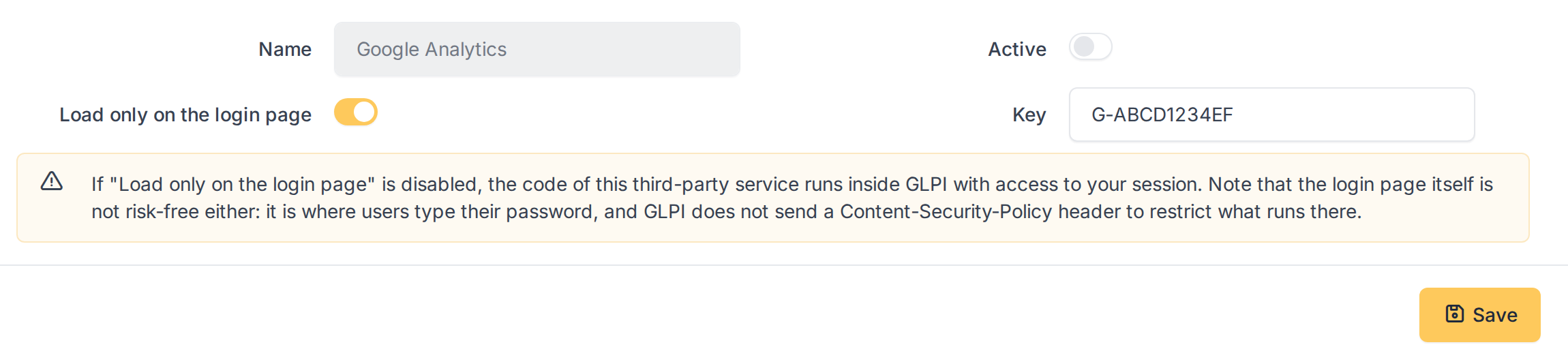
The Measurement ID of Google Analytics in the key
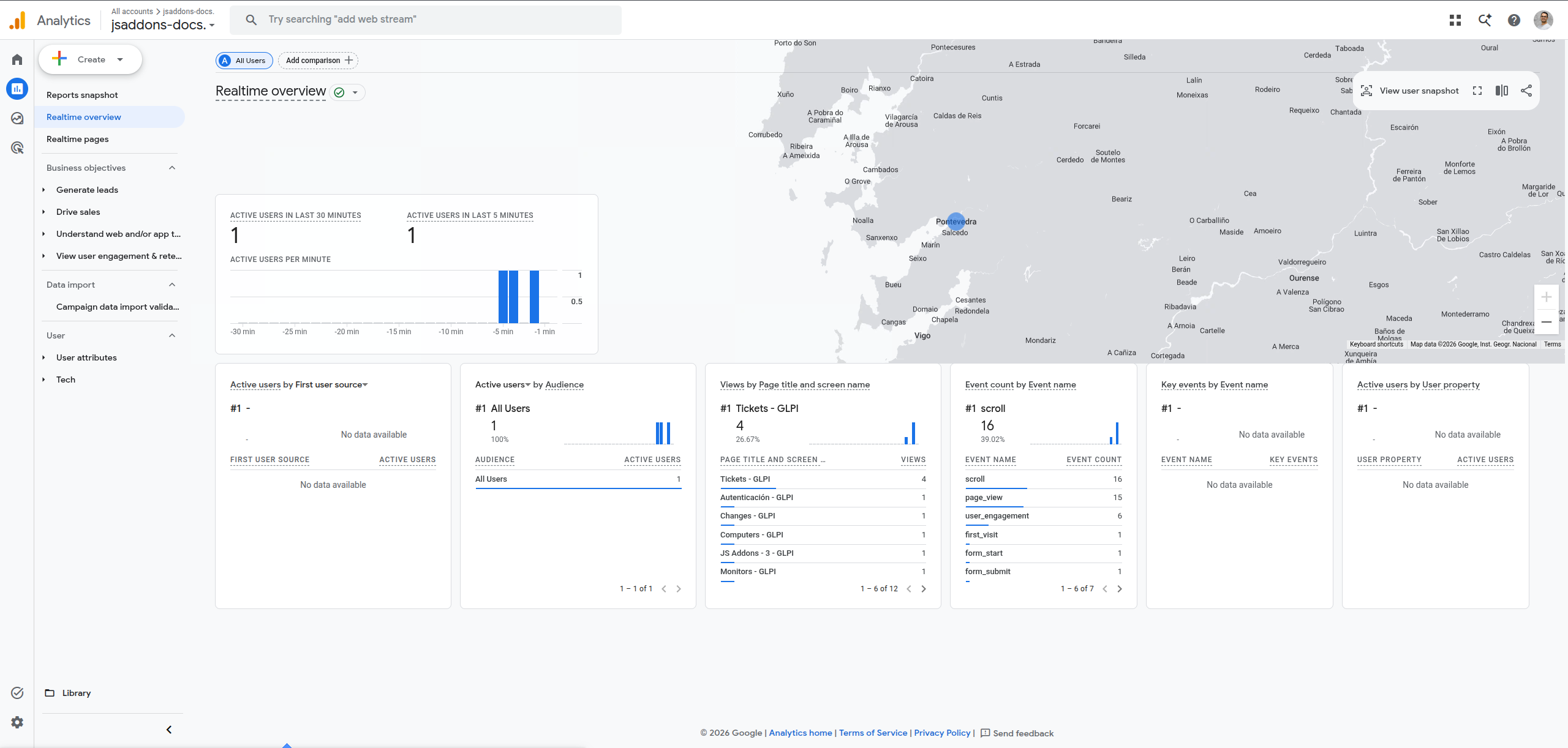
The visit in the Realtime overview of Google Analytics
5.3.1.2 Metricool
In Metricool, choose the brand, click Web/Blog, then Connect Web and Tracking pixel. The code contains hash=XXXXXXXX: copy the value after hash=, paste it in the Key of Metricool, switch the addon on and save. The visits appear in the real-time dashboard of Metricool: open Web in the left menu and choose Real time. The first image shows the number of visitors and the page they are on right now; the second one the last 30 minutes, with every page the visitor opened, which is how you can tell the addon is working.
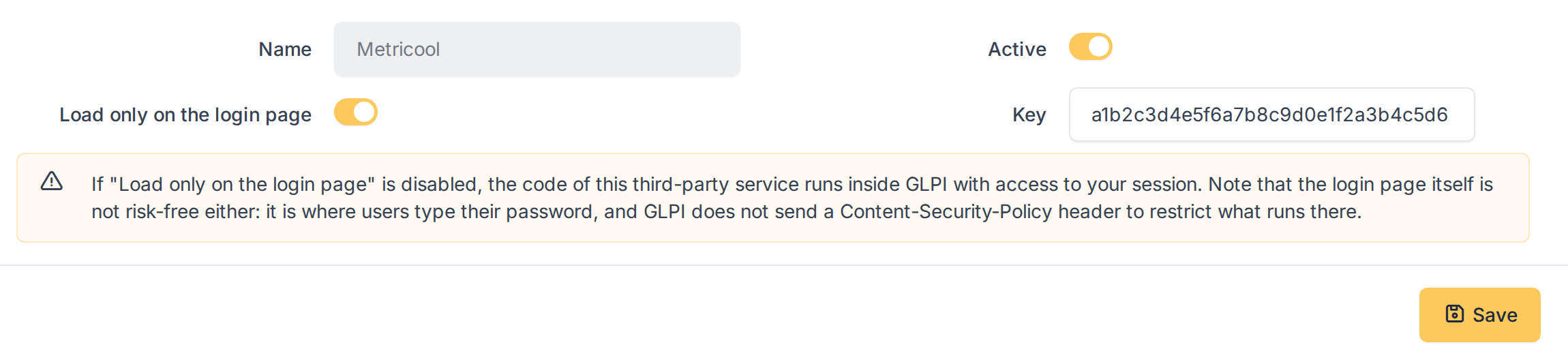
The tracking hash of Metricool in the key
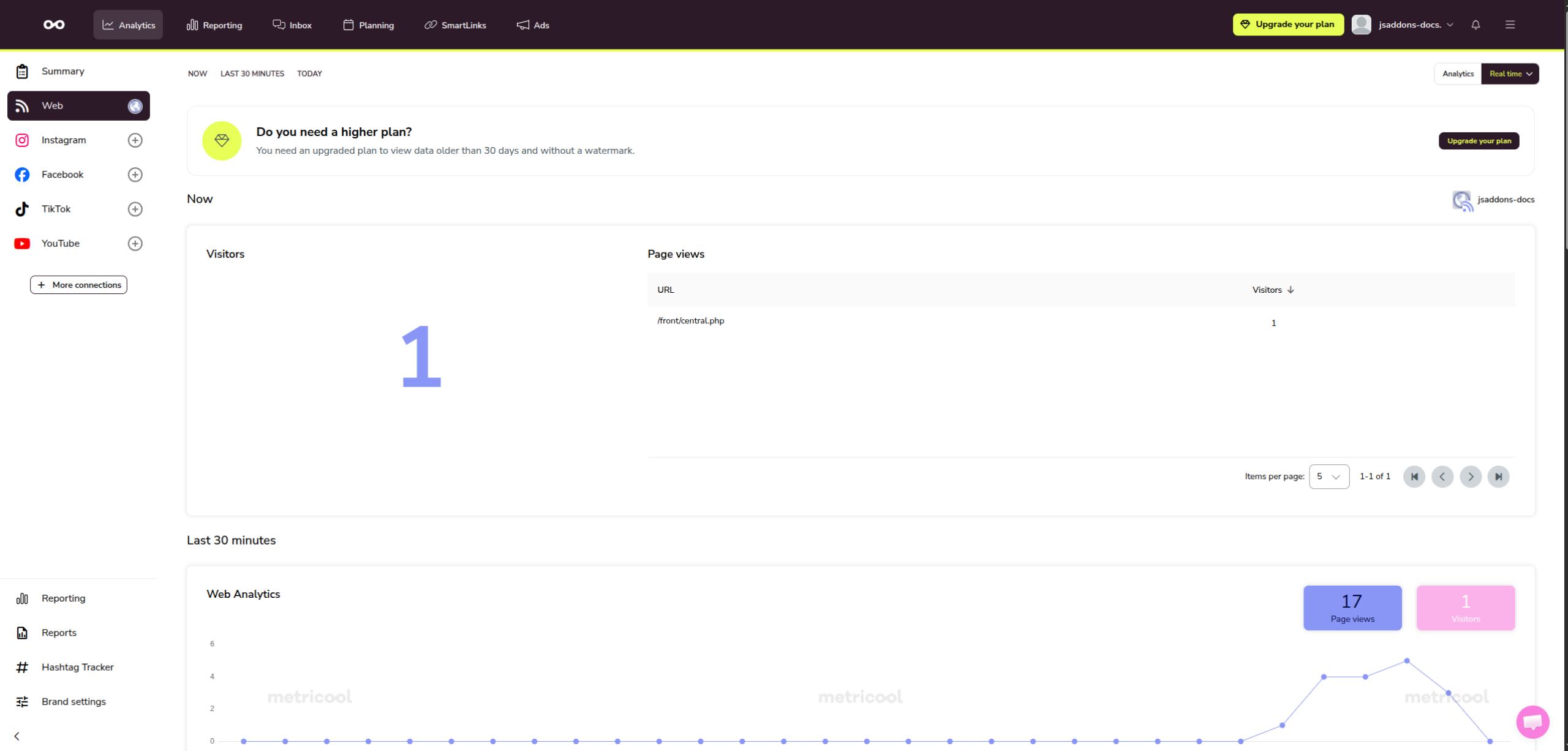
The visit in the real-time dashboard of Metricool
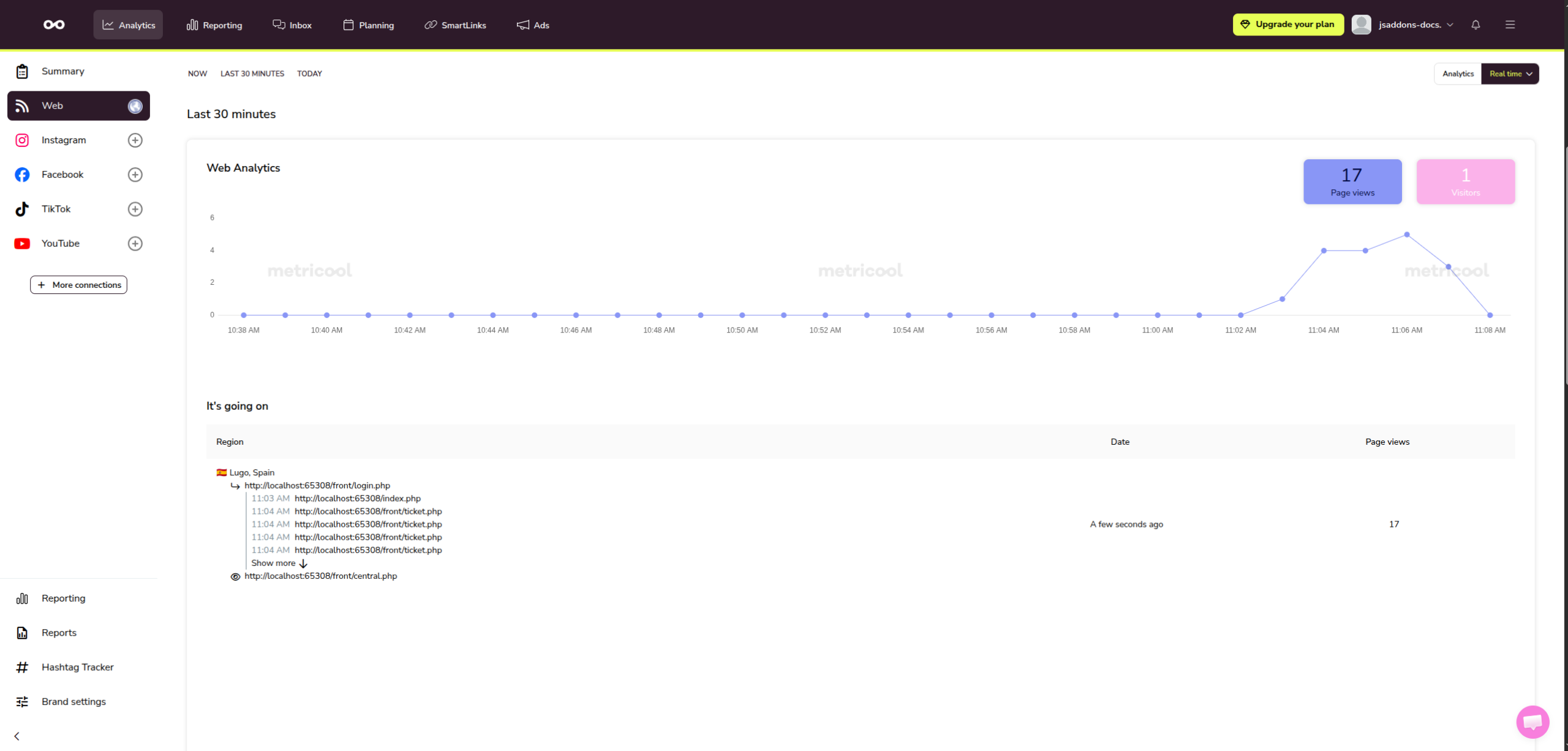
The pages of GLPI the visitor opened, in Metricool
5.3.1.3 Tawk.to
In the Tawk.to dashboard, open Administration, choose the property and click Channels > Chat Widget. The Direct Chat Link looks like https://tawk.to/chat/XXXXXXXXXXXXXXXXXXXXXXXX/XXXXXXXXX. Copy the part after tawk.to/chat/, which is the property ID and the widget ID separated by /, paste it in the Key of Tawk.to, switch the addon on and save. The chat widget is shown at the bottom right of the GLPI login page and, when Load only on the login page is off, of every GLPI page. The property must exist in Tawk.to; otherwise the widget is not shown. The first two images show the closed chat bubble on the login page and the chat opened by a visitor. The last two show the same widget inside GLPI, on the list of tickets, once Load only on the login page is off: the bubble sits at the bottom right of every page, over the corner where GLPI shows its own buttons, so decide whether that suits your technicians. In the Tawk.to dashboard, the visit shows under Live Visitors as soon as a page with the widget is open.
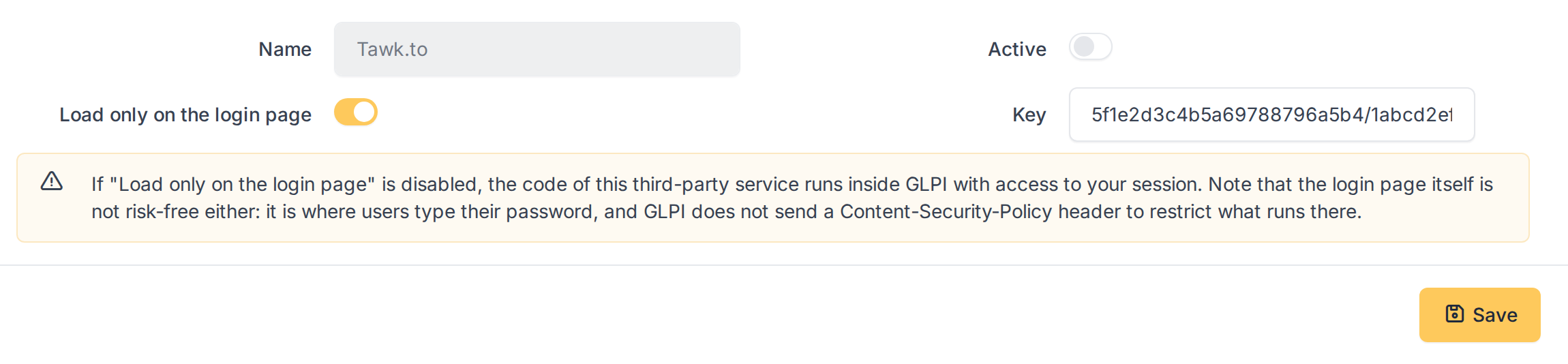
The property and widget IDs of Tawk.to in the key
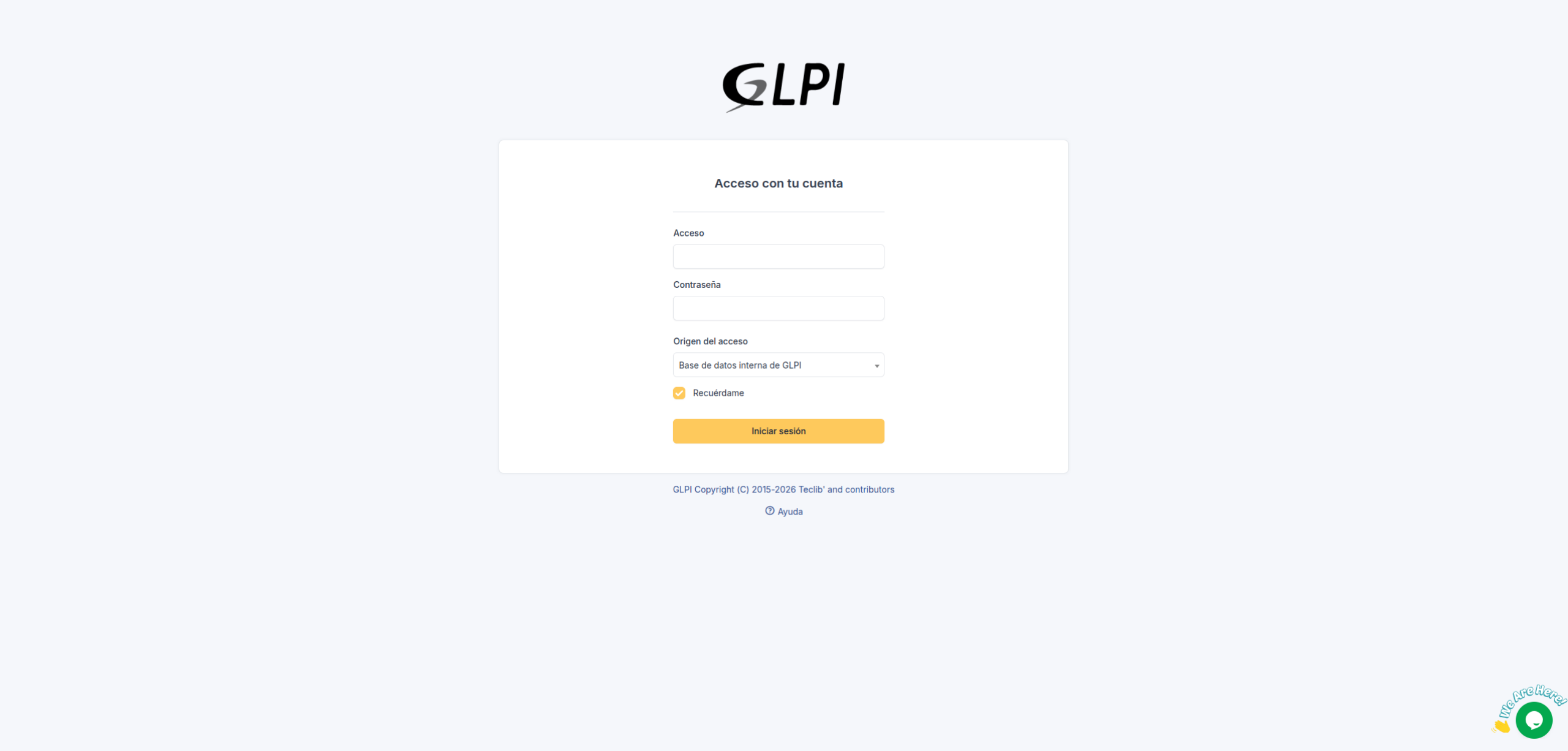
The chat bubble of Tawk.to on the GLPI login page
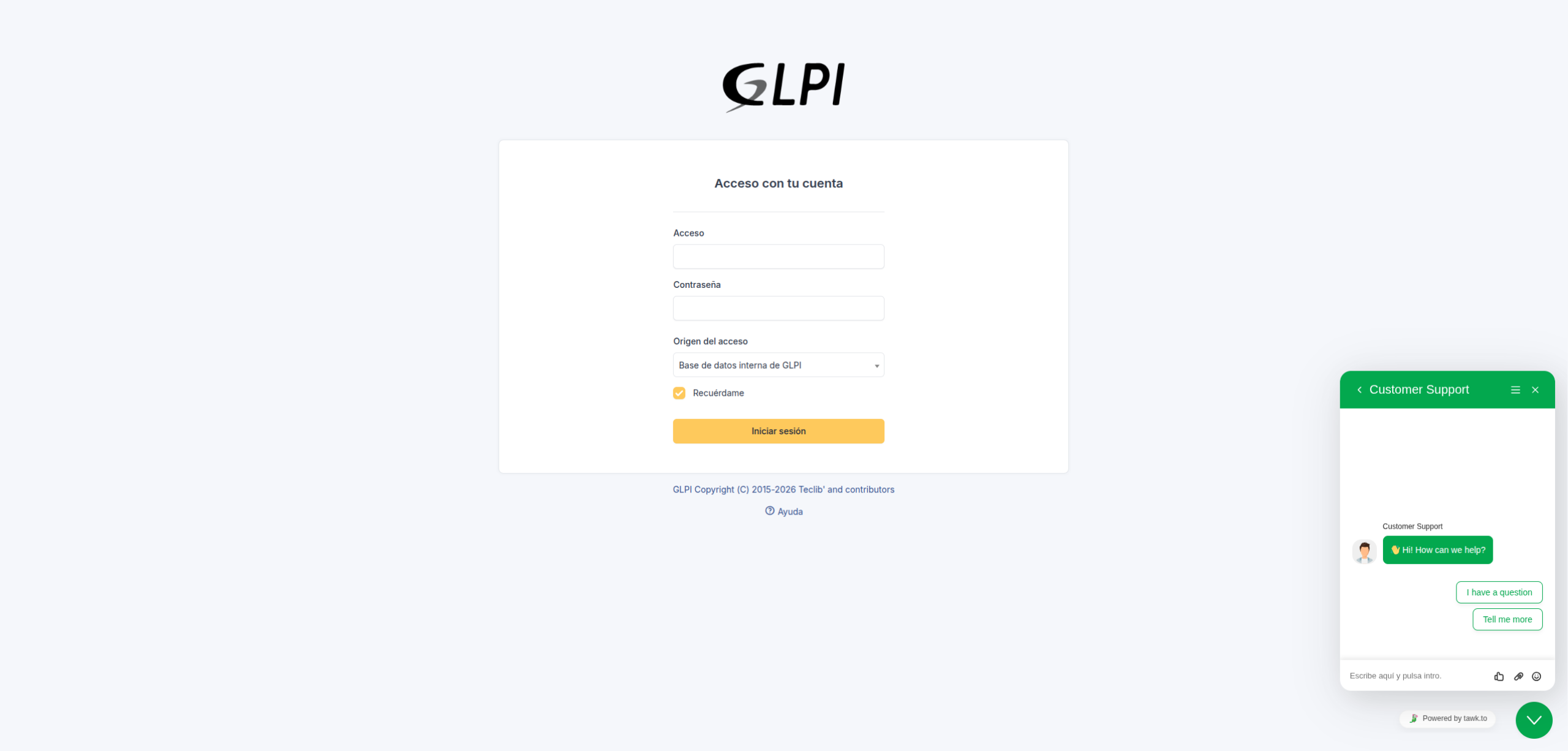
The chat of Tawk.to opened by a visitor
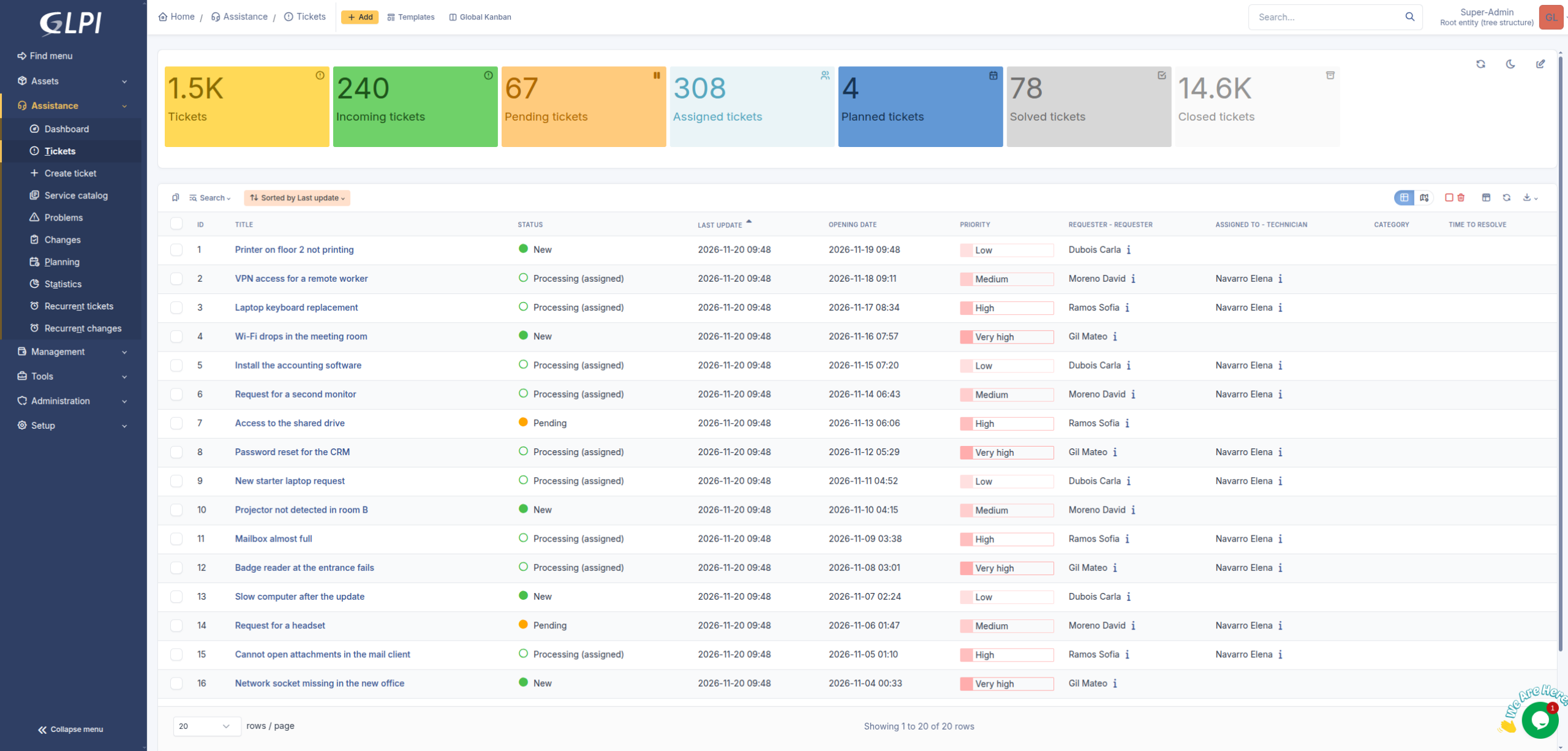
The chat bubble inside GLPI, on the list of tickets
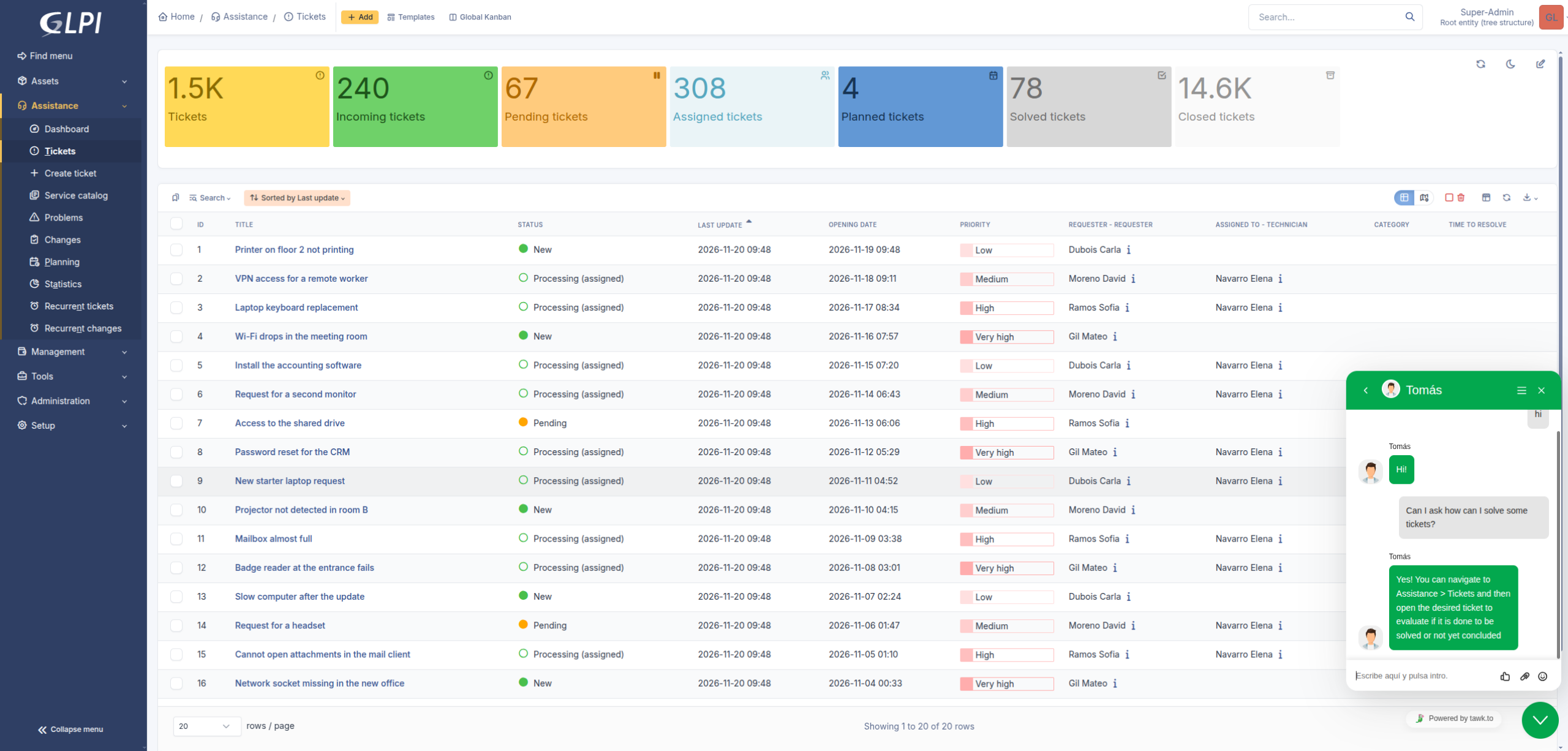
The chat opened inside GLPI
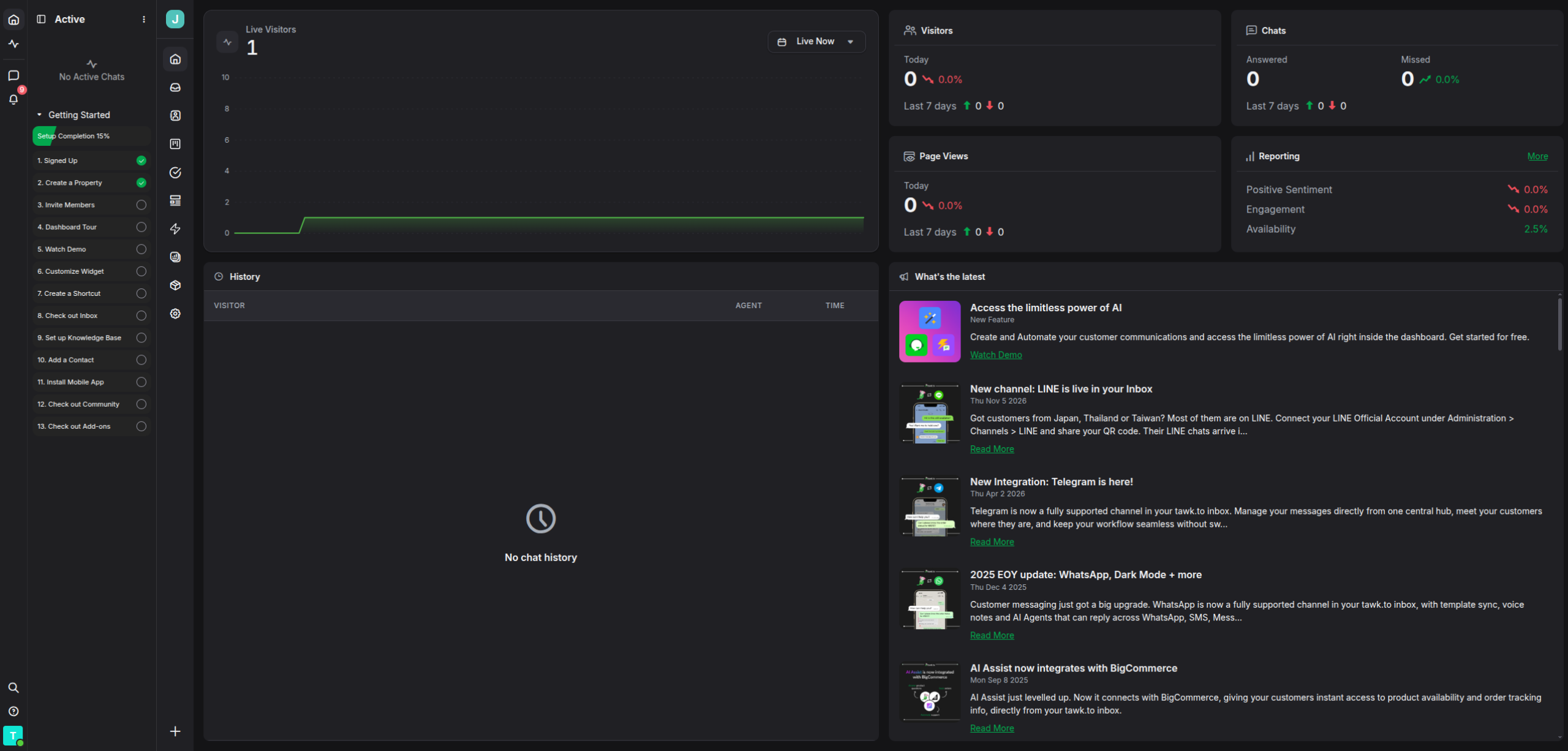
The visit in the Tawk.to dashboard, under Live Visitors
5.3.1.4 Privacy
Each active service loads JavaScript code from a third party. That code can read what is shown on the page where it runs, and the browsing data of the visitors is sent to the service. With Load only on the login page on, that happens only on the login page; with it off, it also happens on every page of the users who are logged in. Activate only the services you trust and that are covered by your privacy policy (GDPR).
Generated for JS Addons 4.0.0 on GLPI 12.0.2 — 2026-11-20.