
5.2 Configuring an addon
5.2.1 Setting up an addon
To start using a service you enter its key and switch the addon on. Each addon has three settings.
5.2.1.1 Open an addon
Click the name of the addon in the list. The form shows the Name of the service, which cannot be changed, and three settings: Active, Load only on the login page and Key. The yellow warning is a reminder: the addon runs code of a third party, so only switch on the services you trust.
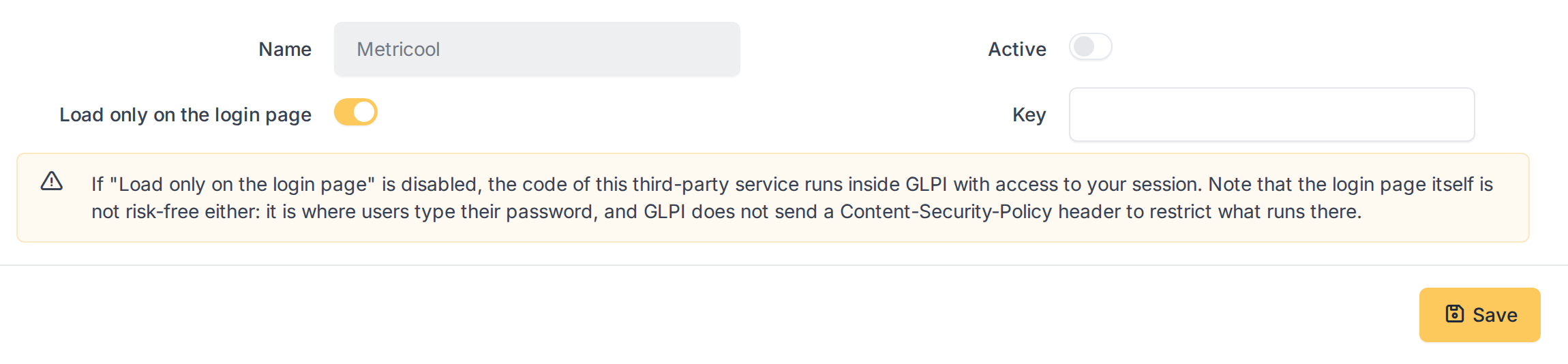
The form of an addon
5.2.1.2 Enter the key
Paste the identifier of your account in the service in Key: the tracking hash of Metricool, the property and widget of Tawk.to (for example 5f1e2d…/1abcd2efg) or the measurement ID of Google Analytics (for example G-ABCD1234EF). The key is checked when you save: only the format of that service is accepted. A key that does not have it is refused with Invalid key and nothing is saved.
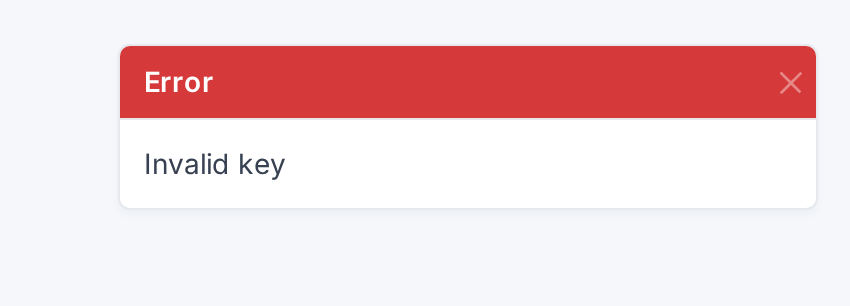
A key with the wrong format is refused
5.2.1.3 Switch it on
Enter a valid key, turn on Active and click Save. From then on the plugin adds the code of the service to the pages. Load only on the login page is on by default: the code then runs only on the login page, before anyone has signed in, and not inside GLPI. Turn it off only if the service must also run for logged-in users, for example a chat for your technicians. In that case the third party can read everything shown in GLPI.
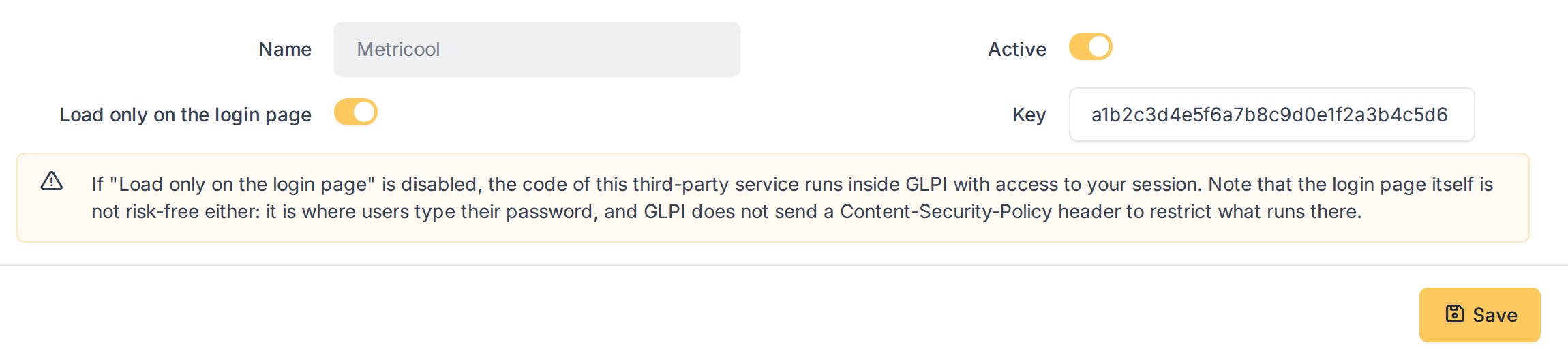
A valid key and the addon switched on
5.2.1.4 Check the list
Back in the list, the addon is shown as Active. Repeat for the other services. Changes apply to the next page that loads; an addon can be switched off at any time with Active and its key is kept.
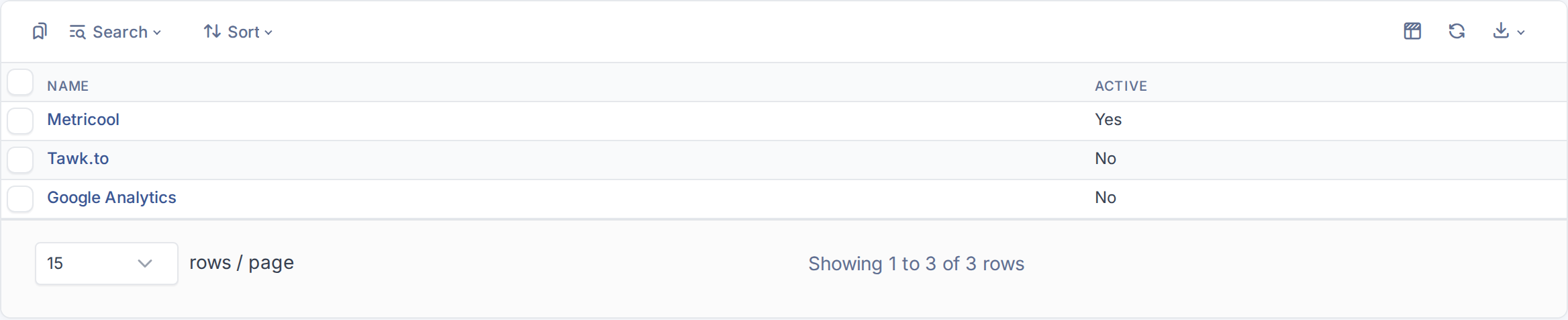
Metricool is now active
Generated for JS Addons 4.0.0 on GLPI 12.0.2 — 2026-11-20.