
5.2 Generating costs
5.2.1 Costs created from tasks
Once the rates are set, nobody types a cost by hand: when a task of a billable ticket is marked as Done, the plugin adds a cost to the ticket.
5.2.1.1 Mark a task as done
Open a billable ticket and tick the checkbox next to a task in the timeline, or change its Status to Done when you edit it. The plugin creates a cost in the Costs tab of the ticket. It takes the duration of the task, the rates of the technician assigned to the task, and the fixed cost of the entity. The cost is named after the task and the technician, for instance 1_8.
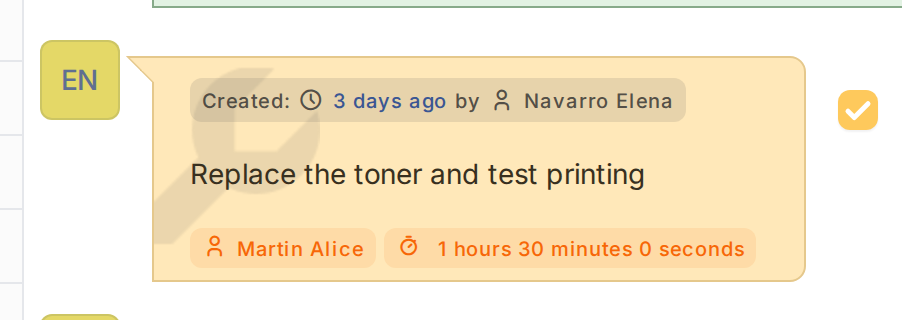
A task marked as Done
5.2.1.2 Each technician pays their own rate
The second task of the ticket belongs to a Supervisor, who has a rate of their own in the entity. Mark it as done in the same way: the cost uses the Supervisor rate instead of the general one. If the profile of the technician has no rate, the general rates of the entity apply. If the task is given to somebody else before it is done, the cost uses the rates of the new technician. Once a cost exists its rates stay as they were.
5.2.1.3 Review the costs of the ticket
Open the Costs tab of the ticket. Each task has its own cost, with the start and end of the task, its duration, the time cost, the fixed cost and the total. Click a cost to read its comment, which holds the text of the task when Add task description on cost is on. Later changes to the task update the cost again, and deleting the task deletes its cost.
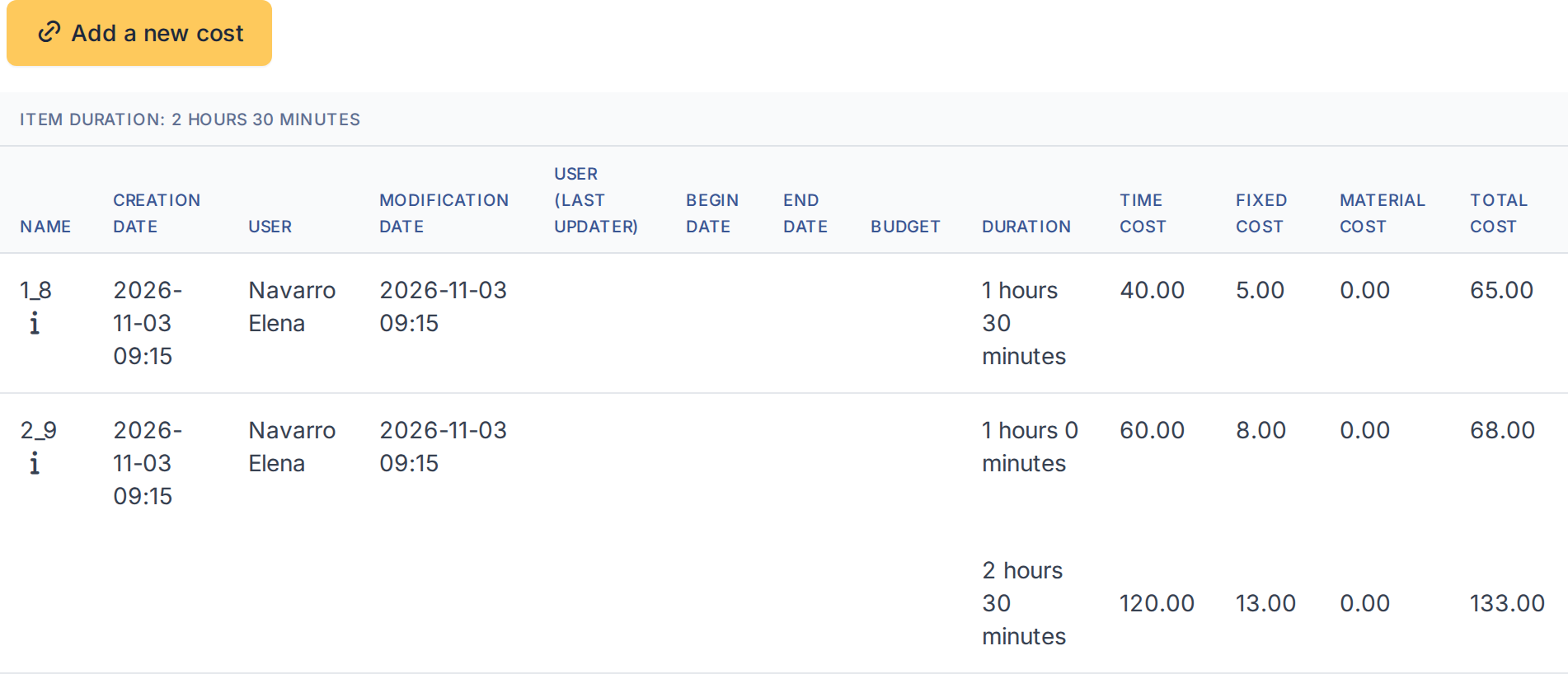
The costs created from the tasks
Generated for Costs 5.0.0 on GLPI 12.0.2 — 2026-11-20.