
4. Setup
4.1 Installation
Drop the plugin in plugins/costs, or install it from the Marketplace, then install and activate it from Setup > Plugins. Version 5 needs GLPI 12.0.
4.2 Configuration
Set the rates in the Costs tab of the entities. The root entity must have a time cost above zero, because no cost is created when the time cost is zero. The only general option is on Setup > General > Costs.
4.2.1 Automatic actions
None.
4.3 Permissions
The plugin has no right of its own; it follows GLPI's:
- Setup > General > Costs needs the right to read or update the GLPI configuration, and GLPI asks for the password again before showing and saving it.
- The Costs tab of an entity needs the right to update entities, on that entity. Adding or deleting rates by profile needs the same right.
- The Billable field can be changed only in the standard interface, by users who can update tickets and may update that ticket. Other users see it as read-only text or do not see it. Self-Service users never see it.
4.4 Plugin settings
Costs has a single general option: whether the cost it creates for a task carries the text of the task. Everything else, the rates, is set per entity.
4.4.1 Open the Costs settings
Go to Setup > General and open the Costs tab. GLPI asks you to confirm your password before it shows the settings, as it does for the rest of the GLPI configuration.
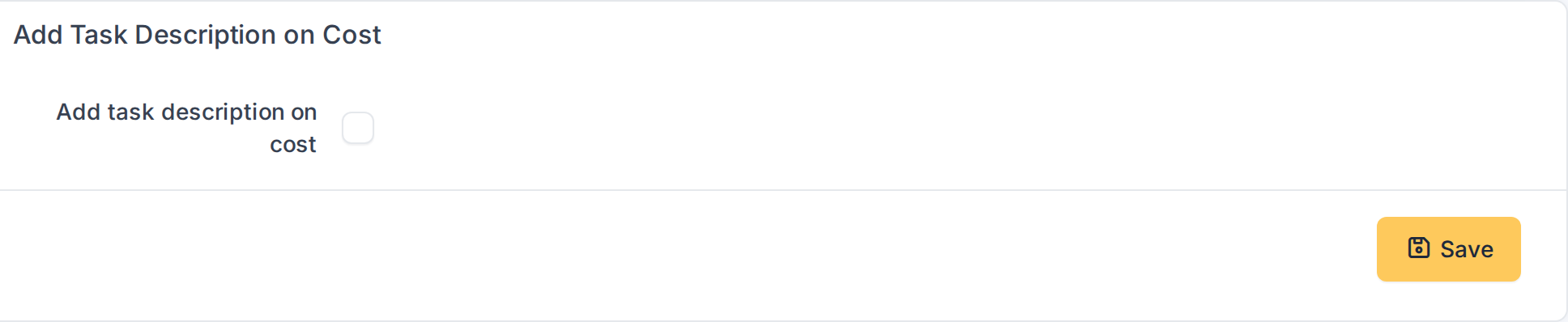
The Costs settings
4.4.2 Copy the task description into the cost
Switch on Add task description on cost and click Save. From then on the comment of each cost the plugin creates starts with the text of the task, followed by the line "Automatically generated by GLPI -> Costs Plugin". With No, the comment is only that line.
4.5 Costs of an entity
The rates are set per entity, in the Costs tab of the entity. An entity can keep its own rates or inherit the ones of its parent.
4.5.1 Set the rates of the root entity
Go to Administration > Entities, open the entity and select the Costs tab. The root entity has four fields. Fixed cost is added once to every cost the plugin creates. Time cost is the price of one hour of work. Private task says whether private tasks are charged too. Auto billable ticket makes every new ticket of the entity billable from the start. Fill them in and click Update.
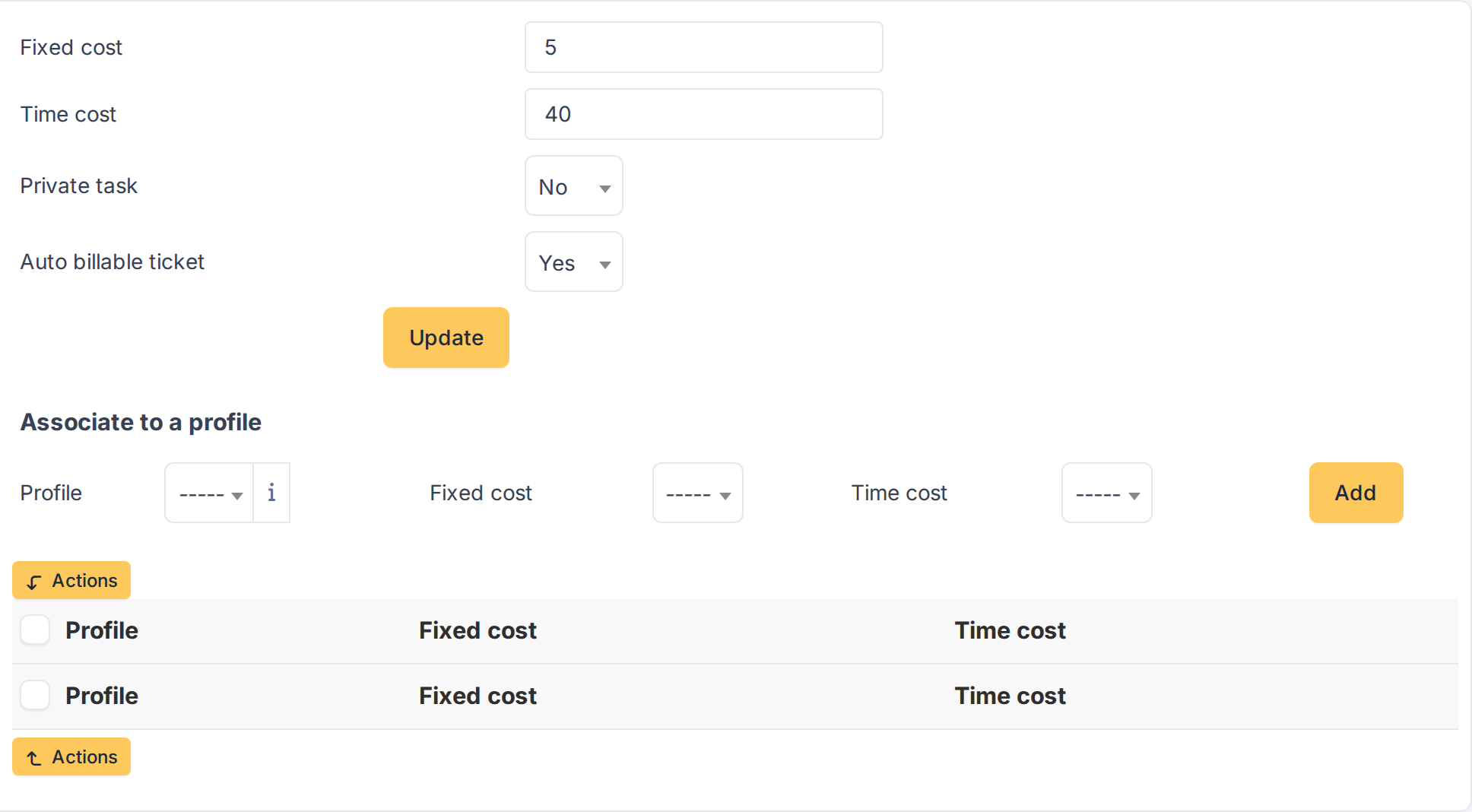
The costs of the root entity
4.5.2 Let a child entity inherit the rates
The entities below the root start with Inheritance of the parent entity switched on. Their Costs tab shows the values they use in blue italics, taken from the nearest parent that has its own rates. Nothing can be edited there until the inheritance is switched off.
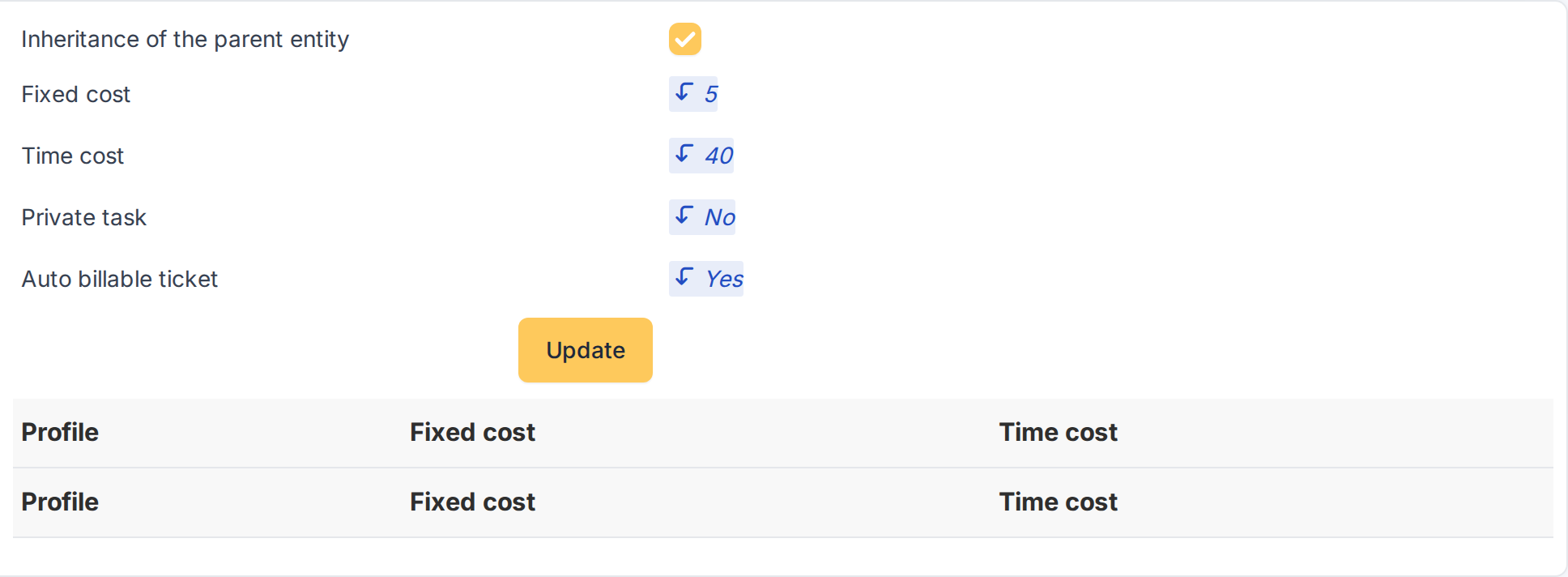
An entity that inherits its rates
4.5.3 Give an entity its own rates
Switch off Inheritance of the parent entity and click Update: the fields become editable. Set the rates of the entity, here a higher time cost, and charge private tasks too. The child entities of this one inherit these values from now on.
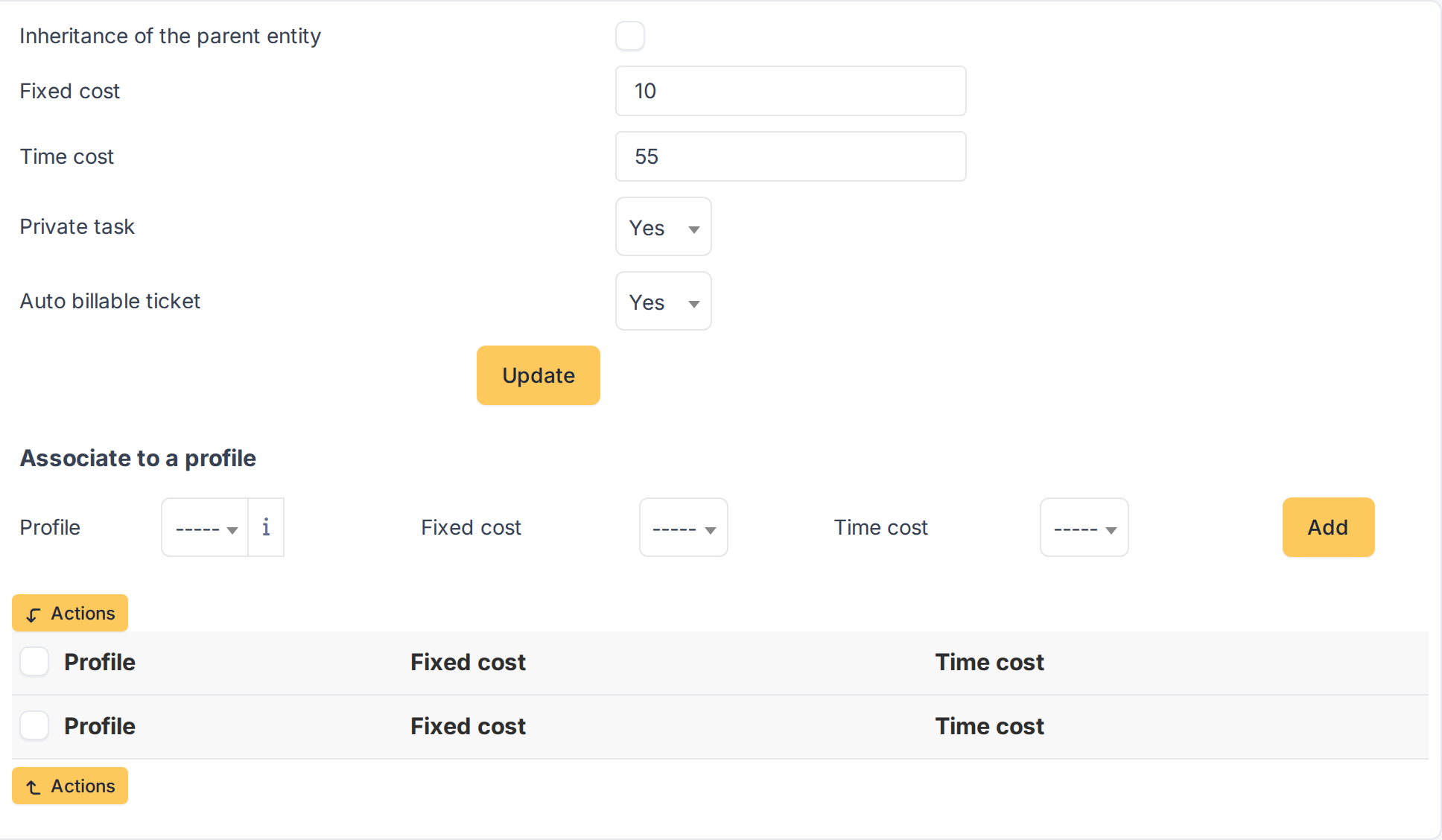
An entity with its own rates
4.6 Rates by profile
Not every technician costs the same. In the Costs tab of an entity you can set different rates for each profile; they replace the general rates of the entity for the people who work with that profile.
4.6.1 Add a rate for a profile
In the Costs tab of the entity, use the Associate to a profile block. Choose the Profile, the Fixed cost and the Time cost, and click Add. Only profiles of the standard interface can be chosen, and each profile can appear once per entity. The technicians whose default profile is not in the list keep paying the general rates.
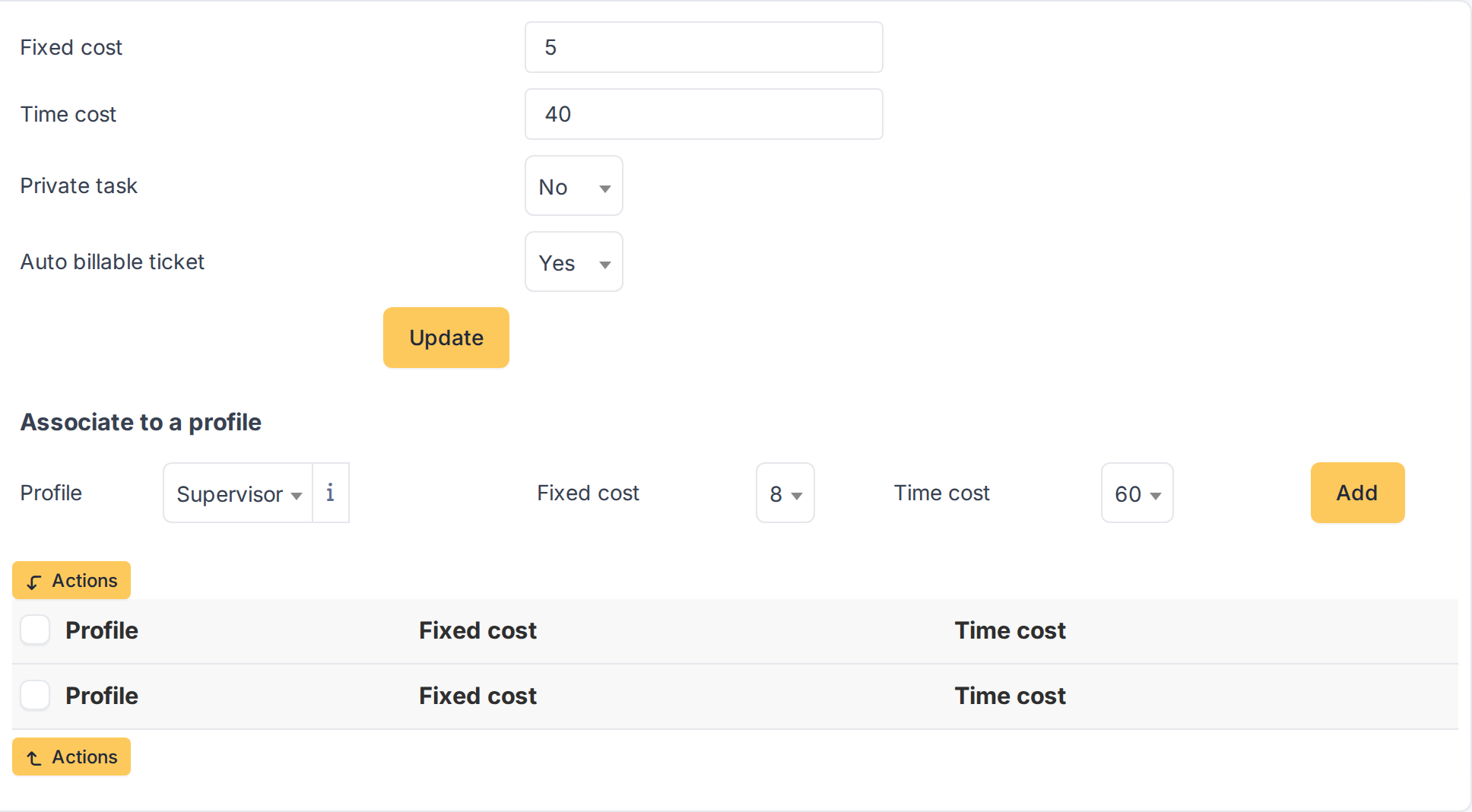
Associating a rate with a profile
4.6.2 Review and remove rates
The rates of the entity are listed under the form. To remove some, tick them and use Actions > Delete permanently. An entity that inherits its rates shows the rates of its parent in blue italics, and they cannot be changed from there. If a profile is deleted from GLPI its rates disappear from the list.
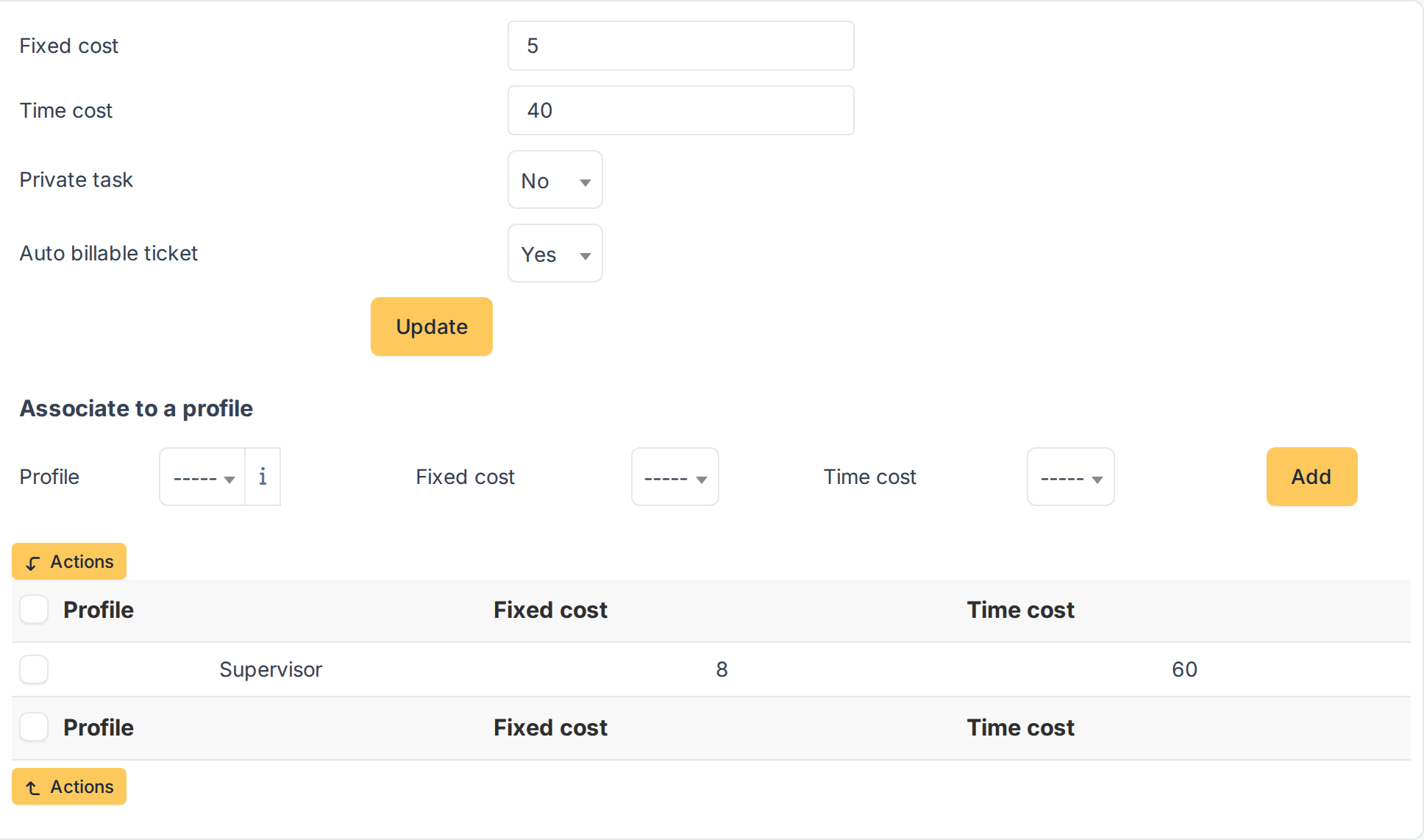
The rates by profile of an entity
Generated for Costs 5.0.0 on GLPI 12.0.2 — 2026-11-20.