
5.1 Timing tasks
5.1.1 Timing a task
A technician times the work on a task with a timer: start it when the work begins, pause it for a break and stop it when the task is done. The same timer exists on tickets, changes, problems and project tasks.
5.1.1.1 Find the task
Open the ticket and look at its timeline. A task that is To do and assigned to you has a small green start button beside it. A task that is already done shows the time recorded in its header, next to the date.
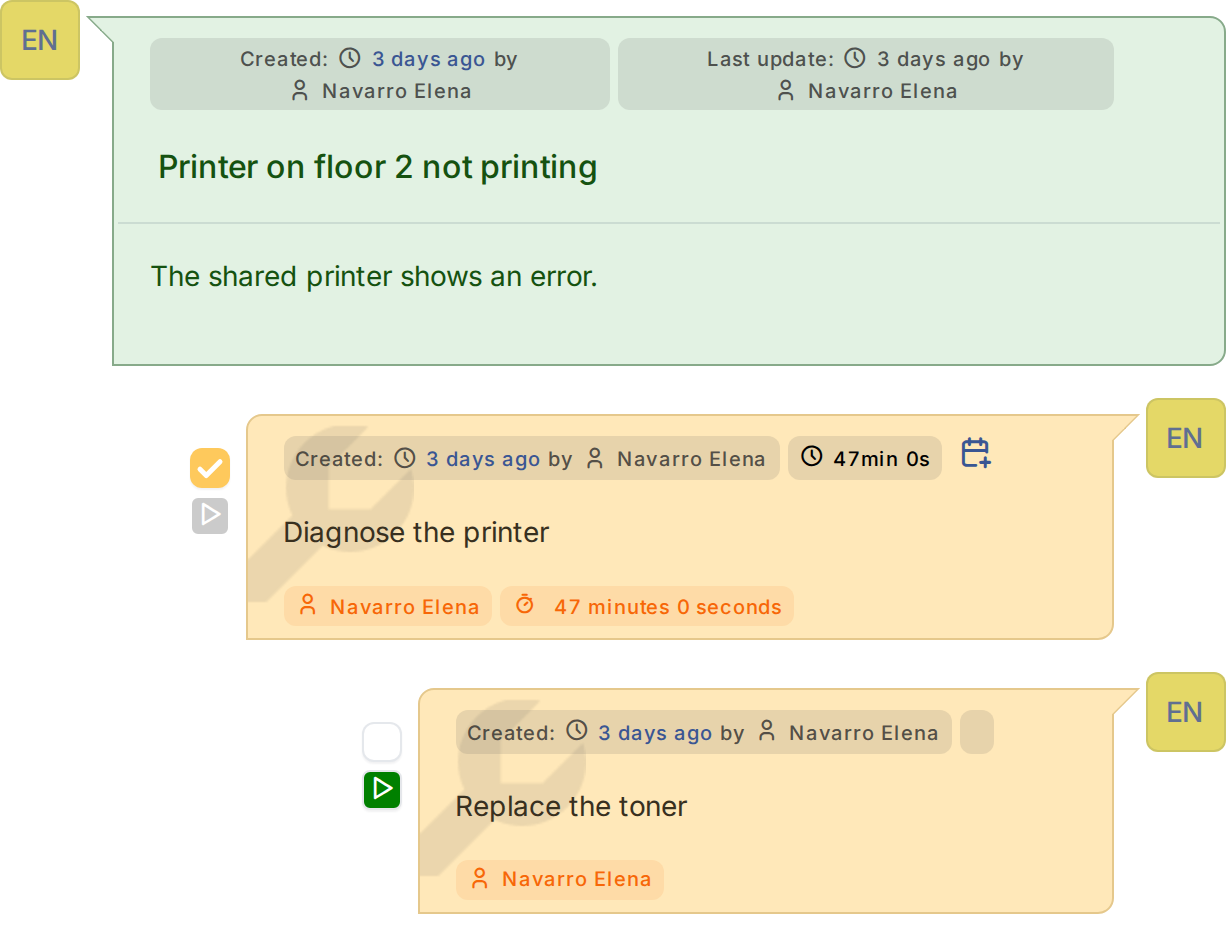
A task ready to be timed, and a task with recorded time
5.1.1.2 Start the timer
Click the green button. The task header shows a red clock and the time that goes by, and the button turns into pause. You can only time a task that is assigned to you, and only one timer can run for you at a time.
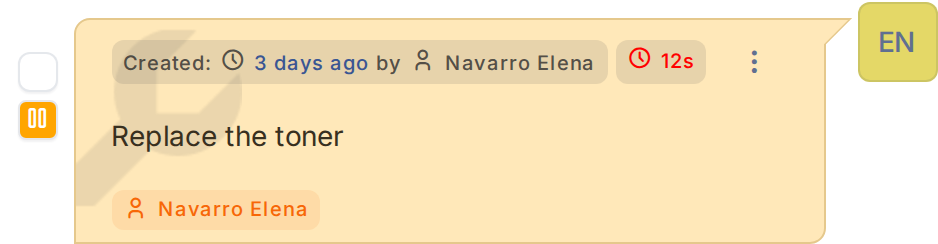
The timer is running
5.1.1.3 Control the timer from the task form
Open the task with Edit. The form shows Actual Duration and the buttons: pause (orange) and stop (red) while it runs, start (green) when it is paused.
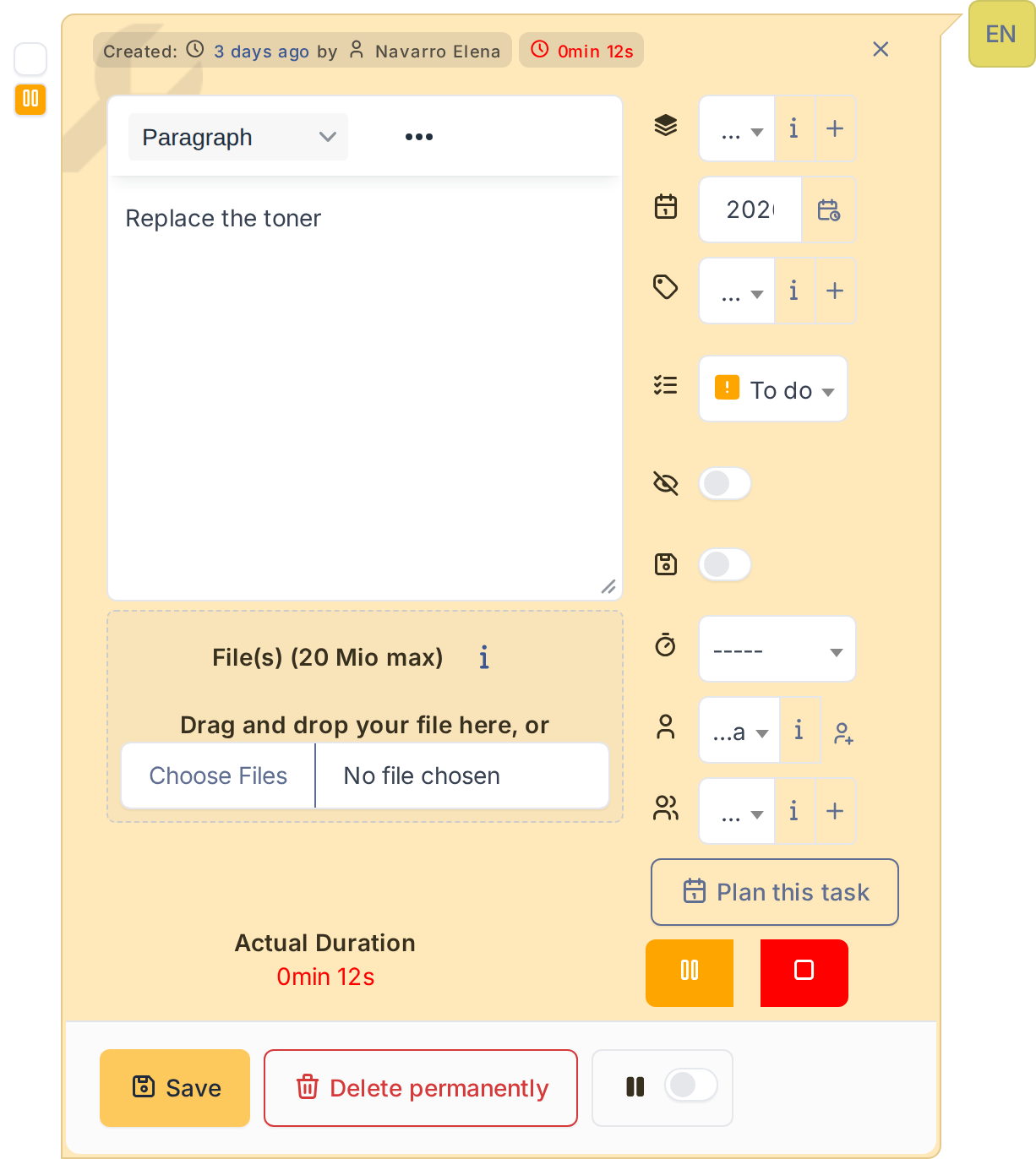
The timer in the task form
5.1.1.4 Pause and continue
Click pause for a break: the time stops and the button turns green. Click it again (Restart) to continue; each run is recorded as a segment of the task.
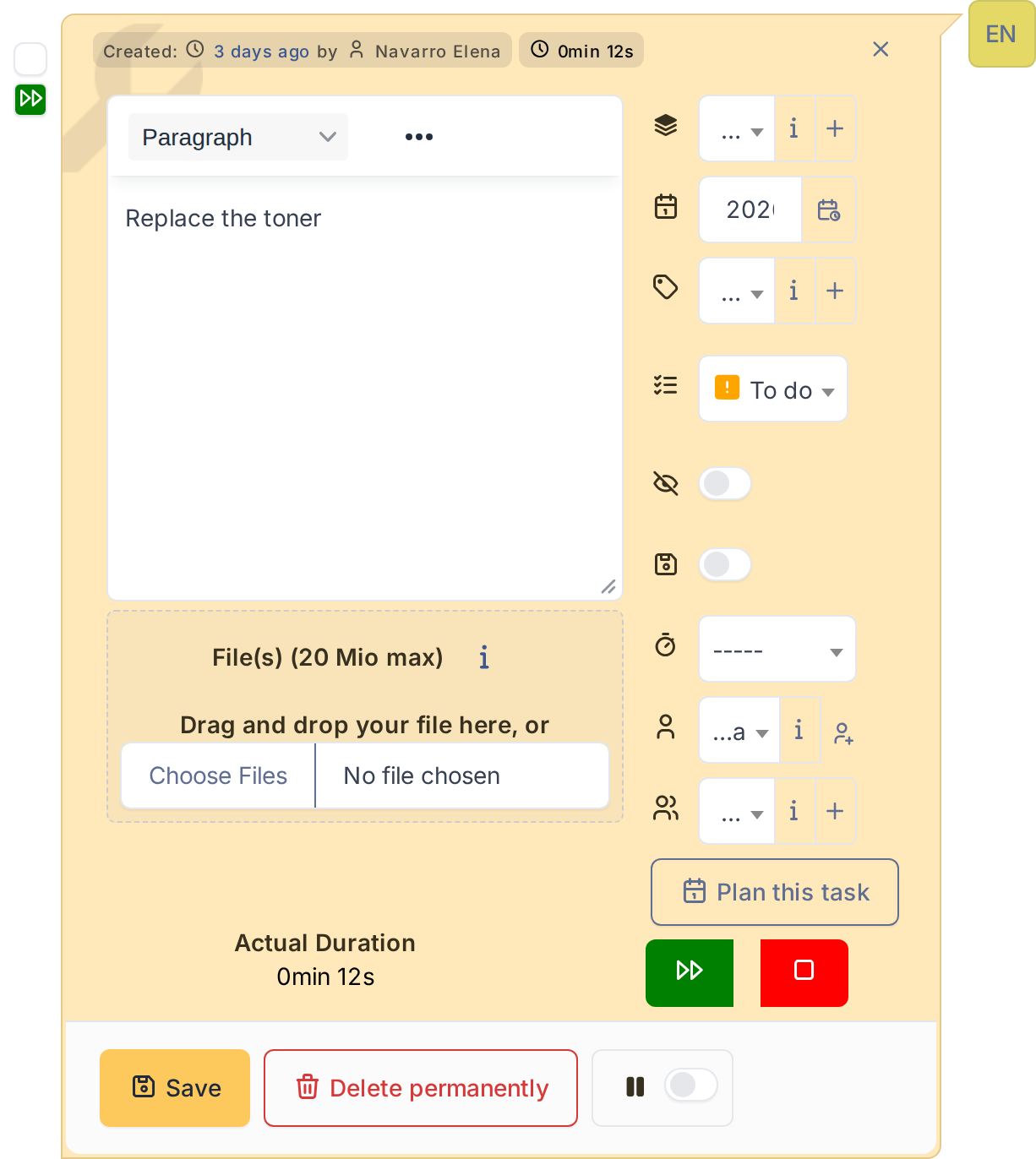
The timer is paused
5.1.1.5 Stop the timer
Click stop (red) when the work is finished. The task is set to Done, the total time stays in its header and the buttons are disabled. If Automatically update the duration is on, the task Duration takes the recorded time.
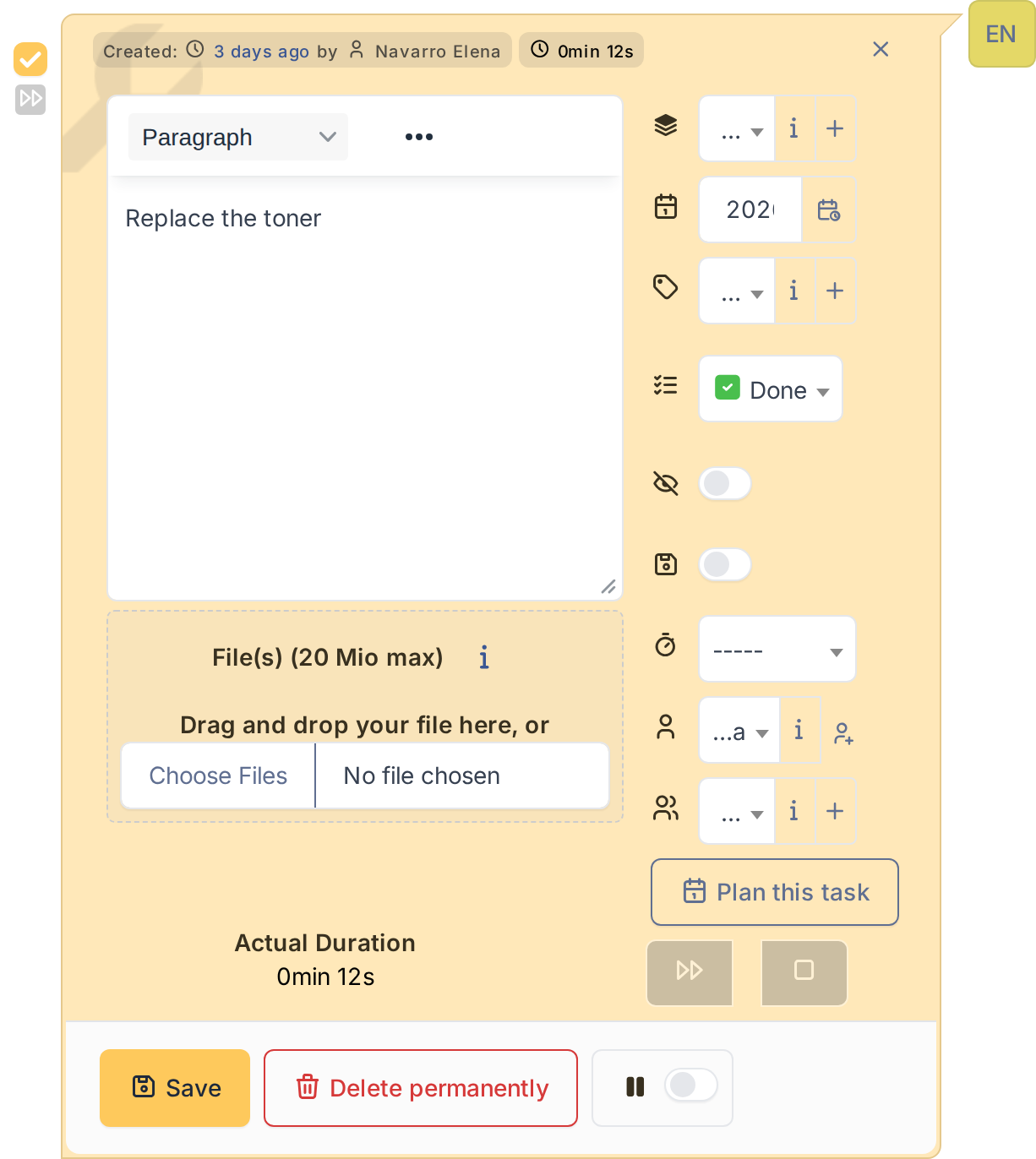
The task is done and the time is kept
Note: Pausing or stopping a timer from another page works too: the pop-up window with the running timer (see Configuration) has the same controls.
5.1.2 Taking over a task and starting the timer on creation
Two shortcuts save clicks: a button to assign a task to yourself, and a switch that starts the timer as soon as the task is created.
5.1.2.1 Assign the task to yourself
A task assigned to another technician cannot be timed by you. Open it with Edit: beside the Technician field there is an Associate myself button (a person with a plus). Click it and the task becomes yours, so you can start its timer.
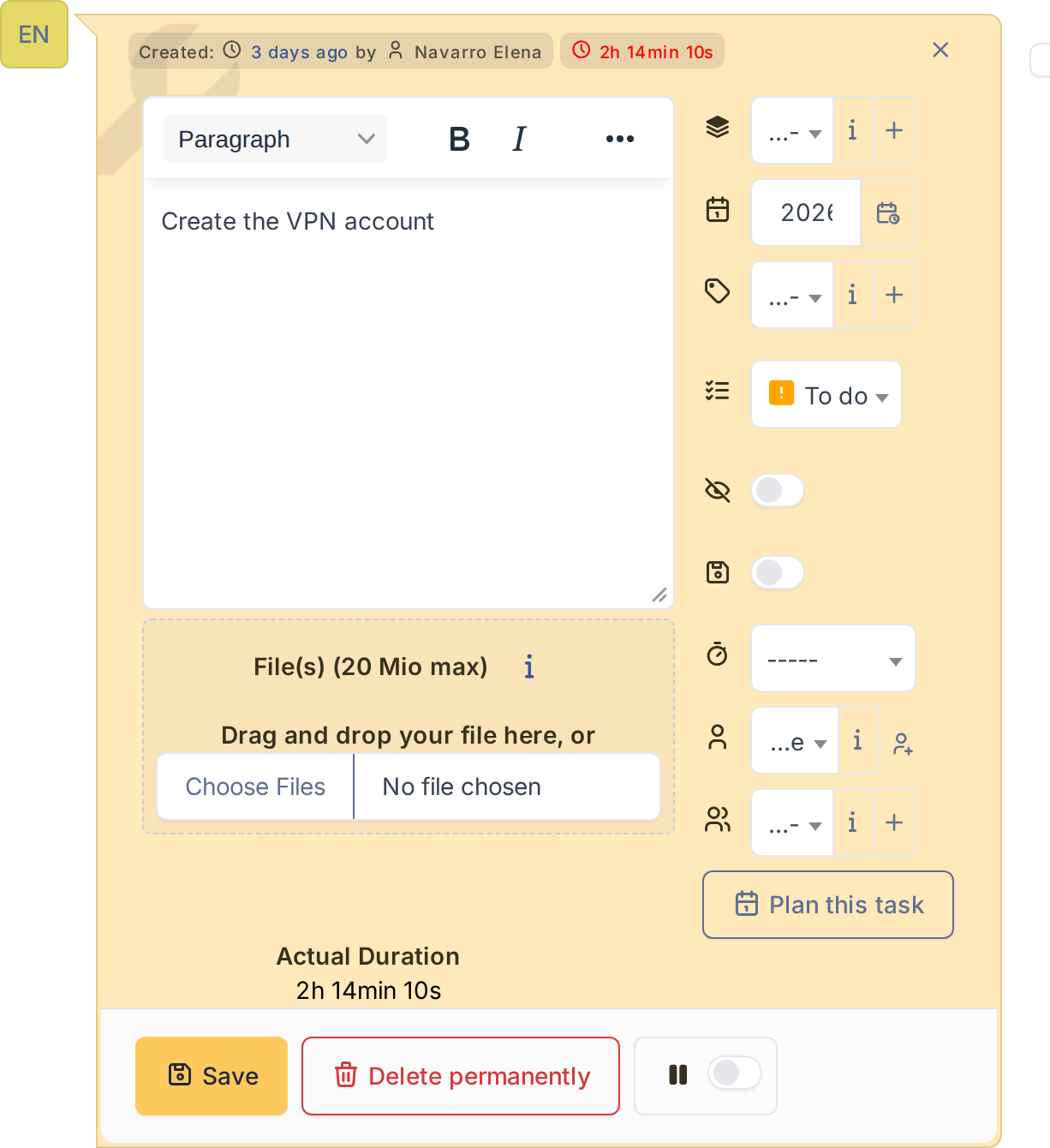
The Associate myself button next to the technician
5.1.2.2 Start the timer when the task is created
In the form of a new task there is an Autostart switch (stopwatch icon). Switch it on and the timer starts when you save the task, as long as the task is To do and assigned to you. To do this for every new task, turn on Automatically open task with timer running in the settings.
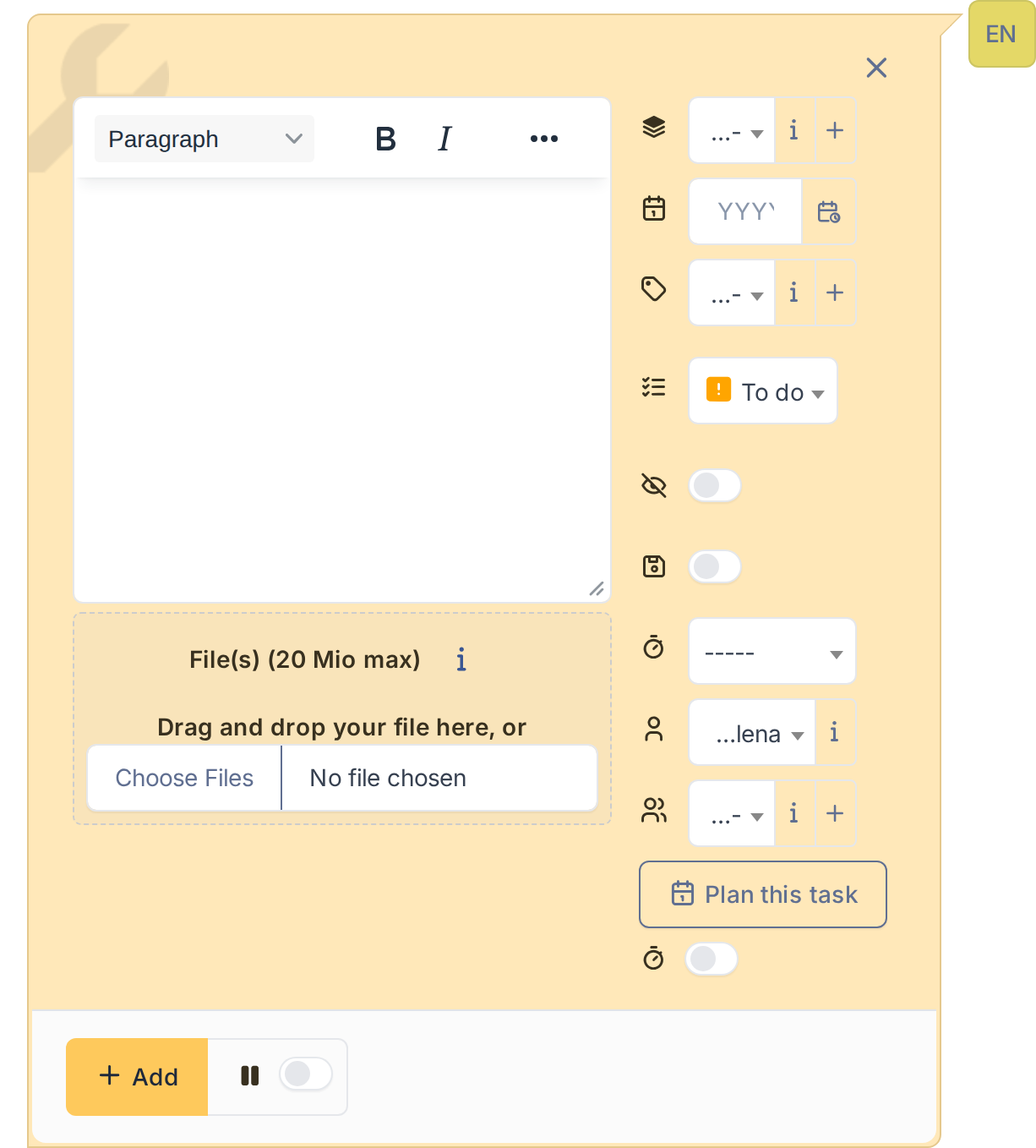
The Autostart switch in a new task
Generated for ActualTime 5.0.0 on GLPI 12.0.2 — 2026-11-19.