
4. Setup
4.1 Installation
Drop the plugin in plugins/actualtime, or install it from the Marketplace, then install and activate it from Setup > Plugins. Version 5 needs GLPI 12.0. Upgrading from 4.x migrates the timer data and the saved planning filters.
4.2 Configuration
The plugin works as soon as it is activated, for the technicians whose profile can update tasks. Its settings are on Setup > General > ActualTime: where the timer is offered, the pop-up with the running timer, the automatic start, the automatic duration, the day restrictions and the hours limit per task. Give the profiles their two rights on Administration > Profiles > ActualTime.
4.2.1 Automatic actions
None.
4.3 Permissions
The plugin adds two rights, on the ActualTime tab of a profile.
- Running timers (Read): opens Administration > ActualTime, the list of timers running now.
- Modify timers: Modify tickets, Modify changes, Modify projects, Modify problems. Decides, for each type of item, who sees the Modify timers window on its tasks.
Everything else follows GLPI's own rights. To run a timer the user must be the technician of the task, be allowed to update it, and the task must be To do (or, for a project task, not in a finished state). A user who cannot see a private task never gets its figures, in the running timers, the statistics, the dashboards or the planning. Timer data is limited to the user's entities.
4.4 Choosing the plugin settings
The plugin settings decide where the timer is offered, what it does when a task is closed and how long a task may be timed.
4.4.1 Open the ActualTime settings
Go to Setup > General and open the ActualTime tab (the plugin list has a shortcut too). GLPI asks you to confirm your password before it shows the settings.
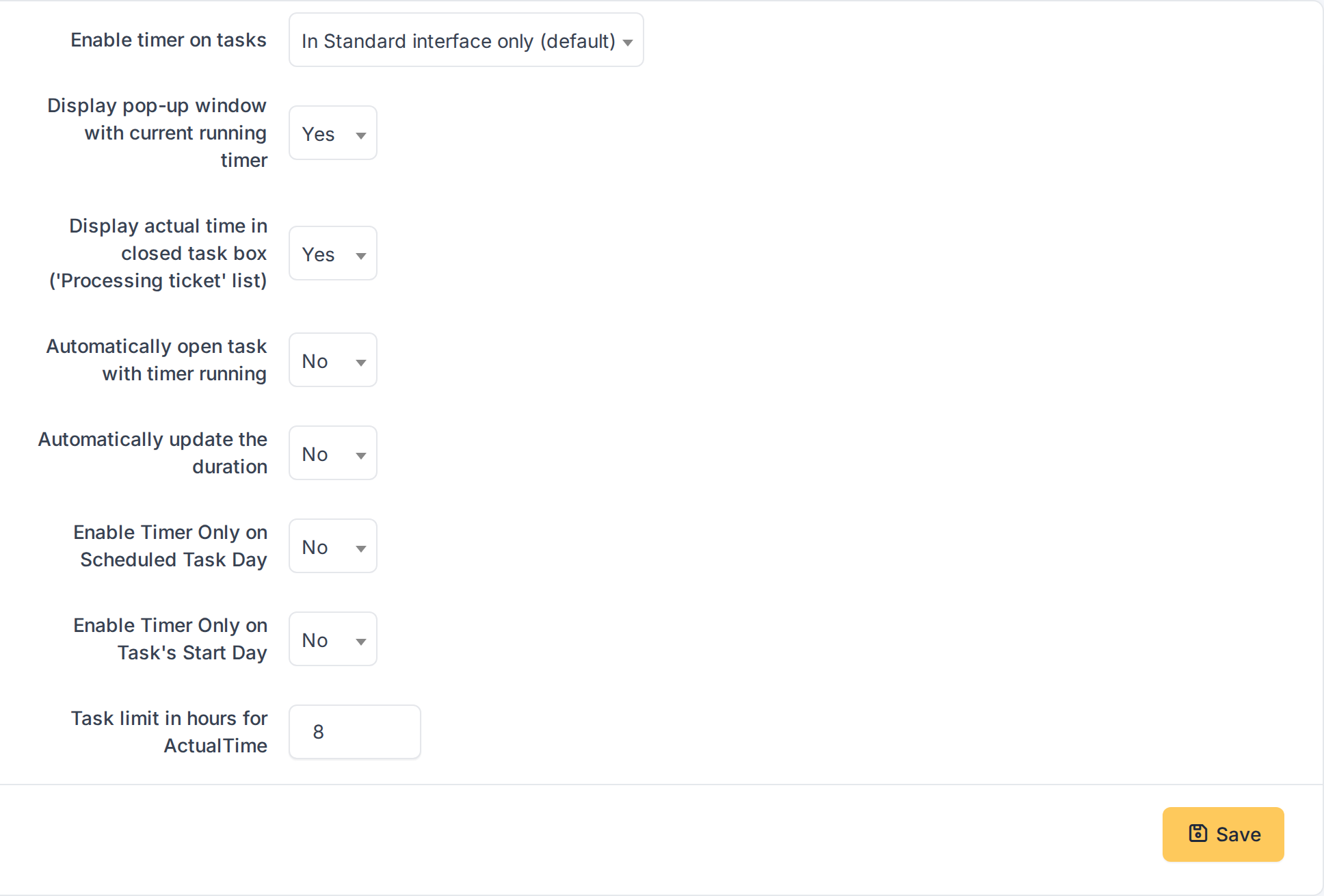
The ActualTime settings
4.4.2 What each setting does
- Enable timer on tasks: In Standard interface only (default) or Both in Standard and Helpdesk interfaces. With Both, users of the simplified interface see the timer of their tickets' tasks too, read only.
- Display pop-up window with current running timer: a small window, on every page, with the timer that is running for you.
- Display actual time in closed task box: shows the recorded time in the header of a closed task of the timeline.
- Automatically open task with timer running: starts the timer when you create a task that is assigned to you.
- Automatically update the duration: when you stop the timer, the task Duration is set to the recorded time, rounded up to the GLPI time step.
- Enable Timer Only on Scheduled Task Day: a task planned in the future cannot be timed before its start.
- Enable Timer Only on Task's Start Day: a task that already has a timer recorded on an earlier day cannot be timed again.
- Task limit in hours for ActualTime: the most hours the timers of one task may add up to when they are corrected (0 means 24).
4.4.3 Offer the timer in the simplified interface
Choose Both in Standard and Helpdesk interfaces in Enable timer on tasks and click Save.
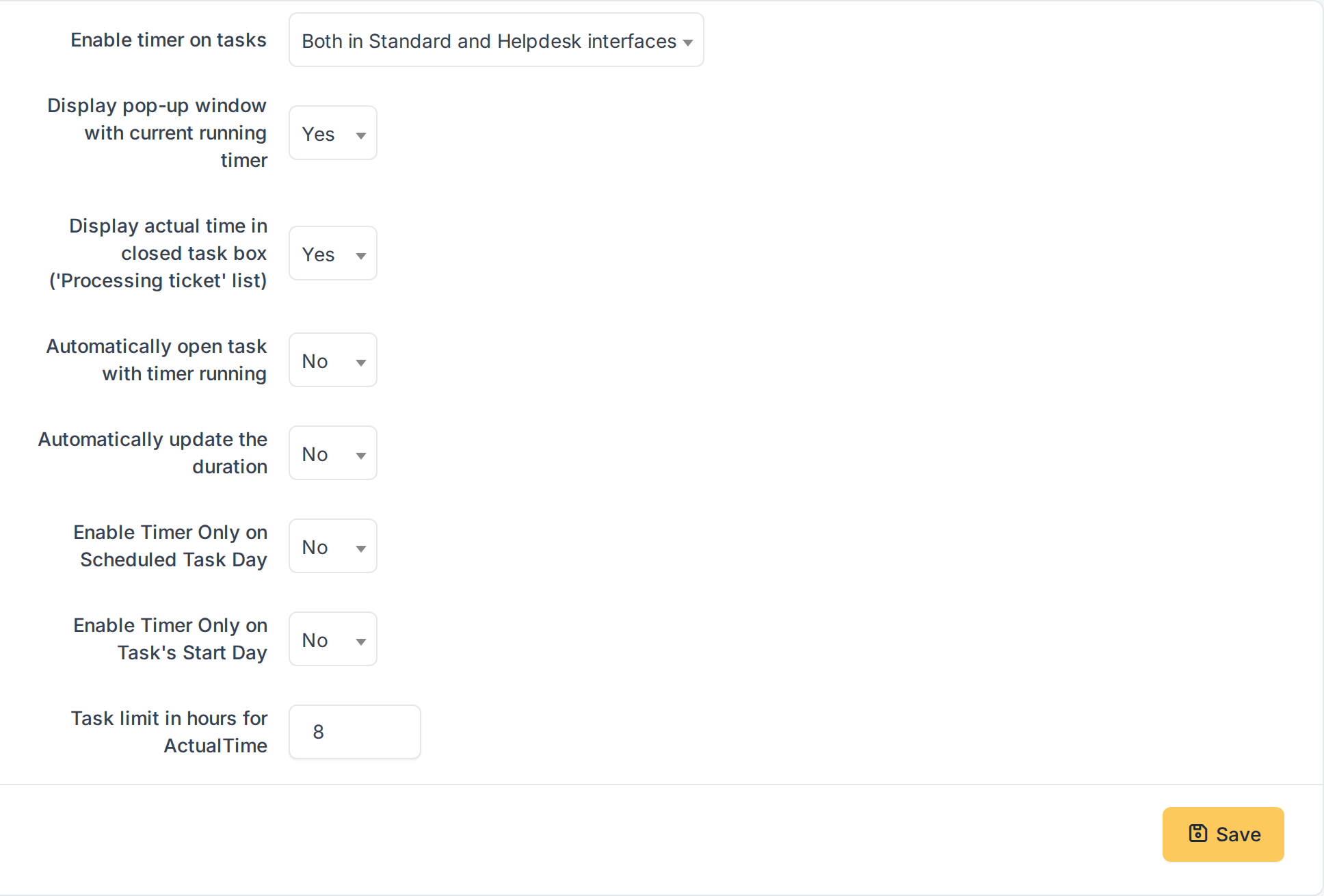
The timer is now offered in both interfaces
4.5 Giving profiles their rights
ActualTime adds two rights to the profiles. Everything else follows the permissions the user already has on tickets, changes, problems and projects.
4.5.1 Open the ActualTime tab of a profile
Go to Administration > Profiles, open the profile you want to change (here Technician) and click the ActualTime tab. The tab is not shown on profiles of the simplified interface: GLPI ignores those rights there.
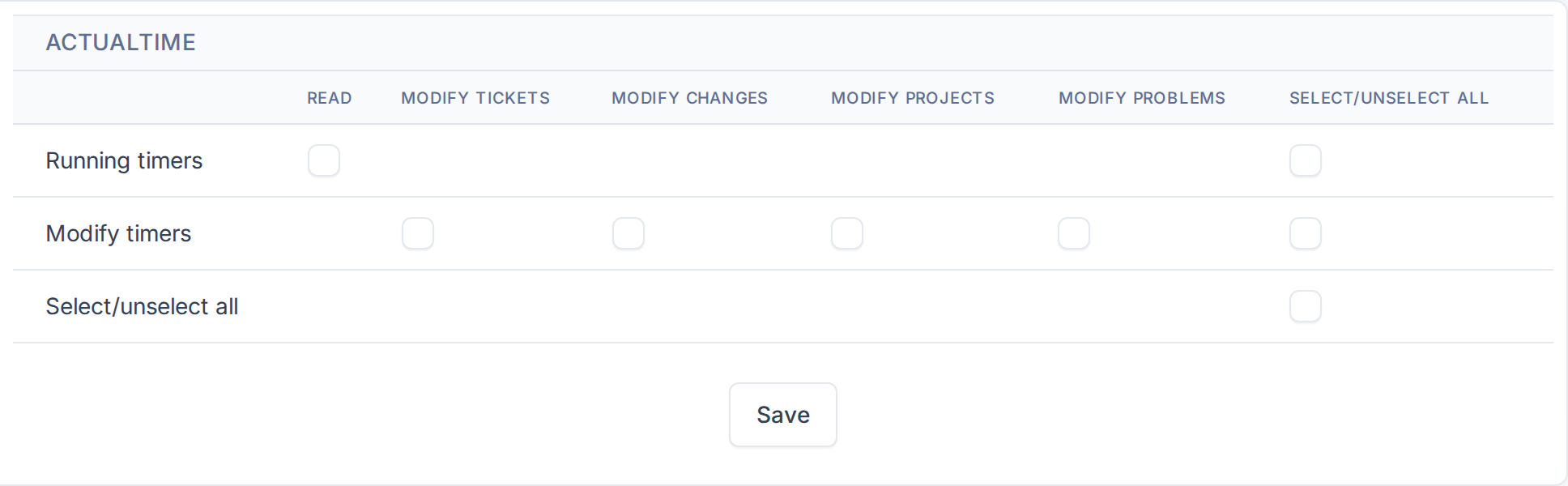
The ActualTime rights of the Technician profile
4.5.2 Choose the rights
Running timers has a single Read column: it gives access to the list of timers that are running now (Administration > ActualTime). Modify timers decides, for each type of item (tickets, changes, projects, problems), whether the user may correct the recorded timer segments of its tasks. Tick what the profile needs and click Save.
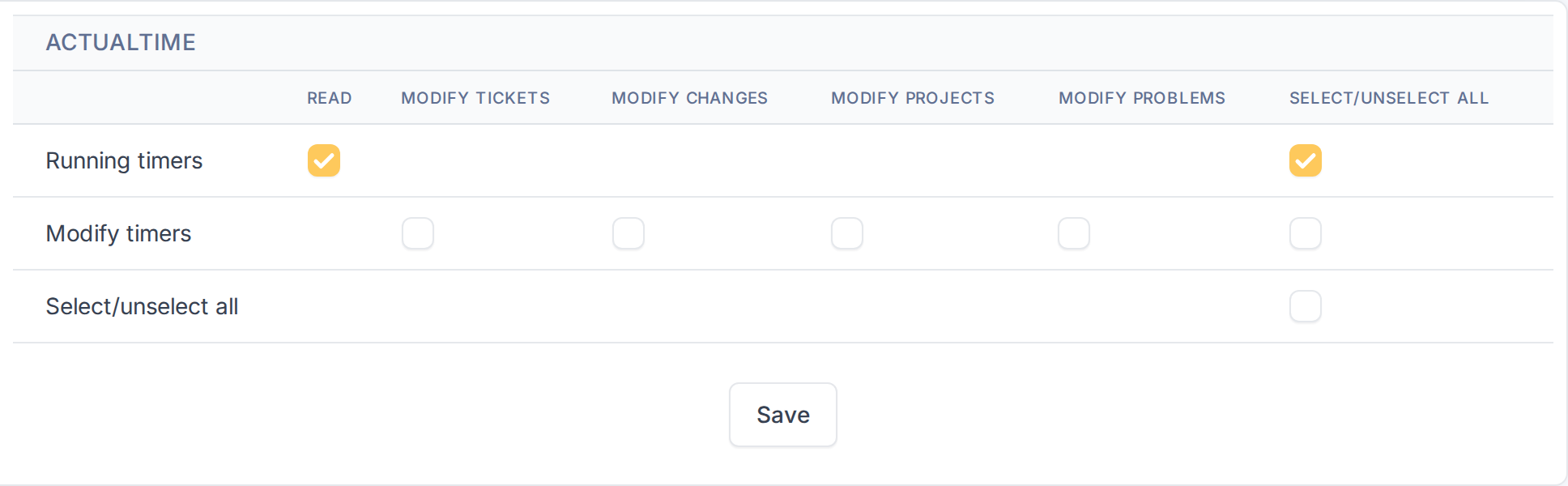
Technicians can now see the running timers
Note: The user who runs a timer must be the technician of the task and be allowed to update it. A user who may only view a task never sees the start button.
Generated for ActualTime 5.0.0 on GLPI 12.0.2 — 2026-11-19.