Create and modify Solutions
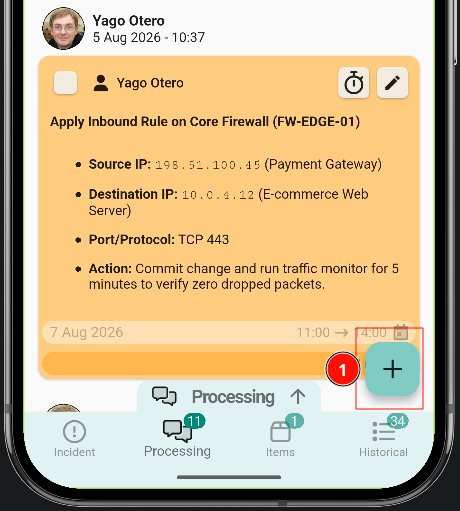
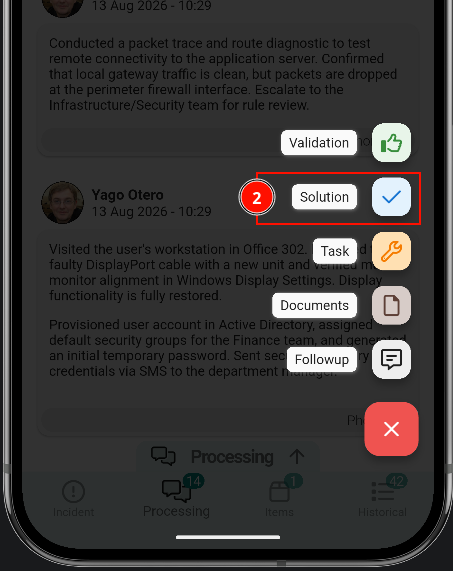
Solutions are created the same way as follow-ups or tasks: tap the button in the bottom-right corner, select Solution, write the reason and send it.
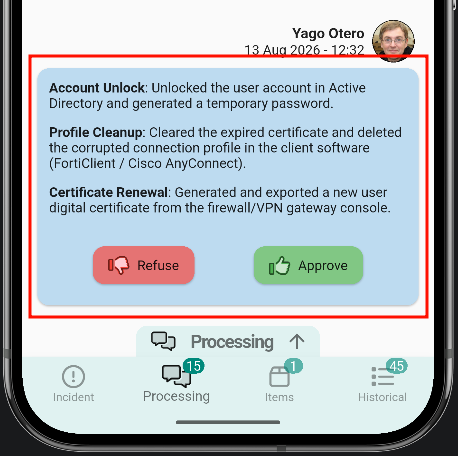
Once sent, the solution appears in the message list with two options: approve or reject.
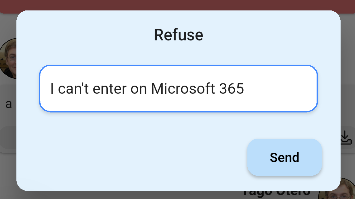
Reject the solution
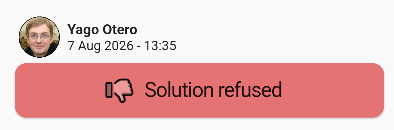
Rejecting the solution asks for a reason. The message list then shows it as rejected.
Approve the solution
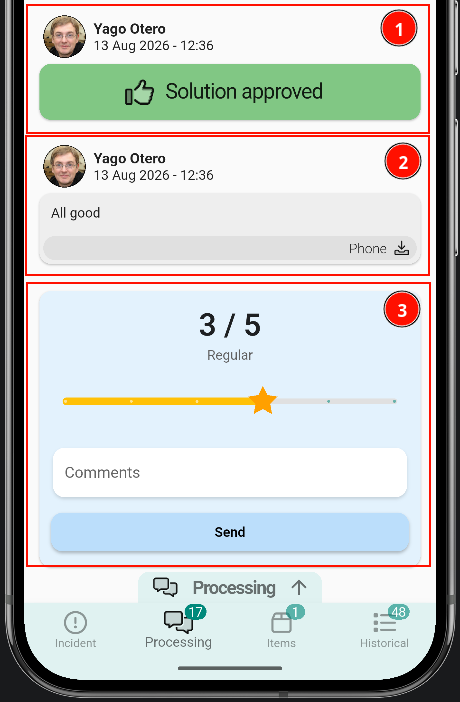
Cuando apruebes una solución se te pedirá un comentario, una vez que lo envíes se procederáApproving a cerrarsolution elasks ticket.for Ela comment; once it is sent, the ticket podráis estarclosed. cerradoThe peroticket seguirámay abiertabe unaclosed, encuestabut dea satisfacciónsatisfaction dondesurvey podrásremains valoraropen, delwhere the solution can be rated from 1 alto 5 la solución.5.
Once the solution is approved, no further updates can be written to the ticket.
LaThesoluciónapprovedaprobadasolution is shown in the message list as approved.