Create and modify Solutions
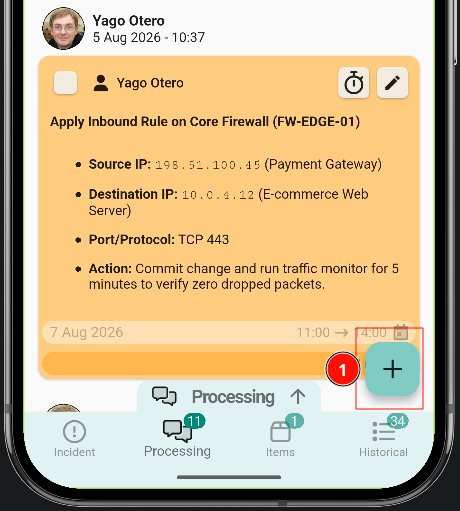
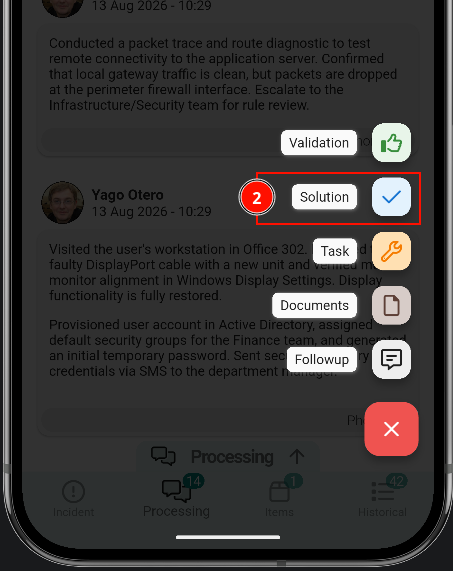
Solutions are created the same way as follow-ups or tasks: tap the button in the bottom-right corner, select Solution, write the reason and send it.
Once sent, the solution appears in the message list with two options: approve or reject.
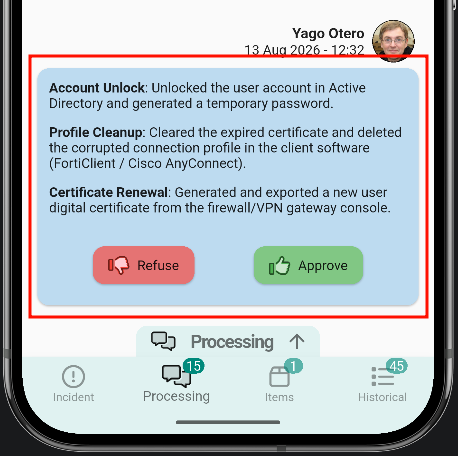
Reject the solution
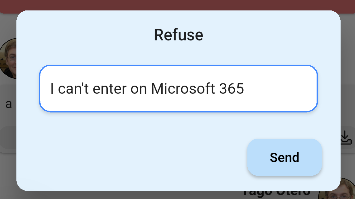
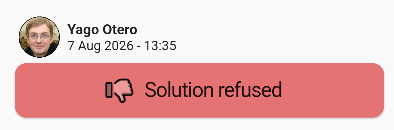
Rejecting the solution asks for a reason. The message list then shows it as rejected.
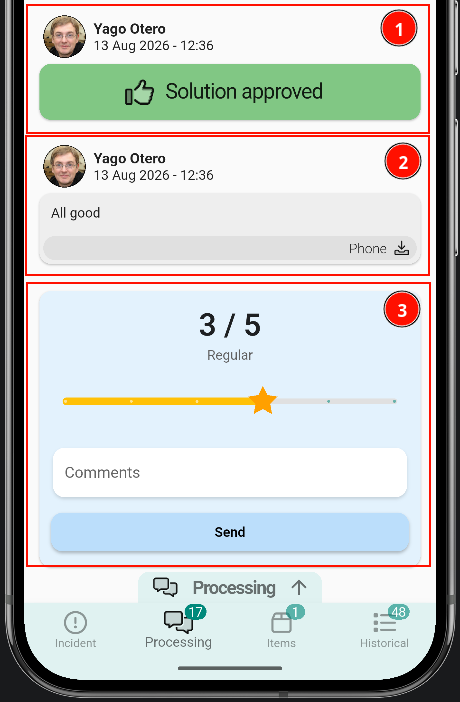
Approve the solution
ApprovingCuando theapruebes solutionuna closessolución these te pedirá un comentario, una vez que lo envíes se procederá a cerrar el ticket. DependingEl onticket thepodrá GLPIestar configuration,cerrado apero satisfactionseguirá surveyabierta mayuna appear.encuesta de satisfacción donde podrás valorar del 1 al 5 la solución.
Once the solution is approved, no further updates can be written to the ticket.