
1. Introduction

1.1 What Stamp does
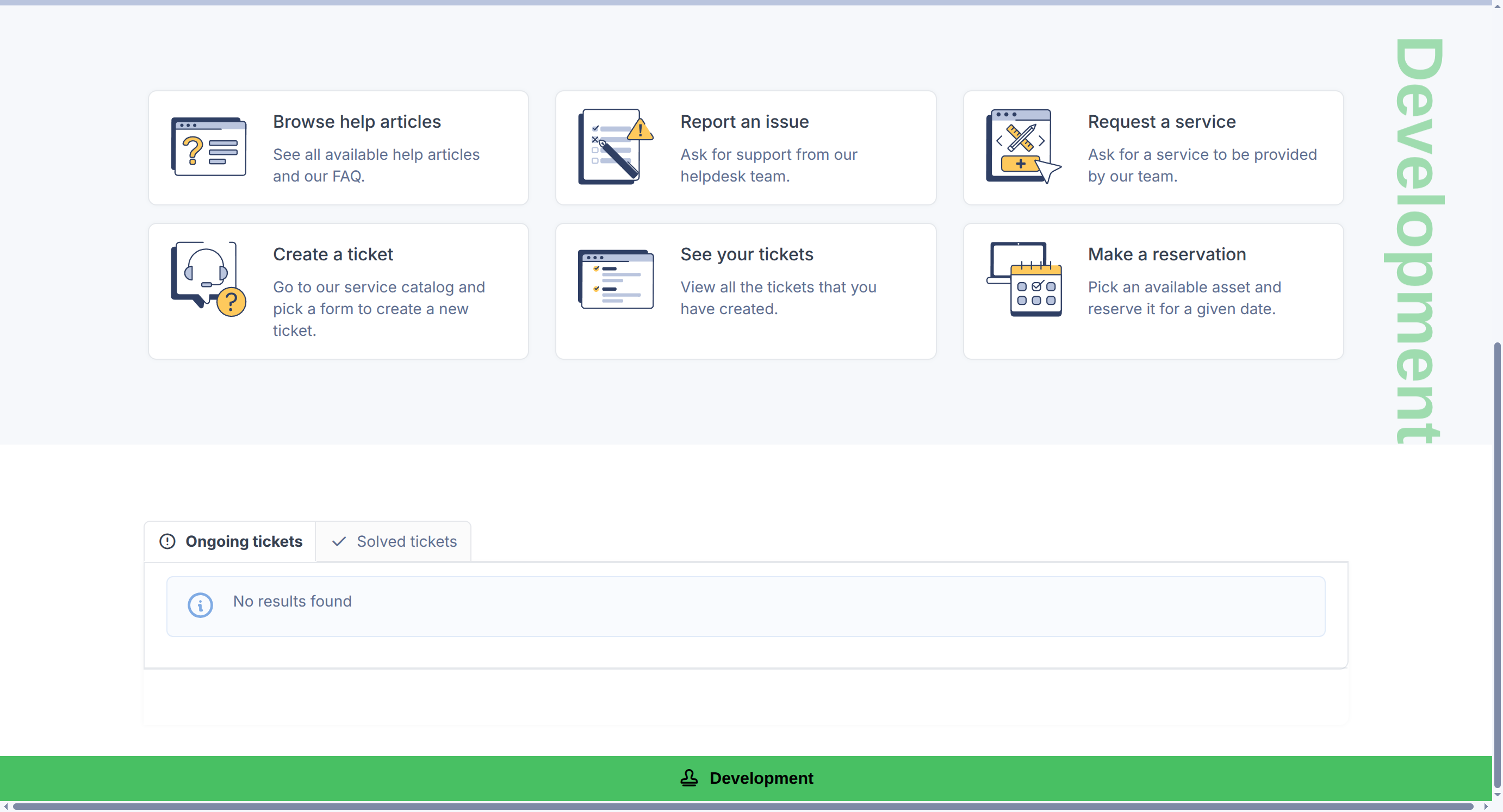
Stamp identifies a GLPI instance with an environment banner, a text watermark, or both, so that people who look after several instances (Development, Testing, Preproduction and so on) can tell at a glance which one they are on. The label is shown to every user, including Self-Service users and, unless you turn it off, visitors to the login page. Presets use fixed colours (green for Development, orange for Testing, red for Preproduction), and Custom lets you choose your own text and colour. Stamp is configured from a single tab under Setup > General, and it can be switched off at any time without losing its settings.
1.2 Key benefits
- With several GLPI instances that look identical, it is easy to act on the wrong one: a change meant for Testing lands in Preproduction because nothing on screen said which was which.
- A warning visible only to administrators does not help the technicians and requesters who also use the instance; the environment was never part of what every user sees.
- Teams that use a different colour or wording for each environment end up with no common convention, so the same environment looks different on every instance.
- Pages shown before sign-in (login, forgotten password) carried no environment marker at all, so the wrong instance was only noticed after logging in.
- Showing who and where you are (entity, user, address) in the label meant editing GLPI's templates or relying on a browser extension.
1.3 Features
- Mark an instance as Development, Testing or Preproduction with one choice, using the same fixed colours on every installation.
- Write a custom label in any language, with its own colour, for environments the presets do not cover.
- Insert the current entity, the signed-in user's login name or the instance's web address into the label with placeholders.
- Show the label as a banner across the bottom of every page, as a watermark over the page, or as both.
- Tune the watermark's opacity, font size, rotation (from -90° to 90°) and position.
- Choose the banner's text colour: Automatic (picked for readability), White or Black.
- Decide whether the label also appears on the login and password-reset pages.
- Turn the label off without losing any setting, and configure everything from one tab under Setup > General.
Generated for Stamp 1.0.0-beta3 on GLPI 11.0.12 — 2026-11-10.