
5.2 Planning it
5.2.1 Dropping work on the planning
To plan a task, drag it from the list and drop it on the day and hour you want.
5.2.1.1 Drop a task
Press the item with the mouse (or with a finger on a touch screen), move it over the calendar and release it on the day and hour you want. While you drag, the time slot under the pointer is highlighted, and the calendar scrolls by itself when you get close to its edge. Press Escape to cancel. The task is planned at that moment: it appears in the calendar with the colour of its calendar, leaves the list, and the planning of the ticket shows the new date. Its duration is the one already written in the task; if it has none, it lasts 30 minutes. Dropping on a busy slot shows the same warning about planning conflicts as moving an event.
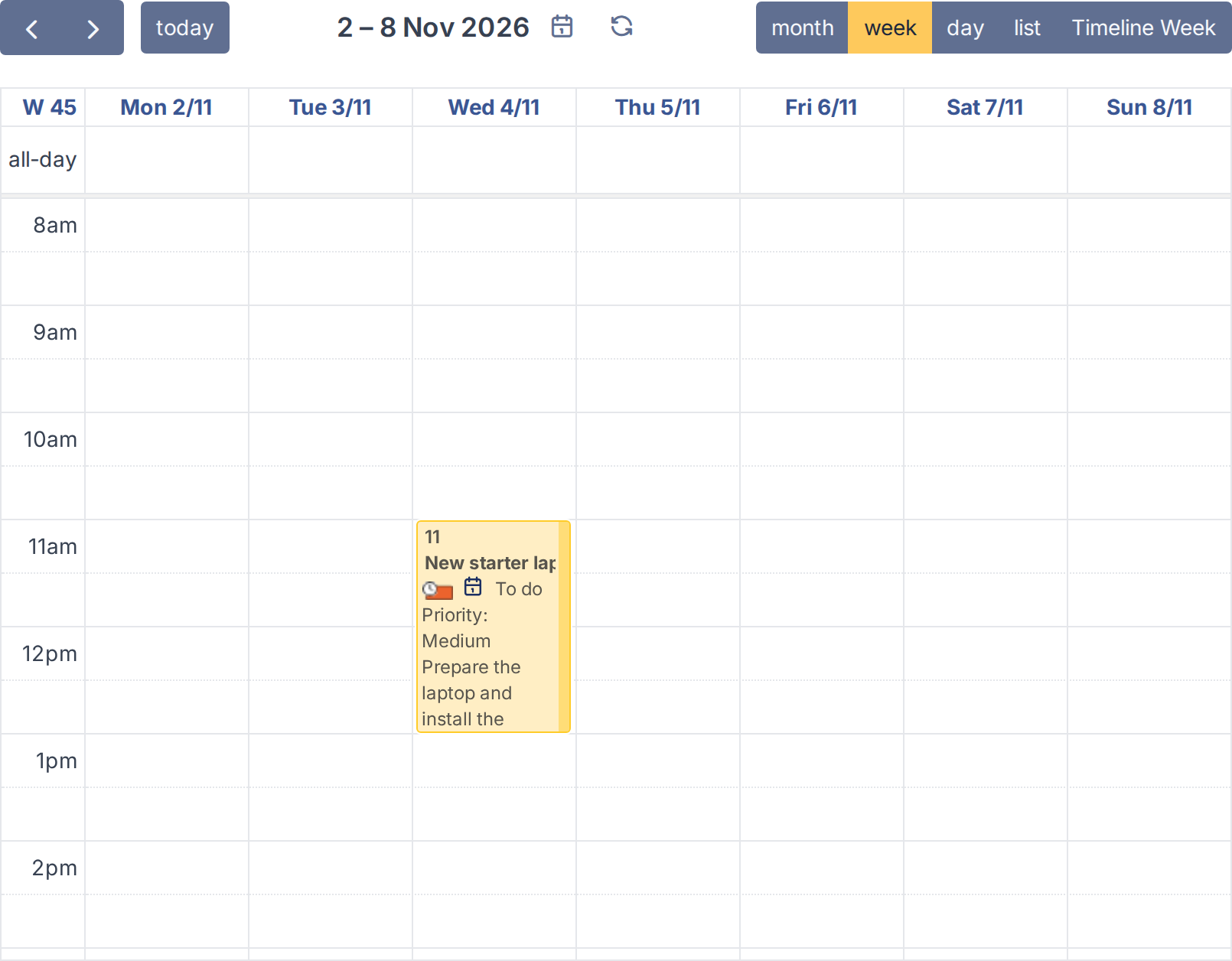
A task dropped on Wednesday at 11:00
5.2.1.2 Drop a reminder
Reminders from the Planning reminder list are dropped in the same way. A reminder has no duration of its own, so it lasts 30 minutes, which you can then change by dragging its edge in the calendar.
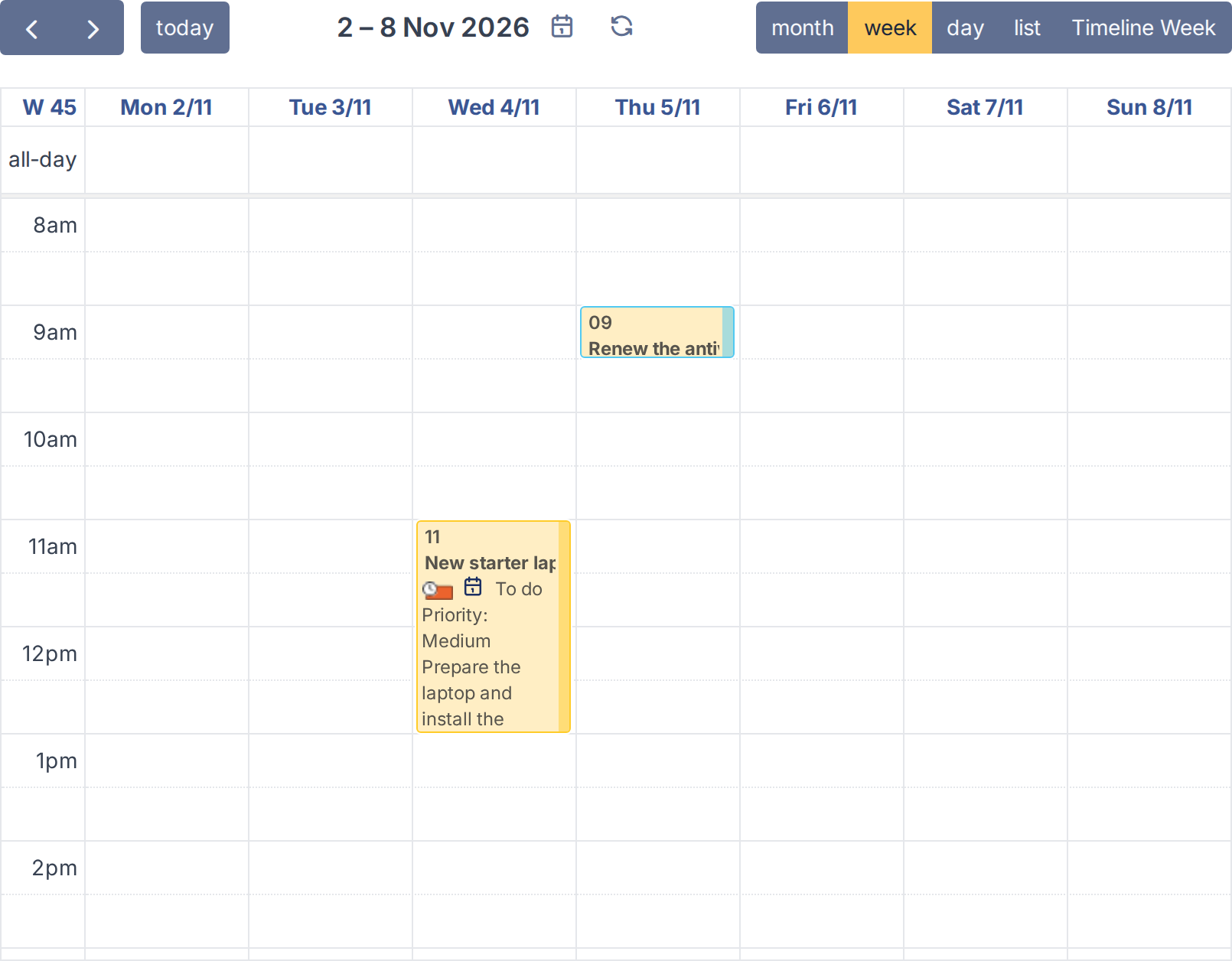
A reminder dropped on Thursday at 09:00
5.2.1.3 Other views
Dropping works in the week, day, month and Timeline Week views. In the month view the item has no hour to land on, so it starts at the beginning of the working day. You need the right to update the task (or the reminder) to move it: the list only offers what you are allowed to plan.
Generated for Task'n'drop 4.0.0 on GLPI 12.0.2 — 2026-11-20.