
1. Introduction
1.1 What Task'n'drop does
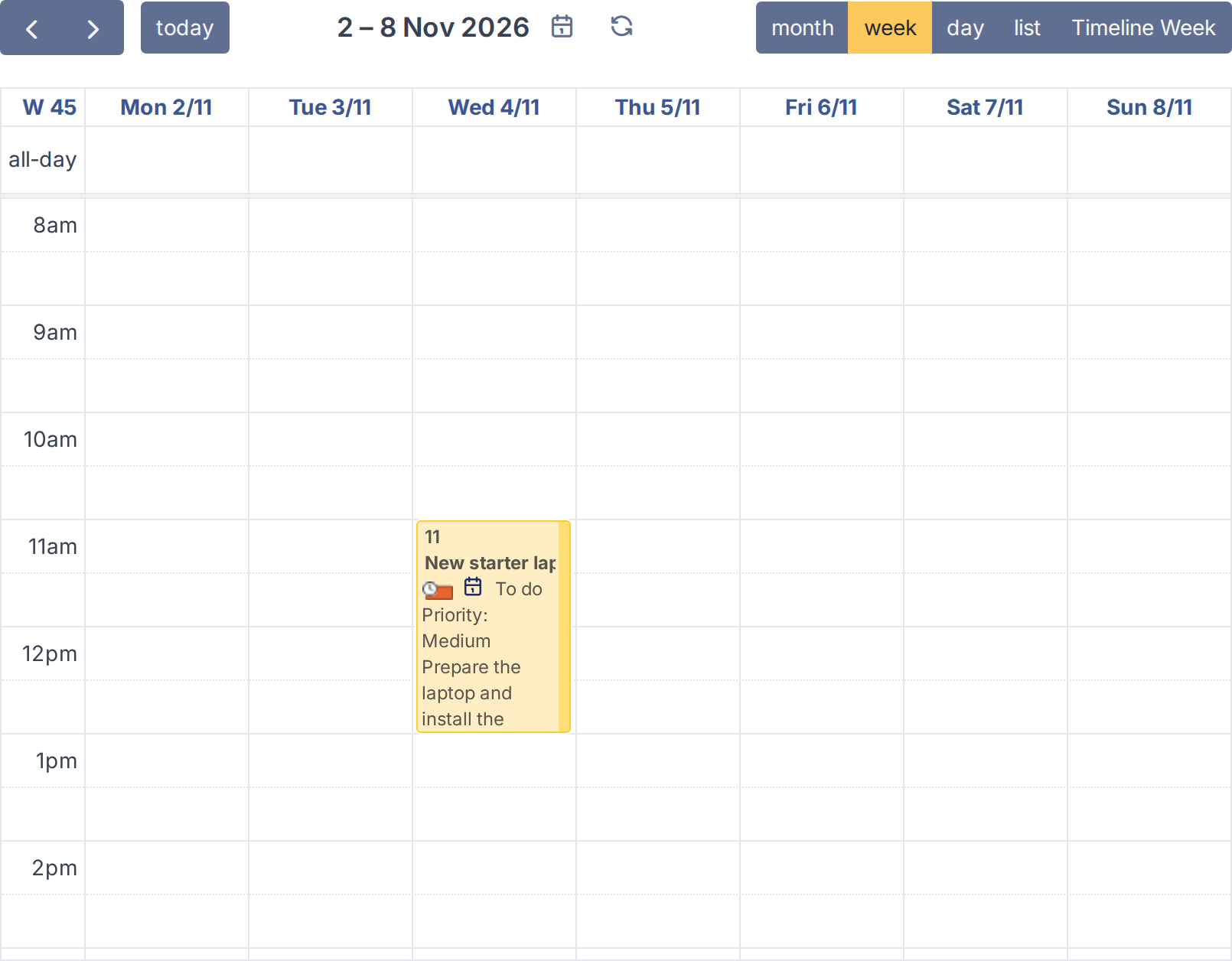
Task'n'drop turns the GLPI planning into a place where work is scheduled with the mouse. Next to the calendar it lists the tasks of tickets and changes, and the reminders, that have no date yet; you drag one onto a day and an hour, and it is planned there. It follows the calendars you are showing, so a dispatcher can plan the work of a whole team in a few gestures.
1.2 Key benefits
- Plan in one gesture — drag a task from the list to the calendar instead of opening it, setting the dates and saving.
- See the work of the team — the list follows the people and groups whose calendar is shown, each item in the colour of its calendar.
- Nothing to set up — install it and it works; there is no setting, no table and no right to grant.
- Works on touch screens — a finger drags as well as a mouse.
- Safe — only the work the user is allowed to reschedule is listed, and every drop is checked again on the server.
- Same rules as the planning — a drop shows the same conflict warnings as moving an event.
1.3 Features
- A Plan this task list with the tasks of tickets and changes that are to do and have no date.
- A Planning reminder list with the reminders that have no date.
- The lists follow the calendars shown: users, groups, and the members of a group.
- Drag and drop onto the week, day, month and timeline views of the planning, with mouse or touch.
- The slot under the pointer is highlighted, the calendar scrolls near its edges and Escape cancels the drag.
- The task keeps its duration; with none, or for a reminder, it lasts 30 minutes. In the month view an item starts at the beginning of the working day.
- The planning conflict warnings are shown when an item is dropped on a busy slot.
Generated for Task'n'drop 4.0.0 on GLPI 12.0.2 — 2026-11-20.