
5.1 Choosing what to plan
5.1.1 The list of work to plan
Tasks and reminders that have no date yet are listed next to the planning, ready to be dragged onto it.
5.1.1.1 The list in the planning
Open Assistance > Planning. At the bottom of the left panel, under the filters and the calendars, two lists appear: Plan this task with the tasks of tickets and changes that are still to do and have no date, and Planning reminder with the reminders that have no date. The lists follow the calendars shown above them: they hold the work of the people and groups whose calendar is displayed, and nothing else. No setting is needed.
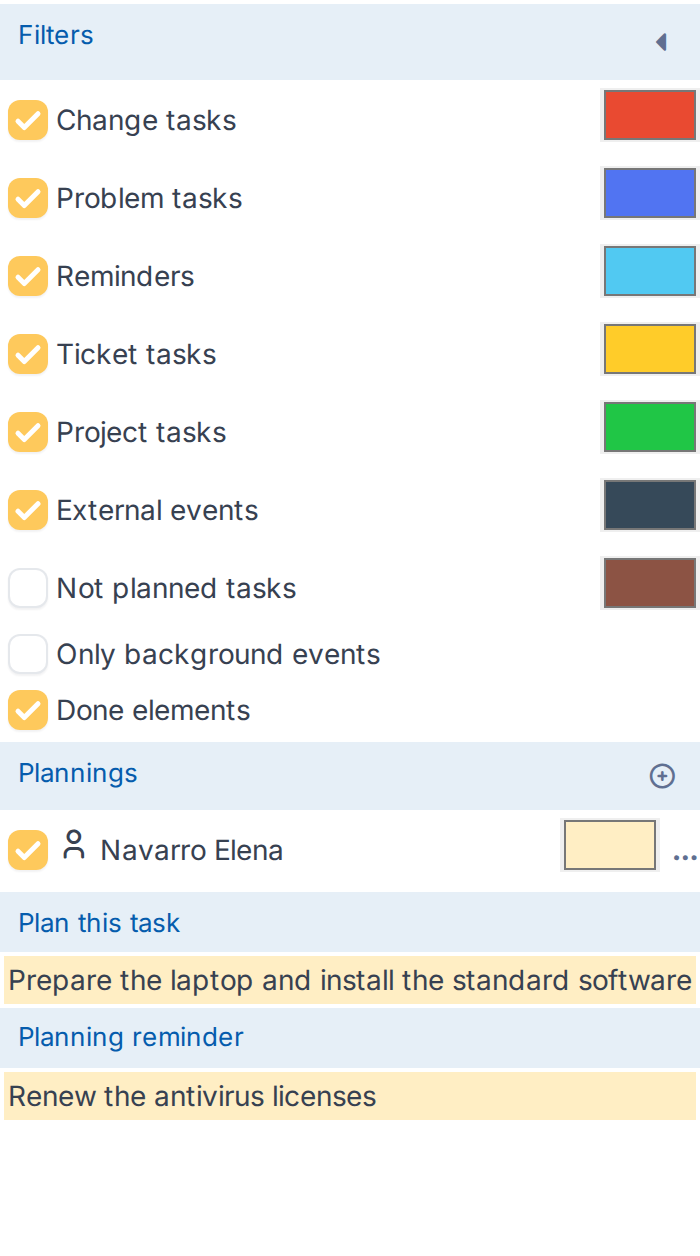
The work to plan of the user whose calendar is shown
5.1.1.2 Show the work of a colleague
Click the + next to Plannings, choose User and pick the colleague in the window Add a calendar, then Add. Their calendar appears with its own colour and their tasks join the list, painted in the same colour so you can tell whose they are. A task that is only assigned to a group appears when the calendar of that group is shown, either Group (the tasks of the group) or All users of a group (the calendars of its members).
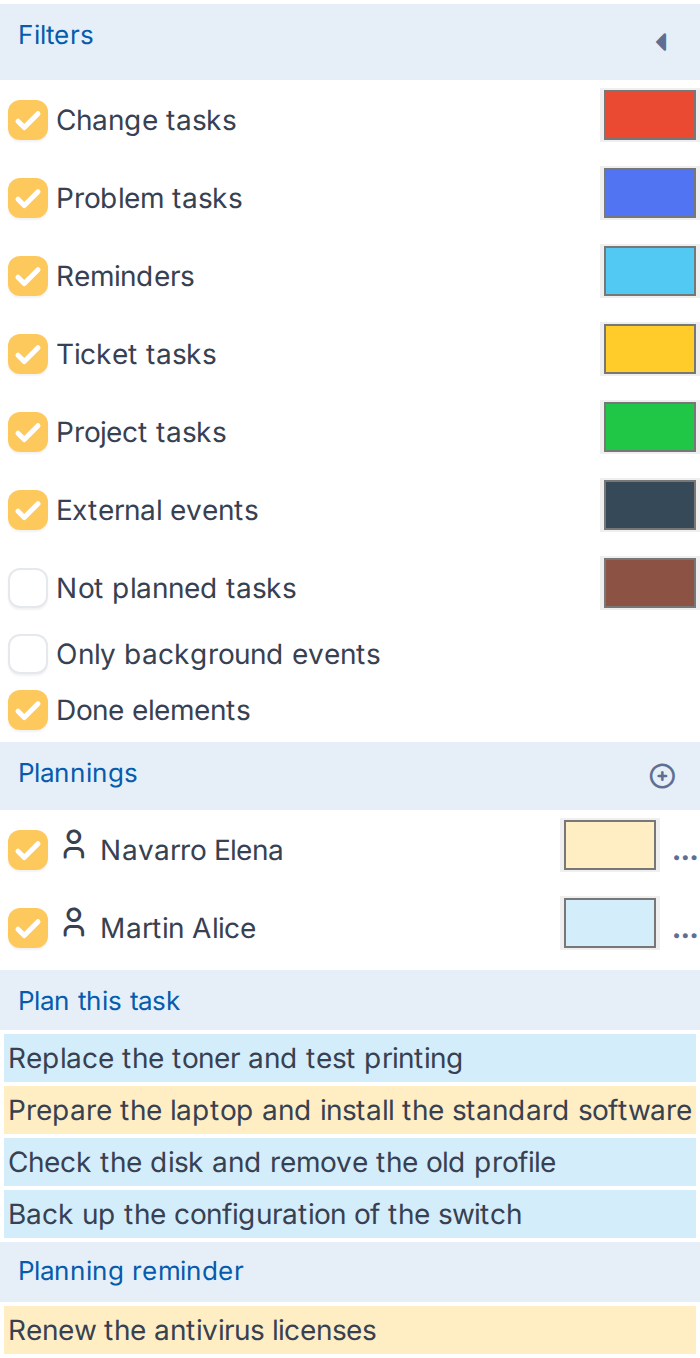
The tasks of a second user join the list in their colour
5.1.1.3 Show the work of a group
Choosing Group and the group in the same window adds the tasks assigned to the group itself. Each item shows the beginning of its text; hover it to read the whole text.
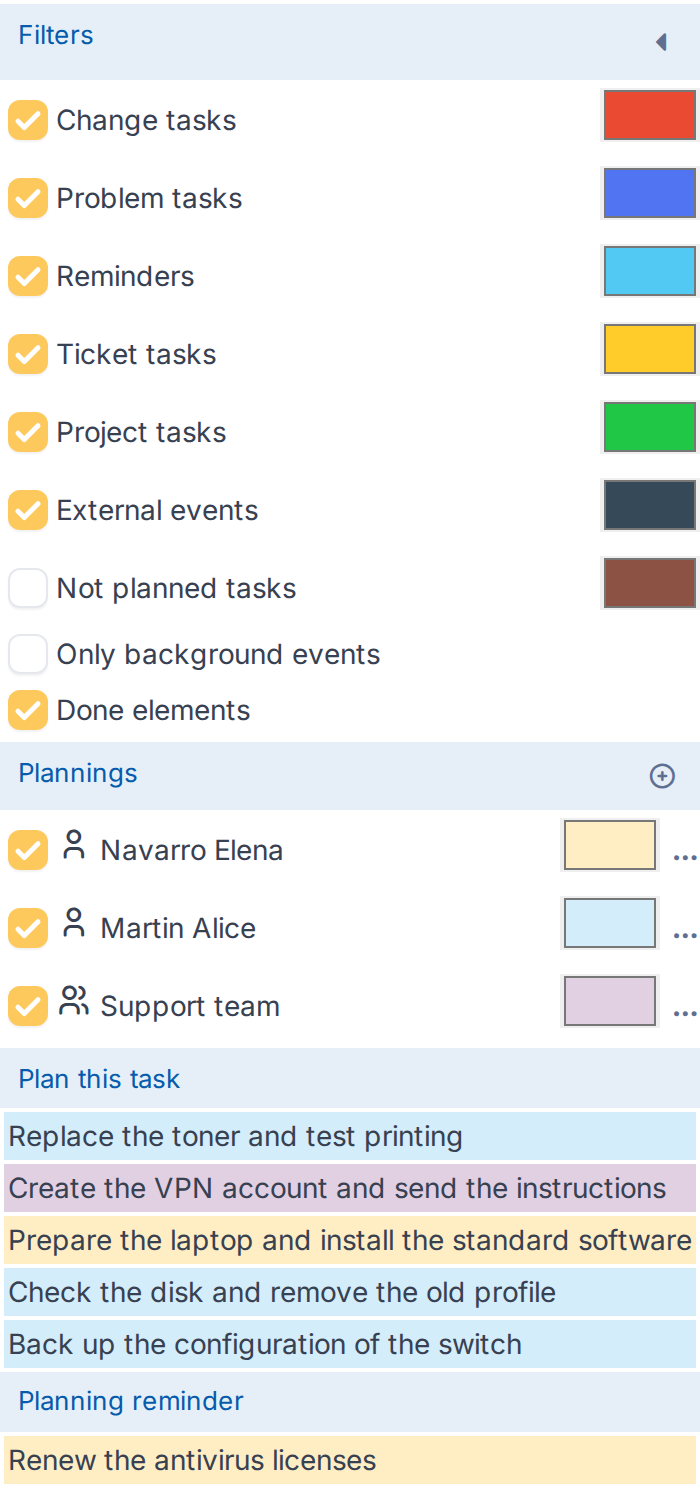
The tasks of a group
5.1.1.4 What is listed
Only work that the user may reschedule is listed. A task appears when it is still To do, has no date, belongs to a ticket or a change that is not in the trash, solved or closed, and is in an entity the user can see; private tasks only for users who can see them. Reminders must be visible to the user. Tasks of problems and projects are not listed.
Generated for Task'n'drop 4.0.0 on GLPI 12.0.2 — 2026-11-20.