
4. Setup
4.1 Installation
Drop the plugin in plugins/mfa, or install it from the Marketplace, then install and activate it from Setup > Plugins. Version 3 needs GLPI 12.0. A new install starts with every type of account set to No.
4.2 Configuration
First make sure GLPI can send e-mail: Setup > Notifications with Enable email notifications on, a working mail server, the notification of the code active and the automatic action Send mails in queue enabled. Every user covered needs an e-mail address. Then choose the types in Setup > General > MFA. If nobody can sign in because codes cannot be delivered, deactivate the plugin from the command line (php bin/console plugin:deactivate mfa) and fix the setup.
4.2.1 Automatic actions
- expiredSecurityCode (
One-Time Security Code expiration): runs every hour. Deletes the codes created more than Duration (in minutes) ago, 5 by default. Independently of it, a code older than 10 minutes is refused when it is typed.
4.3 Permissions
The plugin has no right of its own. Changing the settings needs the right to update the GLPI configuration, and GLPI asks for the password again before showing and saving them. The code form is open to whoever has passed the password step. Users of every profile, Self-Service included, are covered when their account type is on.
4.4 Before you start: the e-mail
The code is sent by e-mail, so GLPI must be able to send e-mail before MFA is turned on. If it cannot, nobody covered by MFA could sign in.
4.4.1 The warning in the MFA tab
Go to Setup > General and open the MFA tab. When GLPI e-mail notifications are off, a warning says so, and the plugin refuses to turn any authentication type on: it would leave those users without a way to receive their code. Turning a type off is always possible. The warning also appears when the notification of the code is inactive, or when the automatic action that sends the queued mails is disabled.
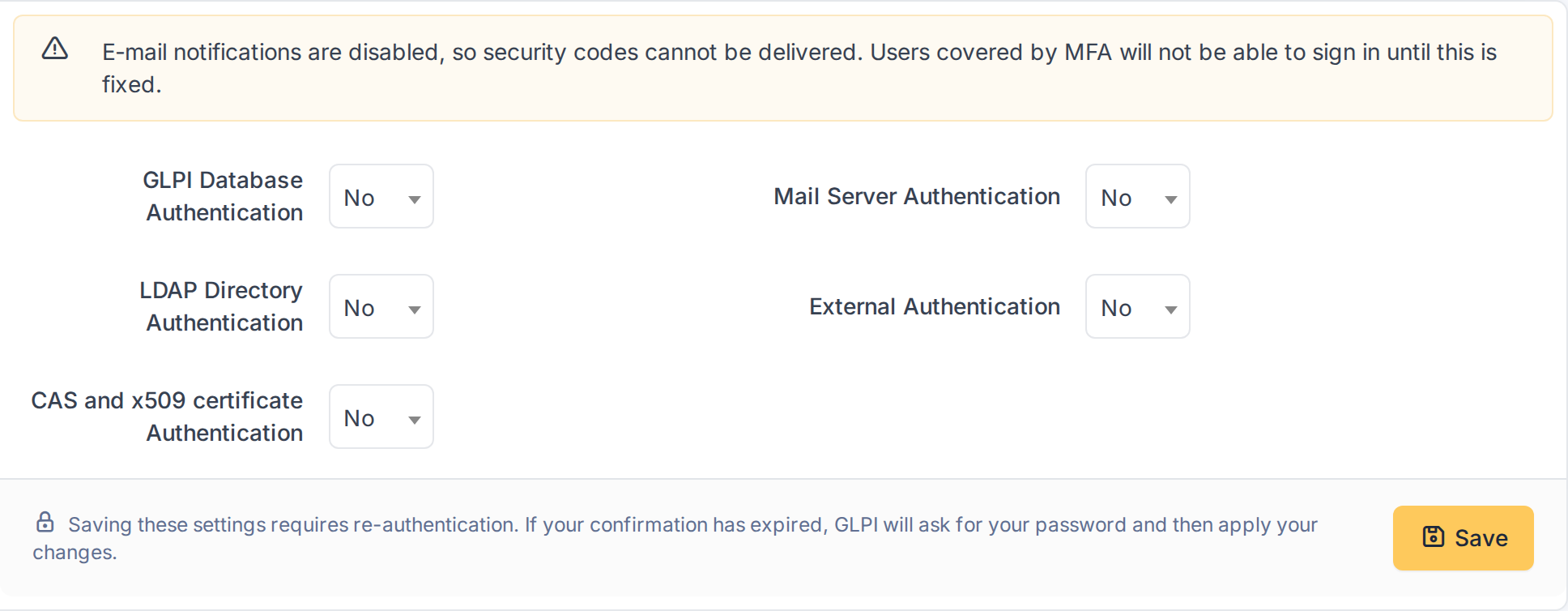
The MFA tab warns that e-mail notifications are off
4.4.2 Turn e-mail notifications on
Go to Setup > Notifications > Notifications configuration, switch on Enable notifications and click Save; then switch on Enable email notifications (it is only available once the first one is saved) and click Save again. The sending of the mail itself (server, port, sender) is set in Setup > Notifications > Email notifications configuration; the plugin does not change it.
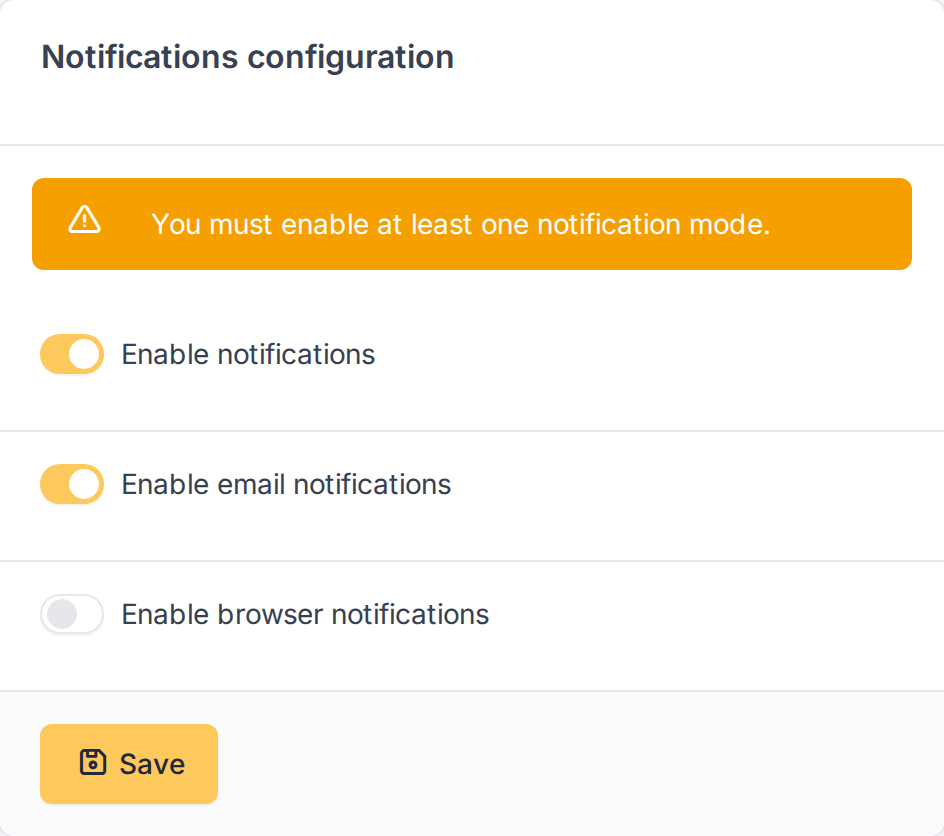
E-mail notifications switched on
4.4.3 The notification of the code
At install the plugin creates the notification One-Time Security Code generated - MFA, active, with its own template, and sent to the user who is signing in. You find it in Setup > Notifications > Notifications. If you deactivate it, codes are no longer sent and the plugin warns about it. Users covered by MFA also need an e-mail address in their GLPI account.
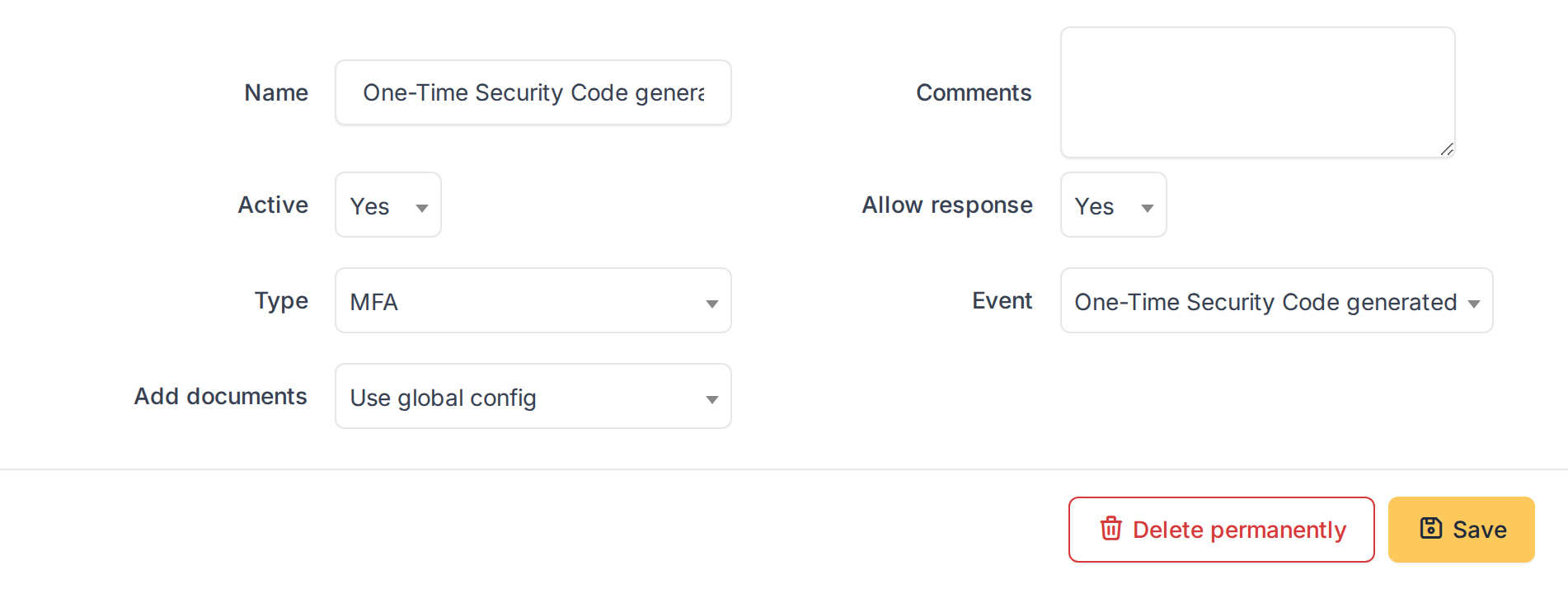
The notification created by the plugin
4.5 Choosing who needs a code
MFA is switched on per type of account. Users whose account type is on need a code every time they sign in; the others are not asked.
4.5.1 Open the MFA settings
Go to Setup > General and open the MFA tab. GLPI asks you to confirm your password before it shows the settings. There is one switch for each way of signing in: GLPI Database Authentication (the accounts created in GLPI), Mail Server Authentication, LDAP Directory Authentication, External Authentication (single sign-on) and CAS and x509 certificate Authentication. After an install they are all No.
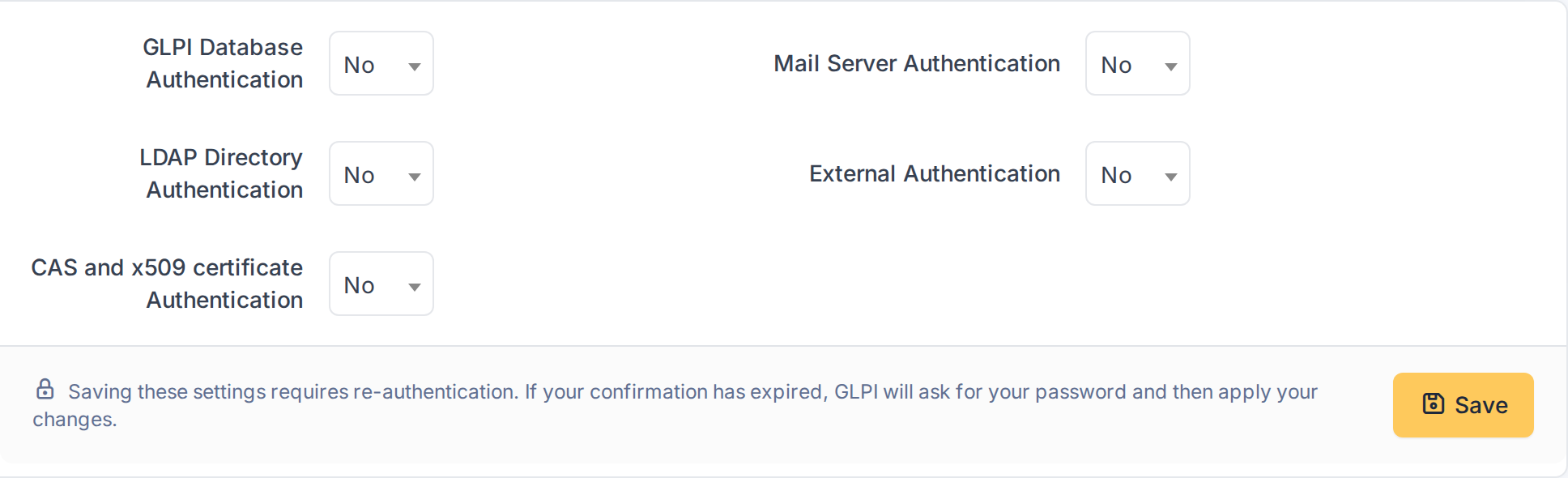
The MFA settings, every type off
4.5.2 Turn the types on
Choose Yes in the types of account that must use a code and click Save: GLPI asks for your password again. From the next sign-in those users get the code form. Sessions that were already open when you turn it on are not asked. An account whose type is not listed (for example one created by an unsupported method) is never asked for a code. Test with a normal user before you turn it on for everybody, and keep the command line at hand to deactivate the plugin if codes cannot be delivered.
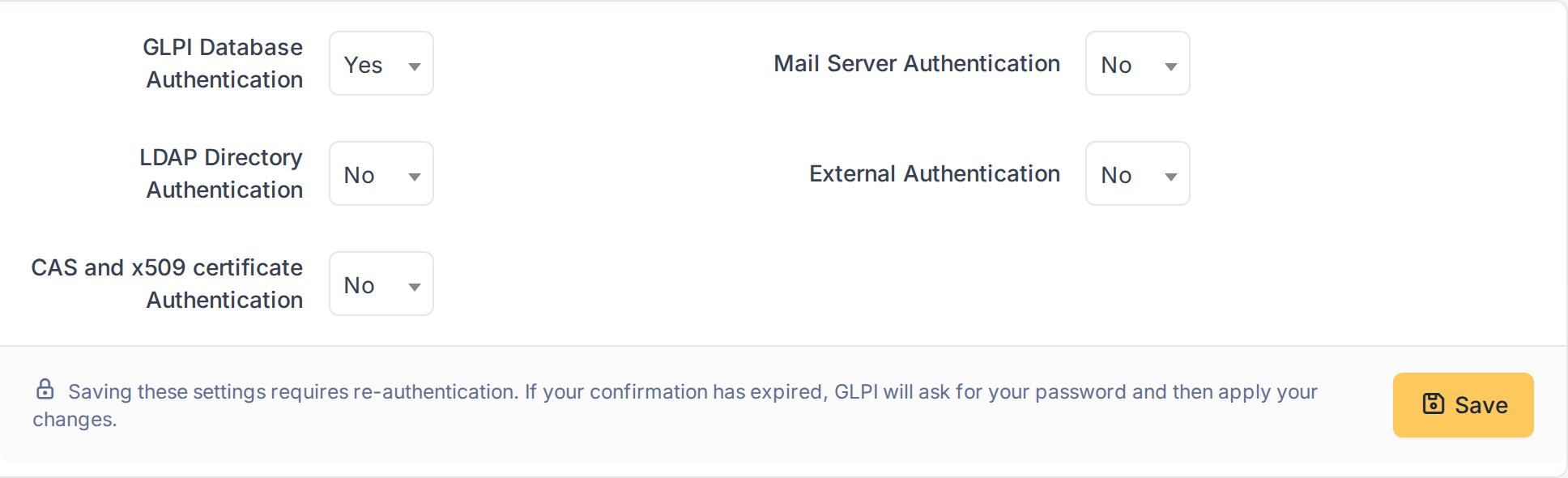
GLPI database accounts need a code
Generated for MFA 3.0.1 on GLPI 12.0.2 — 2026-11-20.