
5.1 Placing items
5.1.1 The position of an asset
Every asset of an enabled type has a Geolocation tab, with its latitude and longitude and a map.
5.1.1.1 See the position
Open an asset and select the Geolocation tab. The Latitude and Longitude are on the left and the map on the right, with a marker on the position. The map is centred on the marker, and the zoom follows from it.
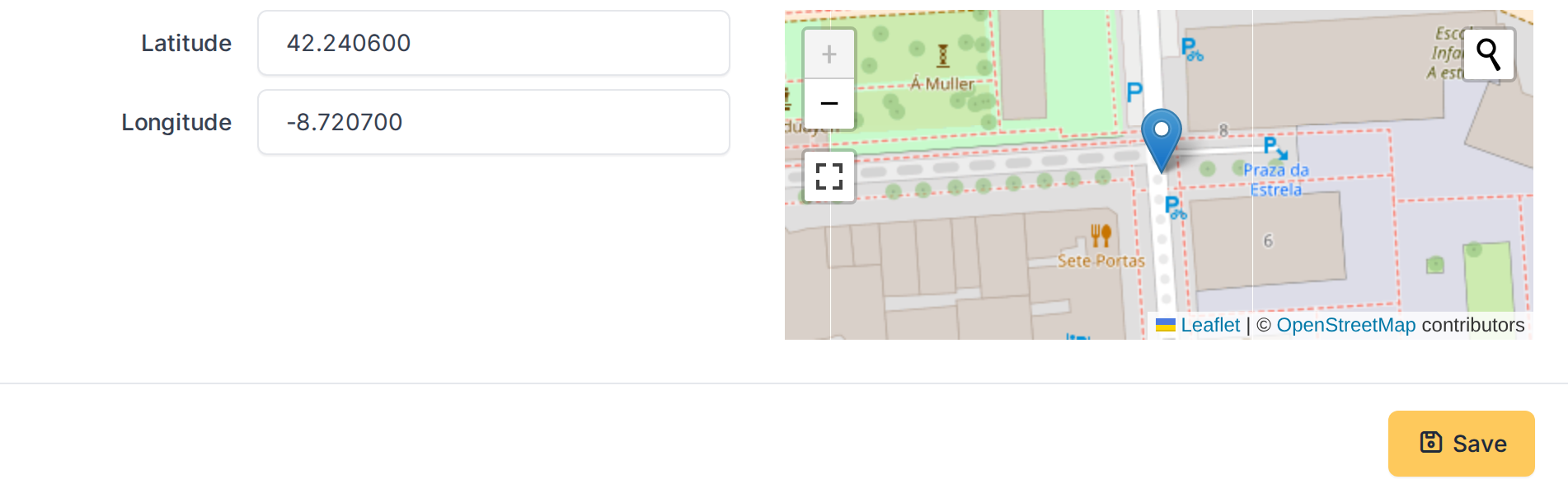
The position of a server
5.1.1.2 Add a position by typing it
For an asset with no position the two fields are empty and the map is not centred on anything. Type the Latitude and the Longitude in decimal degrees, for example 36.7213 and -4.4214, and click Add. The marker moves as soon as you type. Latitude goes from -90 to 90 and longitude from -180 to 180; anything else is refused with Invalid latitude or longitude. An asset has a single position.
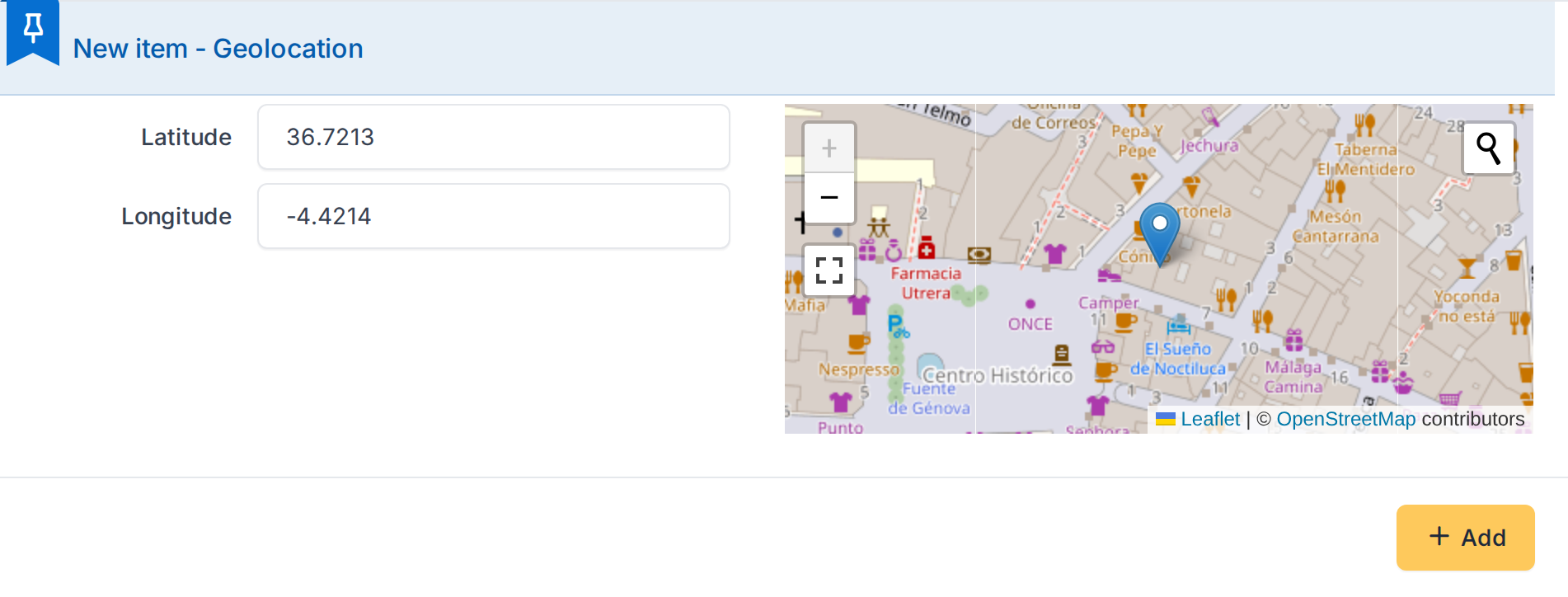
A position typed in the fields, with its marker
5.1.1.3 Choose the position on the map
You can also click on the map: a small window offers Set location here, and choosing it fills the fields with the point you clicked. Click Save to keep it. The search box on the map looks for an address and moves the map to it, which helps to find the place before you click.
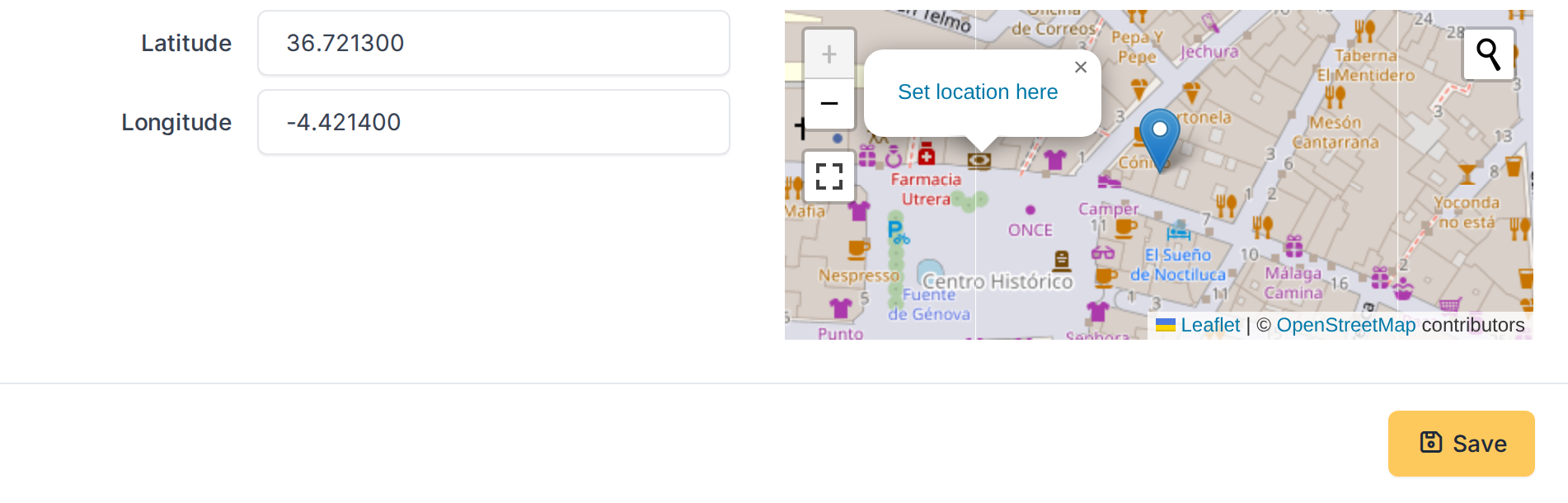
Clicking the map offers to set the position there
5.1.1.4 Remove a position
To remove a position, empty Latitude and Longitude and click Save: the position is deleted for good. Users need the Delete permanently level of the right for it, and the position is also recorded in the Historical tab of the asset.
5.1.2 The position of a ticket
Tickets always have the position fields in their form, wherever the problem is: no setting is needed.
5.1.2.1 Latitude, longitude and map in the ticket
In the form of a ticket, below the usual fields, there are Latitude and Longitude and a map. Type the coordinates, or click the map and choose Set location here, and click Save (or Add in a new ticket). To remove the position, empty both fields and save. A ticket has a single position.
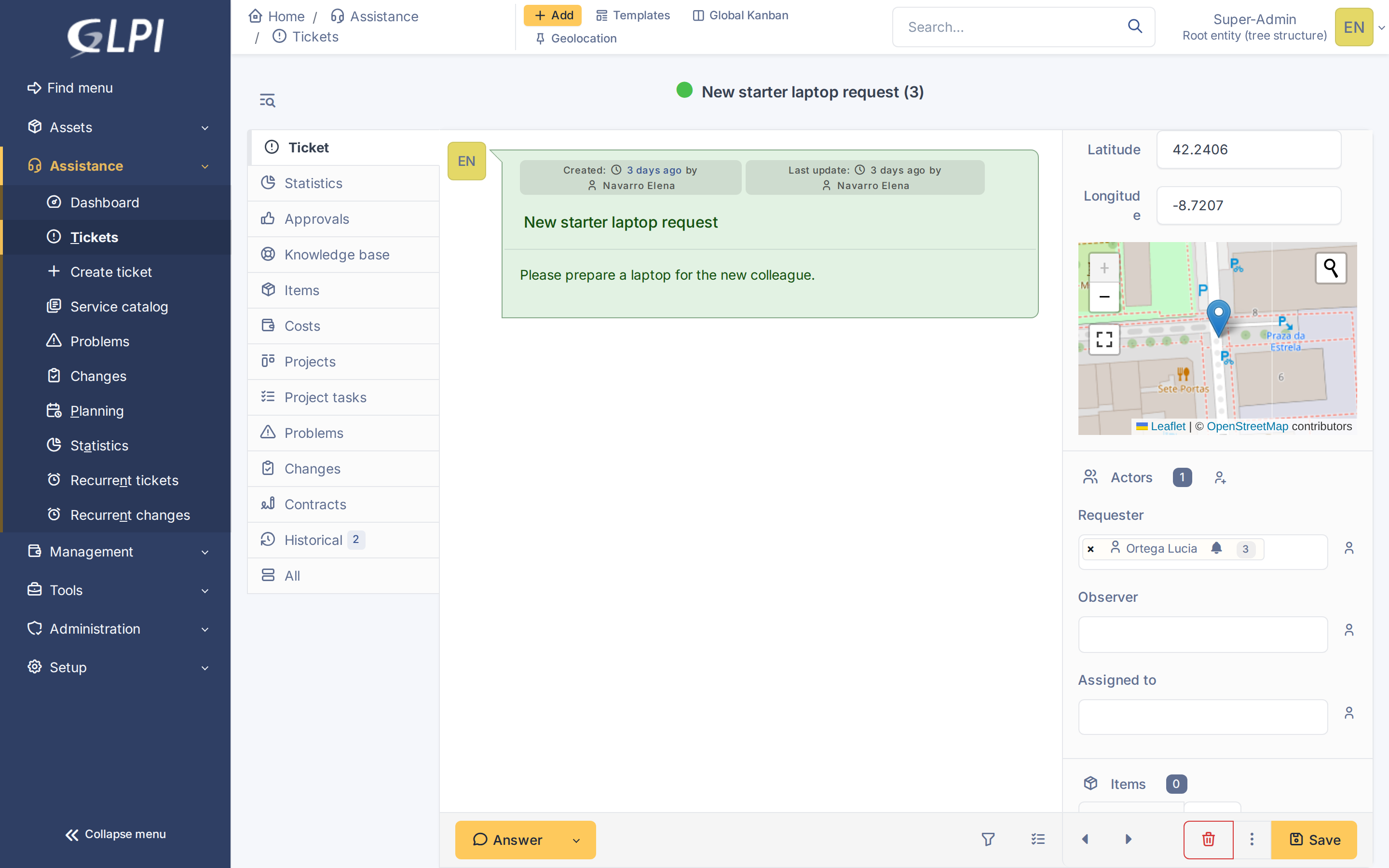
The position fields and the map in a ticket
5.1.2.2 The position of a location
When a ticket is created and you have not typed any coordinates, the plugin looks at its Location. If the location of GLPI has a latitude and a longitude (Setup > Dropdowns > Locations), the ticket gets that position. So choosing the Vigo office as the location puts the ticket in Vigo without any typing, as the image shows after saving. Typing the coordinates yourself always wins over the location, and changing the location of a ticket that already exists does not move it.
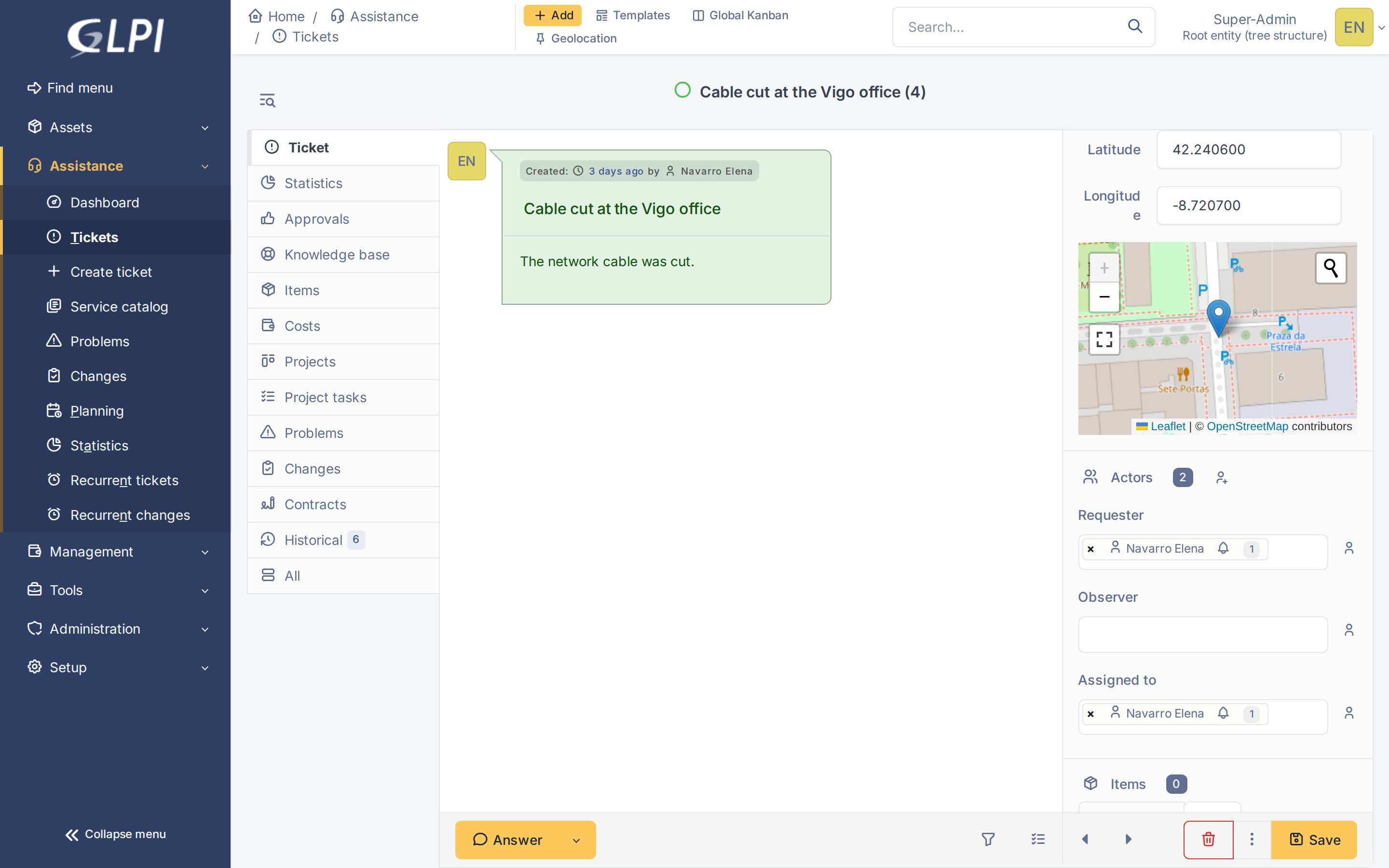
A ticket created with the Vigo office takes its position
Generated for Geolocation 3.0.0 on GLPI 12.0.2 — 2026-11-20.