
5.2 Attaching files
5.2.1 Attaching a file from Google Drive
This is what a user goes through to attach a file of their Drive. The Google screens are Google's own and can change.
5.2.1.1 Sign in with Google
Open a form with the GDrive button (for example Answer in a ticket) and click Select file. A Google window asks the user to choose an account, or to sign in. The window belongs to Google: GLPI never sees the password. The first time, Google also asks the user to allow the project to see and download all their Google Drive files (read-only), and the user clicks Continue. If the window shows an error such as origin_mismatch, the address of GLPI is not among the authorized JavaScript origins of the OAuth client.
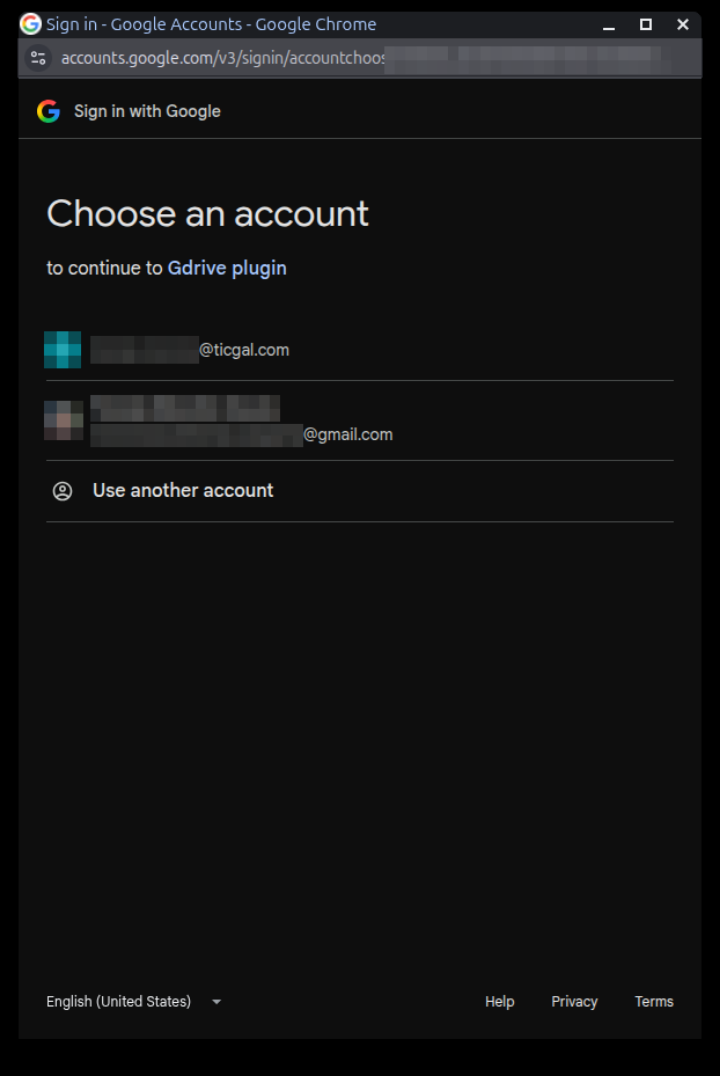
Google asks which account to use
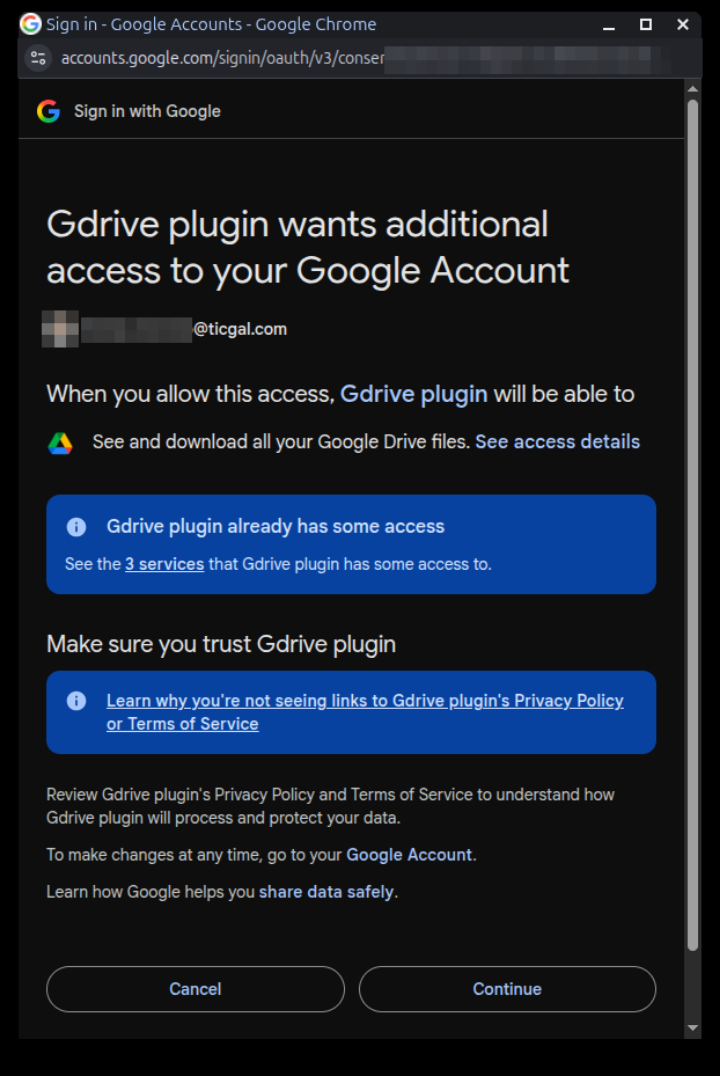
Google asks the user to allow read-only access to Drive
5.2.1.2 Pick the files
Once signed in, the Select a file window of Google opens over GLPI, with the files of the user's Drive. Click a file, or several with Ctrl, and click Select. Google Docs, Sheets, Slides and Drawings can be picked too: they are exported as .docx, .xlsx, .pptx and .png.
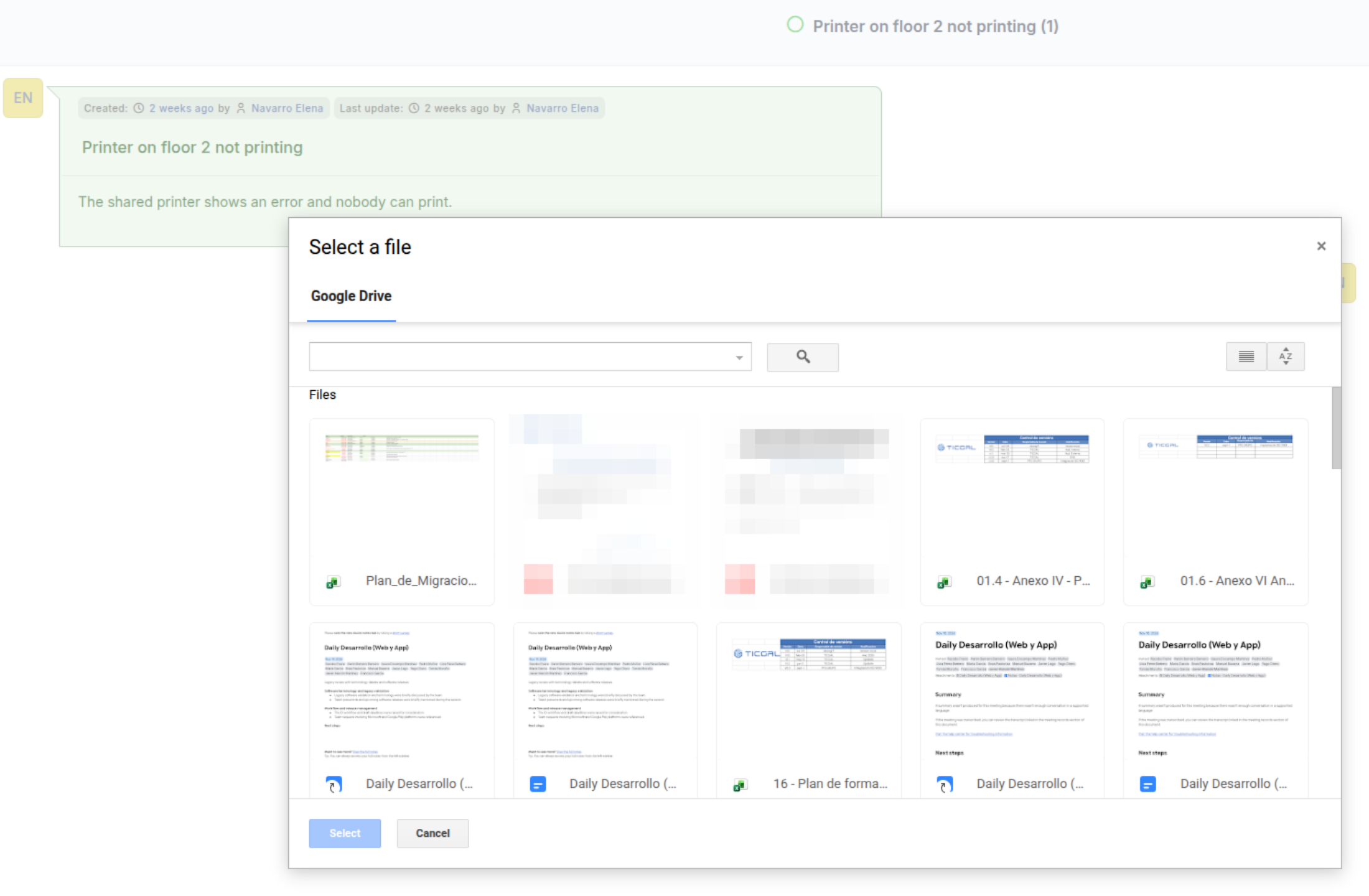
The Google Picker with the files of the Drive
5.2.1.3 The file is added to the form
The browser downloads the file from Google Drive and adds it to the upload area, as if it had been chosen from the computer, and Uploaded file appears next to the button. If the download fails, the message is Error loading the file and nothing is added. The plugin only reads: the files stay in the Drive. Then complete the form as usual and click Add: the file is attached to the followup, the solution, the task or the document of the asset.
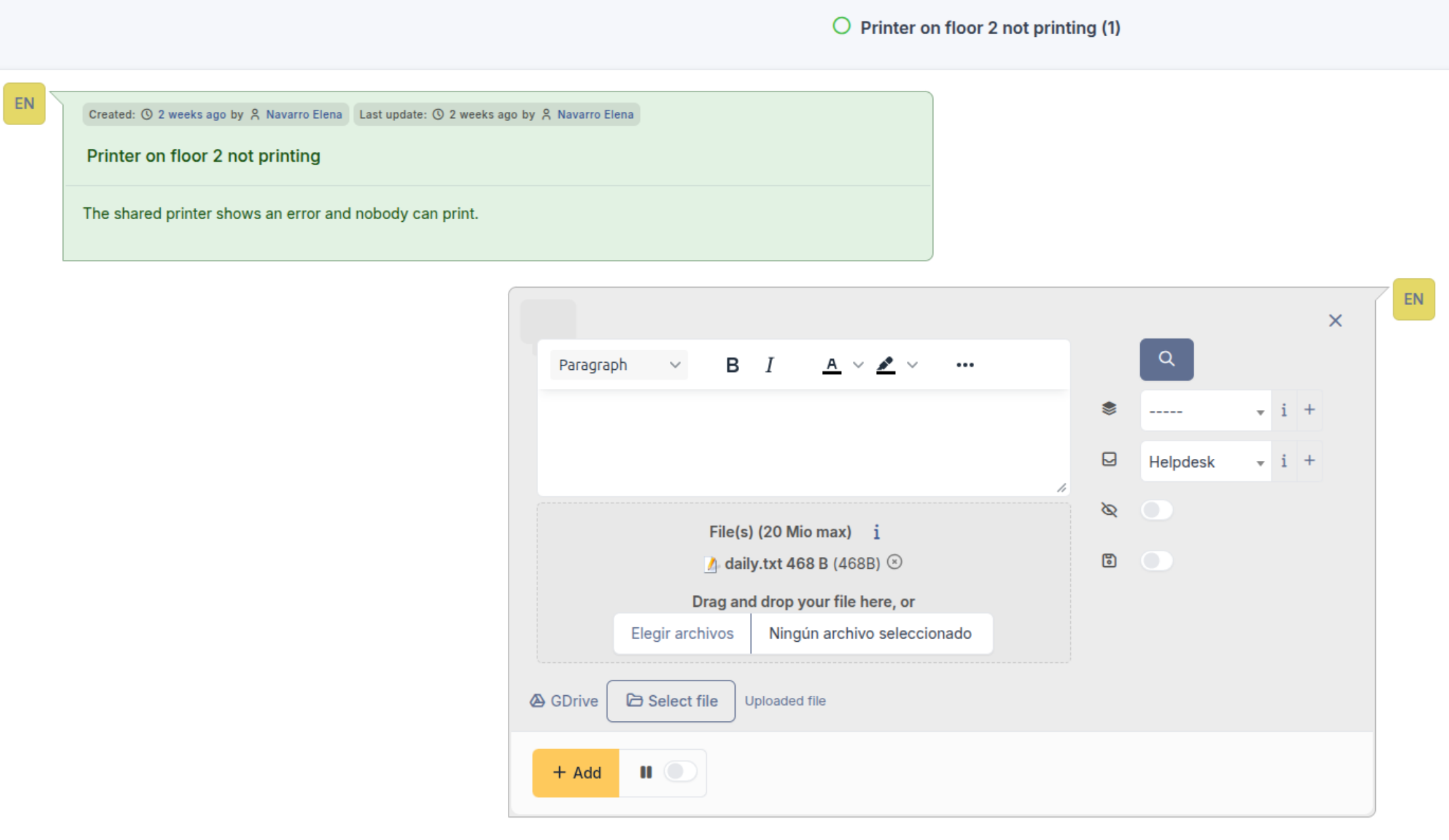
The file picked from Drive is in the upload area
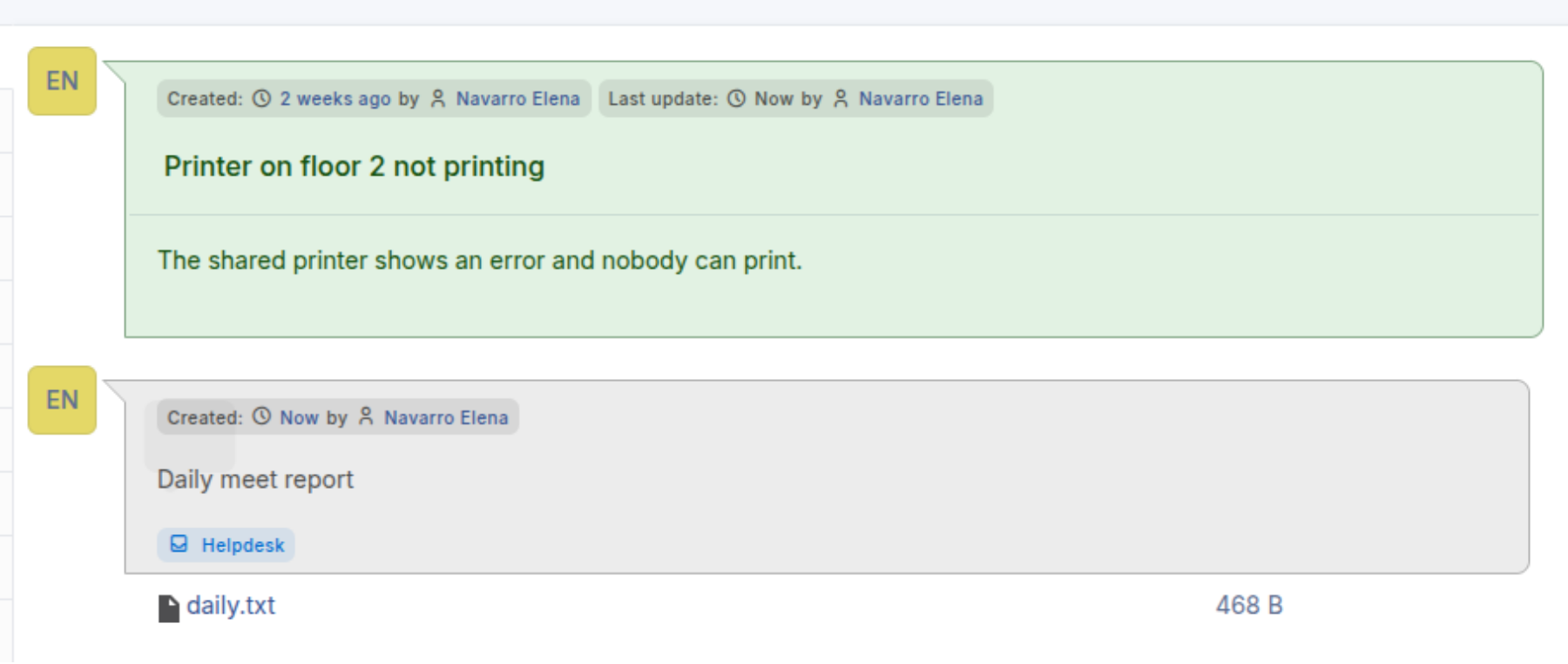
The followup with the file attached
5.2.1.4 Sign-in and access token
The access token Google gives to the browser is kept only in the memory of the page and is no longer used once the Google window is closed; it is not stored in a cookie nor sent to GLPI. Each time the user clicks Select file the sign-in starts again, usually without asking anything if the user is already signed in to Google.
Generated for GDrive 4.0.1 on GLPI 12.0.2 — 2026-11-20.