
4. Setup
4.1 Installation
Drop the plugin in plugins/gdrive, or install it from the Marketplace, then install and activate it from Setup > Plugins. Version 4 needs GLPI 12.0.
4.2 Configuration
In the Google API Console create a project, enable the Google Drive API and the Google Picker API, and create a Browser API key and an OAuth client ID of type Web application with the address of your GLPI as an authorized JavaScript origin. Paste the key, the client ID and the project number (IAM & Admin > Settings) in Setup > General > GDrive. Restrict the key to your GLPI address and to those two APIs.
4.2.1 Automatic actions
None.
4.3 Permissions
The plugin has no right of its own. The settings need the right to read or update the GLPI configuration, and GLPI asks for the password again before showing and saving them. The GDrive button is shown to everybody who sees a form that accepts files, Self-Service users included; who may sign in to Google and read the Drive is decided in your Google project.
4.4 Connecting to Google
GDrive uses your own Google project to let users pick files from their Drive. You create that project once in the Google API Console and copy three values into GLPI.
4.4.1 Open the GDrive settings
Go to Setup > General and open the GDrive tab. GLPI asks you to confirm your password before it shows the settings. There are three fields: API key, Client ID and Project number. After an install they hold example values, which do not work.
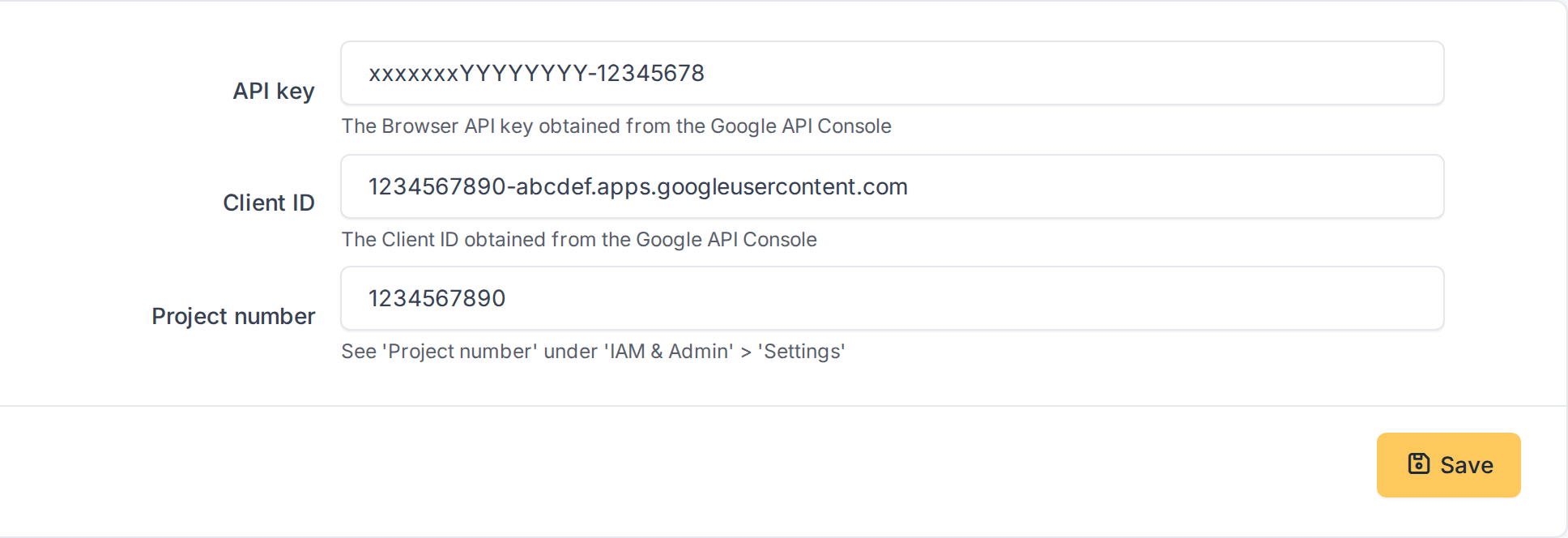
The GDrive settings after the install
4.4.2 Paste your Google values
In the Google API Console, in a project of yours, enable the Google Drive API and the Google Picker API, then create: a Browser API key, and an OAuth client ID of type Web application. In the client add the address of your GLPI (for example https://glpi.example.com) as an authorized JavaScript origin. Copy the key into API key, the client into Client ID and the number of the project (IAM & Admin > Settings > Project number) into Project number, and click Save: GLPI asks for your password again. The values in the image are examples.
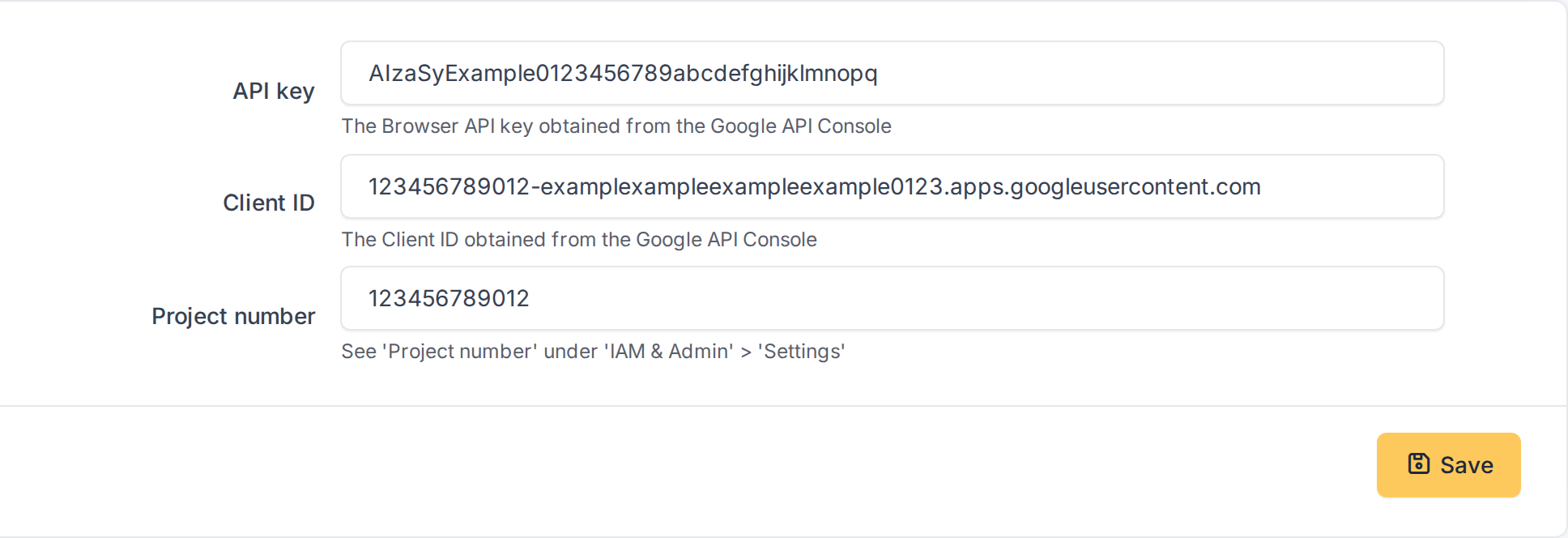
The three values of the Google project
4.4.3 What the values are for
The values are written into the page that shows the GDrive button and used by the browser of the user: the API key and the project number identify your project to the Google Picker, and the client ID is what the Google sign-in asks the user to trust. They are not secrets in the sense of a password, but restrict the API key in the Google API Console to your GLPI address and to the two APIs above, so it cannot be used elsewhere. GLPI never sees the Google password nor stores the access token.
Generated for GDrive 4.0.1 on GLPI 12.0.2 — 2026-11-20.