
4. Setup
4.1 Installation
Drop the plugin in plugins/borgbase, or install it from the Marketplace, then install and activate it from Setup > Plugins. Version 3 needs GLPI 12.0 and a BorgBase account; a free one is enough to test.
4.2 Configuration
Open Setup > General > Borgbase, paste a read-only authentication key and save. The endpoint is https://api.borgbase.com/graphql; it must be an https address and changing it clears the saved key. If it is reached through a private network address, GLPI blocks the request unless the plugin is allowed in config/local_define.php.
4.2.1 Automatic actions
- borgbaseUpdate (
Update borgbase records): runs once a day, in CLI mode. Asks BorgBase for the current data of every linked repository and stores it in GLPI.
4.3 Permissions
One right, Borgbase, per profile, with four levels:
- Read: shows the Borgbase tab on computers, the search options and the dashboard cards.
- Update: allows Reload information.
- Create: allows linking a computer to a repository by hand.
- Purge: allows unlinking. Reloading, linking and unlinking also need the right to update the computer itself, in its entity. The settings need the right to update the GLPI configuration, and GLPI asks for the password again before showing and saving them. Grant the right to the profiles that need it.
4.4 Connecting to BorgBase
Borgbase reads your backup repositories from your BorgBase account. It needs one thing from you: an authentication key of that account.
4.4.1 Open the Borgbase settings
Go to Setup > General and open the Borgbase tab. GLPI asks you to confirm your password before it shows the settings, as it does for the rest of the GLPI configuration. The Server endpoint is the BorgBase API and is already filled in with the address of the public service. It must be an https address.
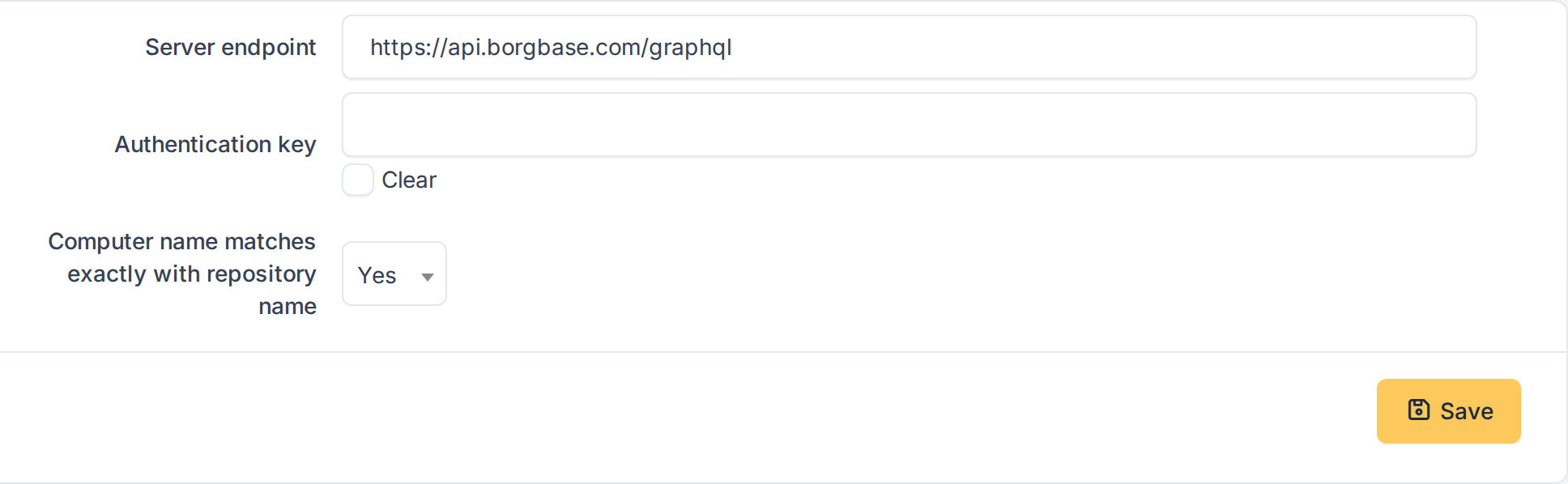
The Borgbase settings before the key is entered
4.4.2 Enter the authentication key
Create the key in your BorgBase account, in Account > API Tokens, and paste it in Authentication key. Use a read-only key: the plugin only reads data and never changes your repositories. The key is stored encrypted and is never shown again; when one is saved the field shows asterisks. Click Save.
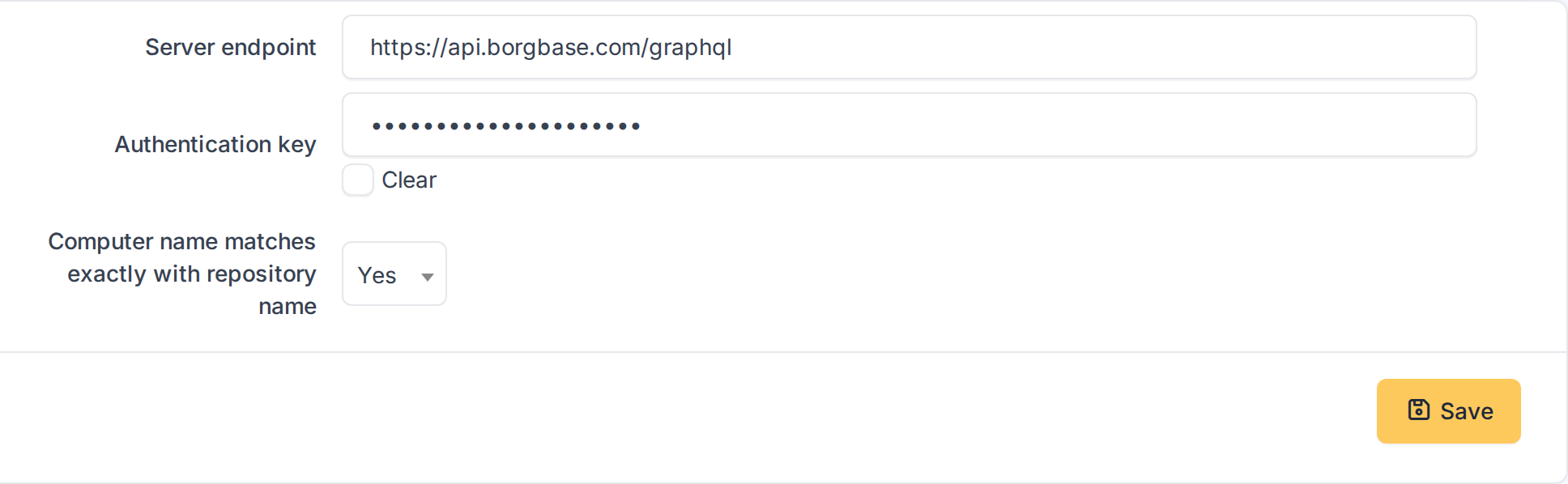
The key is typed in a password field
4.4.3 Check the connection
After saving, the plugin asks BorgBase whether the key works. Established connection in green means it does. If you see Check API connection in red the key or the endpoint is wrong, or GLPI cannot reach BorgBase. Saving a new key also links every repository whose name is exactly the name of a computer in GLPI. The Link repositories button repeats that search later, for the computers you create afterwards.
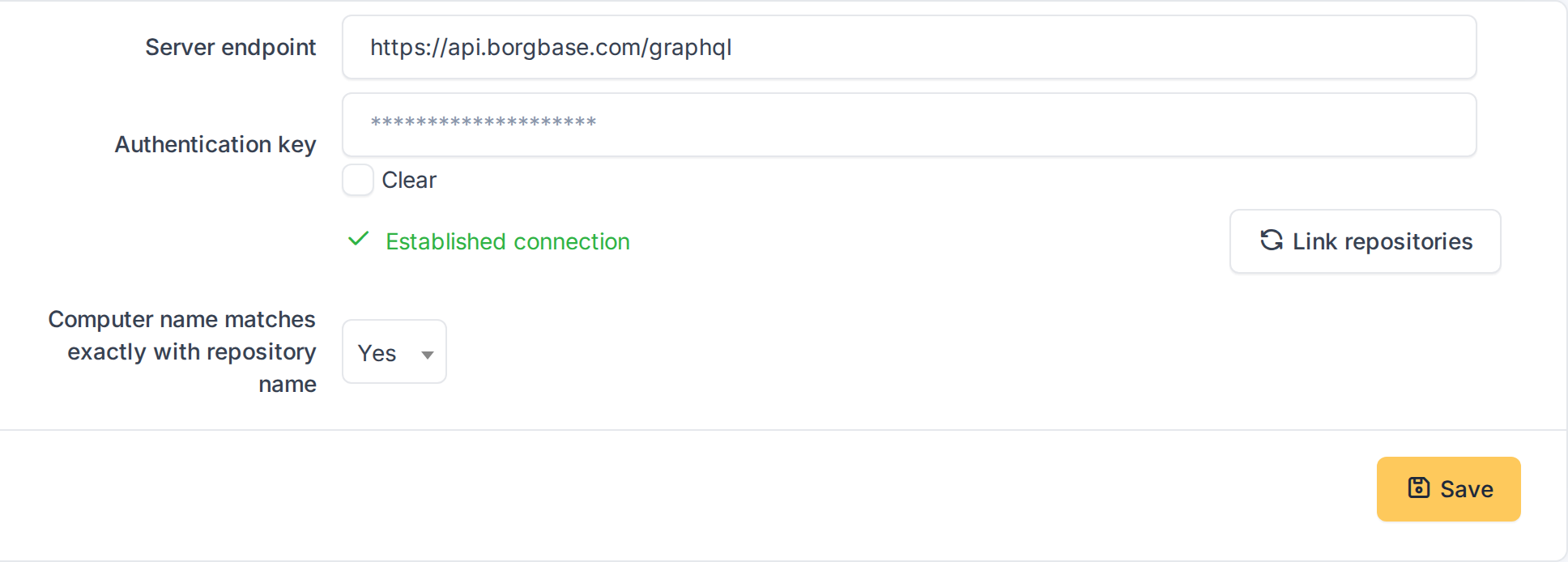
The connection is established
4.4.4 Choose how repositories are linked
The option Computer name matches exactly with repository name makes the plugin link a computer to the repository that has the same name, when you open the computer's Borgbase tab. Names are compared exactly, upper and lower case included, ignoring only the spaces at both ends. Turn it off to link every repository by hand.
4.5 Keeping the data up to date
The data of a repository is a copy taken from BorgBase. An automatic action refreshes all the copies once a day.
4.5.1 The automatic action
Go to Setup > Automatic actions and open borgbaseUpdate, described as Update borgbase records. It runs once a day from the command line, so GLPI's cron must be set up, and asks BorgBase for the current data of every linked repository. Click Execute to run it at once. You can also refresh a single repository from the computer, with Reload information.
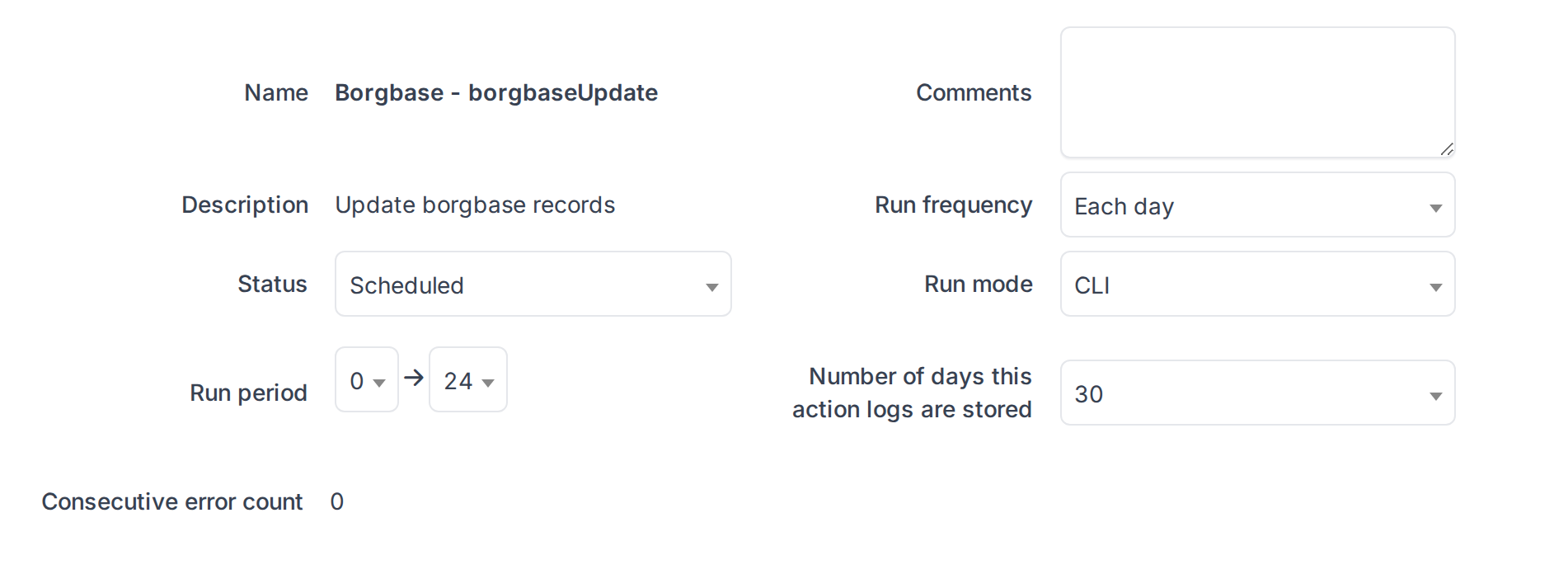
The borgbaseUpdate automatic action
4.6 Rights of the profiles
Who sees the repository data and who may change the links is decided per profile, in a single Borgbase right.
4.6.1 Set the Borgbase right of a profile
Go to Administration > Profiles, open the profile and select the Borgbase tab. The right has four levels. Read shows the Borgbase tab of computers, the search options and the dashboard cards. Update also lets the user reload the information of a repository. Create lets the user link a computer to a repository when the names do not match. Purge lets the user unlink them. Besides the Borgbase right, the user needs the right to update the computer itself, in the entity of the computer, to reload, link or unlink. Click Save.

The Borgbase right of the Technician profile
Generated for Borgbase 3.0.0 on GLPI 12.0.2 — 2026-11-20.