
5. Usage
5.1 Reviewing what a user has done
Access Transparency adds an Access Transparency tab to every user. It gathers, in one list, what that user did across GLPI: the changes recorded in the item histories, the events of the system log and the documents they opened.
5.1.1 Open the user's Access Transparency tab
Open Administration > Users, choose the user and switch to the Access Transparency tab. The number next to the tab name is how many records there are for that user. Each row shows where it comes from (Source: a log entry, an event or a document access), when it happened and a Message describing it. When the message refers to an item, it links to it.
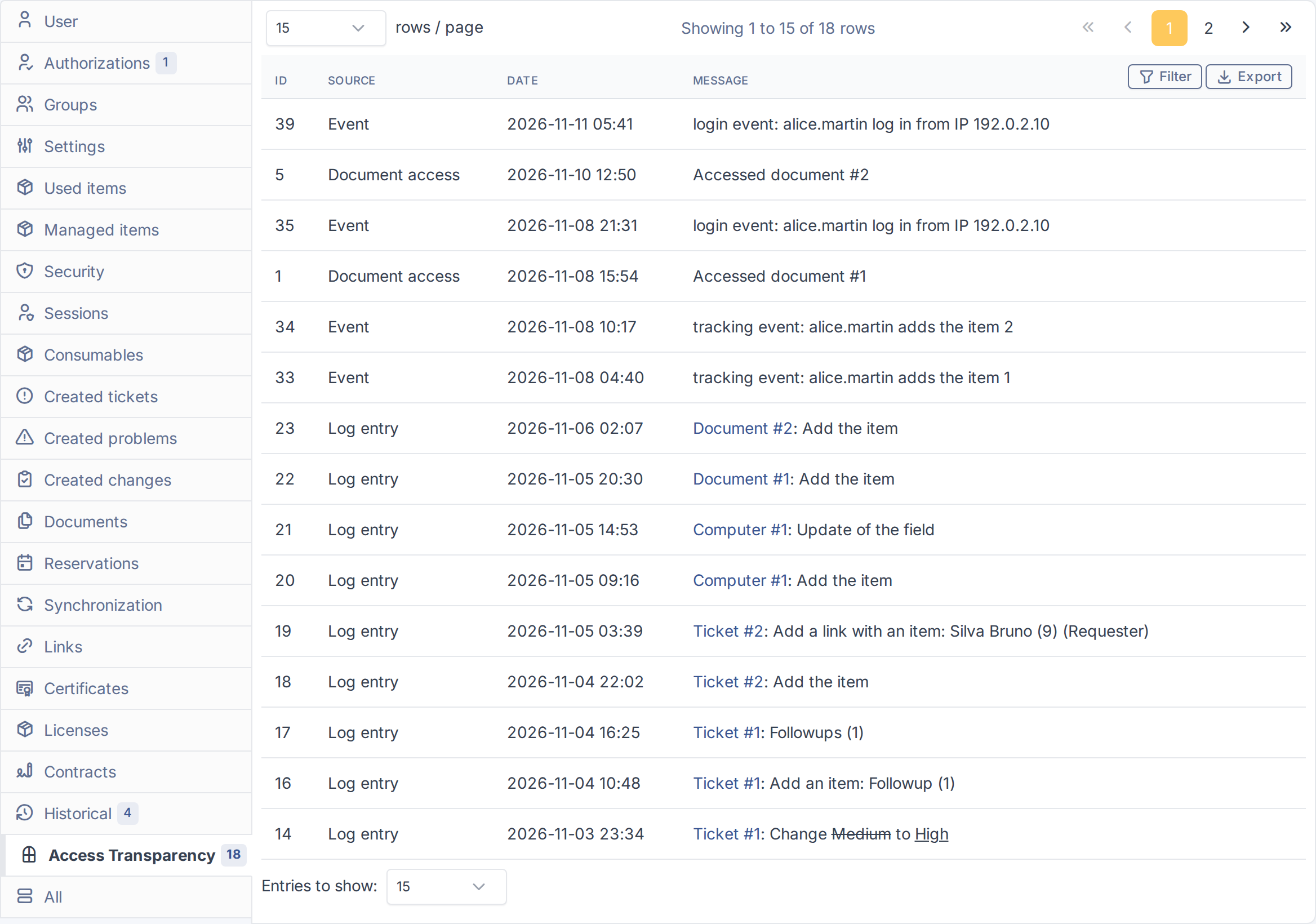
The Access Transparency tab of a user
5.1.2 Filter the records
Click Filter to narrow the list. Pick one or more Source values, or type a Date, and the list is limited to the matching records. The filter button stays highlighted while a filter is active, and the pager counts only the filtered rows.
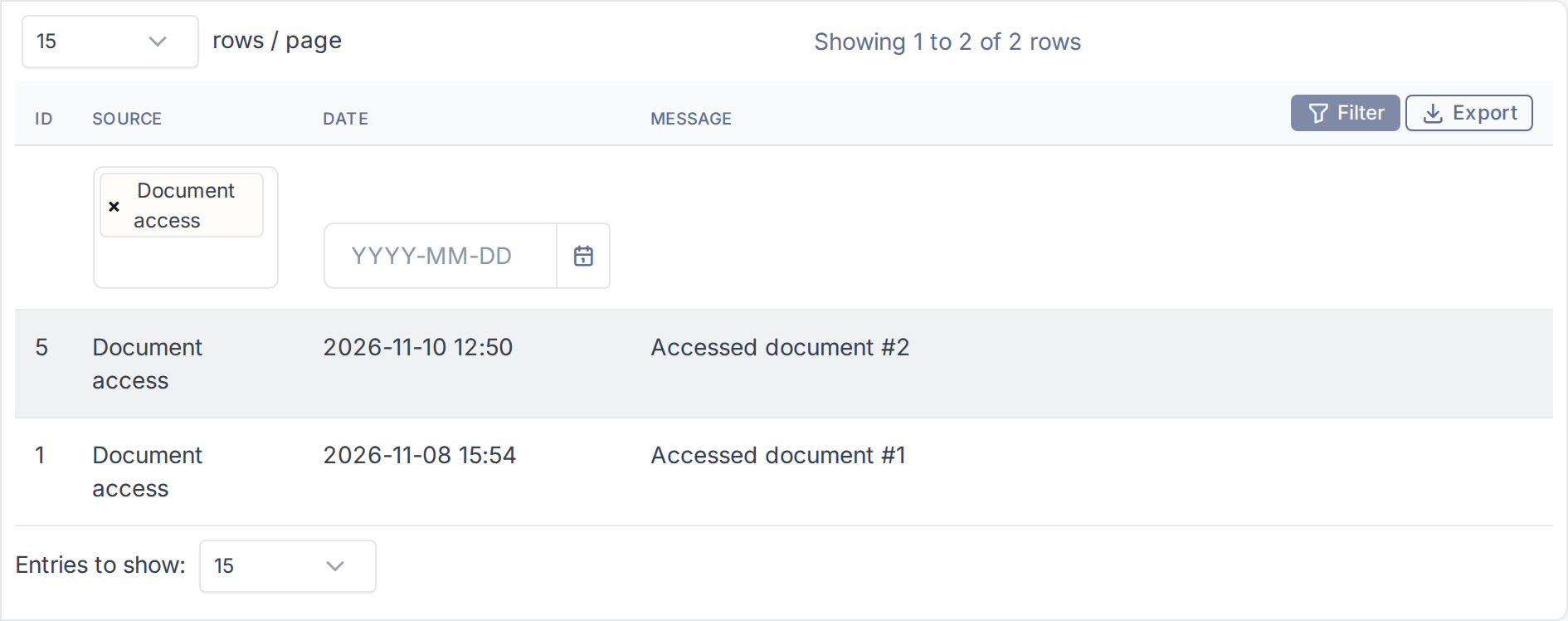
Only the documents this user opened
5.1.3 Export the records to CSV
Click Export to download the records as a CSV file. The export follows the filters you have set: with no filter you get every record of the user, with a filter only the matching ones. GLPI may ask you to confirm your password before it starts the download.
5.2 Seeing who opened a document
Every time someone opens or downloads a document, Access Transparency records who did it and when. The record is kept on the document itself, in its own tab.
5.2.1 Open the document's Access Transparency tab
Open the document (for example from Management > Documents) and switch to its Access Transparency tab. Each row is one access: when it happened, who did it and, when the document was opened from an item such as a ticket, which item it was.
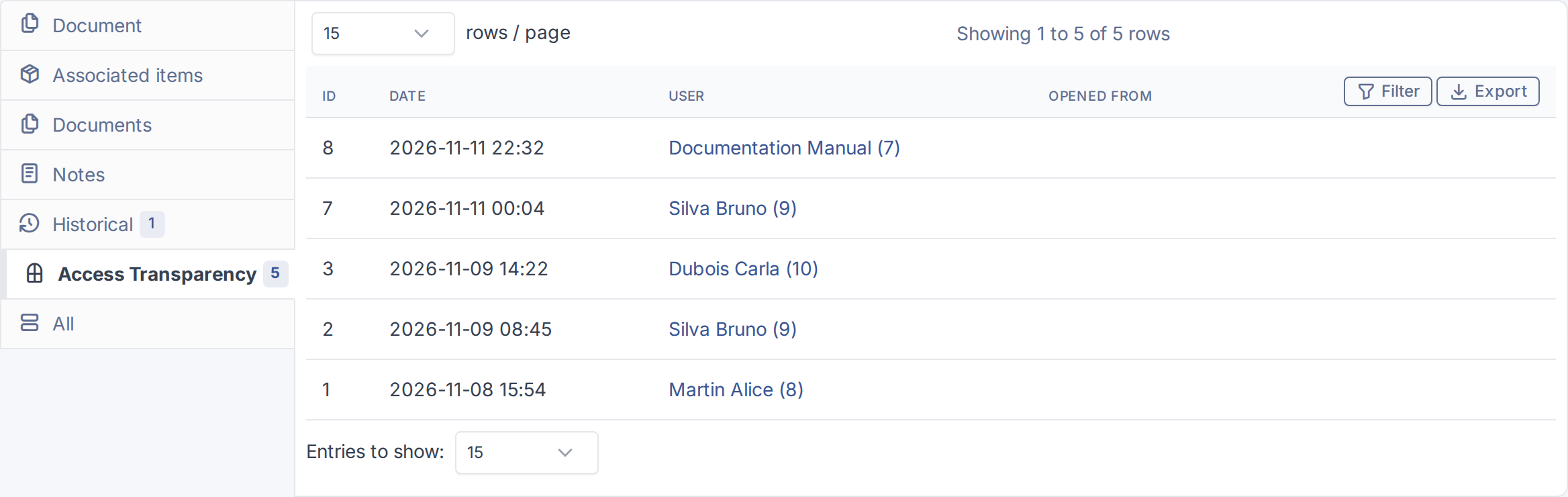
Who opened the document, and when
Note: You only see the people you are allowed to see: accesses by users outside your entities are left out of the list and of the export.
5.2.2 Filter by user
Click Filter and choose a user to see only that person's accesses. As on the user tab, Export downloads what the list shows.
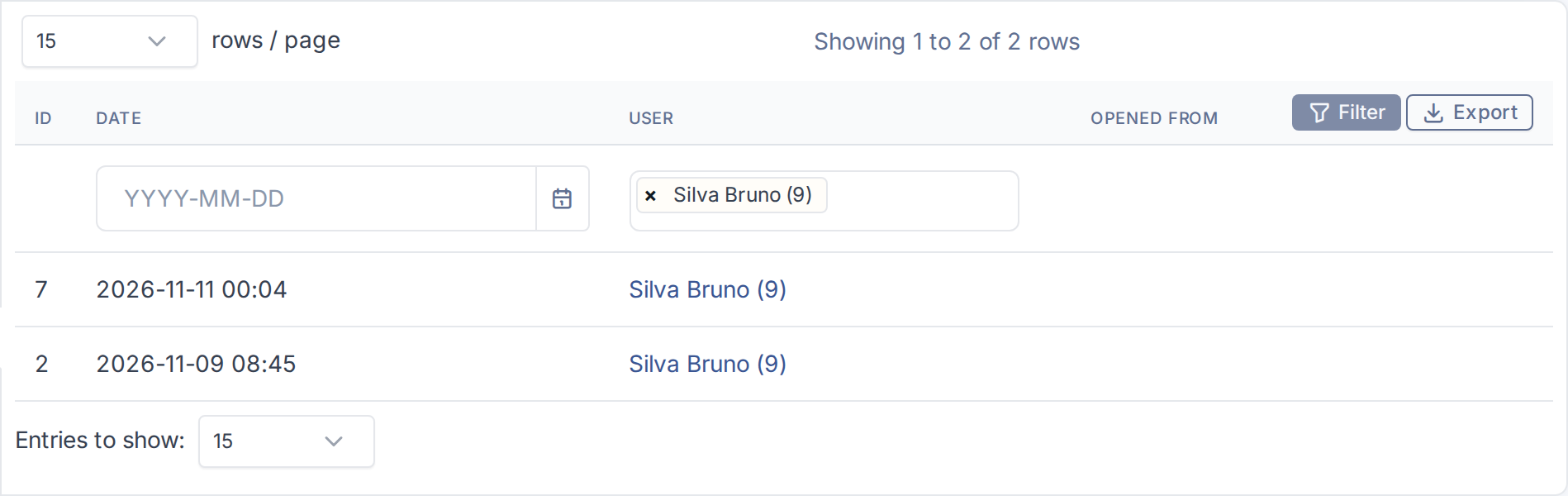
The accesses of one user
Generated for Access Transparency 2.0.0 on GLPI 12.0.2 — 2026-11-20.