
4. Setup
4.1 Installation
Drop the plugin in plugins/accesstransparency, then install and activate it from Setup > Plugins.
4.2 Configuration
The settings are on Setup > General > Access Transparency:
- Log retention — Keep all logs, or Delete if older than a number of months from 1 to 120. New installations keep 12 months; installations that already had the plugin keep their setting. GLPI's own log and event purge settings do not apply to these records.
- Excluded logins — a comma-separated list of logins (for example
glpi-agent, inventory). Nothing is recorded for these accounts, neither their document accesses nor their history and events.
4.2.1 Automatic actions
- Get logs (hourly) — copies the history and event records of the users into the plugin, a batch at a time. Its Limit number of logs to retrieve parameter sets how many source rows are read on each run.
- Purge old logs (hourly) — deletes the plugin's records older than the Log retention set in the settings. With Keep all logs it deletes nothing.
Both run in CLI mode, so GLPI's scheduled cron job must be set up for them to run.
4.3 Permissions
Access to the records is granted per profile, on the Access Transparency tab of Administration > Profiles > (a profile), with a single right: Historical > Read. On a new installation the Super-Admin profile already has it; every other profile gets nothing until it is ticked.
Having the right is not enough to see everything. The plugin only shows what the reader could already see in GLPI:
- the changes recorded in the item histories need GLPI's own Logs right, and the system events need the System logs right;
- each record that refers to an item is shown only if the reader can see that item, entities included;
- on a user's tab, the reader must be able to see that user; on a document's tab, the document, and only the users they can see appear in the list and in the export.
The settings screen follows GLPI's own Setup > General right, and saving it asks for the password again.
4.4 Configuring log retention and excluded logins
The plugin has two settings. Both are on one screen.
4.4.1 Open the Access Transparency settings
Go to Setup > General and open the Access Transparency tab. GLPI asks you to confirm your password before it shows the settings. Log retention sets how long the plugin keeps its records: choose Keep all logs, or Delete if older than a number of months (1 to 120). New installations keep 12 months. The purge settings of the GLPI core do not apply to these records: only this setting does. Excluded logins is a comma-separated list of logins for which nothing is recorded, such as service or inventory accounts (glpi-agent, inventory), so they do not fill the list with noise.
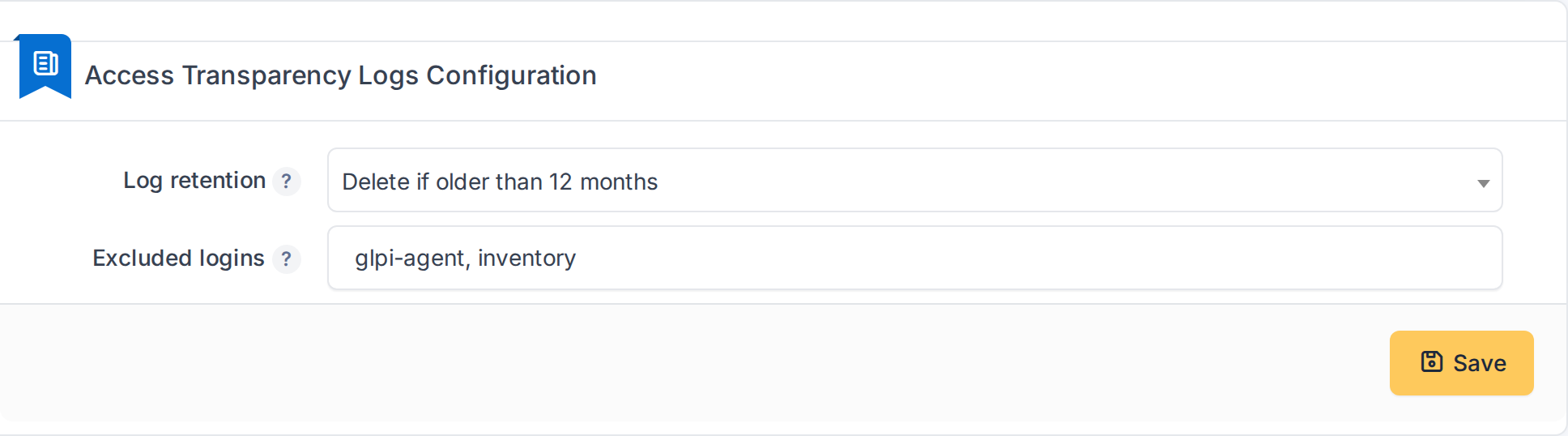
Log retention and excluded logins
Note: Saving the settings asks you to confirm your password again.
4.5 Granting access to the records
Nobody sees the Access Transparency tabs until a profile is given the right to.
4.5.1 Give a profile the right to read the records
Go to Administration > Profiles, open the profile and switch to its Access Transparency tab. Tick Read on Historical and save. Users with that profile then see the Access Transparency tab on users and documents.
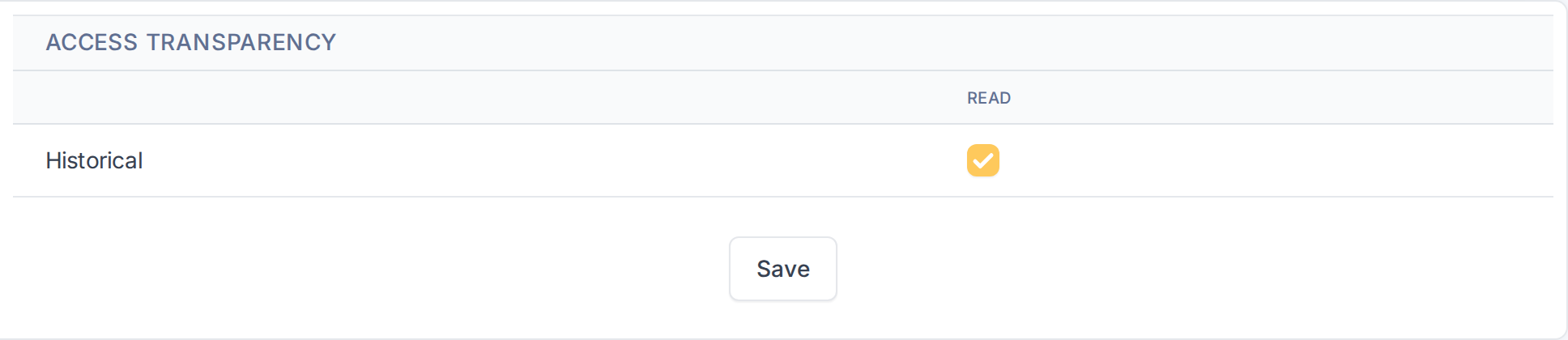
The Access Transparency right of a profile
Note: The records only show what the person reading them is already allowed to see: the item history needs GLPI's own Logs right, the events need the System logs right, and each item must be within the reader's entities.
4.6 Checking the automatic actions
The plugin adds two automatic actions. Both are installed active and run every hour, in CLI mode, so GLPI's scheduled cron job must be set up for them to run.
4.6.1 Get logs
This action copies the records of the users from the GLPI history and event logs into the plugin, a few at a time. The Limit number of logs to retrieve parameter sets how many are copied on each run. Records appear on the tabs after the action has run, so a very recent action may take up to an hour to show. Document accesses do not wait: they are recorded as soon as the document is opened.
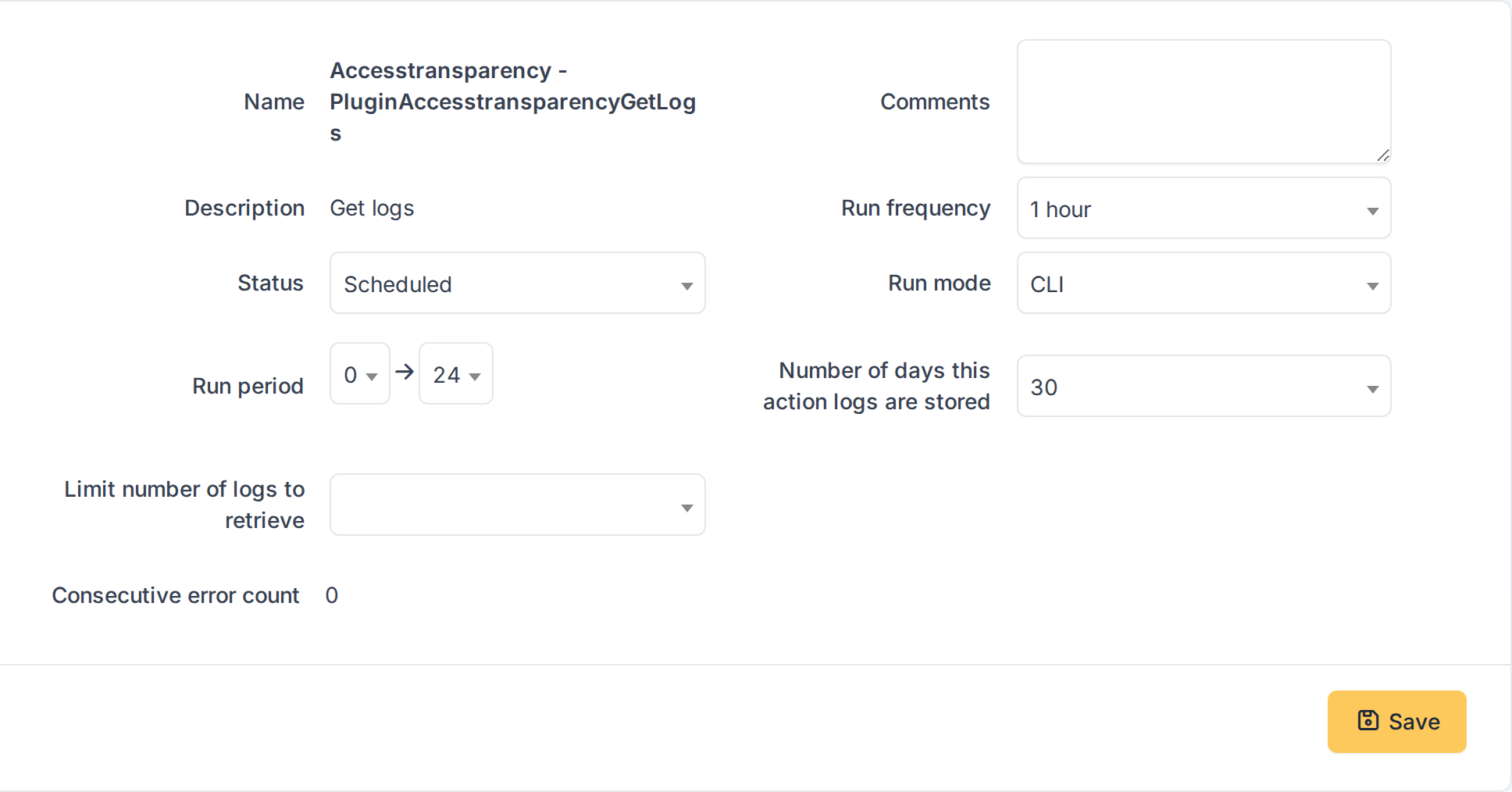
The Get logs automatic action
4.6.2 Purge old logs
This action deletes the records older than the Log retention you chose in the settings. With Keep all logs it deletes nothing.
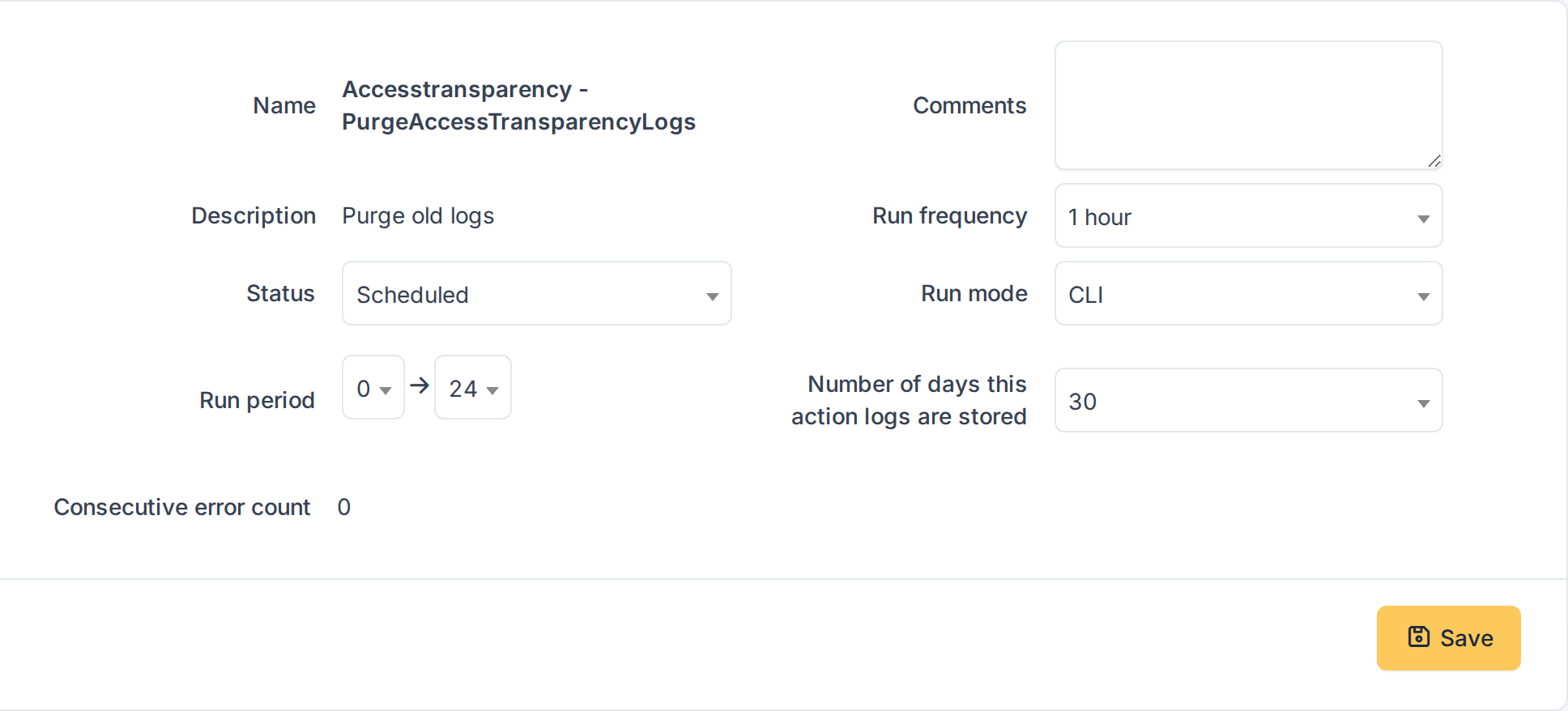
The Purge old logs automatic action
Generated for Access Transparency 2.0.0 on GLPI 12.0.2 — 2026-11-20.