Create a Followup
Follow-ups are created from inside a ticket, through the ticket actions menu. Each option is explained below, starting with the follow-up:
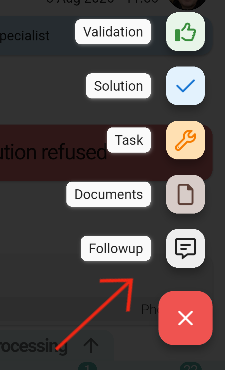
1. Create a follow-up
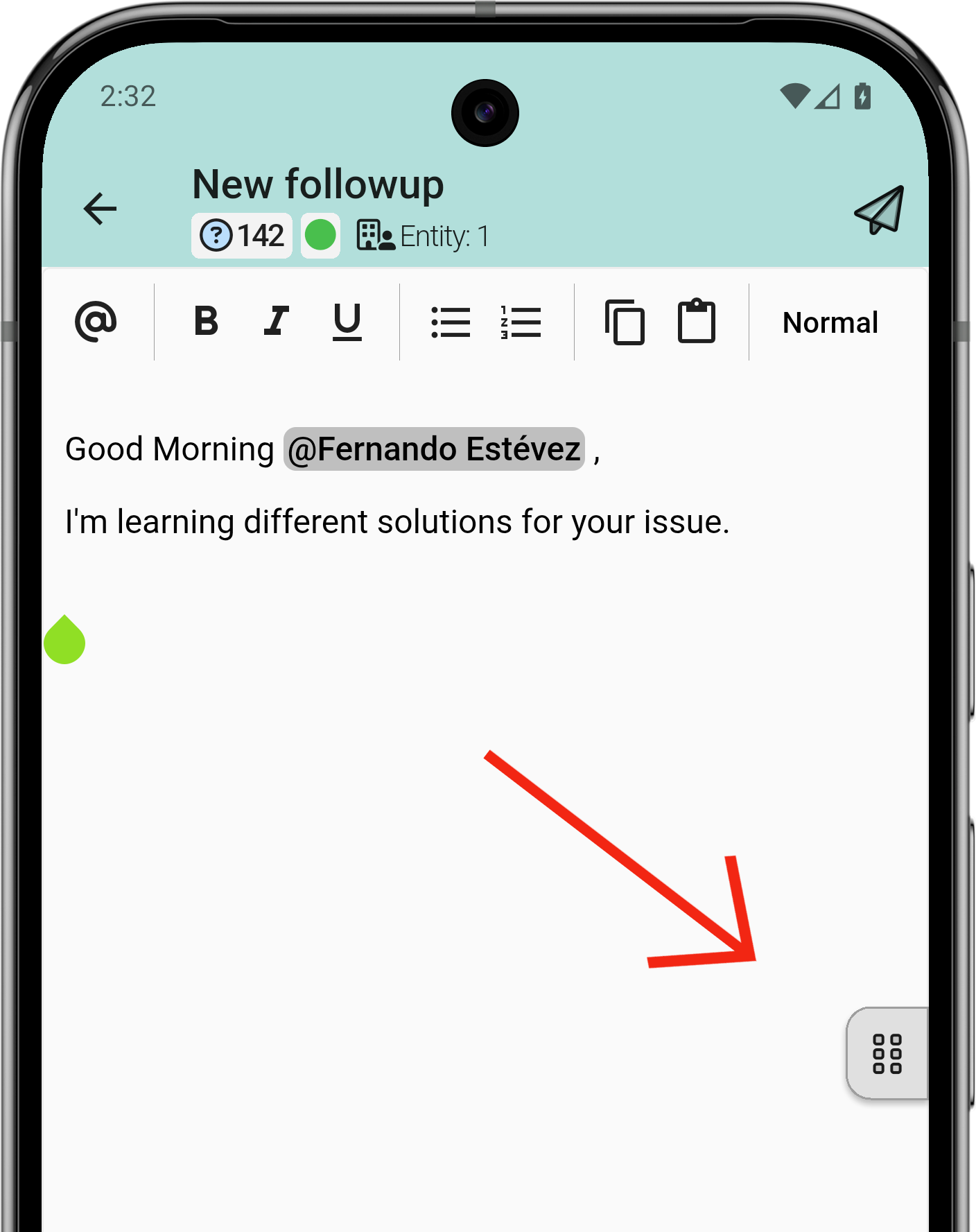
The creator opens a text editor where the follow-up is written in detail, with options such as numbered or bulleted lists, copy and paste.
1.1 Mention people
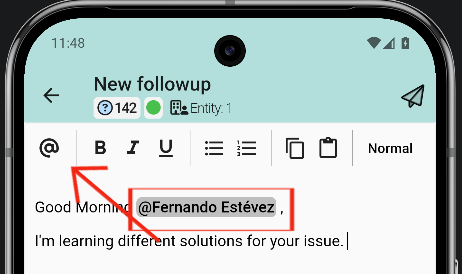
Colleagues can be mentioned with the @ symbol. The steps are the following:
- Tap the @ symbol.
- Search for the colleague in the list.
1.2 Additional options for the follow-up
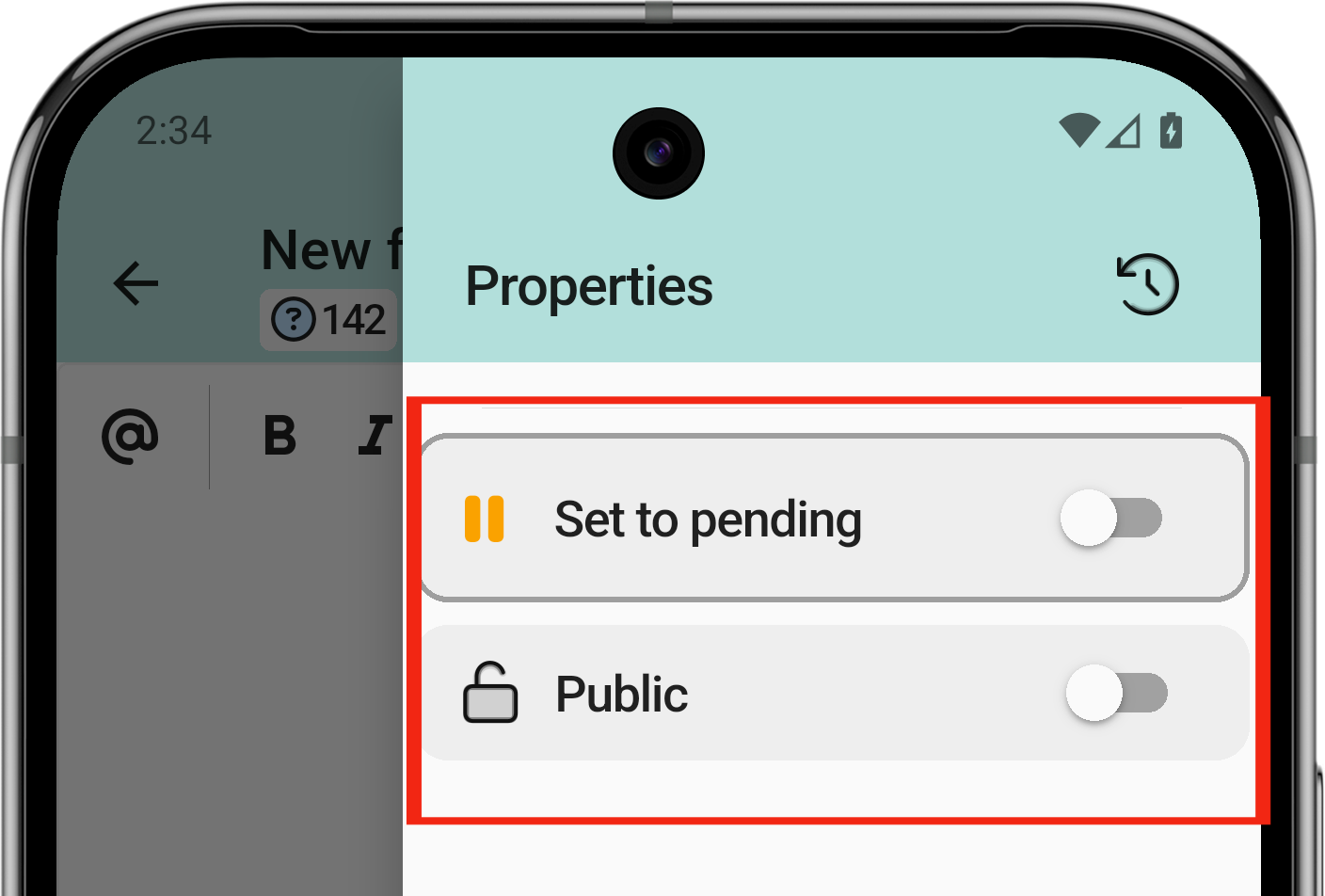
The follow-up can have two additional options: mark the ticket as on hold or as public. To mark these options, go to the hamburger menu on the right.