Create a Followup
Follow-ups are created from inside a ticket, through the ticket actions menu. Each option is explained below, starting with the follow-up:
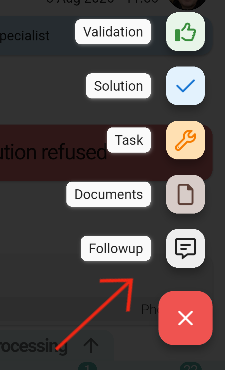
1. Create a follow-up
The creator opens a text editor where the follow-up is written in detail, with options such as numbered or bulleted lists, copy and paste.
1.1 Mention people
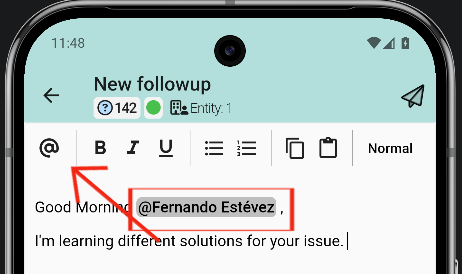
Colleagues can be mentioned with the @ symbol. The steps are the following:
- Tap the @ symbol.
- Search for the colleague in the list.
1.2 Additional options for the follow-up
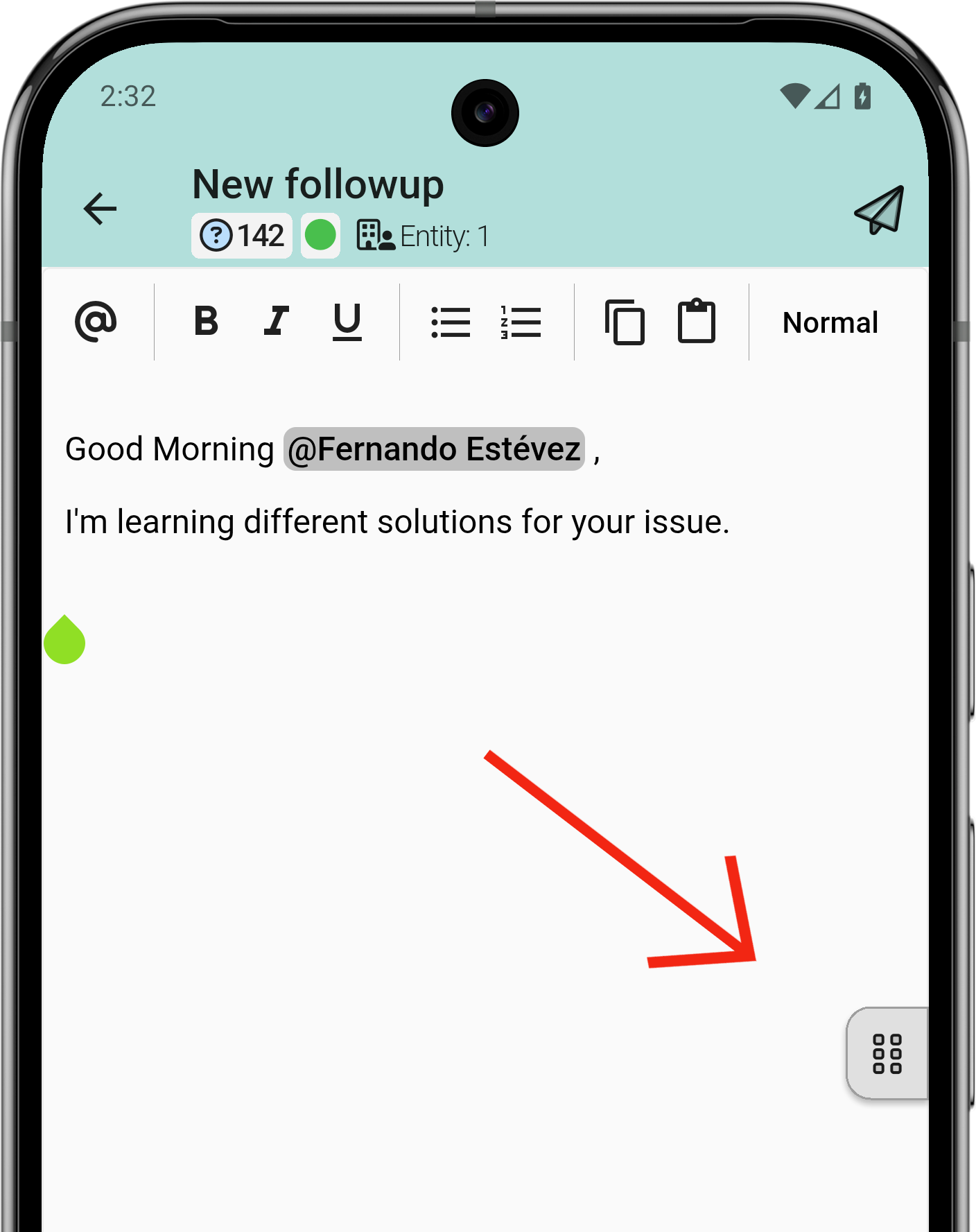
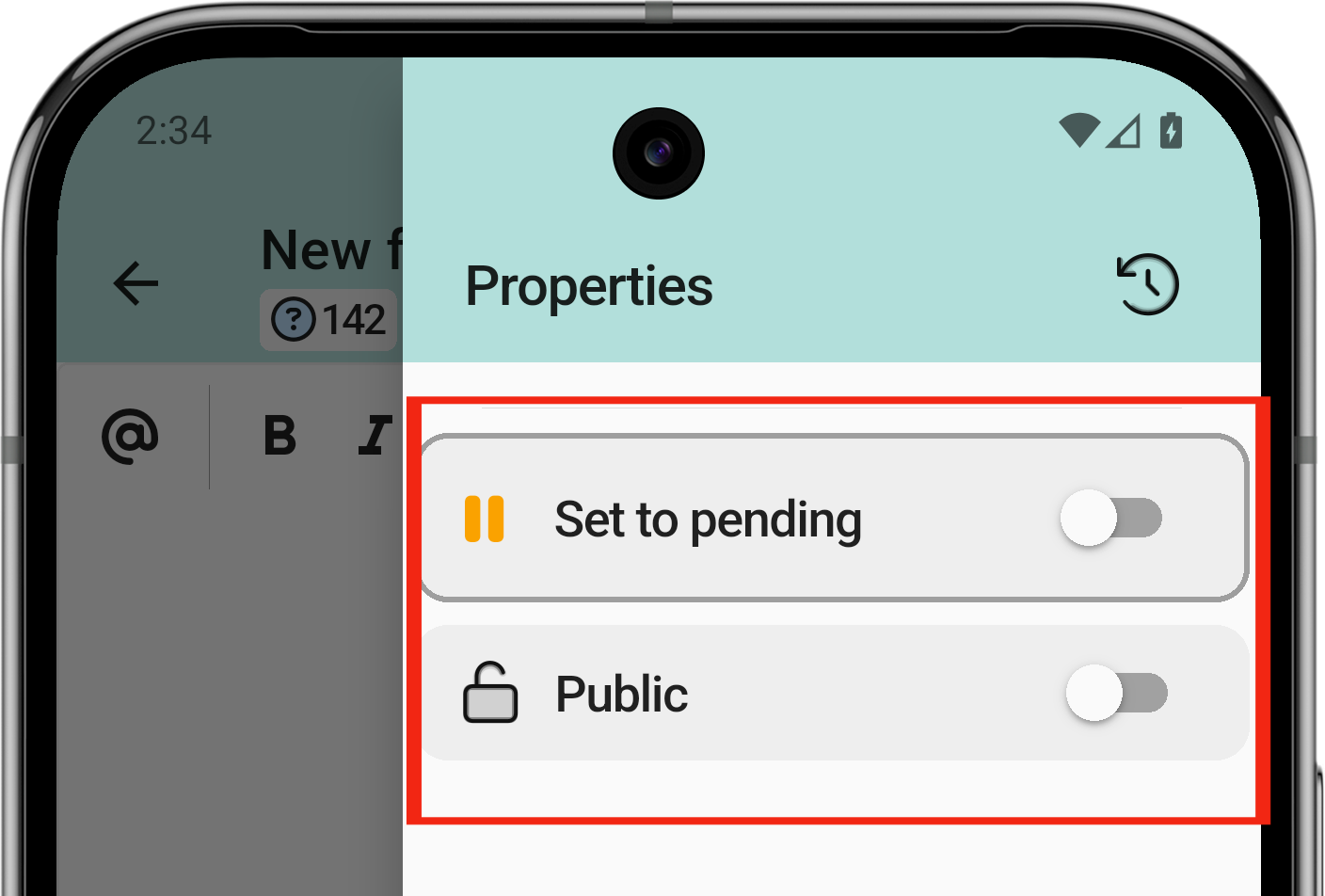
The follow-up can have two additional options: mark the ticket as on hold or as public. To mark these options, go to the hamburger menu on the right.
2. Upload documents
The application integrates with the smartphone's native functions: photos can be uploaded directly from the gallery or taken on the spot.
Multiple files can be selected at once or one at a time. Once the first file is selected, the same screen remains open to select more files.
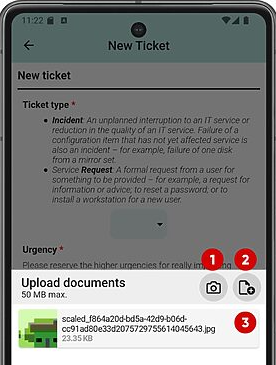
- Open camera.
- Local files or other sources.
- Files already selected.