
5. Usage

Part of the Third-Party Custom Notice manual — see also 1. Introduction, 2. What's New, 3. Scope, 4. Setup, 6. Troubleshooting.
5.1 Setting a notice on a third party
An alert notice is a short warning stored on the customer or supplier itself, so it follows that third party into every document created for them. It only has to be written once.
5.1.1 Open the third party
Open Third parties from the main menu and click the customer or supplier you want to flag. The notice belongs to the third party, not to any one document.
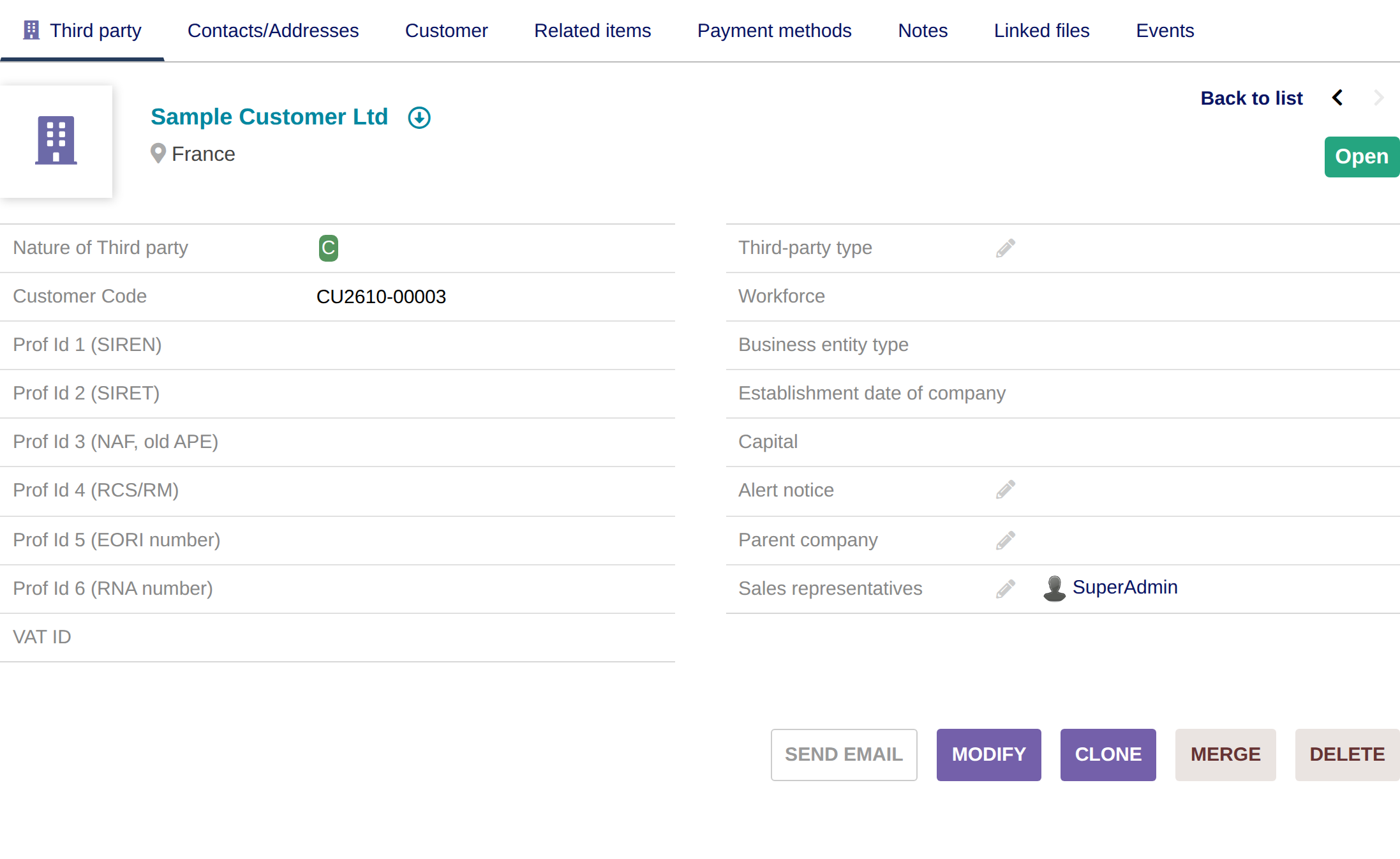
The third party card, before any notice is set
5.1.2 Write the notice
Click Modify. The Alert notice field sits among the extra fields at the bottom of the form; if you cannot see it, click the More link above the extra fields to reveal them. Fill it in. Keep it to a sentence or two: it is shown in full, so a long notice pushes the document off the screen. Leave it empty for third parties that need no warning.
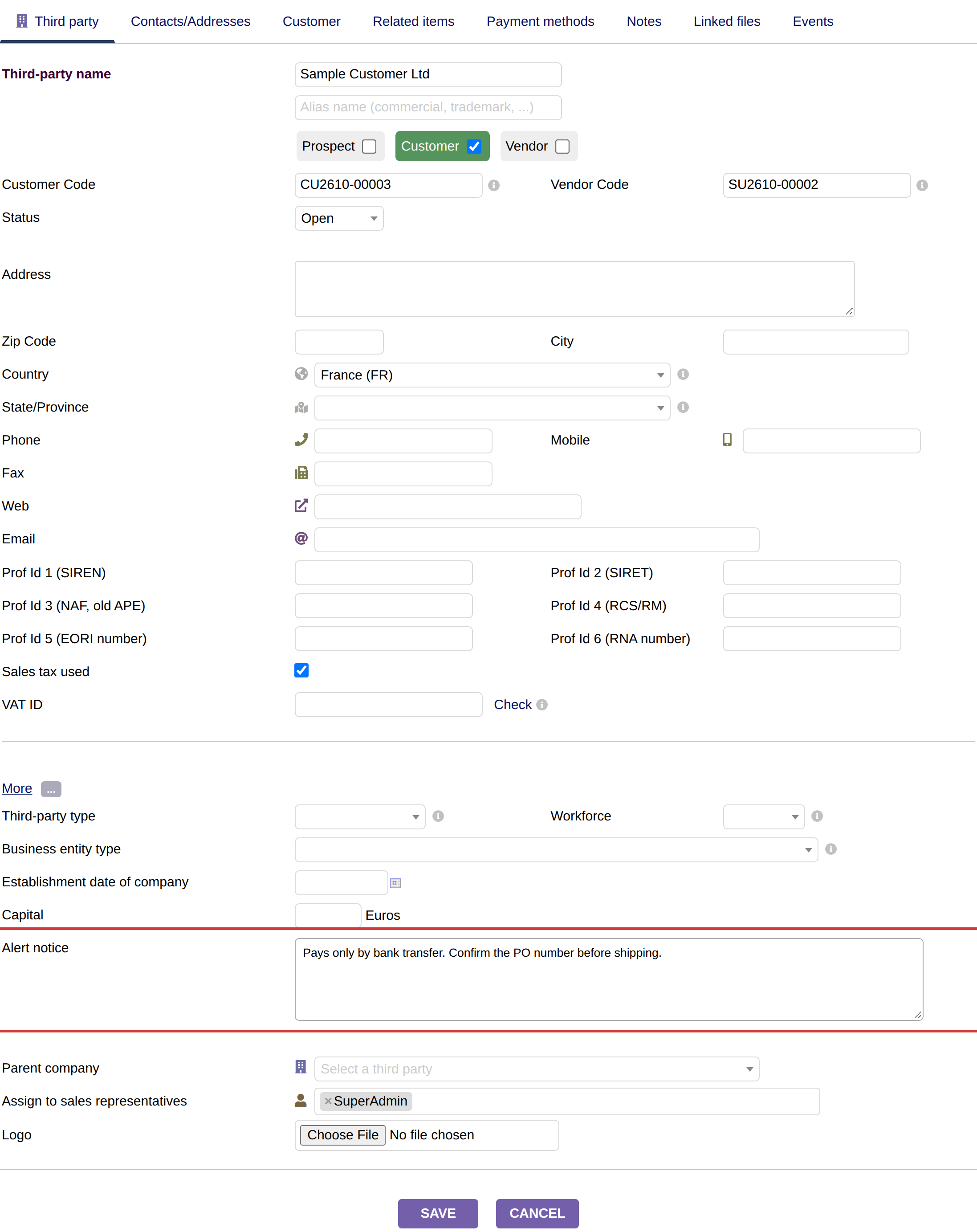
The Alert notice field in the Extra fields area
5.1.3 Save and check the card
Click Save. The notice now appears with the third party's other details, and from now on it is raised whenever this third party is picked on a document.
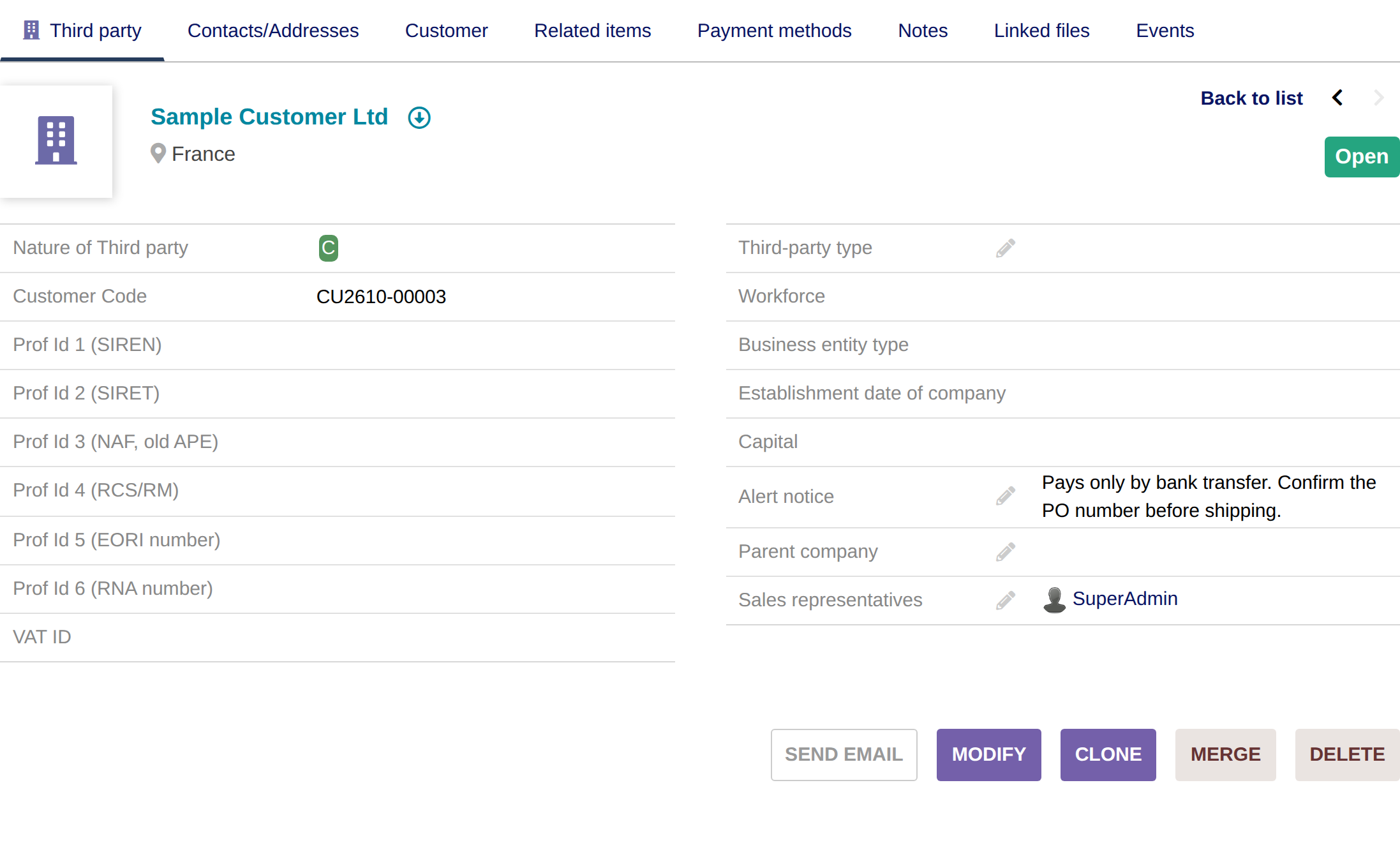
The notice shown on the third party card
Note: Disabling the module keeps the alert notice field and every stored notice, so switching it off and on again is safe.
5.2 The warning when picking a third party
As soon as someone picks a third party that carries an alert notice on a new document, the notice is shown in a window that has to be acknowledged. Third parties with no notice never trigger it.
5.2.1 Pick the third party on a new document
Start a new document, for example Commerce → Proposals → New proposal, and choose the customer in the Third party selector. Dolibarr reloads the form with the customer filled in, and the warning appears on top of it. The same happens when you create a customer order, a customer invoice, a supplier price request, a supplier order or a supplier invoice.
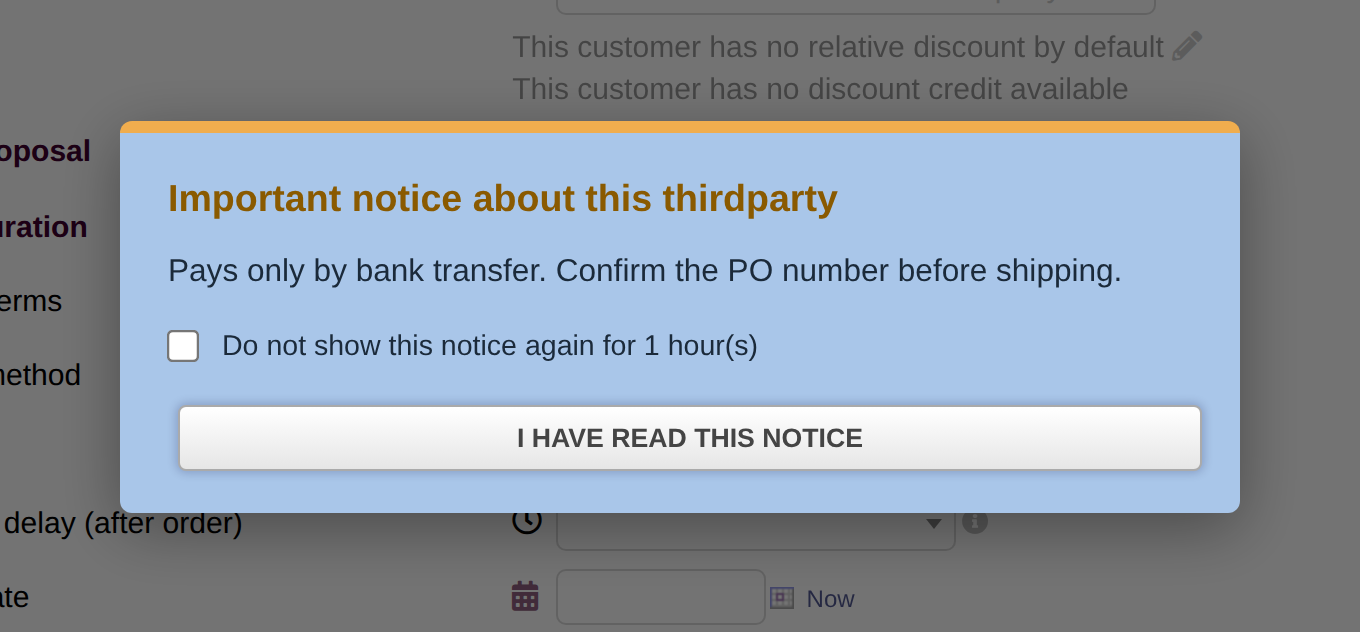
The warning window showing the third party's notice
5.2.2 Acknowledge it, or hide it for a while
Click I have read this notice to close the warning and carry on with the document. Tick Do not show this notice again for 1 hour(s) first if you do not want to be interrupted again: the warning then stays hidden for that third party for the number of hours set on the setup page (1 hour by default). The setting only affects your own browser, never your colleagues. Press Esc to close the window without recording anything.
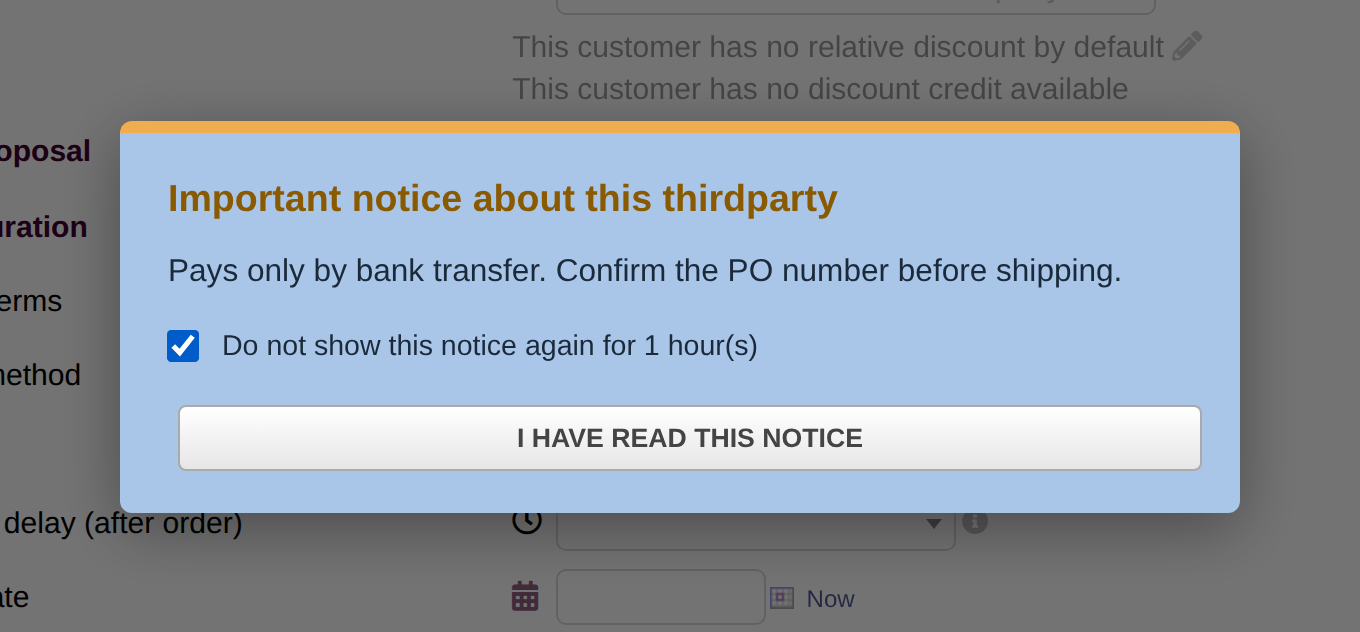
Ticking the box before acknowledging hides the warning for a while
Note: The snooze is kept in the browser. On another computer, or in a private window, the warning shows again.
5.3 The warning before validating a document
A third party can reach a document without ever being picked in the selector, for example when the document is cloned or generated from a template. To make sure the notice is never skipped, it is shown again right before the document is validated.
5.3.1 Validate the document
Open a draft document for the flagged third party and click Validate. The warning appears first, even if you hid it earlier, and the document is only validated once you acknowledge it. The same check runs before Accept/Refuse on a customer proposal and before Approve on a supplier order.
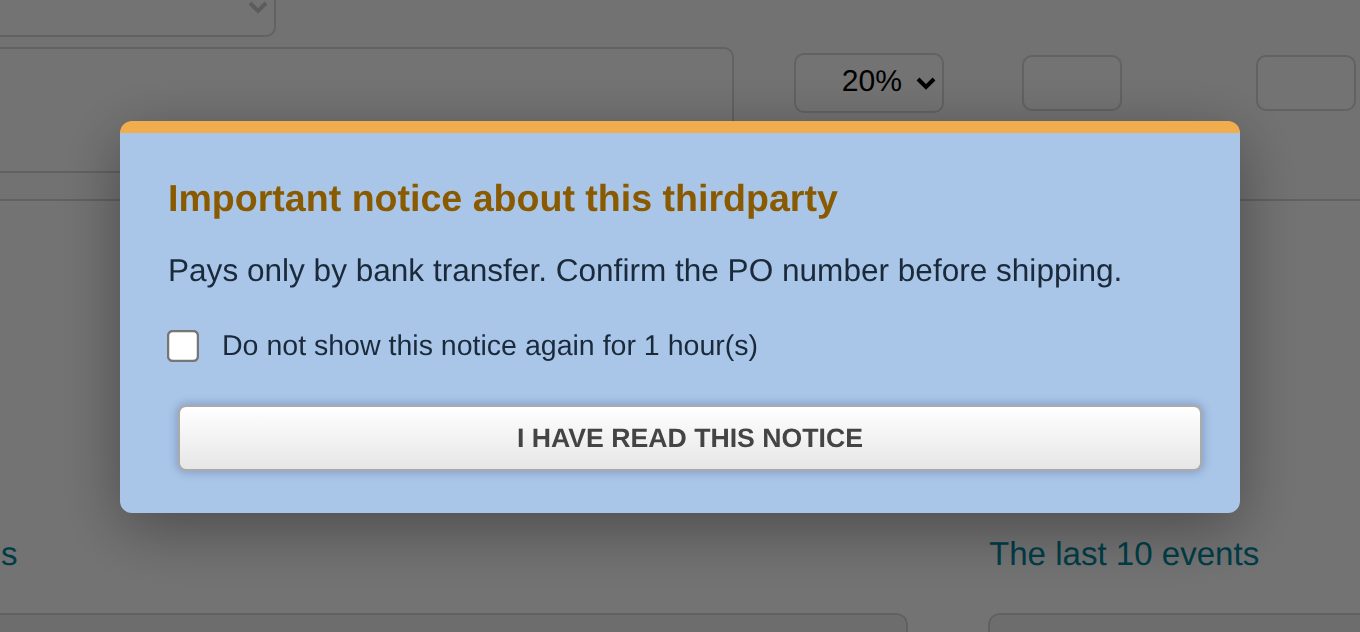
The warning shown before a proposal is validated
5.4 Notices in the third party list
The third party list can show each third party's alert notice and filter on it.
5.4.1 Show the Alert notice column
Open Third parties → List. The Alert notice column is available like any other optional column: use the column selector at the top right of the list to show or hide it.
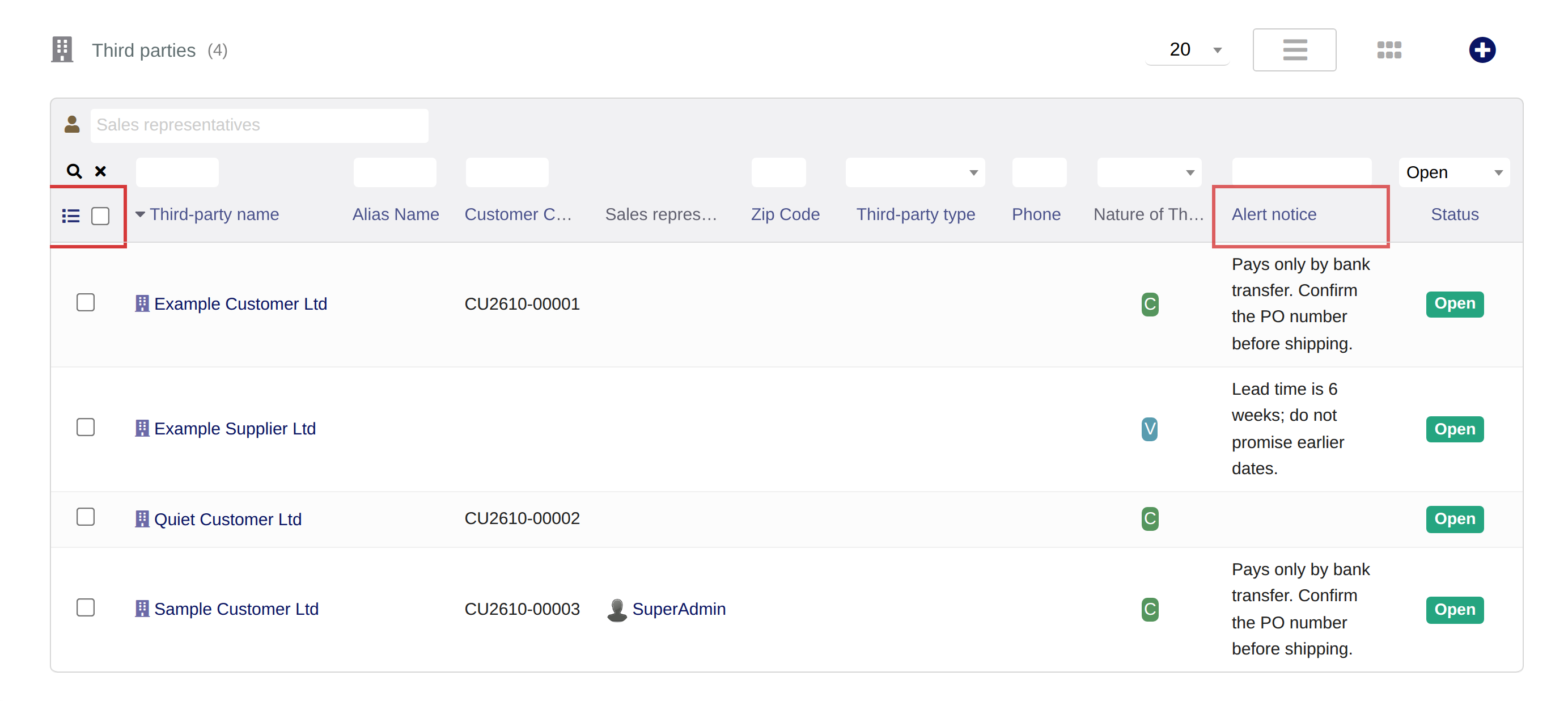
The third party list with the Alert notice column
5.4.2 Filter on the notice
Type a word in the filter box at the top of the Alert notice column and press Enter to keep only the third parties whose notice contains it, for example to find everyone flagged for bank transfer only.
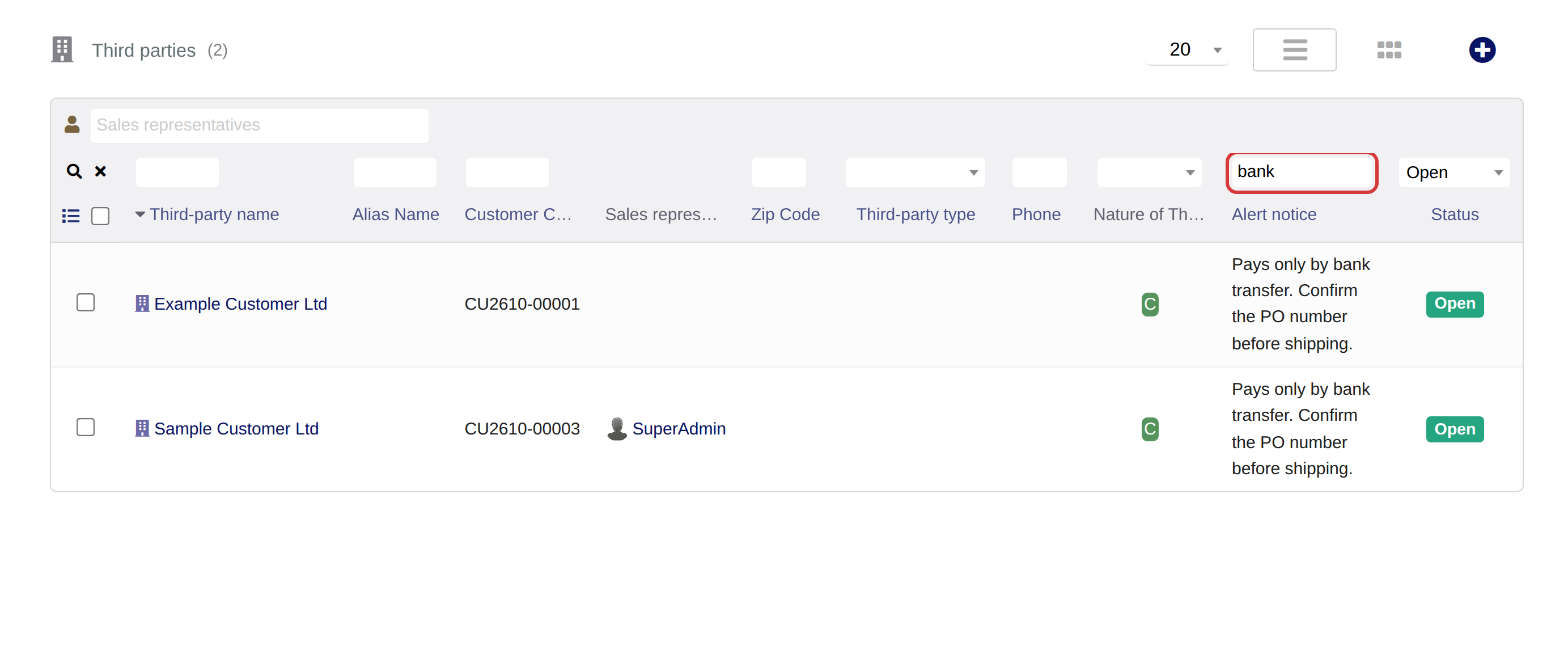
The list filtered on the word "bank"
Generated for Third-Party Custom Notice 1.0.1 on Dolibarr 23.0 — 2026-10-06.