
4. Setup

Part of the Third-Party Custom Notice manual — see also 1. Introduction, 2. What's New, 3. Scope, 5. Usage, 6. Troubleshooting.
4.1 Installation
Unzip the module into the custom/ folder of your Dolibarr, then enable Thirdparty Custom Notice from Home → Setup → Modules/Applications. Enabling it creates the Alert notice field; the module needs Dolibarr 23.0 or later and PHP 8.2 or later.
4.2 Configuration
The module has one setting, the snooze duration, on its setup page (the cog icon on its entry in the modules list):
- Snooze duration (hours) — how long a dismissed notice stays hidden for the person who dismissed it, from 1 to 24 hours. The default is 1.
The same page confirms that the Alert notice field exists, lists the document pages where the warning can appear, and offers a confirmed action to delete the field and every stored notice.
4.3 Permissions
Who sees the warning is decided by Dolibarr's standard Read third parties right: a user who can read third parties is warned, and a user who cannot is not. The module also registers one permission of its own, Read thirdparty notices, listed under Thirdparty Custom Notice on the user's Permissions tab and granted by default to new users. At present it is only a marker: switching it off for a user does not hide the warnings from them, so use the standard third party right to control who is warned.
4.4 Enabling the module
The module is enabled like any other Dolibarr module. Enabling it creates the Alert notice field on third parties, so no further preparation is needed.
4.4.1 Find the module and switch it on
Go to Home → Setup → Modules/Applications, search for Notice and switch on Thirdparty Custom Notice. Once it is on, its Setup (cog) icon appears on the right of the entry; it opens the module's configuration page, described in the next chapter.
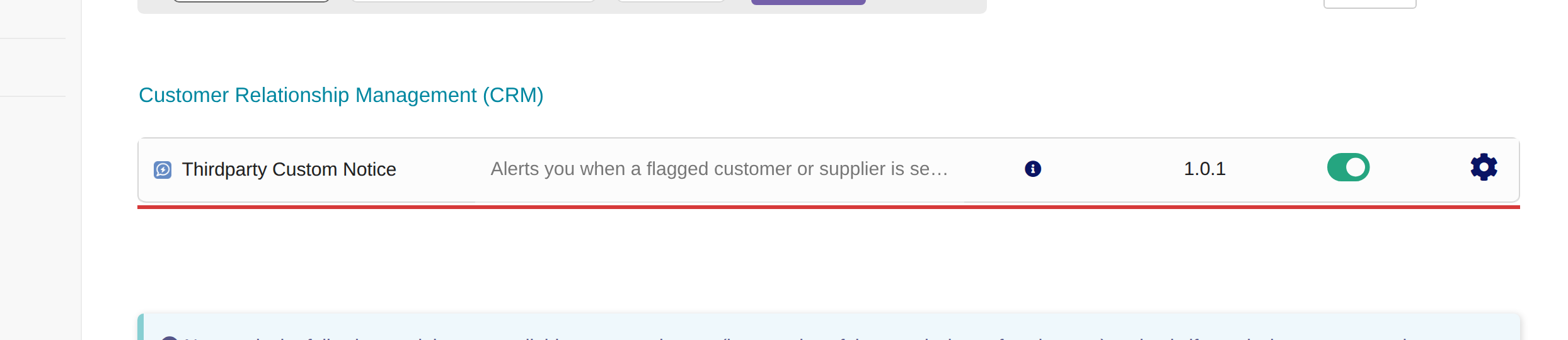
The module in the list of modules, switched on
Note: Enabling the module only adds the Alert notice extra field. Disabling it later keeps that field and every notice already written, so switching the module off and on again loses nothing.
4.5 The module setup page
One page holds the module's only setting, shows whether it is working, and offers the way to remove its data for good.
4.5.1 Open the setup page
From the modules list, click the Setup (cog) icon on the Thirdparty Custom Notice entry. The page has three parts:
- Field status — a message confirming the Alert notice extra field exists on third parties.
- Snooze duration (hours) — how long a dismissed warning stays hidden, from 1 to 24 hours. The default is 1. It is applied per browser, so dismissing a warning never hides it from a colleague. Change the value and click Save.
- Active hook contexts — the six document pages where the warning can appear. It is read-only and only there to help when a page stops showing the warning.
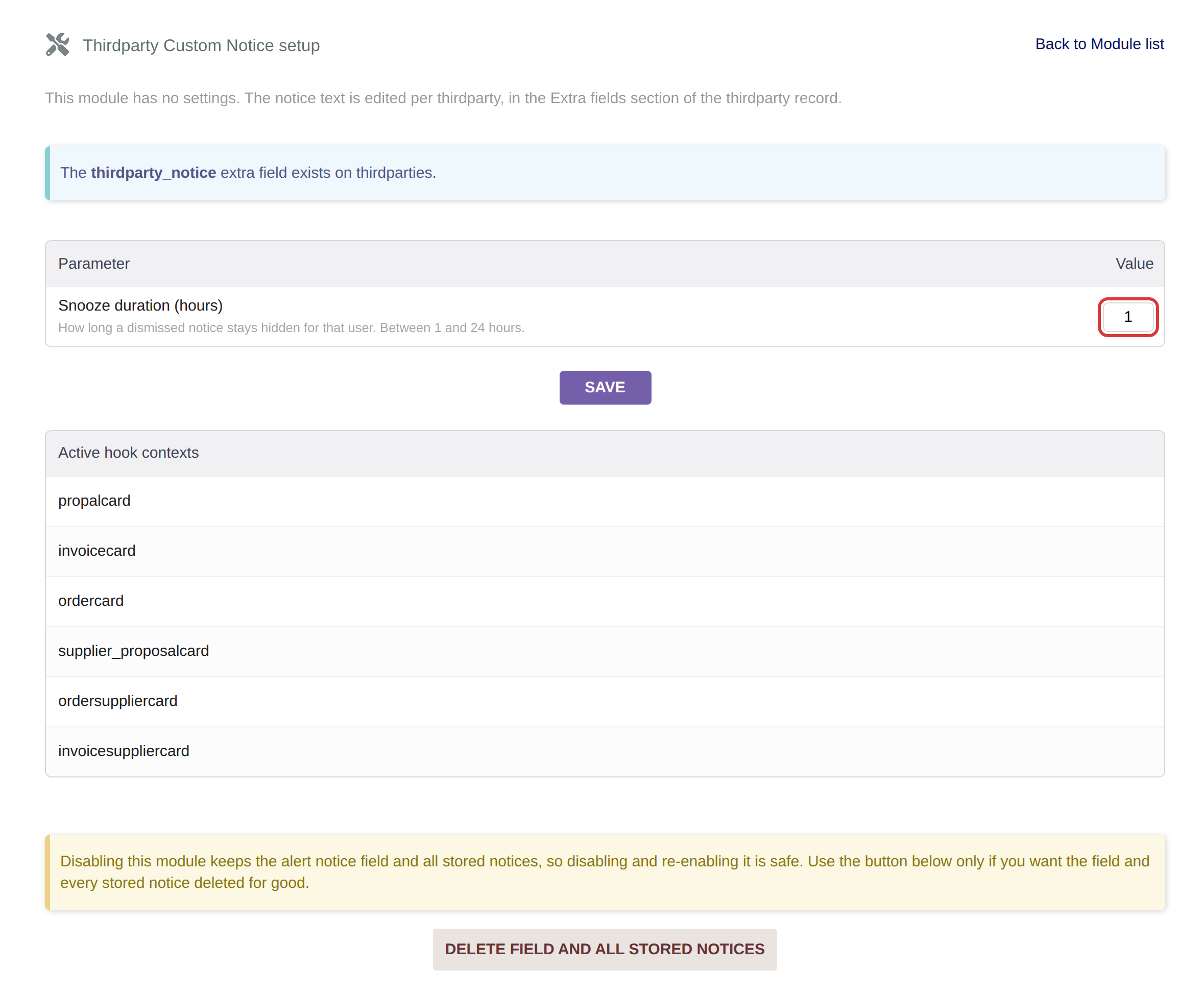
The module setup page; the snooze duration is outlined
4.5.2 Deleting the field and every notice
The red Delete field and all stored notices button at the bottom removes the Alert notice field and every notice written in it. Dolibarr asks you to confirm first. Nothing else ever removes the field, not even disabling or updating the module.
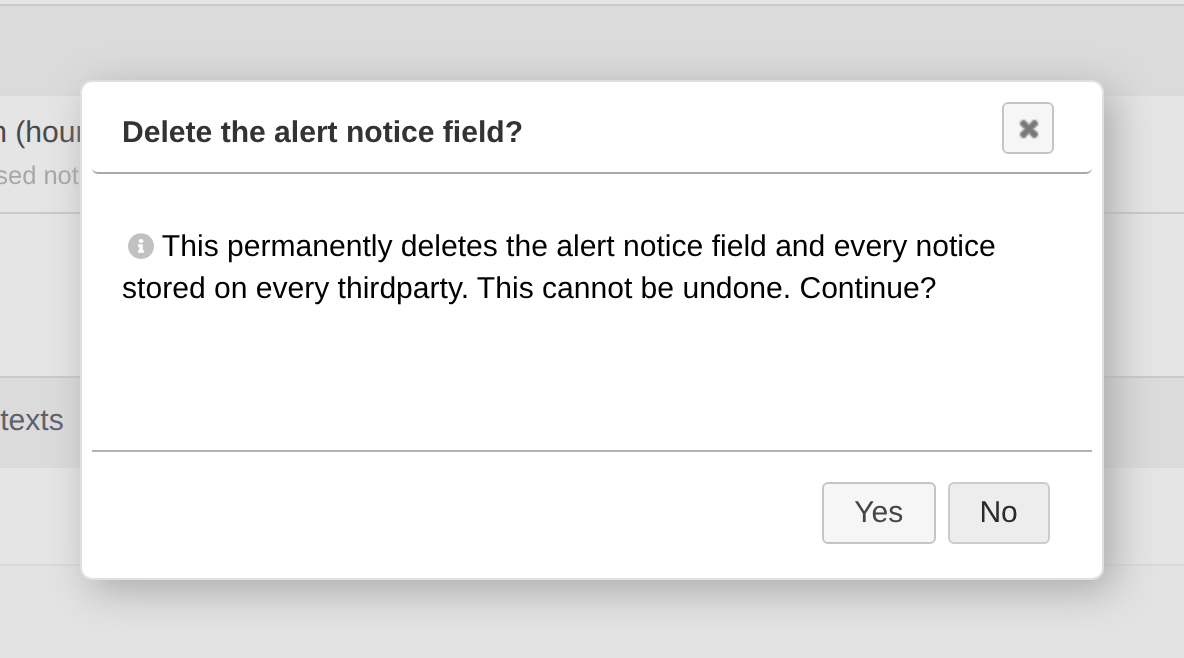
The confirmation Dolibarr asks for before deleting the field
⚠️ Warning: Deleting the field is permanent: every alert notice stored on every third party is lost and cannot be recovered. If you only want to stop the warnings, disable the module instead; that keeps all the notices.
4.6 Seeing the permission on a user
Who is warned depends on a standard Dolibarr right. The module adds one permission of its own, granted to new users by default.
4.6.1 Open a user's permissions
Open Home → Users & Groups, click the user and open the Permissions tab. Under Thirdparty Custom Notice, Read thirdparty notices is the only entry. It is granted by default, but it does not restrict who sees the warnings: a user is warned if they have the standard Read third parties right (under Third Parties), so use that right to control who is warned.
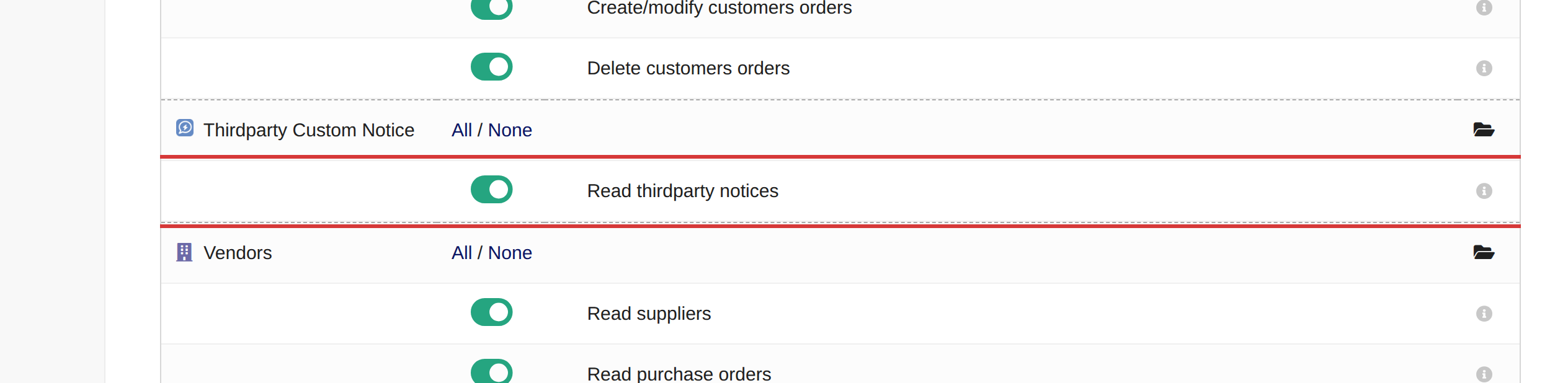
The module permission on a user's Permissions tab
Generated for Third-Party Custom Notice 1.0.1 on Dolibarr 23.0 — 2026-10-06.