
4.3 Time windows

Part of the BSM manual — see also 1. Introduction, 2. What's New, 3. Scope, 4.1 General setup, 4.2 BSM settings, 5.1 Business Services, 5.2 Application Services, 5.3 Service Map, 5.4 RACI Matrix, 5.5 RACI summaries, 5.6 Technical services, 5.7 Maintenance, 6. Troubleshooting.
4.3.1 Time windows
A time window is a recurring slot of time: either a maintenance window, when work on a service is allowed, or a blackout, when it is not. Windows are defined once and then attached to services from each service's Maintenance tab.
4.3.1.1 Open the list of time windows
Choose Setup → Dropdowns, then Time windows under the BSM heading. Each row shows the generated name, whether it is a blackout, and its time zone.
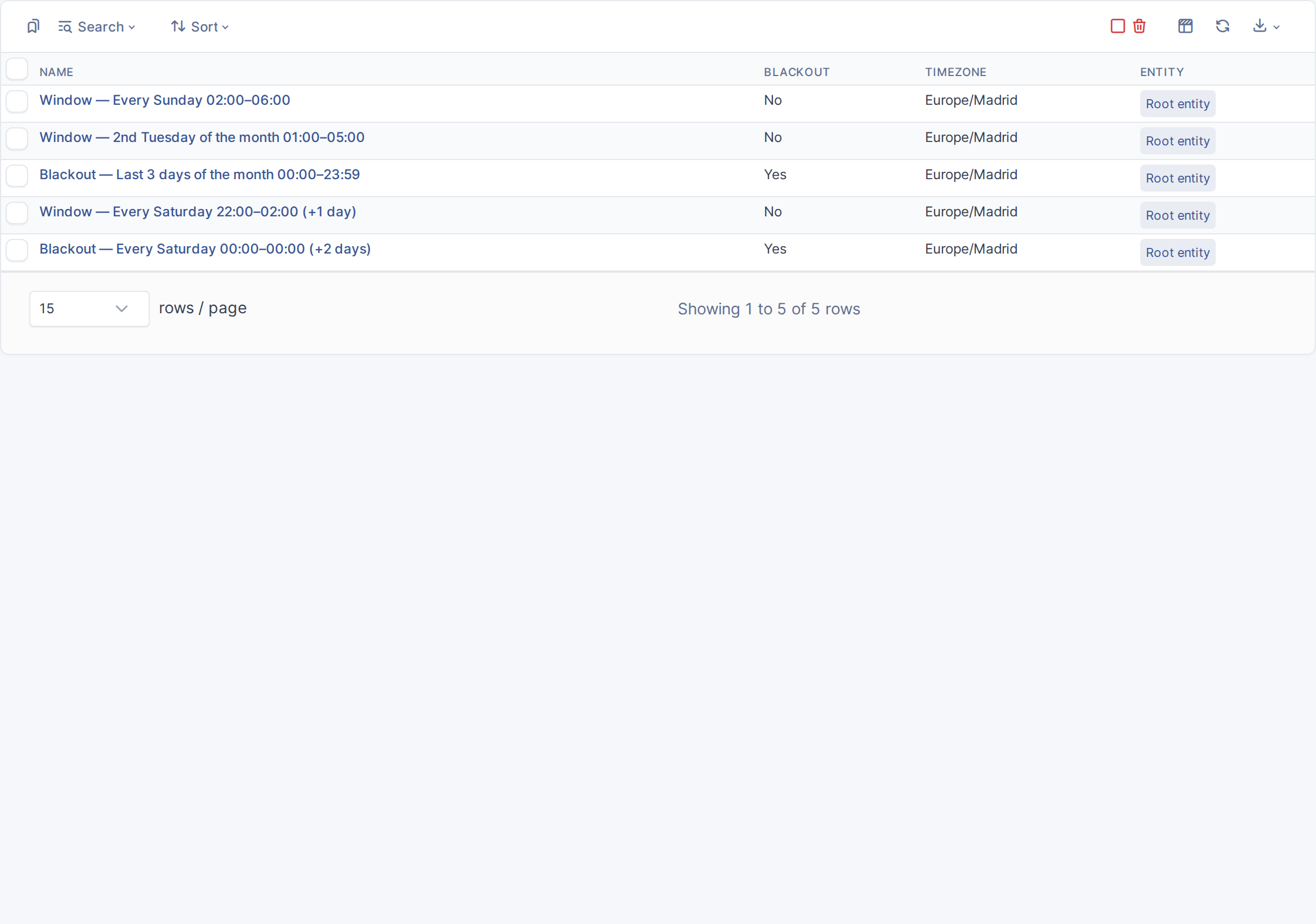
Time windows
4.3.1.2 Read a time window
Open a window to see its schedule. The name is generated from the schedule, so it always says what the window does:
- Type — Maintenance for a window where work is allowed, Blackout for one where it is not.
- Frequency and Interval — the repeat pattern (daily, weekly, monthly, yearly or one-off) and how often: every 1 week, every 2 weeks, and so on.
- Start date, End date and Total occurrences — when the pattern begins and, optionally, when it stops, either on a date or after a number of repeats.
- Start time and Duration — when each occurrence starts and how long it lasts.
- Timezone — the zone the times are read in; daylight saving changes are handled for you.
- Days of the week (and the equivalent day pickers for monthly and yearly patterns) — which days it falls on. A schedule that could never occur is refused when you save.
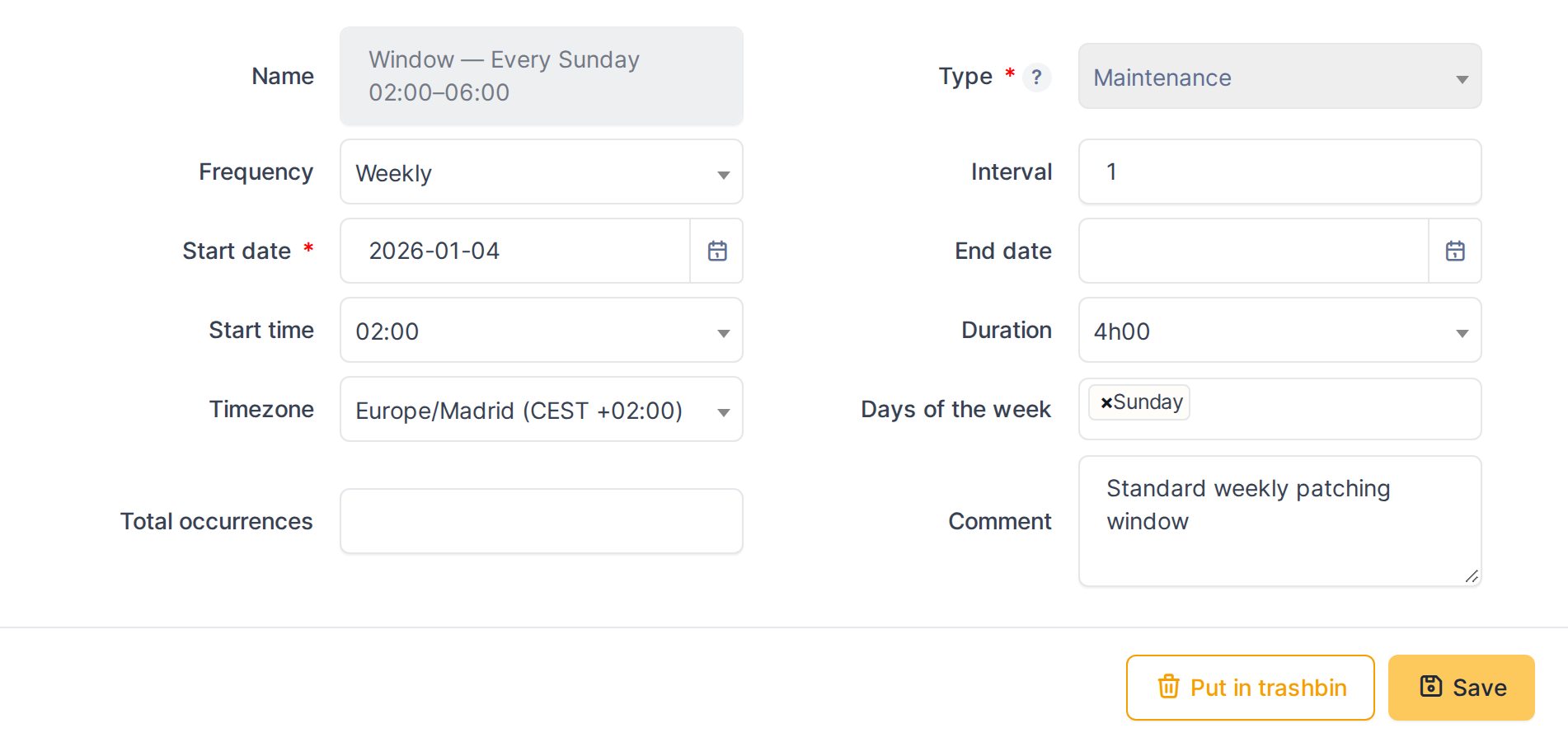
A weekly maintenance window
4.3.1.3 See where a window is used
The Services tab lists every service the window is attached to, with its type, environment and entity. Windows are attached from the service, not from here.

Services using the window
Note: Creating, editing and deleting time windows needs the Time windows right on your profile.
Generated for BSM 1.0.0-beta.2 on GLPI 11.0.10 — 2026-09-30.