
Home screen
The home screen is where you spend most of your time in Time Zone Orbit: the orbit dial at the top, your cities below it, and quick access to settings and to adding cities.
Where to find it
The home screen opens every time you start the app. From any other screen, go back with the arrow in the top-left corner until you reach it.
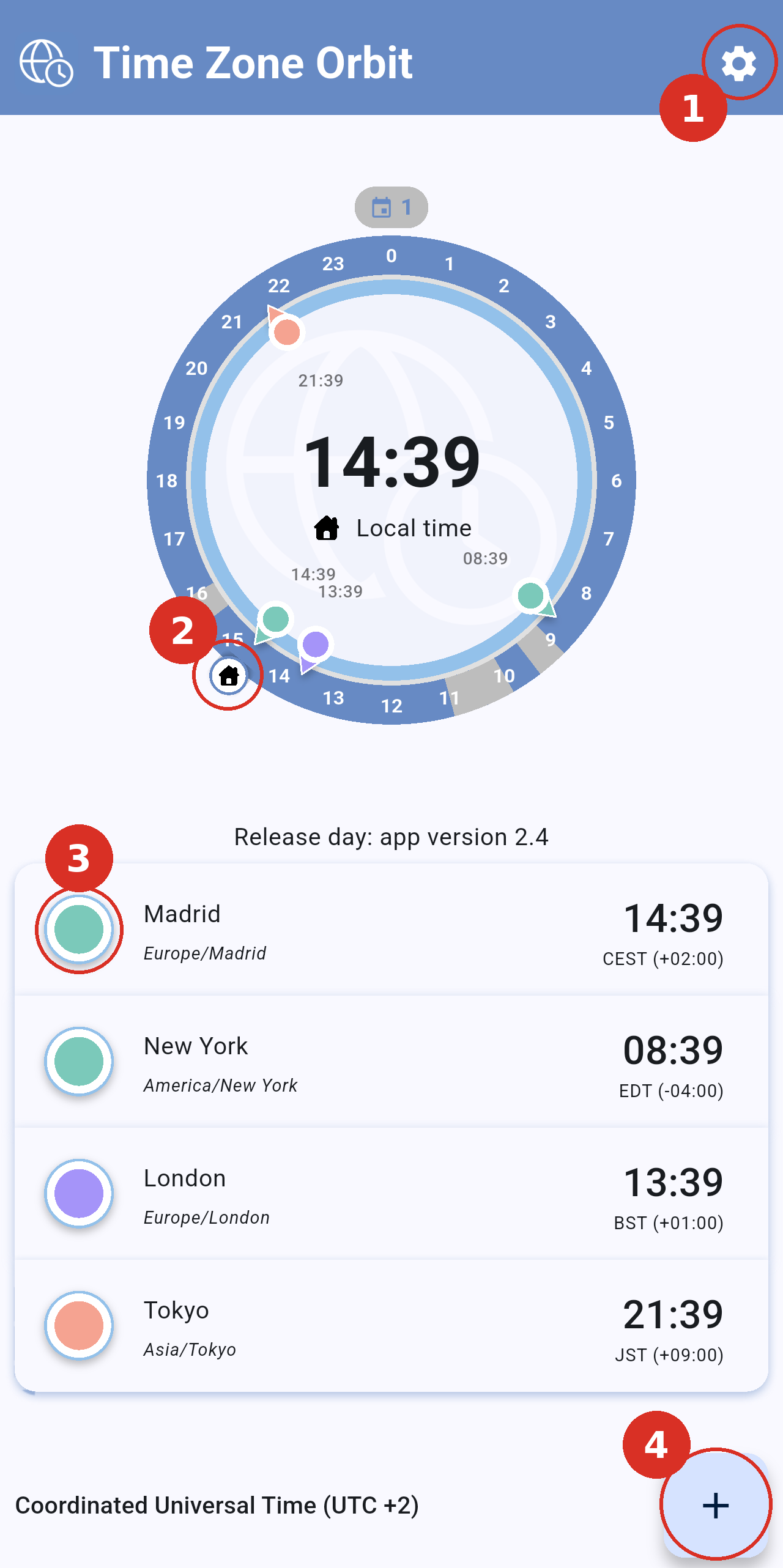
The home screen with Madrid, New York, London and Tokyo added. The numbers mark the controls described below.
1. Settings
The gear icon in the top-right corner opens Settings, where you change the dial precision, the time zone, the calendar, the colors and the language.
2. Your base time on the dial
The marker with a house icon shows your own time on the dial, and the large time in the centre is that same time. Drag the house marker around the ring to try out another time: every city updates at once. Tap Local time under the central time to jump back to the current time.
3. Your cities
Each card shows a city with its color, its name (or the alias you gave it), its time zone, the time there and its UTC offset. The same color is used for the city's marker on the dial. Tap a card to open the city's details and calendar; swipe it to the right to remove it.
The line just above the list shows the title of the event that takes place at the time selected on the dial. If no timed event is happening at that time, it shows the title of an all-day event of the day instead.
4. Add city
Note: The text in the bottom-left corner (for example Coordinated Universal Time (UTC +2)) shows the UTC offset the app uses as your base time. You can change it in Settings → Time zone.