
5.2 Training Certifications


Part of the talent manual — see also 1. Introduction, 2. What's New, 3. Scope, 4. Setup, 5.1 Training Courses, 5.3 Skills, 6. Troubleshooting.
5.2.1 Creating a certification and issuing it to a user
A certification is the record a course can lead to, with a validity period. A User Certification is the individual instance a specific person holds — with its own issue date, an automatically calculated expiration date, and an optional supporting document.
5.2.1.1 Open the certification list


The certification list, scoped to the current entity.
5.2.1.2 Create a new certification
- Name — the certification's title. Required.
- Certification type — a category you define (e.g. "License", "Compliance"). Required.
- Course — optionally links the certification to the course that leads to it.
- Validity (months) — how long the certification remains valid once issued. A value of 0 means it never expires.
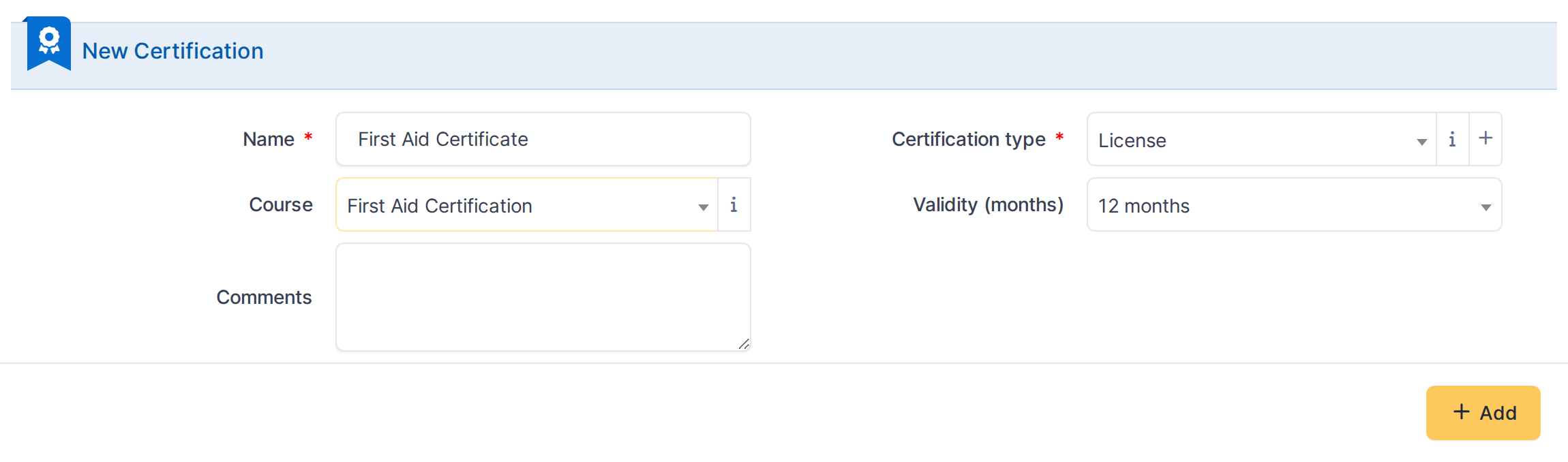
In this example: a certification linked to "First Aid Certification", valid for 12 months once issued.
Note: A certification only becomes something a person holds once it is issued as a User Certification — the certification record itself has no holder.
5.2.1.3 Open the User Certification list


The User Certification list, scoped to the current entity.
5.2.1.4 Issue the certification to a user
- User — who is being certified. Required.
- Certification — which certification is being issued. Required.
- Status — the certification's lifecycle state: Pending, Ongoing, Completed, Valid, Expired, Prior Notice or Revoked. Set manually; it does not flip to Expired automatically once the expiration date passes.
- Certification number — the identifier printed on the certificate itself. Required.
- Issue date — required; Expiration date is calculated automatically from the certification's validity period and is left blank when validity is 0.
- User Certification file — an optional upload (e.g. a scanned certificate), stored under the document category set in Setup.
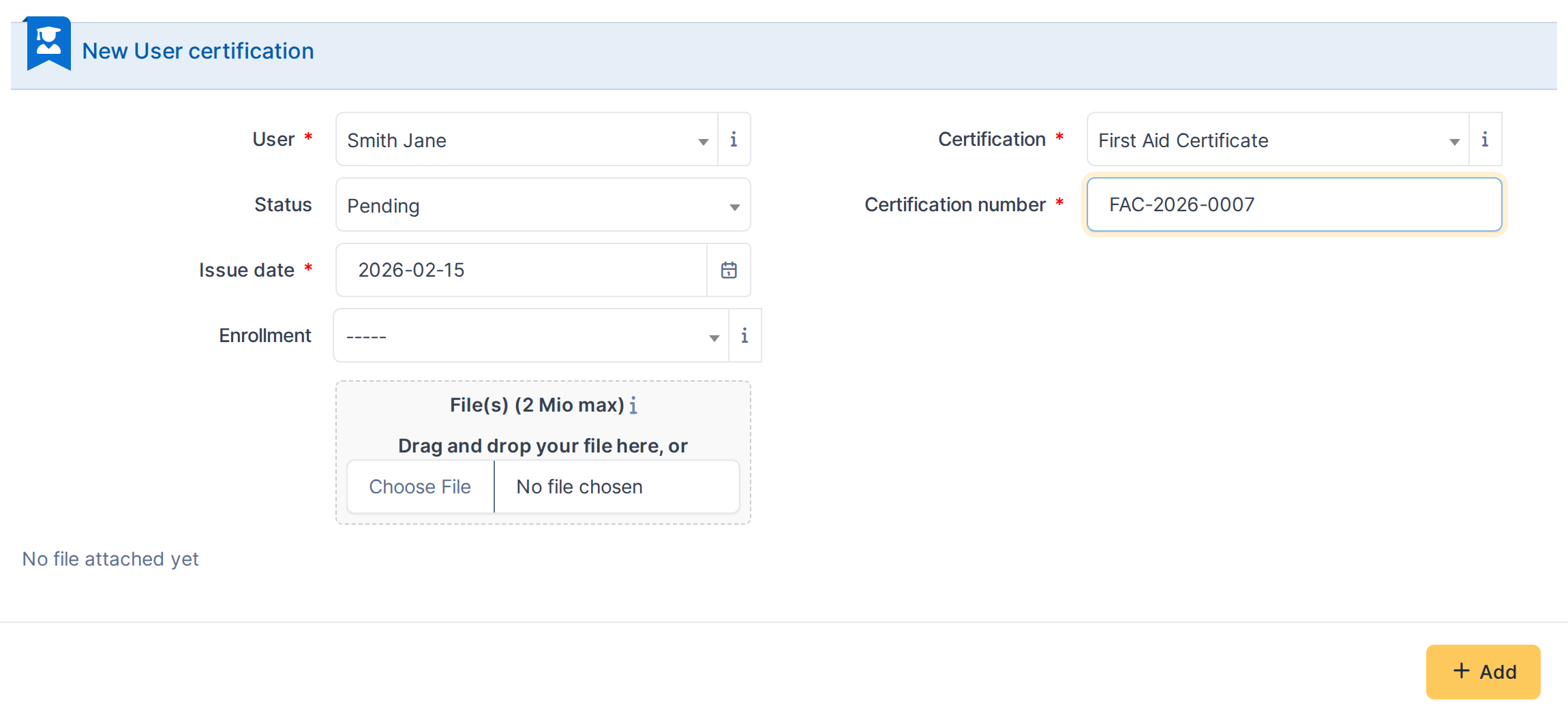
In this example: issuing "First Aid Certificate" with a 12-month validity — the expiration date fills in automatically once saved.
5.2.1.5 Save the User Certification
Click Add to issue the certification. GLPI calculates the expiration date and returns to the User Certification's own form, where Expiration date now shows the result.
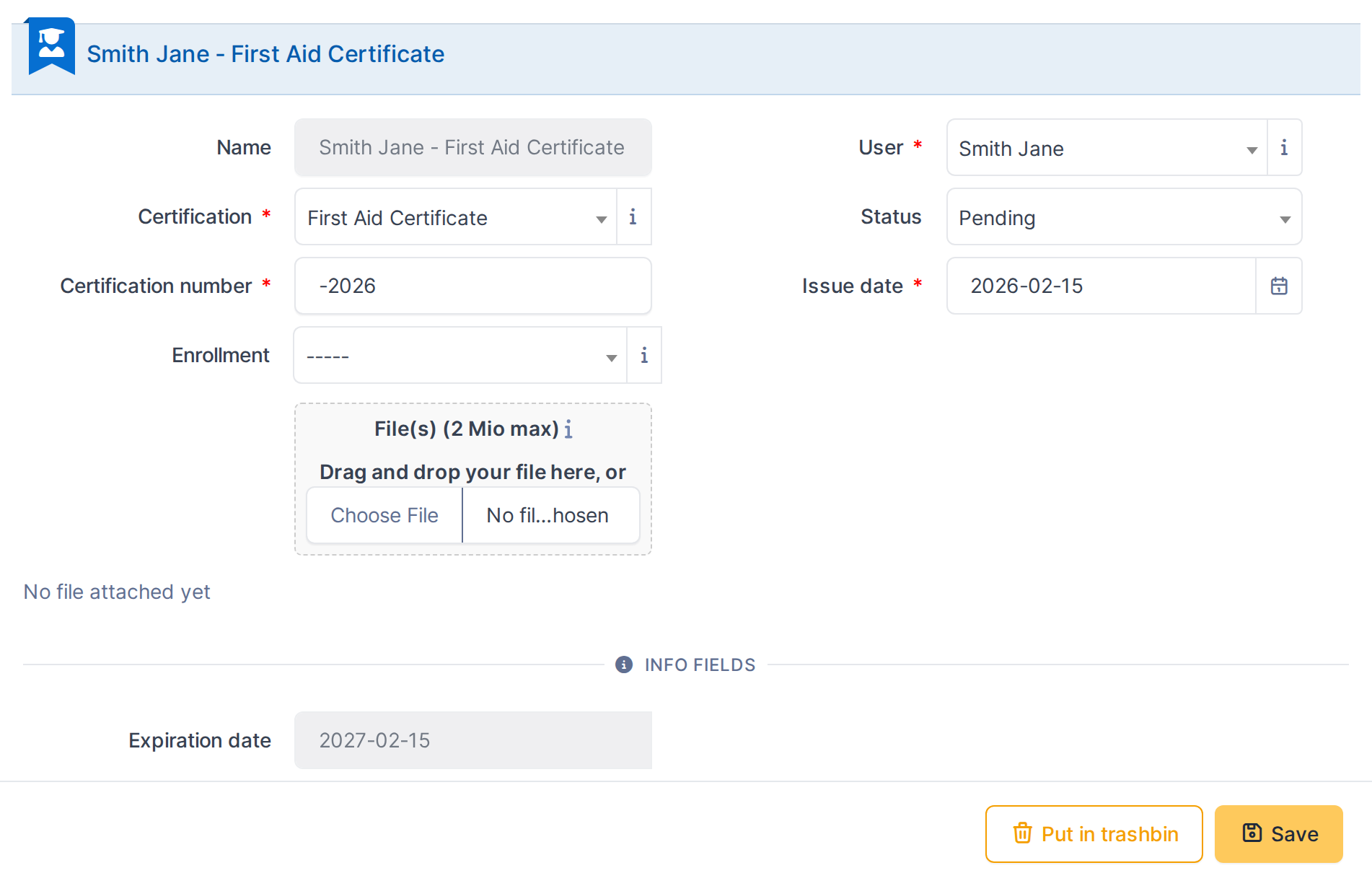
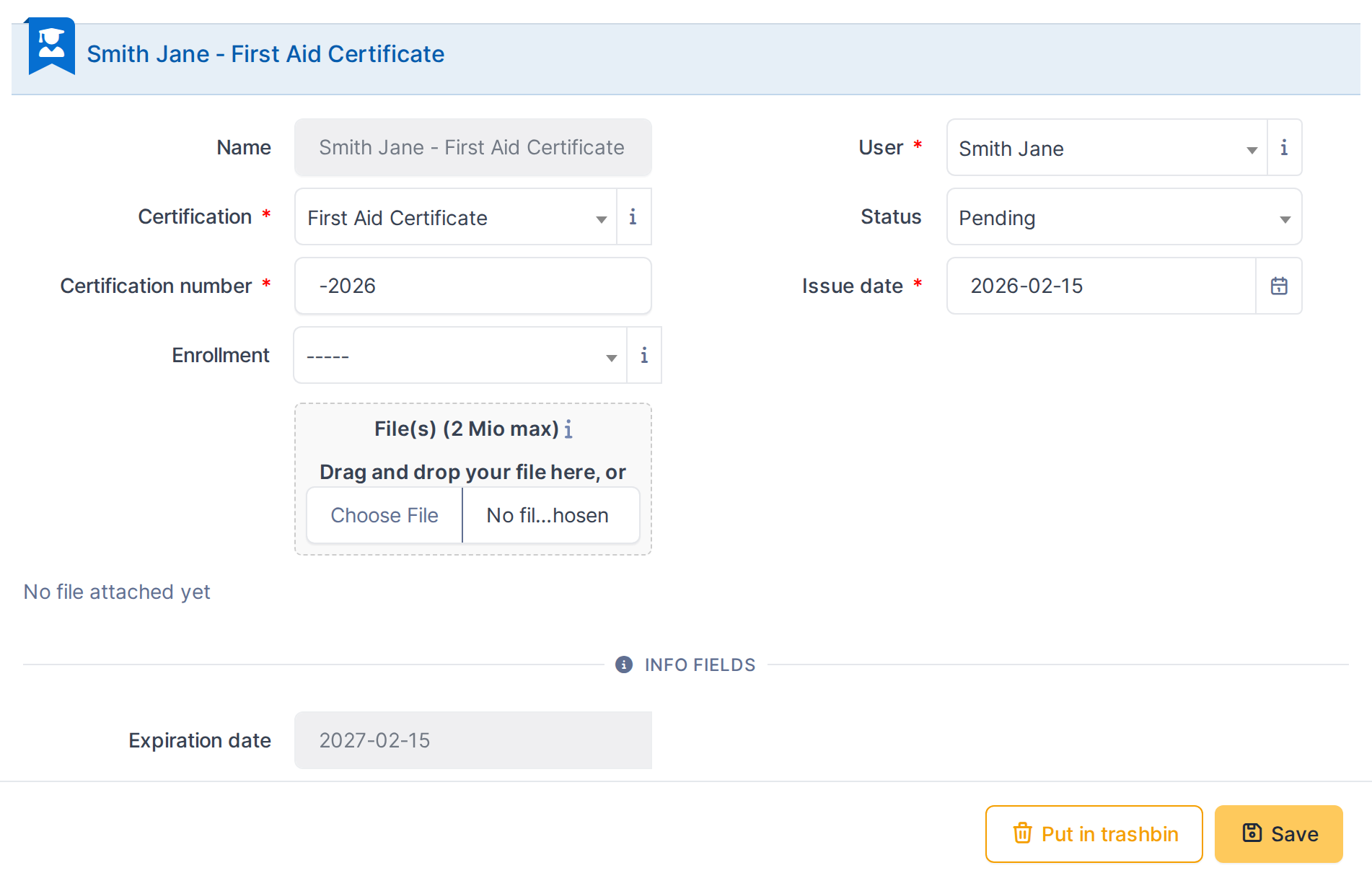
Issued on 2026-02-15 with a 12-month validity, the expiration date is automatically set to 2027-02-15.
Generated for talent 1.1.0-beta.3 on GLPI 11.0 — 2026-09-03.