
4. Setup


Part of the Talent manual — see also 1. Introduction, 2. What's New, 3. Scope, 5. Usage, 6. Troubleshooting.
4.1 Installation
Drop the plugin in plugins/talent, then install and activate it from Setup > Plugins.
4.2 Configuration
Talent has one configuration screen, on Setup > General > Talent: the document category new User Certification uploads are filed under. No other setup is required before use.
4.3 Permissions
Rights are granted per profile on Setup > Profiles > (a profile) > Talent, one row per itemtype — Courses, Editions, Enrollments, Certifications, User Certifications, Skills, Skillsets — each with the standard Read / Update / Create / Delete / Purge rights. A profile only sees the Talent menu, and only the itemtypes it has at least Read on.
Evaluations and Effectiveness evaluations carry one extra option beyond the standard rights: a profile holding it can create and view evaluations/effectiveness results for any user, not just the members of a group they manage. Without it, an evaluator can still evaluate — just only people in a group GLPI already lists them as managing.
4.4 Configuring document headings
Talent has one general configuration screen: which document heading a Certification's and a Course's uploaded files are filed under.
4.4.1 Open the Talent configuration screen
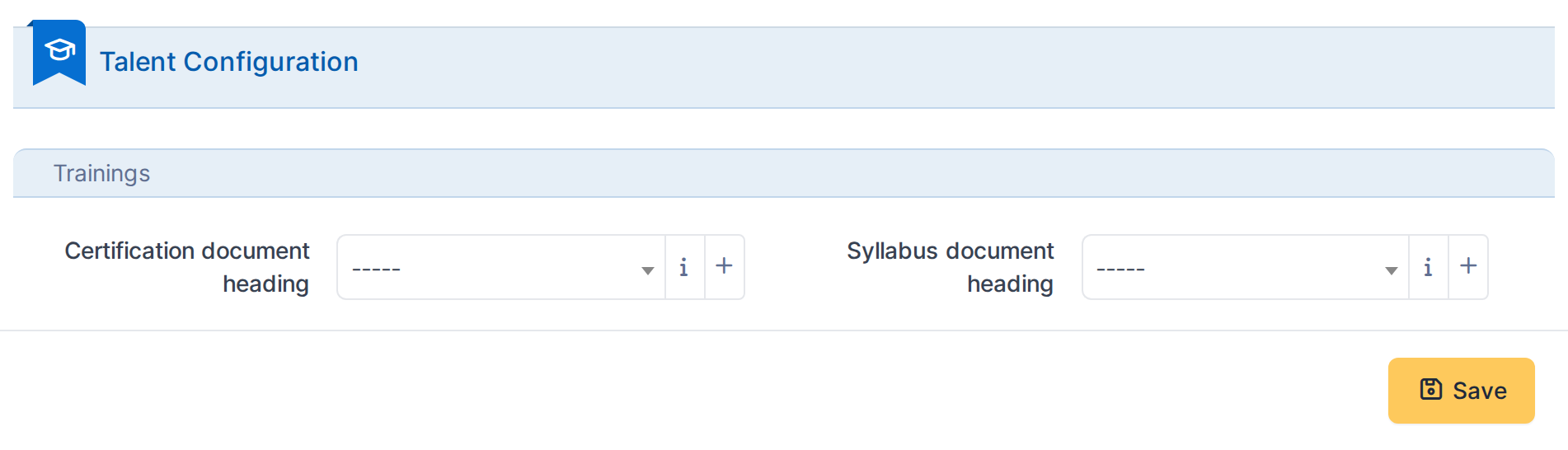
The Talent configuration screen, showing the document headings uploads are filed under.
Note: - Certification document heading — the document category a new User Certification's uploaded file is filed under.
- Syllabus document heading — the same, for a Course's uploaded syllabus. Both are optional; leaving one empty files uploads without a heading rather than blocking the upload.
4.5 Enabling effectiveness on a course
Effectiveness evaluation (see 5.1.4) is not a global setting — it is switched on per course, the same place a course's name and supplier are set.
4.5.1 Create a course with effectiveness enabled
On a course's form, tick Enable effectiveness evaluation to reveal three extra fields:
- Evaluation responsible — who is expected to carry out the effectiveness evaluation for editions of this course. Optional; left empty, any user with the right can still evaluate.
- Evaluation method — Questionnaire or Direct observation, recorded for reference only; it does not change how the evaluation form behaves.
- Evaluation delay (months) — how many months after an edition ends its evaluation window stays open, from 1 to 12. Required once effectiveness is enabled: a course with effectiveness on but no delay would have no evaluation window at all, so nothing could ever be evaluated — GLPI rejects saving that combination.


In this example: effectiveness is enabled with a 3-month evaluation window, using direct observation, with Jane Smith as the evaluation responsible.
4.5.2 Save the course
Click Add to create the course. From now on, every edition scheduled under it opens an Effectiveness evaluations tab once completed.
4.6 Granting Talent permissions
Talent rights are granted per profile, one row per itemtype, alongside every other plugin's rights on the same Profile form.
4.6.1 Open a profile's Talent rights
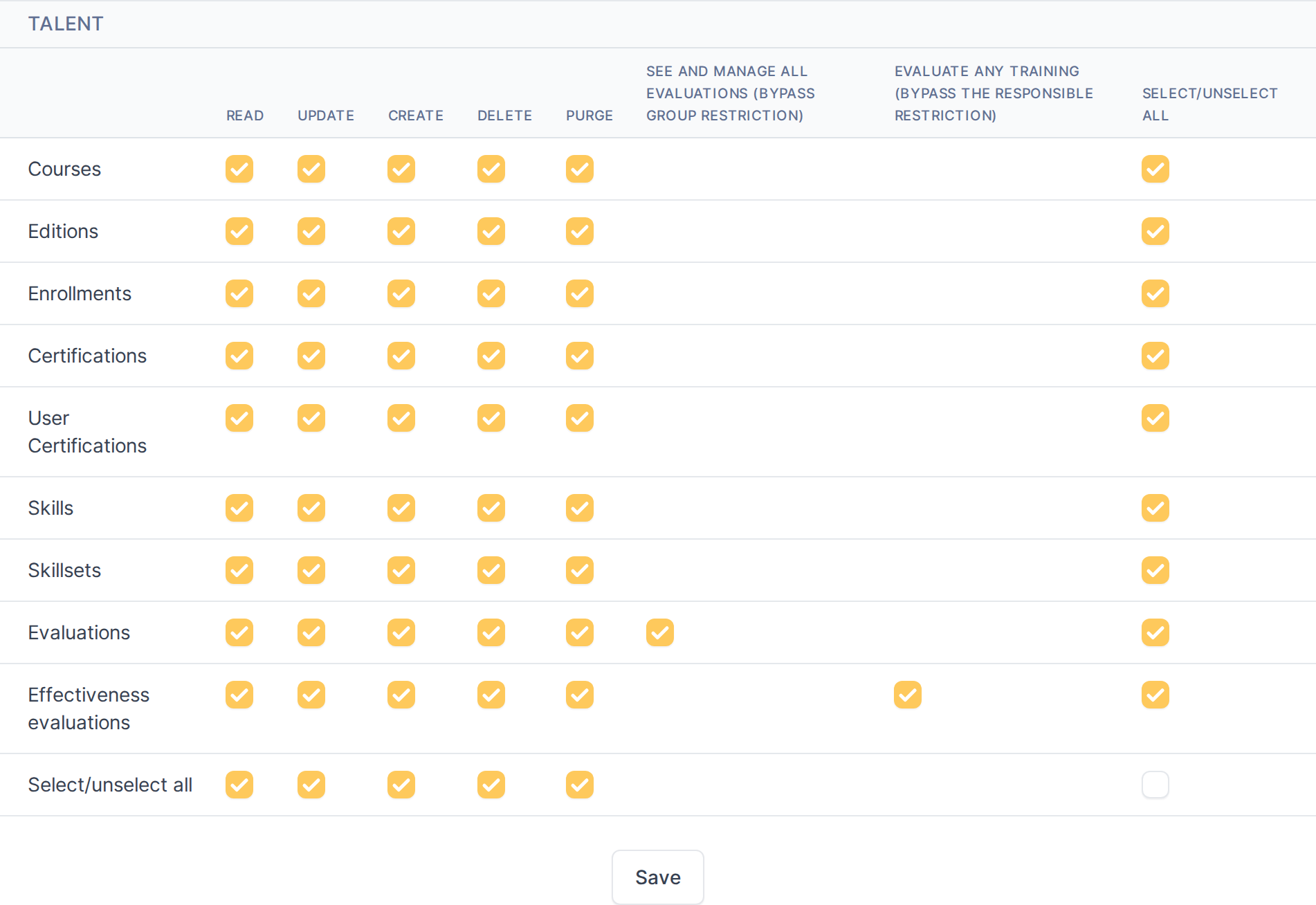
The Talent rights matrix: one row per itemtype, with the standard Read/Update/Create/Delete/Purge columns.
Note: A profile only sees the Talent menu, and only the itemtypes it has at least Read on. Evaluations and Effectiveness evaluations carry one extra option beyond the standard rights — see 5.1.4 and 5.3.3 — letting a profile holding it evaluate any user, not just the members of a group it manages.
Generated for Talent 1.1.0-beta.3 on GLPI 11.0.8 — 2026-09-03.