
5. Usage
Part of the More Security manual — see also 1. Introduction, 2. What's New, 3. Scope, 4. Setup, 6. Troubleshooting.
5.1 Monitoring attacks with dashboard cards
More Security provides six dashboard cards showing attack trends: the top attacking IP addresses and the most-targeted accounts, each available for three time ranges (last 24 hours, last 7 days, last 30 days).
5.1.1 Open the Central dashboard
From GLPI's main menu, navigate to Central. The dashboard displays the configured dashboard layout, which includes the More Security cards if the More Security dashboard is active. The dashboard contains six cards arranged in rows, showing attack metrics for 24-hour, 7-day, and 30-day time ranges.
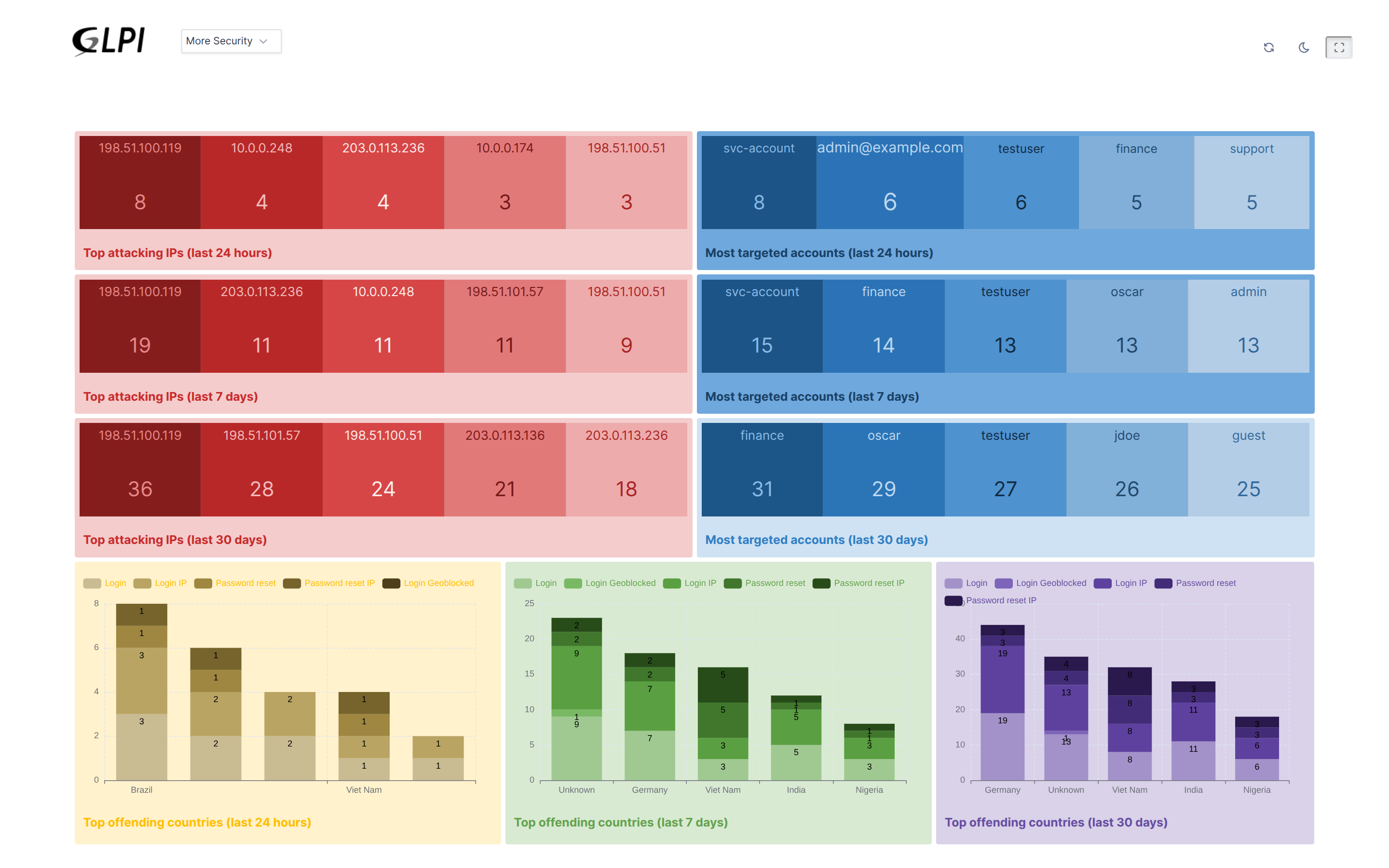
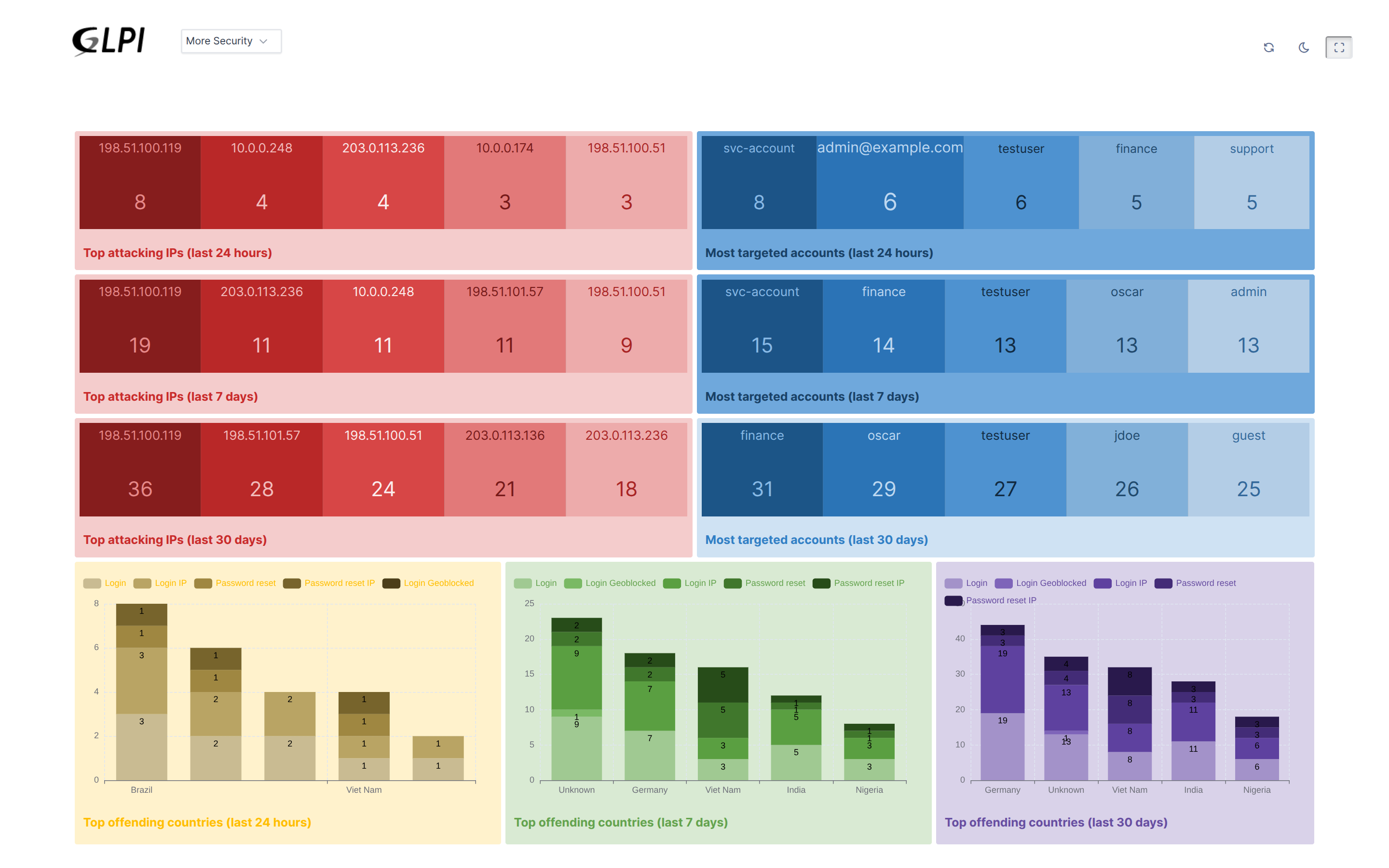
The Central page displays the More Security dashboard with cards showing the top attacking IP addresses and most-targeted accounts across different time ranges.
Note: The More Security dashboard is created automatically when the plugin is installed. Each card displays the top sources or targets in that time window (24 hours, 7 days, or 30 days). Click any entry to filter the Security log to that specific source IP or target account.
5.2 Reviewing login and password-reset attempts in the security log
More Security keeps a complete, read-only log of every login and password-reset attempt. Administrators can search, filter, and investigate this log to respond to security incidents.
5.2.1 Navigate to the Security log menu
From GLPI's main menu, navigate to Admin > Security log. The security log is a searchable, read-only list displaying every login attempt, password-reset request, and IP-based activity tracked by the plugin.
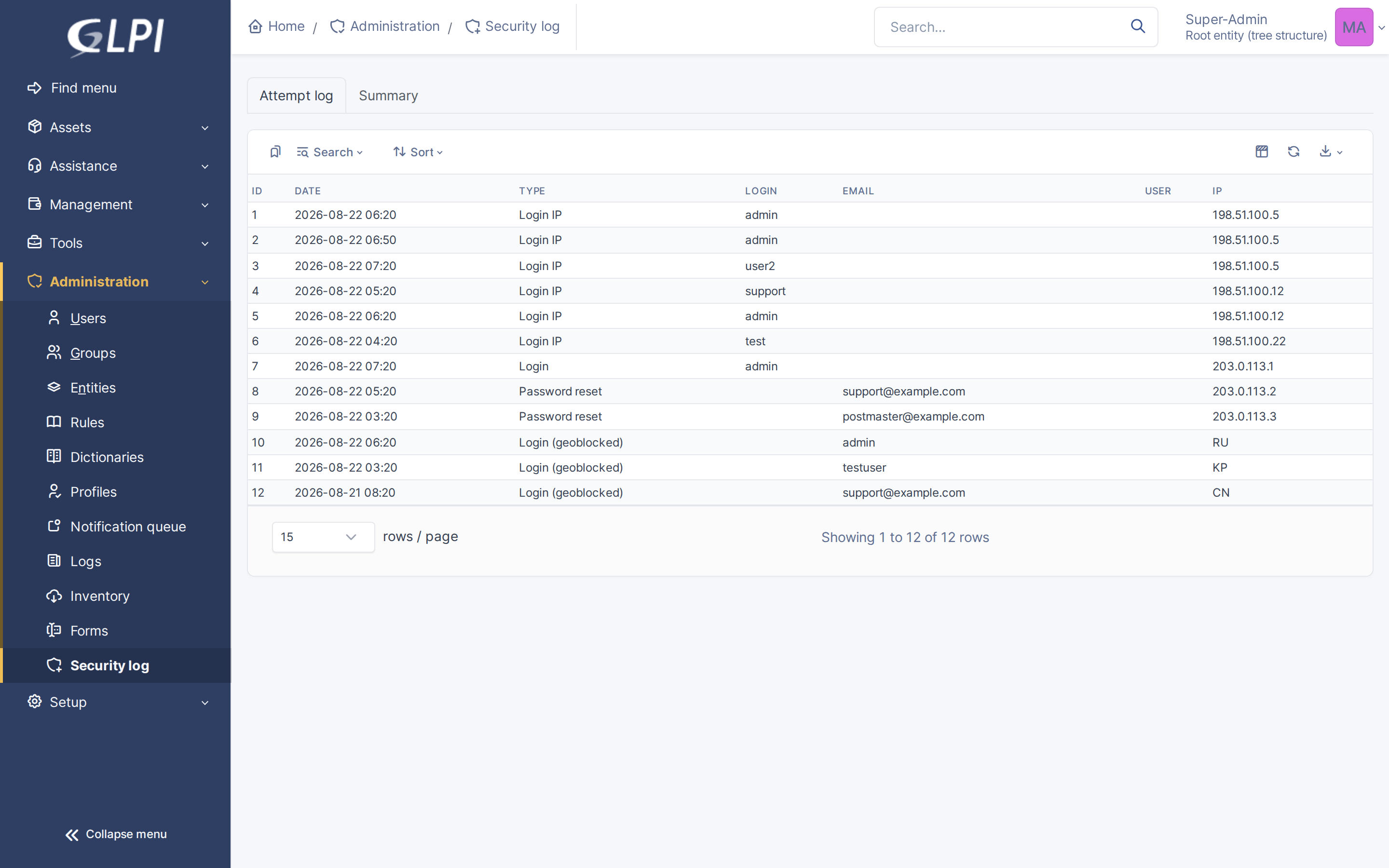
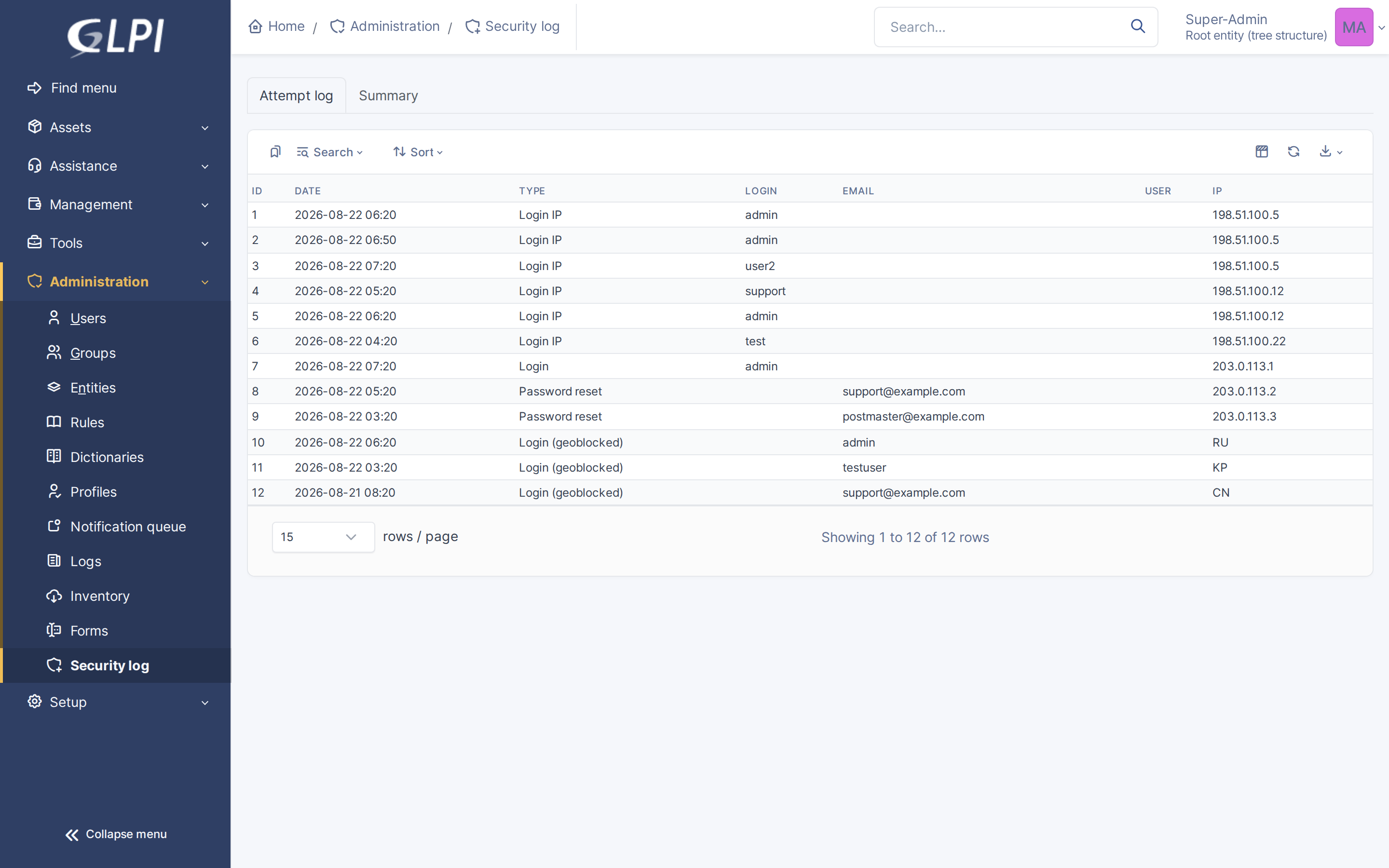
The Security log page displays a searchable table of all login attempts, password-reset requests, and IP-based attacks, with columns for Event type, target Identifier/IP, Attempt count, and Block status.
Note: The log tracks five event types: Login (failed attempts against an account), Login IP (IP-based login tracking), Login (geoblocked) (a login refused because of the client's country — for this event type the log shows the resolved country code, e.g. RU, KP, CN, in place of an IP), Password reset email (failed password reset attempts), and Password reset IP (IP-based password reset tracking). Use the search interface to filter by Event type, IP address, Username/Email, Status (Blocked/Unlocked/Not blocked), or date range to investigate attacks. Click any entry to view full details. The log is read-only; to manually unlock a blocked account or IP, use the Active Blocks table in the More Security configuration instead.
Generated for More Security 2.0.0 on GLPI 11.0.8 — 2026-08-24.