
5. Usage

Part of the More Groups manual — see also 1. Introduction, 2. What's New, 3. Scope, 4. Setup, 6. Troubleshooting.
5.1 Deactivating and reactivating a group member
More Groups adds a Deactivated users panel to every Group's Users tab. Deactivating a member removes them from the active member list without deleting their membership details — their manager, dynamic and delegatee flags are kept and restored automatically when they are reactivated.
5.1.1 Open the group and its Users tab
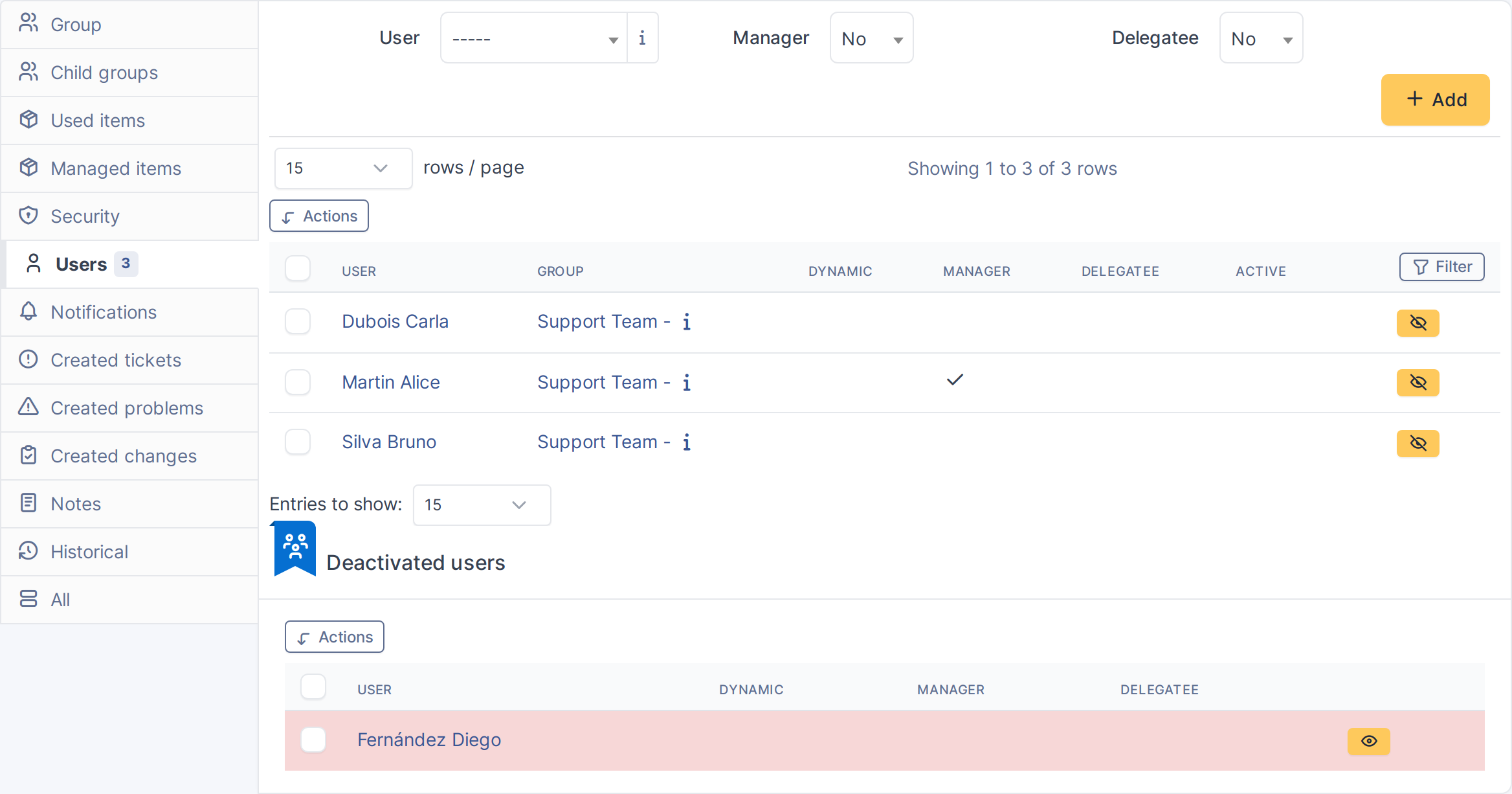
Open the Support Team group and switch to its Users tab. The active members are listed at the top; the Deactivated users panel appears underneath, showing anyone already deactivated for this group.
5.1.2 Deactivate a member
Next to an active member's row, click the deactivate button. The member disappears from the active list and appears in the Deactivated users panel below, with their Manager/Dynamic/Delegatee flags carried over.

Active members before deactivation
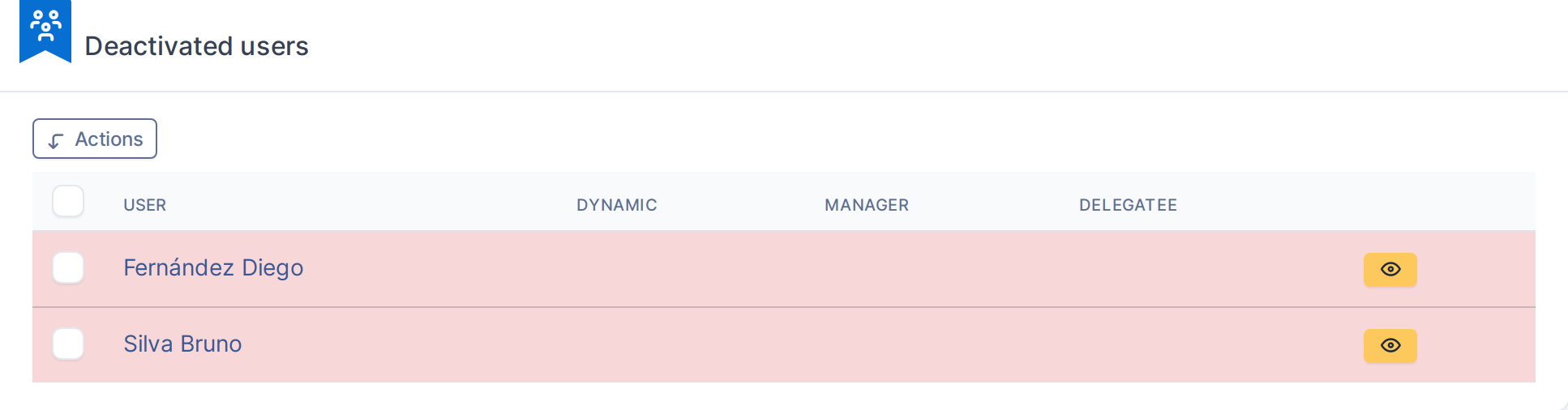
The member now listed as deactivated
Note: Re-adding the same user through GLPI's native "Add user to group" form clears their stale deactivated record automatically.
5.1.3 Reactivate the member
In the Deactivated users panel, click the activate button on the member's row. They disappear from the panel and reappear in the active members list with the same flags they had before.
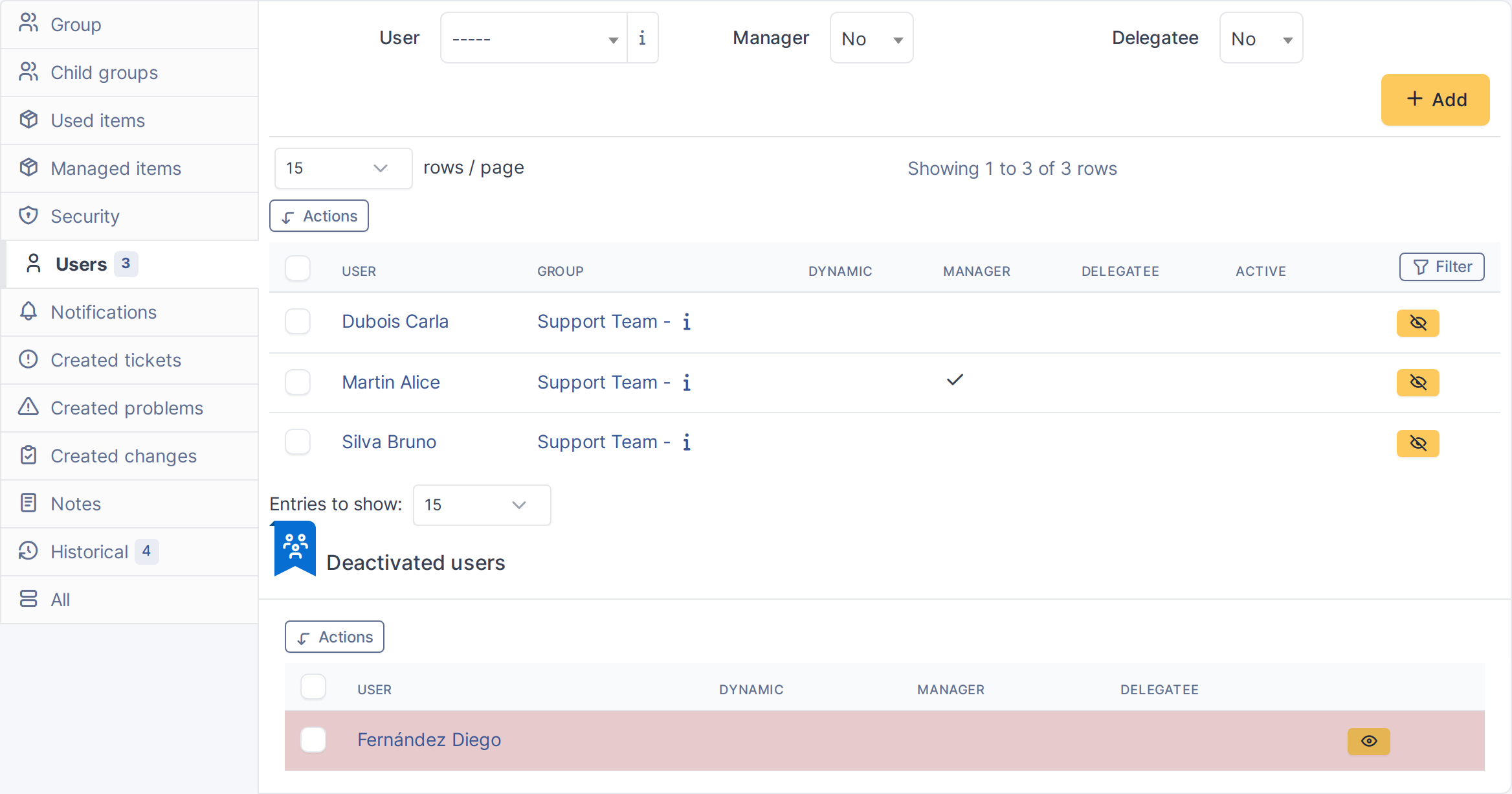
The member restored to the active list
Generated for More Groups 2.0.1 on GLPI 11.0.8 — 2026-08-21.