
5.4 Service Map

Part of the BSM manual — see also 1. Introduction, 2. What's New, 3. Scope, 4. Setup, 5.1 How to use, 5.2 Business Services, 5.3 Application Services, 5.5 RACI Matrix, 6. Troubleshooting.
The Service Map is a diagram, available as a tab on any Business Service or Application Service, that draws how the service connects to the Application Services and infrastructure underneath it. It turns "what does this actually depend on?" into a picture instead of a search through unrelated records.
5.4.1 Open the Service Map tab
Open Customer Identity Service (an Application Service) and choose the Service Map tab. The diagram loads automatically, laying out every item linked to this service and grouping them — by default, by their role in the service.
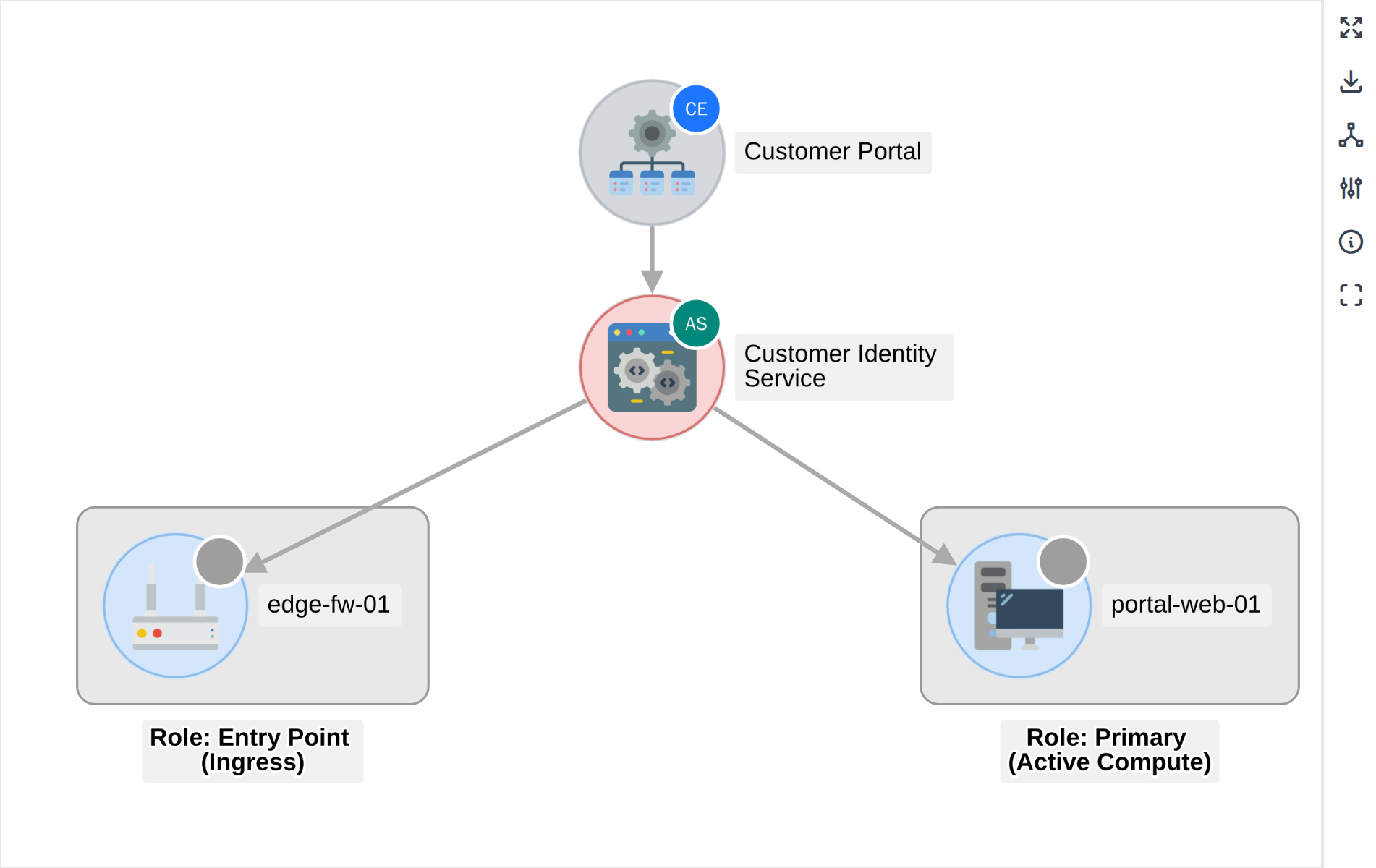
The Service Map for an Application Service
5.4.2 Change how items are grouped
Click the Group by icon in the side panel to choose a different grouping — for example, by Item type instead of Role. Each group is drawn as its own labelled box, and the label shows which grouping produced it.
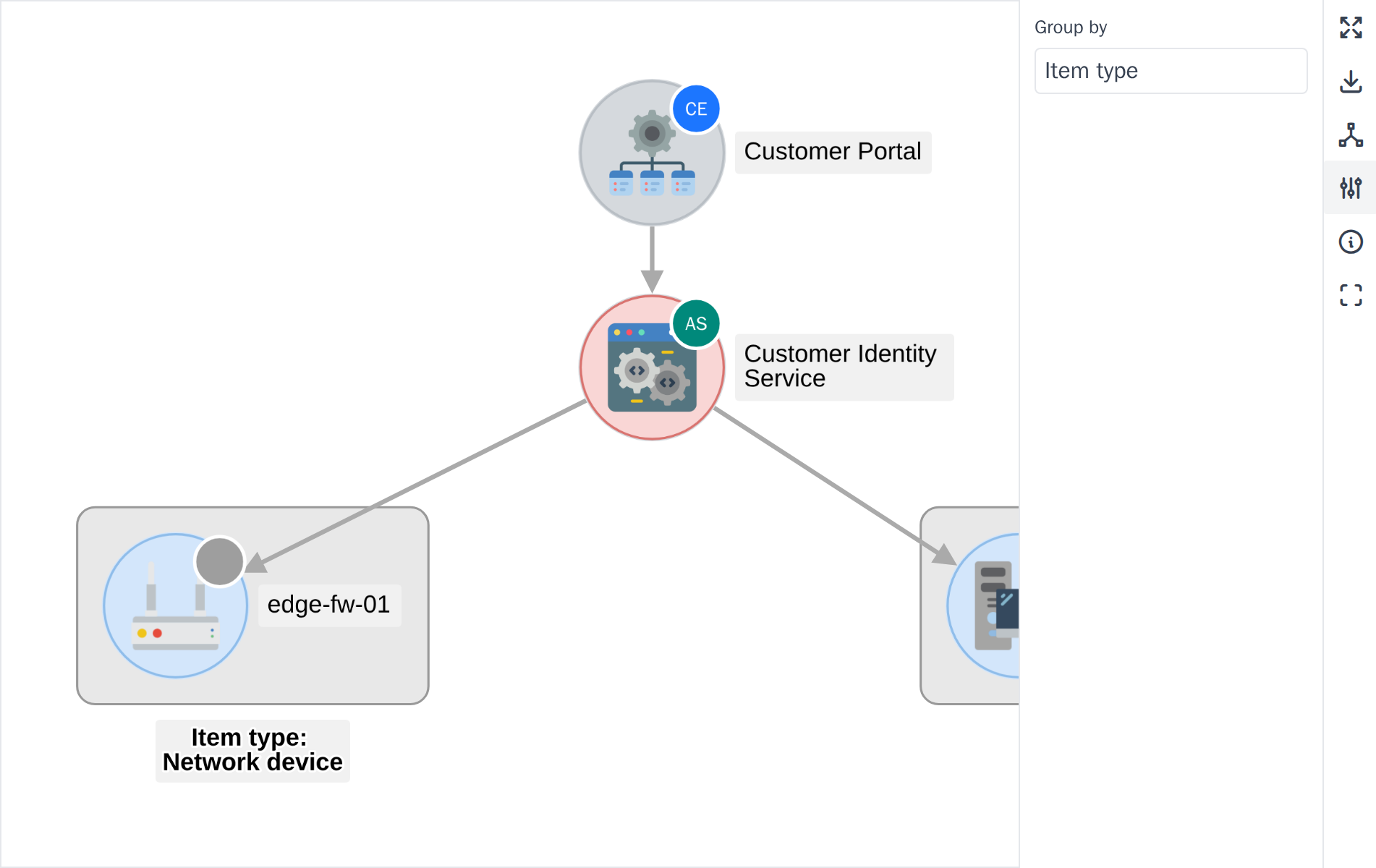
Grouping by item type
5.4.3 Read the Legend
Click the Legend icon to see what each colour and badge on the diagram means: tier colours, environment colours for Application Services, and the border style used for network equipment.
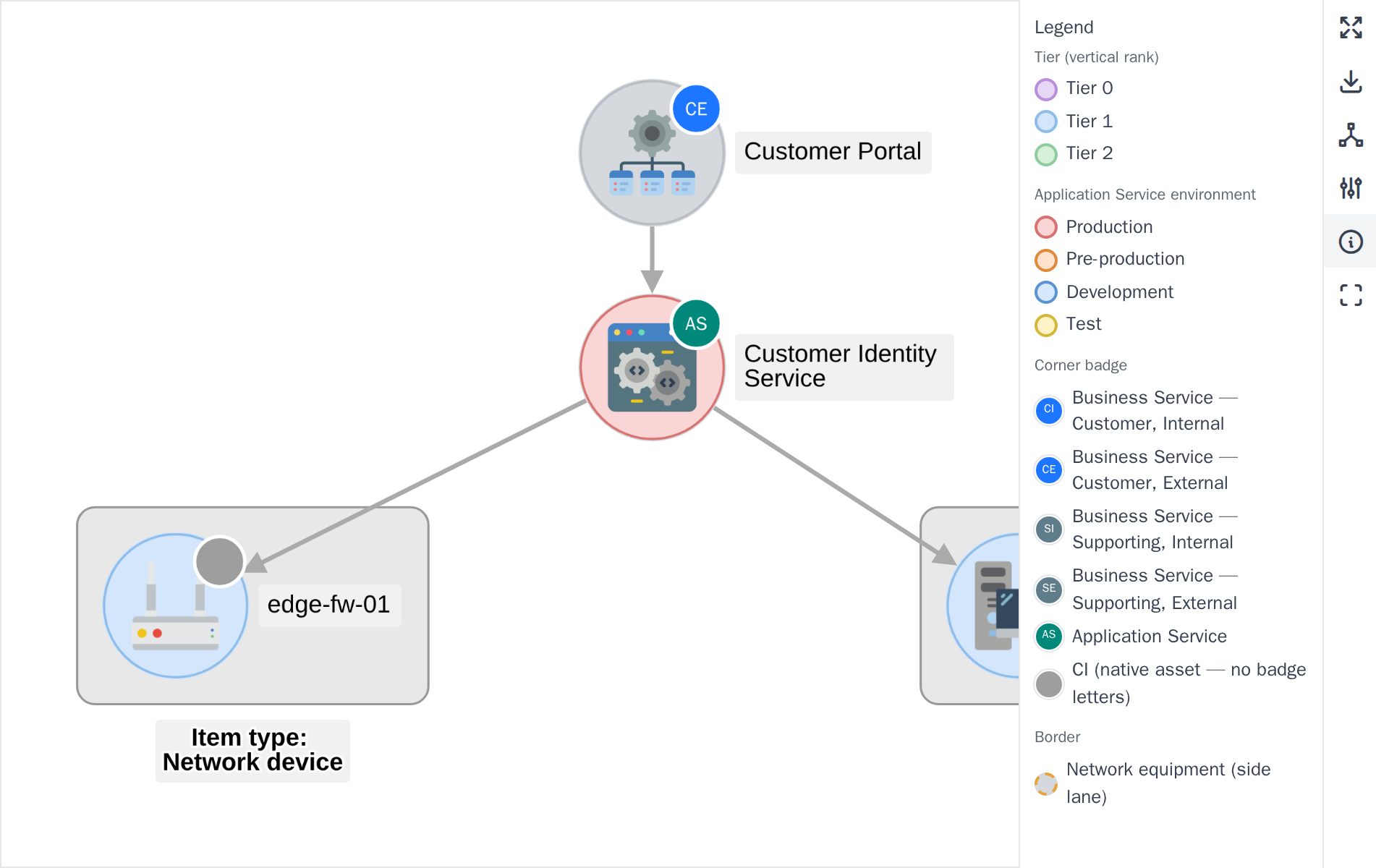
The Legend panel
5.4.4 View the diagram fullscreen
For a large or busy map, click the fullscreen icon to expand the diagram to fill the browser window. Click it again, or press the same icon, to return to the normal view.
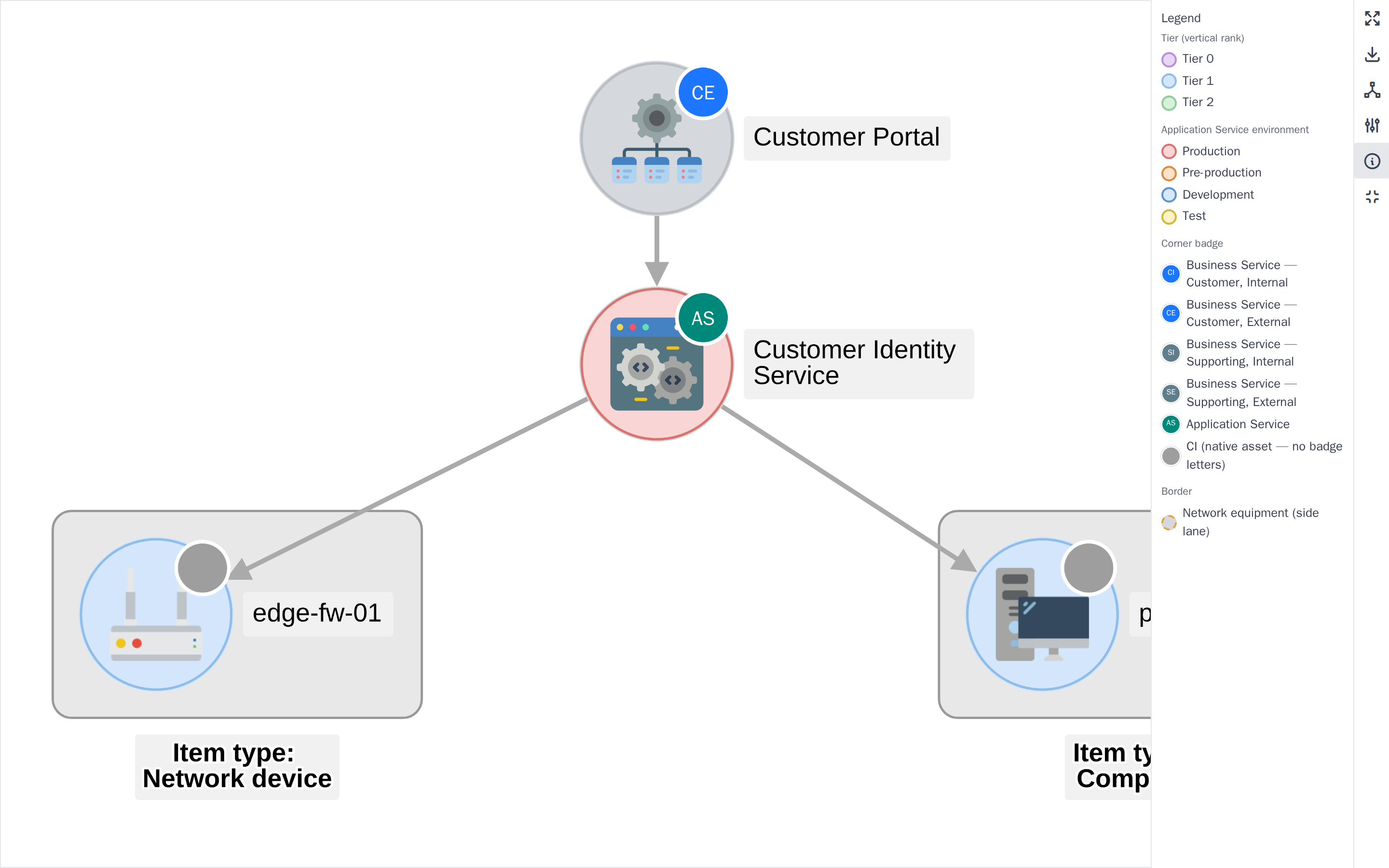
The Service Map in fullscreen mode
Note: The Service Map only draws item types enabled in Setup > General > BSM, and draws every tier it can reach — opening the map from a Business Service also shows the Application Services and infrastructure beneath it, not just its immediate links.
Generated for BSM 0.21.0-beta.1 on GLPI 11.0.8 — 2026-09-13.